O2VEND Retail ERP
  • Getting Started
  • Ecommerce
  • Back Office
  • POS
  • Agent App
  • PIM
  • Communication
  • CMS
  • OMS
  • WMS
  • O2C
  • Accounting
  • Reports
  • Themes and Apps
Search Results for

    Show / Hide Table of Contents
    • Reports
    • Order Reports
      • Web Orders Progress Report
      • Back Order Items Report
      • Purchase Order Pending Item Report
      • Sales Order Pending Item Summary Report
      • Sales Shipping Status Report
      • Sales Order Summary
      • Sales Order Progress Report
      • Purchase Order Progress Report
      • Sales Order with Product Line Item Report
      • Sales Order Packing Sheet Report
      • Back Order Report
      • Purchase Order Summary
      • Sales Order Shipment Report
      • Sales Order Shipping Address Report
    • Sales/Purchase Reports
      • Sales Invoice Report
      • Sales Invoice Summary
      • Sales Items Summary
      • Purchase Invoice Report
      • Purchase Invoice Summary
      • Purchase Items Summary
      • Receipt Report
      • Daily Settlement Report
      • Contribution Margin Report
      • Agent Sales Report
      • Agent Report
      • Employee Sales Report
      • Employee Report
      • Employee Product Sales & Commission Report
    • Supplier Reports
      • Supplier Report
      • Supplier Purchase Report
      • Supplier Detail Report
    • Inventory Reports
      • Stock Summary
      • Stock Valuation Summary
      • Stock Ageing Report
      • Location Summary
      • Stock Ledger Report
      • Stock/Location Summary
      • Stock Movement And Valuation Summary
      • Stock Movement Summary Report
    • Products
      • Sold Product Categories
      • Product Category Summary
      • Product Sale Summary
      • Category Sale Summary
      • Brand Sale Summary
      • Reordering Stock Summary
      • Price Movement
      • Product Seasonal Demand
      • Product Stock Analysis Report
      • Stock Projection Report
    • Pos Reports
      • Cash Register Summary
      • Current Cash Registers
    • Account Reports
      • Day Book
      • Ledger
      • Cash Book
      • Sales Books
      • Purchase Books
      • Daily Sales and Payment Report
      • Balance Sheet
      • Profit and Loss Report
      • Trial Balance
    • Miscellaneous Reports
      • Output Detailed Tax Report
      • Output Tax Report Summary
      • Account Receivable Report
      • Gross Profit Report
      • Daily Tax Report
      • GSTR-1 Report
      • External API Logs
      • Benefit Usage
      • Offers Usage
      • Coupon Usage
      • Configuration Change History
      • VisitLog

    Diagnose Integration Issues with External API Logs

    Identify failed API calls, delayed responses, and integration errors across external systems using detailed API request and response logs.

    What is External API Logs?

    External API Logs is a diagnostic report that records all incoming and outgoing API interactions between O2VEND and external systems such as marketplaces, analytics services, and third-party platforms.

    The report captures request payloads, response data, provider details, and execution status for each API call.

    Why External API Logs Is Important

    This report helps technical and operations teams maintain stable integrations and quickly resolve failures.

    • Detect failed or delayed API requests
    • Validate data sent to and received from external systems
    • Support debugging during integration issues
    • Maintain audit trails for system communication

    Why use this report?

    • Troubleshoot marketplace or analytics sync issues
    • Identify API failures causing missing data
    • Validate third-party webhook responses
    • Audit external system communication
    • Support developers during issue resolution

    How to Access the External API Logs

    Navigation Path:
    Back Office → Reports → Miscellaneous → External API Logs
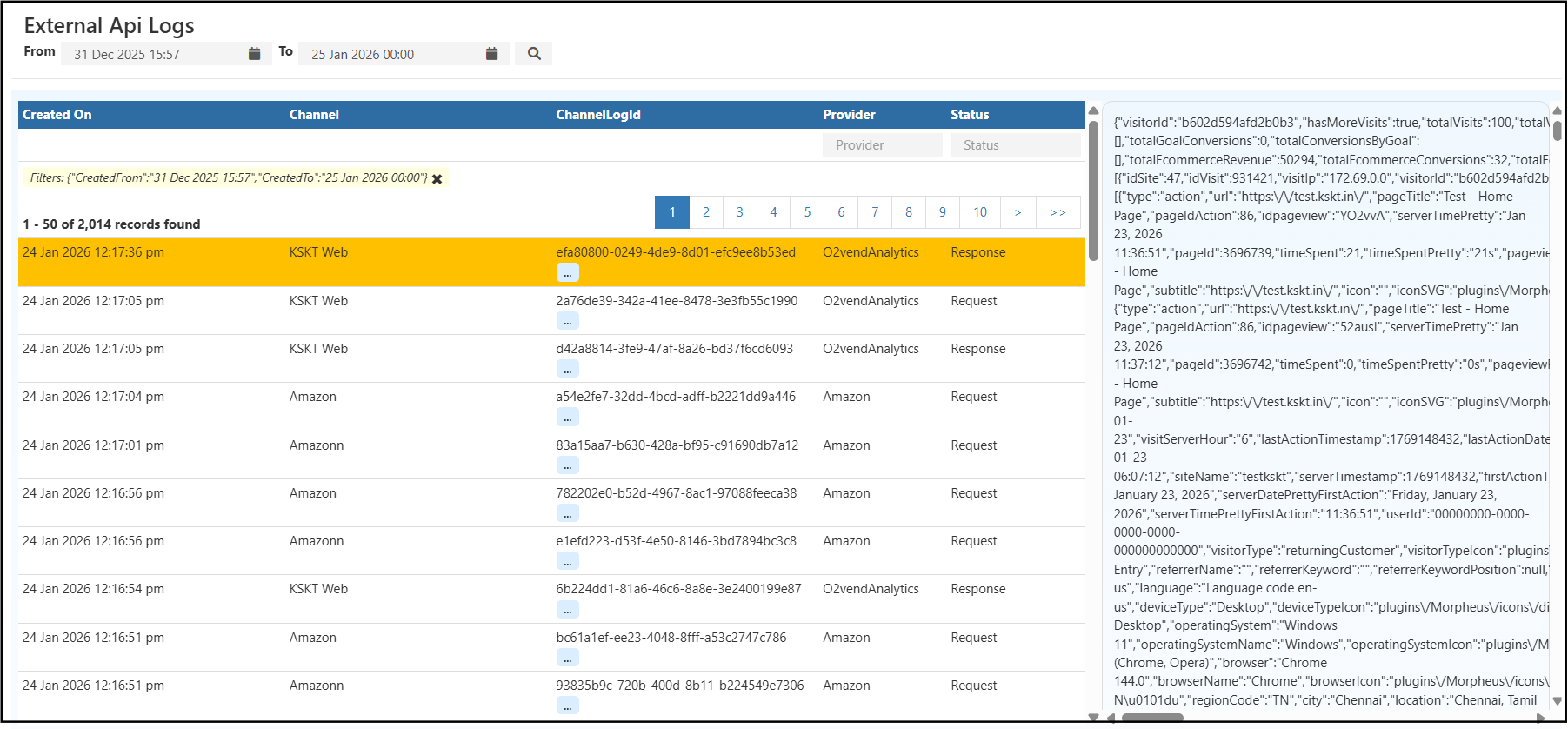
    External API Logs Reports

    Filters & Controls

    Use filters to narrow down logs and isolate issues:

    • Date Range – View API activity for a specific time period
    • Channel – Filter by source channel (Web, Marketplace, App)
    • Provider – External system name (Amazon, Analytics, etc.)
    • Status – Request or Response

    Report View Explained

    Log Table View

    The table displays each API interaction with the following details:

    • Created On – Date and time of the API call
    • Channel – Source channel triggering the API
    • Channel Log ID – Unique identifier for the API request
    • Provider – External system receiving or sending data
    • Status – Request or Response

    Payload & Response Viewer

    Selecting a log entry displays the full JSON payload or response, including:

    • Request parameters
    • API endpoints
    • Response status and data
    • Execution timestamps

    This helps teams validate whether data was processed correctly.

    How to Use the External API Logs

    • Select the required date range
    • Filter by provider or channel
    • Identify failed or delayed API responses
    • Open the log entry to inspect payload details
    • Share the Channel Log ID with support or developers

    Common Usage Scenarios

    • Marketplace orders not syncing correctly
    • Analytics data mismatch or missing metrics
    • Debugging webhook or API failures
    • Investigating third-party system downtime
    • Verifying successful data transmission

    Business Benefits

    Faster Issue Resolution

    Quickly isolate the root cause of integration failures.

    Improved Integration Reliability

    Monitor external API health and prevent recurring issues.

    Strong Audit & Traceability

    Maintain a clear log of all external system communications.

    Related Topics

    • Brand Sales Sumamry Report
    • Stock Projection Report
    • Outstanding Tax Report
    • VisitLog Report
    In this article
    Back to top _includes/footer.html
    © 2019–2026 Jeyan Technologies Private Limited • www.o2vend.com • Create your own store