O2VEND Retail ERP
  • Getting Started
  • Ecommerce
  • Back Office
  • POS
  • Agent App
  • PIM
  • Communication
  • CMS
  • OMS
  • WMS
  • O2C
  • Accounting
  • Reports
  • Themes and Apps
Search Results for

    Show / Hide Table of Contents
    • Reports
    • Order Reports
      • Web Orders Progress Report
      • Back Order Items Report
      • Purchase Order Pending Item Report
      • Sales Order Pending Item Summary Report
      • Sales Shipping Status Report
      • Sales Order Summary
      • Sales Order Progress Report
      • Purchase Order Progress Report
      • Sales Order with Product Line Item Report
      • Sales Order Packing Sheet Report
      • Back Order Report
      • Purchase Order Summary
      • Sales Order Shipment Report
      • Sales Order Shipping Address Report
    • Sales/Purchase Reports
      • Sales Invoice Report
      • Sales Invoice Summary
      • Sales Items Summary
      • Purchase Invoice Report
      • Purchase Invoice Summary
      • Purchase Items Summary
      • Receipt Report
      • Daily Settlement Report
      • Contribution Margin Report
      • Agent Sales Report
      • Agent Report
      • Employee Sales Report
      • Employee Report
      • Employee Product Sales & Commission Report
    • Supplier Reports
      • Supplier Report
      • Supplier Purchase Report
      • Supplier Detail Report
    • Inventory Reports
      • Stock Summary
      • Stock Valuation Summary
      • Stock Ageing Report
      • Location Summary
      • Stock Ledger Report
      • Stock/Location Summary
      • Stock Movement And Valuation Summary
      • Stock Movement Summary Report
    • Products
      • Sold Product Categories
      • Product Category Summary
      • Product Sale Summary
      • Category Sale Summary
      • Brand Sale Summary
      • Reordering Stock Summary
      • Price Movement
      • Product Seasonal Demand
      • Product Stock Analysis Report
      • Stock Projection Report
    • Pos Reports
      • Cash Register Summary
      • Current Cash Registers
    • Account Reports
      • Day Book
      • Ledger
      • Cash Book
      • Sales Books
      • Purchase Books
      • Daily Sales and Payment Report
      • Balance Sheet
      • Profit and Loss Report
      • Trial Balance
    • Miscellaneous Reports
      • Output Detailed Tax Report
      • Output Tax Report Summary
      • Account Receivable Report
      • Gross Profit Report
      • Daily Tax Report
      • GSTR-1 Report
      • External API Logs
      • Benefit Usage
      • Offers Usage
      • Coupon Usage
      • Configuration Change History
      • VisitLog

    Purchase Book Report

    In O2VEND software, the Purchase Book report is a useful tool for businesses to view and manage their purchase transactions with suppliers. This report allows businesses to view all of their purchase transactions in one place, grouped by supplier. The report shows a summary of each transaction, including the transaction number, date, supplier name, note, details, and amounts.

    The Purchase Book report includes information about the purchase transactions such as purchase order number, invoice number, payment term, and any discounts or returns. This report can be helpful for businesses to get an overview of their purchase activity from all the suppliers, and also can be used for reconciliation purpose.

    It's also possible to open the form view of each entry in the Purchase Book report and view complete details. This can be useful for businesses that need to review the details of a specific transaction, such as the specific items purchased or their prices, or the terms of payment. This report also could be filtered based on the various fields such as date range, supplier, purchase order number and invoice number to have a detailed view on specific transaction as well.

    In O2VEND software, Purchase Book report is available in the accounting module where the financial transactions are being managed and updated. The report provides a useful tool to help businesses to stay on top of their purchase transactions and maintain accurate records of their accounts payable.
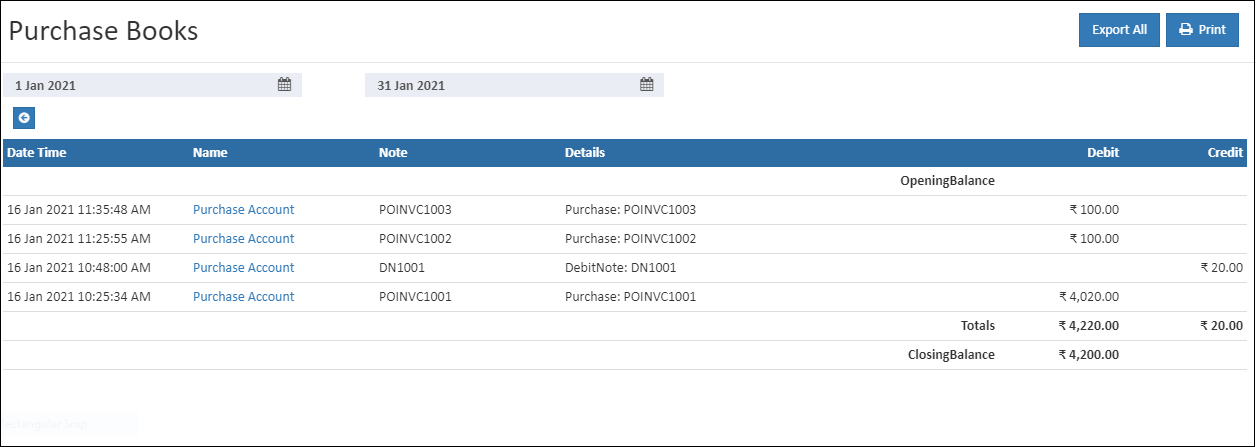
    Purchase Book Report

    How to view the Purchase Book Report

    1. Open Back Office
    2. Click Report Section.
    3. Click Purchase Book to view the report.
    4. In the Start date and To date fields, specify the date range for the purchase book report.
    5. The report will be automatically refreshed with the values for new dates selected.
    Tip

    click on the PRINT button to generate PDF report

    Tip

    Use Export All options to export the report details in to comma seperated CSV file.

    In this article
    Back to top _includes/footer.html
    © 2019–2026 Jeyan Technologies Private Limited • www.o2vend.com • Create your own store