Back Order Indent Report
The Back Order Indent Report in O2VEND Back Office is an essential report for tracking out-of-stock customer orders and managing inventory replenishment.
This report helps procurement, warehouse, and sales teams coordinate effectively by showing which items are pending due to insufficient stock.
What Is a Back Order Indent Report?
A Back Order Indent Report is a document used in inventory and order management to identify and track items that customers have ordered but are currently unavailable.
It highlights all unfulfilled demands, allowing procurement and logistics teams to plan stock replenishment and prioritize outstanding orders efficiently.
Purpose of the Report
The main purposes of the Back Order Indent Report include:
- Identify Stock Shortages: Shows which products have higher demand than current supply.
- Inform Purchasing Decisions: Helps purchasing teams reorder the right items in the right quantities.
- Prioritize Fulfillment: Enables logistics to allocate incoming stock on a first-come, first-served basis.
- Track Pending Revenue: Displays the total value of unfulfilled customer orders.
- Enhance Customer Communication: Equips sales and support staff with real-time order status updates.
- Analyze Demand Trends: Helps detect recurring stockouts and supports accurate demand forecasting.
Key Components of the Back Order Indent Report
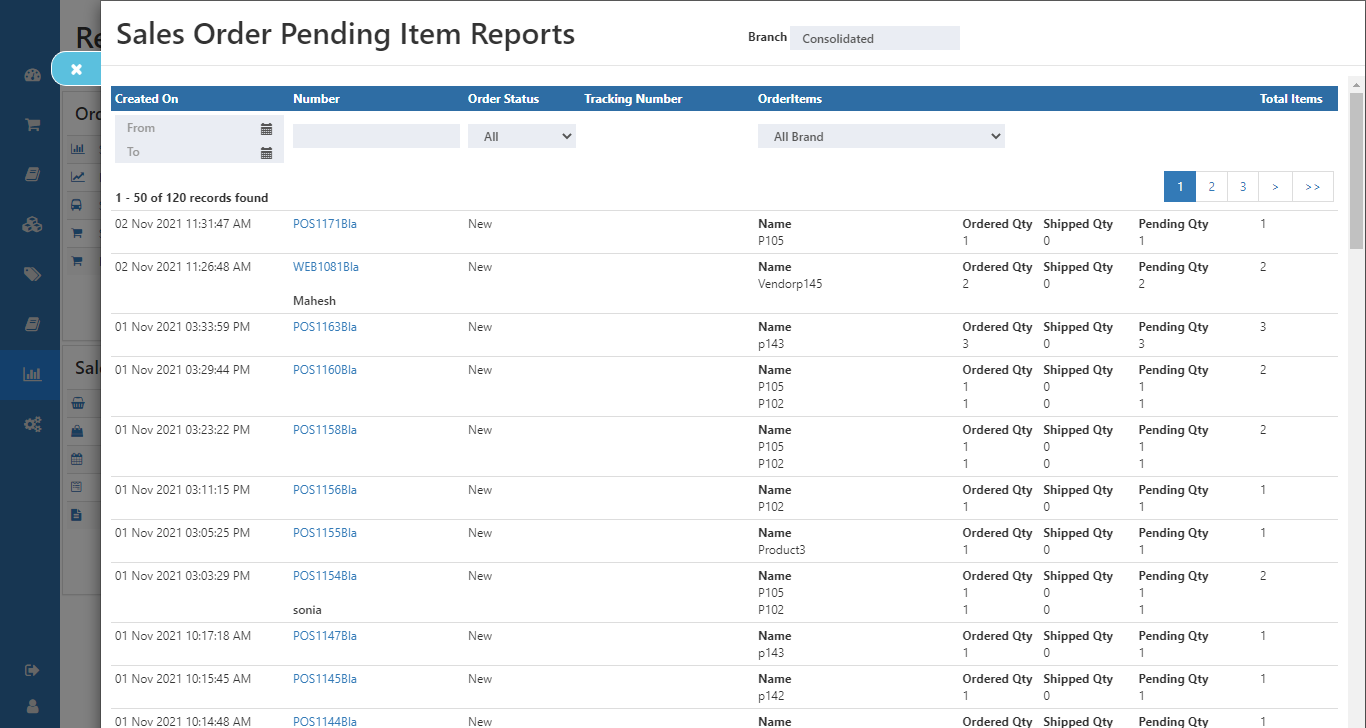
Each record in the Back Order Indent Report provides a full view of product availability, supplier status, and order progress.
- Item Details: Product name, SKU, and description.
- Customer Details: Customer name and order reference number.
- Order Quantities: Ordered, delivered, and pending quantities for quick tracking.
- Supplier Details: Displays the vendor from whom the item is sourced, including supplier name and code.
- Shipping & Delivery Timings: Shows estimated shipment and delivery dates based on supplier updates, allowing teams to monitor lead times.
- Expected Restock Date: Indicates when the stock is expected to arrive for fulfillment.
- Status: Displays the live order status (e.g., PO Sent to Vendor, Awaiting Shipment, Partially Delivered).
💡 Insight: This supplier-level visibility helps purchasing teams coordinate with vendors and prioritize replenishment for high-demand products.
How to View Back Order Indent Report in O2VEND
- Open Back Office.
- Navigate to Reports → Order Reports → Back Order Indent Report.
- Select a Date Range (From and To).
- Use filters for Customer, Status, or Item Category if needed.
- Click View to display pending and fulfilled orders. The report also includes supplier details such as vendor name, shipping date, and estimated delivery timing, giving real-time visibility into the fulfillment progress.
💡 Tip: This report is ideal for identifying delayed shipments and planning restock actions quickly.
How to Schedule the Back Order Report
O2VEND allows users to automate report delivery by scheduling it via email at specific intervals.
Steps to Schedule a Report
- Go to the Schedule Report section.
- Under Filter by Date, select Order Date.
- Choose a Schedule Frequency (Daily, Weekly, Monthly).
- Set the Time for report generation.
- Enter:
- To Email ID: Recipient’s email.
- Email Subject: Example — Daily Back Order Report.
- Email Body: Optional message (e.g., "Attached is your daily back order summary.").
- Filter by Suppliers or Order Status if required.
- Click Save to activate report scheduling.
Example Schedule Report Screen
Schedule Report Screen – O2VEND Back Office
 ---
---
Email Delivery & Export Options
Once scheduled, reports are automatically emailed with updated order data.
Reports can also be exported manually using the Export button in CSV or PDF format.
Usage in Inventory Management
- Generated daily or weekly to monitor fulfillment delays.
- Supports automatic Purchase Order (PO) creation for replenishment.
- Helps align inventory with real-time demand (just-in-time inventory strategy).
- Assists in reducing stockouts and optimizing working capital.
- Provides clear oversight to buyers, managers, and warehouse teams.
Benefits of Using Back Order Indent Reports
- Real-time visibility into pending orders.
- Efficient procurement and supplier coordination.
- Reduced order fulfillment delays.
- Improved forecasting accuracy and customer satisfaction.
- Seamless integration with O2VEND scheduling and email automation.