O2VEND Retail ERP
  • Getting Started
  • Ecommerce
  • Back Office
  • POS
  • Agent App
  • PIM
  • Communication
  • CMS
  • OMS
  • WMS
  • O2C
  • Accounting
  • Reports
  • Themes and Apps
Search Results for

    Show / Hide Table of Contents
    • Reports
    • Order Reports
      • Web Orders Progress Report
      • Back Order Items Report
      • Purchase Order Pending Item Report
      • Sales Order Pending Item Summary Report
      • Sales Shipping Status Report
      • Sales Order Summary
      • Sales Order Progress Report
      • Purchase Order Progress Report
      • Sales Order with Product Line Item Report
      • Sales Order Packing Sheet Report
      • Back Order Report
      • Purchase Order Summary
      • Sales Order Shipment Report
      • Sales Order Shipping Address Report
    • Sales/Purchase Reports
      • Sales Invoice Report
      • Sales Invoice Summary
      • Sales Items Summary
      • Purchase Invoice Report
      • Purchase Invoice Summary
      • Purchase Items Summary
      • Receipt Report
      • Daily Settlement Report
      • Contribution Margin Report
      • Agent Sales Report
      • Agent Report
      • Employee Sales Report
      • Employee Report
      • Employee Product Sales & Commission Report
    • Supplier Reports
      • Supplier Report
      • Supplier Purchase Report
      • Supplier Detail Report
    • Inventory Reports
      • Stock Summary
      • Stock Valuation Summary
      • Stock Ageing Report
      • Location Summary
      • Stock Ledger Report
      • Stock/Location Summary
      • Stock Movement And Valuation Summary
      • Stock Movement Summary Report
    • Products
      • Sold Product Categories
      • Product Category Summary
      • Product Sale Summary
      • Category Sale Summary
      • Brand Sale Summary
      • Reordering Stock Summary
      • Price Movement
      • Product Seasonal Demand
      • Product Stock Analysis Report
      • Stock Projection Report
    • Pos Reports
      • Cash Register Summary
      • Current Cash Registers
    • Account Reports
      • Day Book
      • Ledger
      • Cash Book
      • Sales Books
      • Purchase Books
      • Daily Sales and Payment Report
      • Balance Sheet
      • Profit and Loss Report
      • Trial Balance
    • Miscellaneous Reports
      • Output Detailed Tax Report
      • Output Tax Report Summary
      • Account Receivable Report
      • Gross Profit Report
      • Daily Tax Report
      • GSTR-1 Report
      • External API Logs
      • Benefit Usage
      • Offers Usage
      • Coupon Usage
      • Configuration Change History
      • VisitLog

    Retail Seasonal Demand Reports

    Not every product in your warehouse is sold at the same speed throughout the year. The demand for seasons means that sales of a particular product during that year will be higher or lower in a specified month. Season demand such as christmas, Diwali, black friday, summer and winter season - all of these examples the demand of the product is different from all the seasons.

    This reports predicts the future sales.

    To manage the Seasonal demand reports following features,

    1. See the product sales on peak, normal and off season
    2. Findout which products sales more in peak seasonal demand.
    3. Compare the product sales in with normal and peak season.
    4. Findout maximum quantity of the product sales.

    How to see the average seasonal demand reports

    See the average seasonal demand reports for the selected date, month, or year. Choose the seasonal type - peak, normal and off seasons, and see the maximum level of the item quantity that the company should have on hand. If your store needed more stocks there will be show a different color highlighted on quanity to mark them as more than quanity needed.

    1. Open Back Office
    2. Click Reports Section or use shortcut key (Alt+R) the reports section will be open.
    3. Click Product Seasonal Demand to view the report.
    4. It is the Average seasonal demand of your store.
    5. Use the fillers based on the branches, brands, category, SKU and product name.
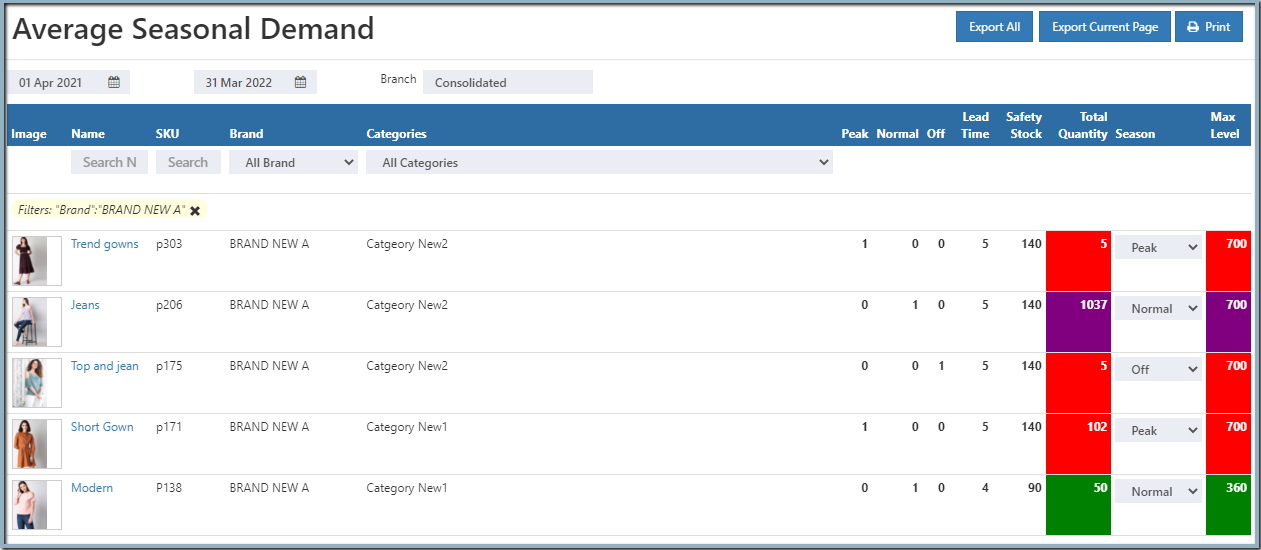
    Retail Seasonal Demand Reports

    How to add lead time and safety stock

    Users can add the lead time and safety stock in O2VEND back office setting section.

    1. Open Back Office
    2. Click Settings Section or use shortcut key (Alt+S) the reports section will be open.
    3. See Branch/location/stock section.
    4. Click and open the stock levels.
    5. Enter the value of the lead time and safety stock.

    Lead time is the number of days from when a store owner placed an order to the suppliers to when those items arrive and Safety Stock is an additional quantity of items held by a company in the warehouse to prevent those items will being out of stock.

    How to add special attributes for your products

    Follow the below steps to add the Special attributes,

    1. Go to the Back Office.
    2. Click the Catalog section.
    3. Click and open the Product section.
    4. Click create product or edit product section.
    5. Click the Attributes section.
    6. Add the Special attributes - peak season, normal season, and offseason.
    7. And add the value of these attributes. (Give the month name in numbers-if it is November enter 11)
    Tip

    Use Export All and Export Current Page options to export the report details in to comma seperated CSV file.

    In this article
    Back to top _includes/footer.html
    © 2019–2026 Jeyan Technologies Private Limited • www.o2vend.com • Create your own store