O2VEND Retail ERP
  • Getting Started
  • Ecommerce
  • Back Office
  • POS
  • Agent App
  • PIM
  • Communication
  • CMS
  • OMS
  • WMS
  • O2C
  • Accounting
  • Reports
  • Themes and Apps
Search Results for

    Show / Hide Table of Contents
    • Reports
    • Order Reports
      • Web Orders Progress Report
      • Back Order Items Report
      • Purchase Order Pending Item Report
      • Sales Order Pending Item Summary Report
      • Sales Shipping Status Report
      • Sales Order Summary
      • Sales Order Progress Report
      • Purchase Order Progress Report
      • Sales Order with Product Line Item Report
      • Sales Order Packing Sheet Report
      • Back Order Report
      • Purchase Order Summary
      • Sales Order Shipment Report
      • Sales Order Shipping Address Report
    • Sales/Purchase Reports
      • Sales Invoice Report
      • Sales Invoice Summary
      • Sales Items Summary
      • Purchase Invoice Report
      • Purchase Invoice Summary
      • Purchase Items Summary
      • Receipt Report
      • Daily Settlement Report
      • Contribution Margin Report
      • Agent Sales Report
      • Agent Report
      • Employee Sales Report
      • Employee Report
      • Employee Product Sales & Commission Report
    • Supplier Reports
      • Supplier Report
      • Supplier Purchase Report
      • Supplier Detail Report
    • Inventory Reports
      • Stock Summary
      • Stock Valuation Summary
      • Stock Ageing Report
      • Location Summary
      • Stock Ledger Report
      • Stock/Location Summary
      • Stock Movement And Valuation Summary
      • Stock Movement Summary Report
    • Products
      • Sold Product Categories
      • Product Category Summary
      • Product Sale Summary
      • Category Sale Summary
      • Brand Sale Summary
      • Reordering Stock Summary
      • Price Movement
      • Product Seasonal Demand
      • Product Stock Analysis Report
      • Stock Projection Report
    • Pos Reports
      • Cash Register Summary
      • Current Cash Registers
    • Account Reports
      • Day Book
      • Ledger
      • Cash Book
      • Sales Books
      • Purchase Books
      • Daily Sales and Payment Report
      • Balance Sheet
      • Profit and Loss Report
      • Trial Balance
    • Miscellaneous Reports
      • Output Detailed Tax Report
      • Output Tax Report Summary
      • Account Receivable Report
      • Gross Profit Report
      • Daily Tax Report
      • GSTR-1 Report
      • External API Logs
      • Benefit Usage
      • Offers Usage
      • Coupon Usage
      • Configuration Change History
      • VisitLog

    Back Order Report

    The Back Order Report in O2VEND Back Office provides a complete overview of all unfulfilled and pending sales orders.
    It helps track ordered quantities, shipped items, and balance stock, enabling accurate planning for supplier replenishment and on-time fulfillment.


    Navigation Path

    Reports → Order Reports → Back Order Report


    Overview

    The Back Order Report lists all sales orders with pending quantities that are not yet shipped or fulfilled.
    It assists sales, purchase, and warehouse teams in identifying which items need reordering and when restocks are expected.

    Displayed Columns Include:

    • Created On – Order creation date and time
    • Number – Sales order number or web reference
    • Aging – Days since order creation
    • Customer / Group – Customer name and group classification
    • Order Status – Current status such as New, In Progress, or Shipped
    • Line Items – Product-level details for each order
    • Ordered Qty – Total quantity ordered
    • Shipped Qty – Quantity dispatched
    • Pending Qty – Remaining items to fulfill
    • Current Qty / To Order Qty – Current stock available and reorder quantity
    • Expected Received Date – Upcoming restock date from suppliers
    • PO (Purchase Order) – Linked purchase order details (if created)

    Key Features

    Feature Description
    Branch Selection View back orders from individual or consolidated branches.
    Date Filters Search by creation date or delivery timeline.
    Product & Brand Filters Find specific items or supplier brands.
    Customer Search Filter orders by customer name or phone number.
    Create Purchase Order Directly generate purchase orders from back order items.
    Pagination & Totals View totals and navigate through report pages easily.

    How to View and Analyze the Back Order Report

    1. Access the O2VEND Back Office.
    2. Click Reports or press Alt + R.
    3. Open Sales Reports → Back Order Report.
    4. Select From and To date filters.
    5. Choose Branch (or Consolidated view).
    6. Apply filters like Customer Name, Order Status, or Brand.
    7. Review the pending and shipped quantities for each product.
    8. Use the Create Purchase Order button to restock pending items.
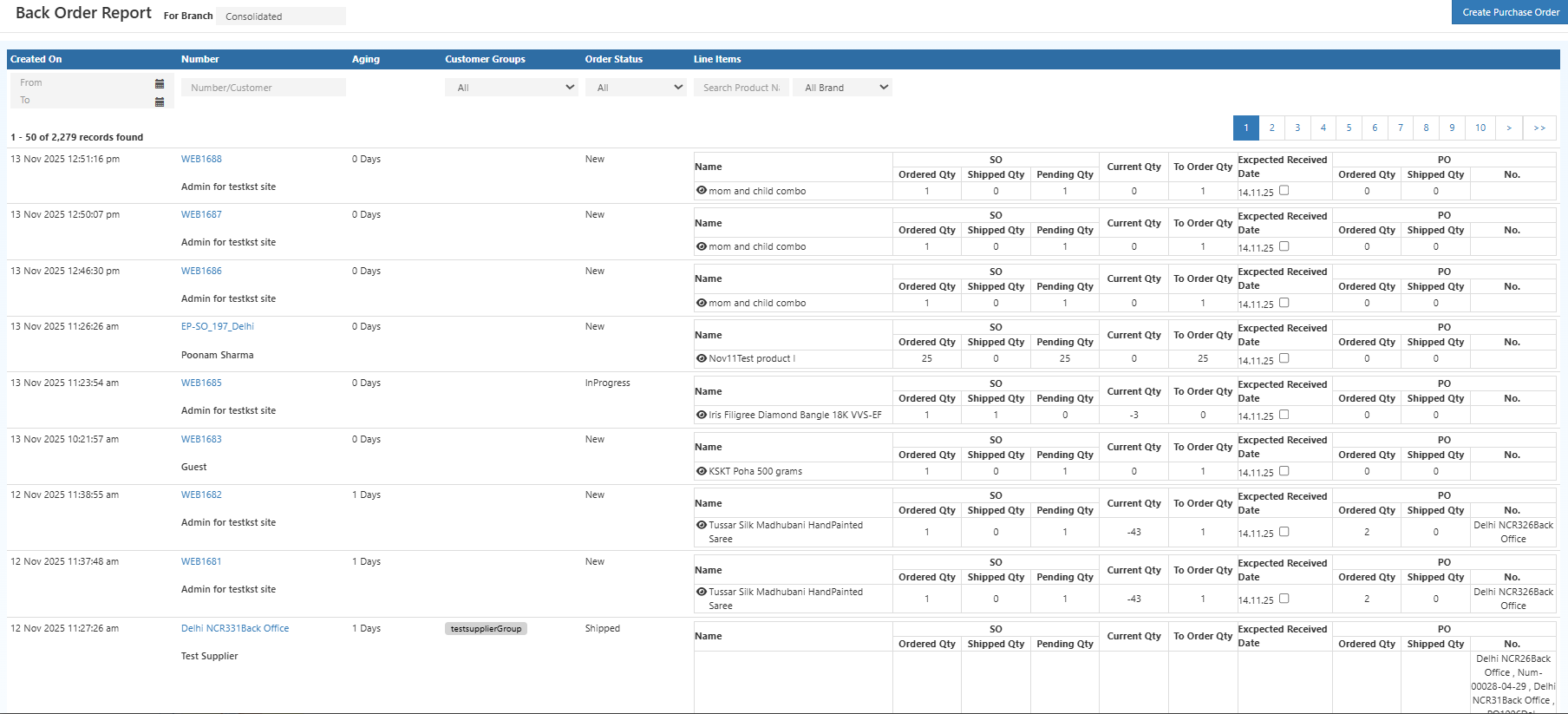
    Back Order Report in O2VEND Back Office

    Business Benefits

    • Simplifies inventory and order synchronization.
    • Prevents stockouts by identifying products that need reordering.
    • Enhances communication between sales and purchase teams.
    • Provides real-time visibility into unfulfilled orders.
    • Reduces manual tracking and improves supply chain efficiency.

    Smarter Stock Replenishment for Retail Businesses

    The Back Order Report bridges the gap between sales and procurement.
    By tracking pending orders and expected stock receipts, it ensures that every customer order is fulfilled efficiently and on time.


    💡 Tip: Use the Create Purchase Order option directly from the Back Order Report to instantly restock products with pending quantities.


    In this article
    Back to top _includes/footer.html
    © 2019–2026 Jeyan Technologies Private Limited • www.o2vend.com • Create your own store