Inventory Stock Quantity in O2VEND ERP | Stock Control
The Stock Quantity page shows live stock for a branch or warehouse — use it for stock take, reconciliation, damage entry, or lot review. From here, you can view real-time stock, adjust with notes, check hold and orderable quantities, manage lot/batch/expiry info, and open stock history — all without jumping between screens.
Accurate inventory stock quantity improves order fulfillment, prevents overselling, and ensures audit compliance.
What This Module Delivers
Real-time stock visibility, clear corrections with audit trail, lot/batch/expiry tracking, and branch-level warehouse control.
Accessing Stock Quantity
Navigation Path
Back Office -> Inventory -> Stock Quantity
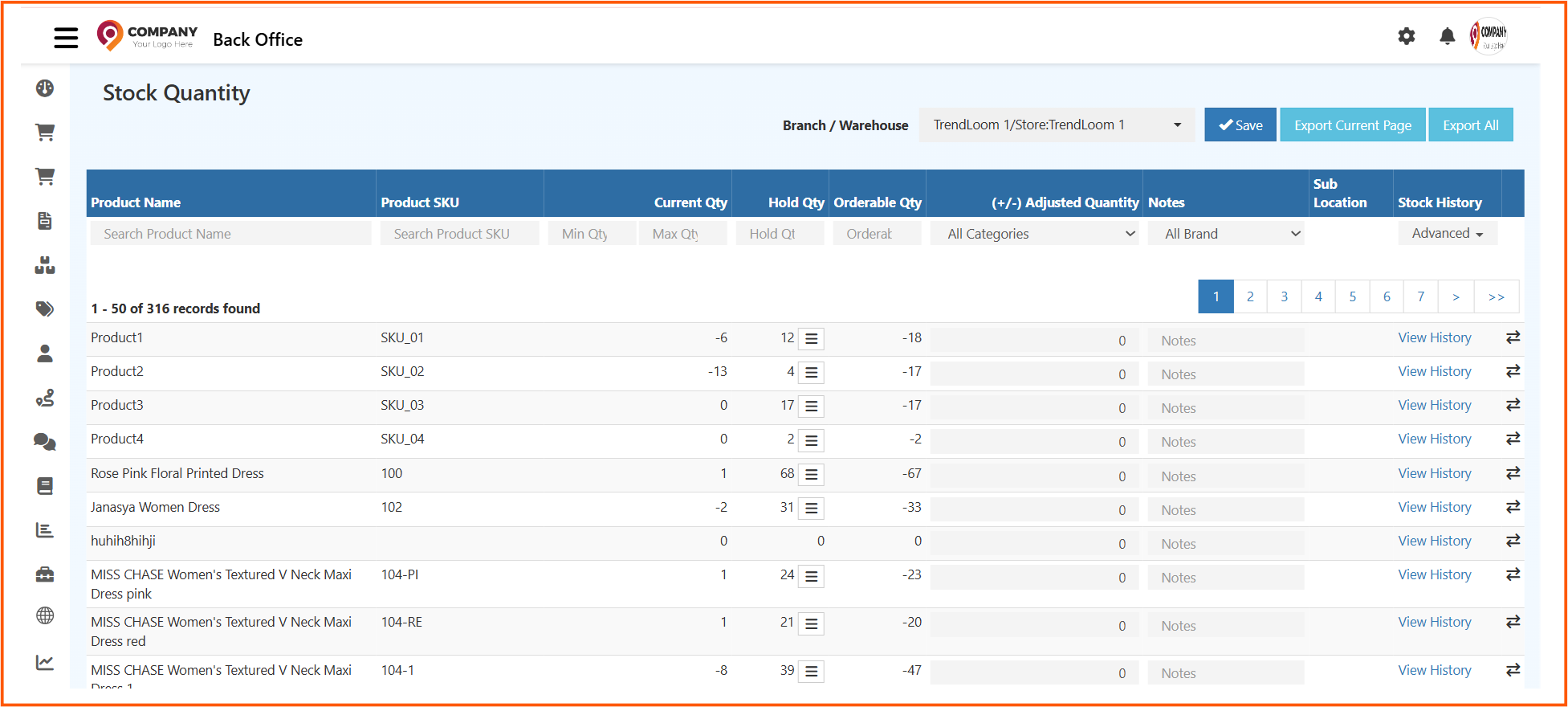
This screen displays all products mapped to the selected warehouse with current stock details.
Important:
Only products assigned to a warehouse will appear.
Refer to Manage Warehouse to configure locations.
Search, Filters, and Export Options
The latest Stock Quantity screen keeps the main actions in one place. At the top, you can choose the Branch / Warehouse, click Save, or export the list. Inside the grid, you can filter products and review stock values row by row.
Export Stock Quantity Data
Export Current Page
Downloads only the records currently visible after filtering.
Useful for quick review and small checks.
Export All
Downloads the full stock quantity result across all pages.
Best for audit, reconciliation, and full reporting.
Inline Search Filters
Inline search fields appear directly below the column headers and allow quick filtering within the stock list.

Available inline filters:
- Product Name - Search using product display name
- Product SKU - Filter by SKU or internal product code
- Current Qty (Min / Max) - Identify low or excess stock
- Hold Qty - View products with reserved stock
- Orderable Qty - Filter by sellable stock availability
These filters help quickly locate products with stock variance or availability issues.
Advanced Filters
Selecting Advanced opens the complete filter panel.
All dropdown-based filters are available only inside this section.

Filters available inside Advanced Filters:
- Options - Filter products based on configured options
- Attributes - Narrow inventory using product attributes
- Vendors - View stock linked to specific vendors
- Show Online (True / False) - Filter products available for online sale
- Approval Status (Approved / In Review) - Review product approval state
- Publish Status (Published / Not Published) - Identify catalog visibility
Advanced filters support deep inventory review, catalog validation, and audit-ready stock analysis.
Apply and Clear Actions
- Apply - Displays stock quantity data based on selected filter conditions
- Clear - Resets all filters and restores the default inventory view
These actions help maintain controlled filtering without affecting inventory data.
Information Displayed
Each row represents one product with the stock values you need for review or correction:

- Product Name & SKU - Product identification
- Current Quantity - Physical stock available
- Hold Quantity - Reserved stock
- Orderable Quantity - Available stock for orders
- Adjusted Quantity (+ / -) - Manual stock correction
- Lot / Batch / Expiry - Lot-level inventory control
- Notes - Reason for stock change
- Actions - Quick access to lots, sub-location details, and View History
This combined view makes it easier to review stock and update the right row with confidence.
Updating Inventory Stock Quantity
When Stock Adjustment Is Required
Manual stock adjustment is usually done when:
- physical count does not match system stock
- damaged or missing items need to be removed
- opening stock needs correction
- stock was received or corrected outside the usual transaction flow
- reconciliation is done after audit or verification
Steps to Adjust Stock Quantity
Step 1: Select Warehouse / Location
Choose the required Branch / Warehouse from the selector at the top of the page.
This matters because the update will be saved only for the selected location.
Step 2: Enter Adjusted Quantity
Find the correct product row and enter the value in the Adjusted Quantity column:
- a positive value to add stock
- a negative value to reduce stock
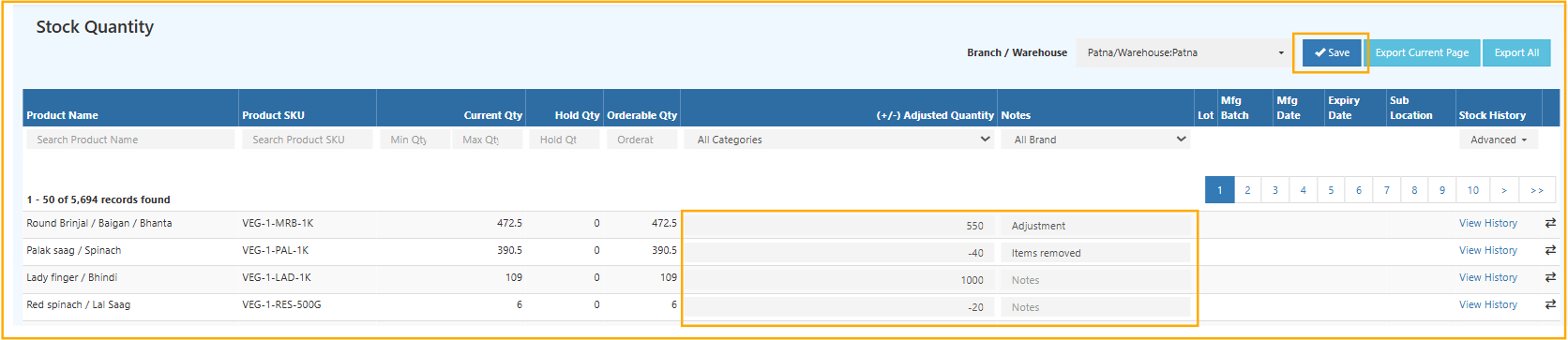
Examples:
10adds stock-2removes stock
After saving, O2VEND recalculates the current and orderable stock values for that row.
Step 3: Add Notes
Add a clear reason in the Notes field so the next person reviewing the record understands why the stock changed.
Recommended examples:
Stock take correctionDamaged items removedManual inward after branch countOpening stock correction
Notes help maintain a clear audit trail for inventory changes.
Step 4: Save the Adjustment
Click Save to apply changes.
- Current Quantity updates immediately
- Orderable Quantity recalculates automatically
- Stock history is recorded for future reference
Step 5: Verify the result
If needed, open View History for the same product to confirm what changed, when it changed, and why it changed.
Stock History Tabs - Inventory Movement Breakdown
The Stock History section helps you understand what changed for a product and why it changed. It is especially useful after adjustment, reservation, lot update, or reconciliation.
How to View History
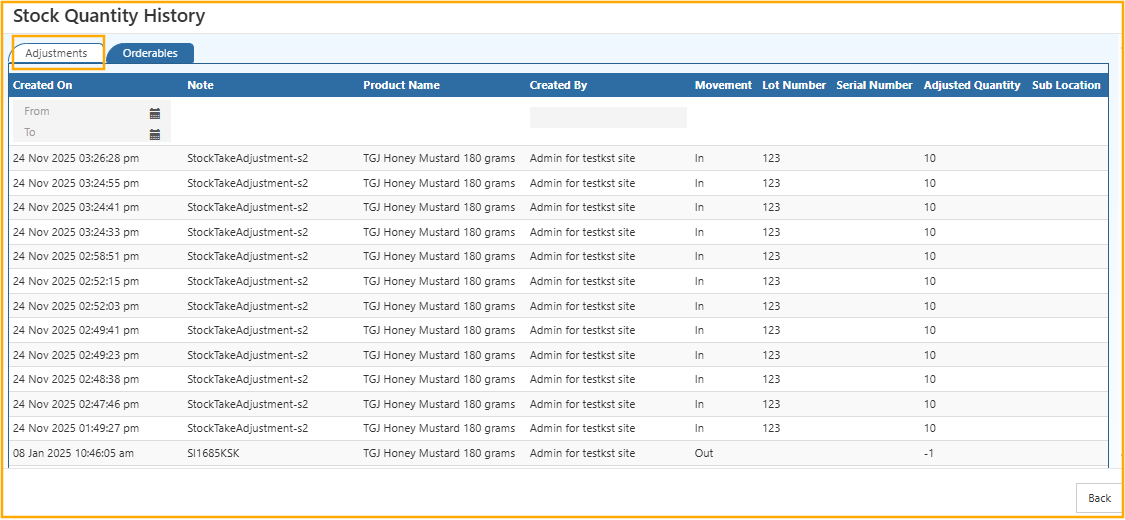
Select the required product row and click View History. This opens the movement history for that item and gives you a quick way to verify stock activity without leaving the Stock Quantity workflow.
Adjustments Tab
The Adjustments tab shows manual stock corrections, including the adjustment date, reason, quantity change, lot reference, sub-location, and the user who performed the update. This is the best place to confirm corrections made during audit, damage reporting, or reconciliation.
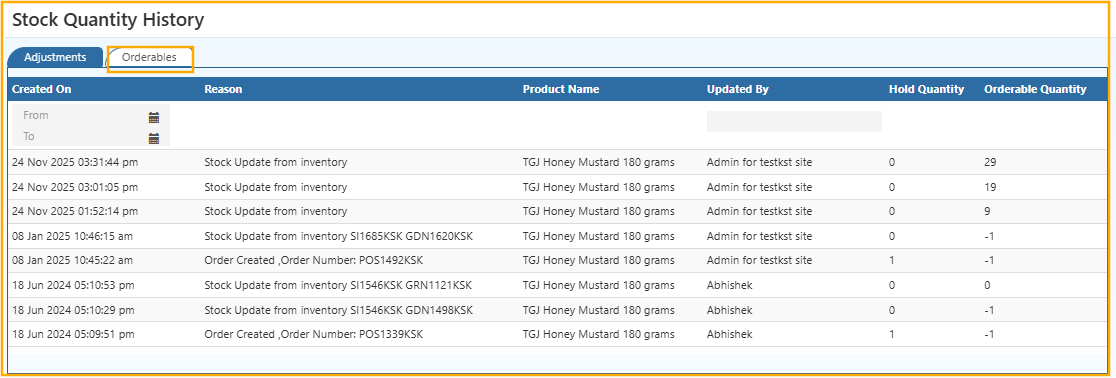
Orderables Tab
The Orderables tab shows stock movements created by sales orders and stock reservations. Use this tab when you want to understand why orderable quantity reduced even though current quantity still exists.
Managing Lot-Based Inventory
Lot tracking is useful for products that need batch control, expiry monitoring, or stronger traceability.
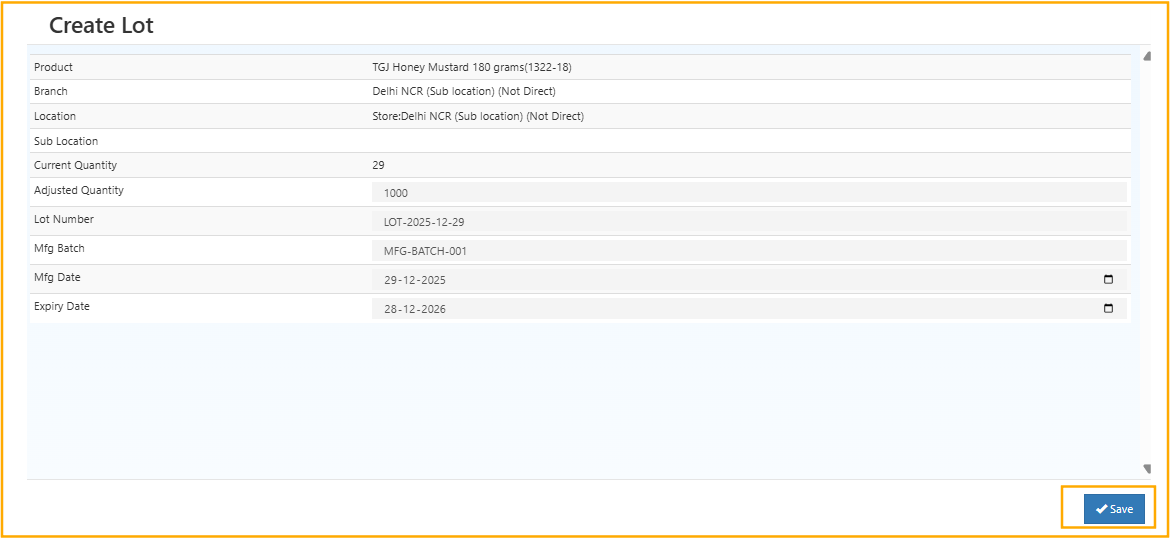
Creating a Lot
Select Create Lot for the required lot-enabled product.
Lot Field Definitions
| Field | Example | Description |
|---|---|---|
| Lot Number | LOT-2025-12-29 | Unique batch identifier |
| Adjusted Quantity | 1000 | Quantity assigned to the lot |
| Mfg Batch | MFG-BATCH-001 | Manufacturing batch reference |
| Mfg Date | 29-12-2025 | Production date |
| Expiry Date | 28-12-2026 | Product expiry date |
Date format: DD-MM-YYYY
After entering the details, click Save.
Viewing Lot Details
Select View Lots to access:
- Lot numbers
- Manufacturing batch information
- Manufacturing and expiry dates
- Lot-wise quantities
- Adjusted quantities
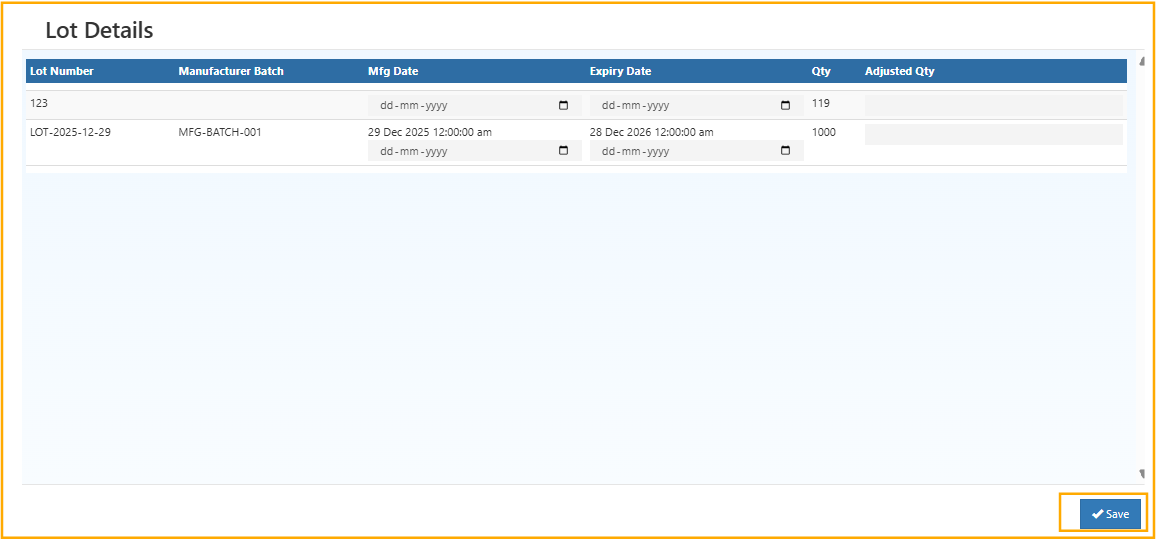 This view is useful for FIFO / FEFO, expiry review, and recall tracking.
Sub Location Stock Transfer
The Sub Location Transfer screen opens when the stock transfer action is selected from the Stock Quantity list. Use it to move stock between sub-locations within the same warehouse without changing the total warehouse quantity.

Screen Details
- Product shows the selected product name and code
- Branch shows the branch where the stock is maintained
- Location shows the main warehouse linked to the product
- From Sub Location shows the source sub-location
- Current Quantity shows the available quantity in the source sub-location
Transfer Information
- To Sub Location is the destination sub-location inside the warehouse
- Quantity is the stock quantity to move
- Remove deletes the destination row if it is not required
This process helps maintain better sub-location-level inventory control and smoother warehouse operations.
Practical Tips
- Always confirm the selected warehouse before entering an adjustment.
- Use notes for every manual correction, even for small changes.
- Check Hold Qty before promising stock for sale or transfer.
- Review Orderable Qty when the sales team reports availability issues.
- Open View History if the stock number looks unusual.
- Maintain lot details for products with expiry or batch control.