GDN Packages & Package Handling – Complete Dispatch Package Guide
Master GDN package handling with our comprehensive guide. Learn to create packages, add products, manage shipment details, and generate shipping labels efficiently.
Proper warehouse package management ensures shipment accuracy, professional courier handling, and streamlined logistics operations. Learn how to create, manage, and finalize dispatch packages in the GDN system.
Step 1: Open and Add Package
Create new shipment packages efficiently in your warehouse management system:
- Click Add Package to create a new shipment package
- Each package can contain one or multiple products for single/multi-item orders
- Assign packages appropriate for your shipment size and weight requirements
Multiple packages can be created for large shipments to optimize courier handling and reduce shipping costs. This flexibility allows warehouse teams to organize orders according to product fragility and destination requirements.
Step 2: Enter Package Details
Provide complete shipment details for accurate processing:
- Select Package Type (Box, Pallet, Carton, Envelope, etc.)
- Enter Dimensions (Length / Width / Height) in standard units
- Enter Weight for accurate freight calculation
- Enable COD (Cash on Delivery) option if applicable
Correct dimensions and weight are essential for shipping label accuracy, courier billing, and warehouse space optimization. Inaccurate package information may result in additional charges and delivery delays.
Step 3: Add Products to the Package
Efficiently add products to your dispatch packages:
- Scan product barcodes using warehouse barcode scanners
- Manually search and add products from inventory database
- Enter dispatched quantities and verify stock levels
- Cross-reference SKUs for accuracy
Verify all items before approval to avoid shipment discrepancies, returns, and customer complaints. Product validation ensures inventory accuracy and maintains supply chain integrity.
Step 4: Save and Finalize Package Details
Complete the package setup process:
- Save the package details securely
- Confirm to update the GDN records
- Packages become ready for shipping label generation
- Shipment becomes ready for courier pickup and transit
- Archive package information for order tracking
Note: The Top Action Buttons and Package Management features in the GDN module simplify bulk dispatch processing, improve warehouse efficiency, and ensure accurate courier integration for seamless logistics operations.
By properly using Bulk Entry, Pickup List, and Package management features, businesses can streamline outbound logistics, reduce shipping errors, and maintain complete shipment traceability throughout the delivery process.
GDN Edit Page – Step-by-Step Guide
The GDN Edit Page is your complete shipment management dashboard. This interface allows you to review, update, and finalize all dispatch details before confirming shipment with couriers. The page ensures delivery accuracy, proper courier mapping, correct inventory stock-out processing, and professional document generation.
Use this comprehensive screen to manage:
- Courier and rider assignment details
- Shipping address verification and validation
- Product and SKU validation
- Package management and configuration
- Shipping document generation and printing
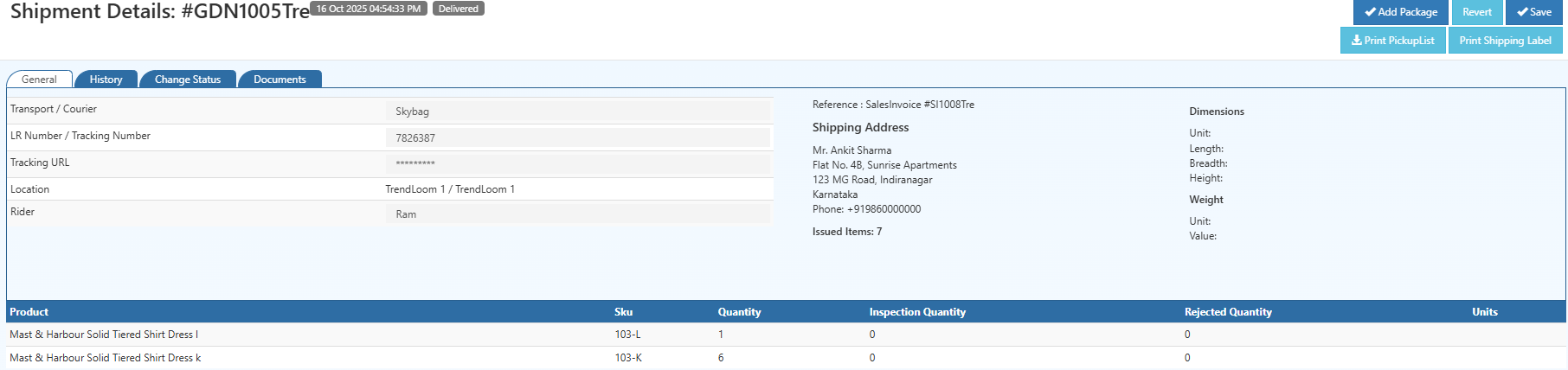
1. Check Courier & Shipment Information
Before dispatch, carefully review all courier details:
- Courier / Transporter company name
- Tracking number / LR number for shipment monitoring
- Assigned rider information (for in-house delivery services)
- Dispatch warehouse / branch location and contact details
Correct courier information ensures proper shipment tracking, prevents delivery confusion, and enables customers to monitor their orders in real-time.
2. Verify Shipping Address
Confirm complete customer delivery information:
- Full delivery address with street details
- Contact number for delivery coordination
- Pincode / postal code for area validation
- Landmark or special instructions if applicable
Incorrect address details may result in delivery exceptions, failed delivery attempts, and increased logistics costs. Always verify address accuracy before final shipment confirmation to ensure timely delivery.
3. Review Issued Items
Validate all products included in the shipment:
- Product names match the original order
- SKUs are correct and verified
- Quantities to ship are accurate and complete
- No extra or missing items are listed
- Product conditions meet quality standards
This verification step prevents dispatch mismatches, inventory discrepancies, and customer dissatisfaction. Accurate item validation is critical for order fulfillment excellence.
4. Add Package Details
Click Add Package to enter comprehensive shipment packaging information:
- Package size (Length / Width / Height in standard units)
- Weight for freight calculation
- COD (Cash on Delivery) value, if applicable
- Special handling requirements or fragile item indicators
These details are required for:
- Accurate courier selection and rate calculation
- Precise shipping label generation
- Correct freight charge calculation and transparency
- Optimal route planning and last-mile delivery
Proper package configuration improves courier approval rates and ensures last-mile delivery efficiency.
5. Save Your Changes
Apply all updates to the shipment record:
- Click Save to apply changes permanently
- Stock adjustments remain aligned with inventory
- Shipment data updates in real-time across the system
- Changes are logged for audit and compliance purposes
Always save before printing documents or updating shipment status to prevent data loss.
6. Print Required Documents
Once all details are confirmed, generate required dispatch documents:
- Print Picklist – Used by warehouse staff for accurate item picking and verification before packaging
- Print Shipping Label – Attached to the parcel for professional courier processing and tracking
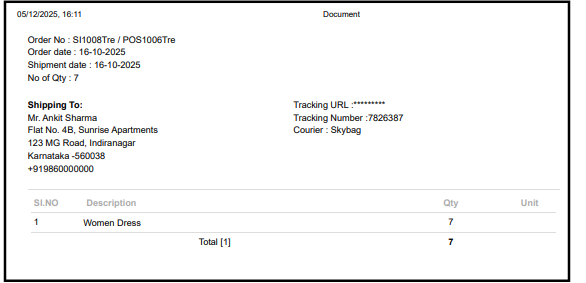
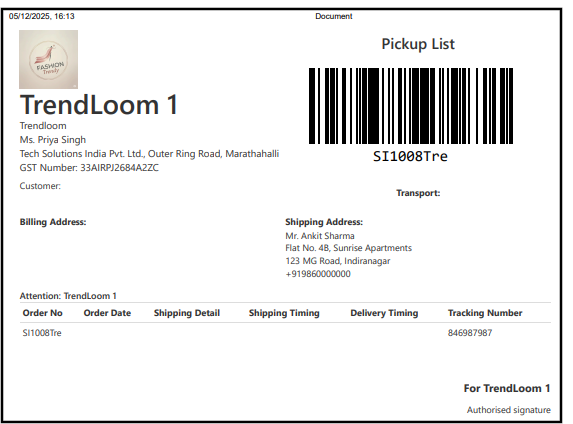
These documents ensure smooth warehouse handling, professional shipment presentation, and streamlined courier handoff processes.
7. Revert if Needed
Correct any unintended changes:
- Click Revert to discard modifications
- Discard unsaved modifications easily
- Restore the previous saved state of the shipment
- Maintain data integrity and prevent accidental errors
This safety feature prevents accidental shipment errors and maintains accurate order records.