How to Create and Edit Manufacturing Voucher in O2VEND ERP
Use Manufacturing Voucher when you want to record internal production in O2VEND. It helps you convert raw materials into finished goods and keep stock movement accurate in the system.
This is useful when your team consumes input items like fabric, chemicals, ingredients, or components and produces finished products from them. The voucher keeps both sides of the entry together — raw materials on one side, finished goods on the other — so you can clearly track what was consumed and what was produced.
Navigation Path
Back Office → Inventory → Manufacturing Voucher
This opens the Manufacturing Voucher list page where you can create a new voucher or review existing ones.
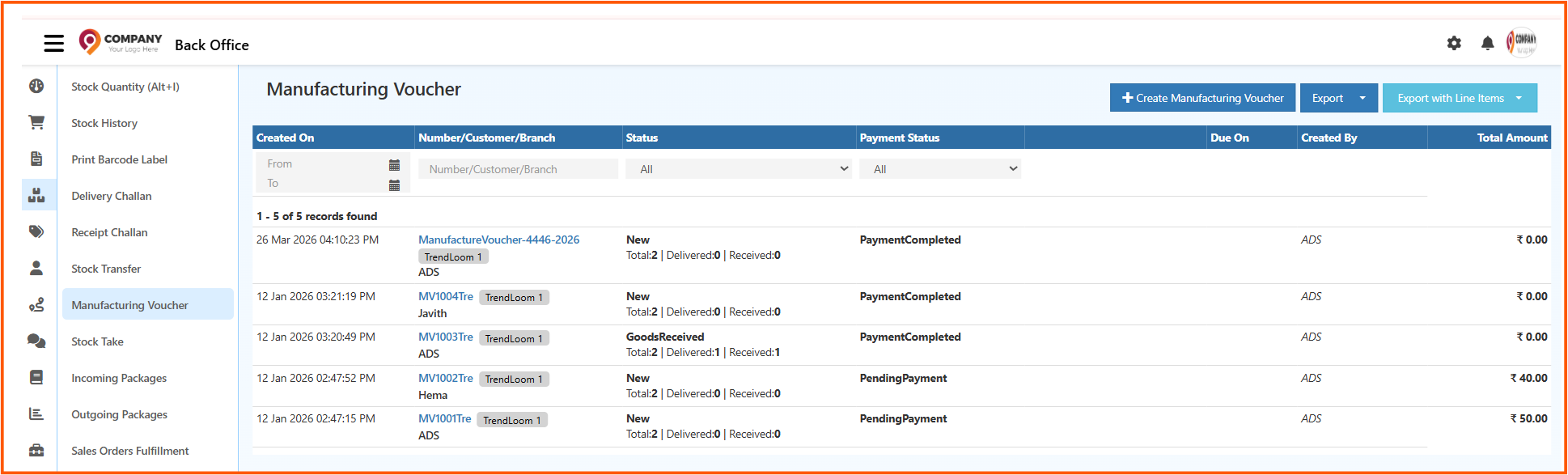
1. Manufacturing Voucher List Page
The list page shows all previously created manufacturing vouchers in a table format.
1.1 Key Columns
The list displays the following columns:
- Created On — Timestamp of when the voucher was created.
- Number / Customer / Branch — Voucher number, the associated customer or vendor name, and the branch.
- Status — Current production status such as New, GoodsReceived, or PartiallyGoodsReceived.
- Payment Status — Indicates PaymentCompleted or PendingPayment.
- Due On — Due date for the voucher if applicable.
- Created By — Staff member who created the voucher.
- Total Amount — Total transaction value.
1.2 Filter Controls
Use the filters at the top of the list to find specific records:
- Date Range — From / To calendar selectors to narrow by creation date.
- Number / Customer / Branch — Text search to look up a specific voucher.
- Status Filter — Dropdown to filter by All, New, GoodsReceived, Pending, etc.
- Payment Status Filter — Dropdown to filter by All, PaymentCompleted, PendingPayment, etc.
The record list refreshes automatically after filters are applied.
1.3 Available Actions
Three action buttons appear in the top-right corner of the list page:
- + Create Manufacturing Voucher — Opens the voucher creation form.
- Export — Downloads voucher data in a supported format.
- Export with Line Items — Exports detailed product-level entries along with the voucher data.
2. Creating a Manufacturing Voucher
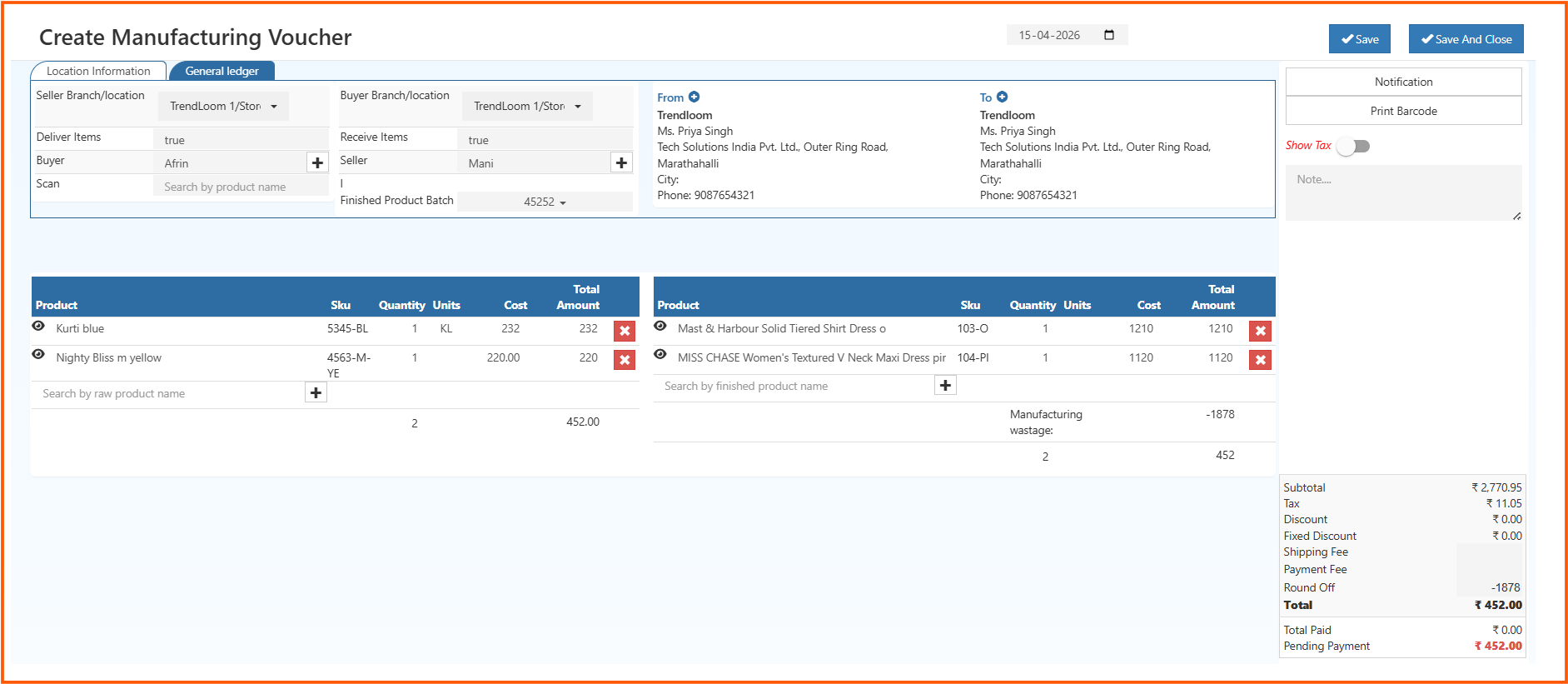
Click + Create Manufacturing Voucher from the list page. The creation screen opens with two tabs: Location Information and General Ledger.
2.1 Location Information Tab
This tab captures the parties and branches involved in the manufacturing entry.
Fields
- Seller Branch / Location — Select the branch issuing the raw materials (e.g., TrendLoom 1/Store).
- Buyer Branch / Location — Select the branch receiving the finished goods. For in-house manufacturing, this is usually the same branch.
- Deliver Items — Set to true to indicate outgoing raw materials.
- Receive Items — Set to true to indicate incoming finished goods.
- Buyer — Enter or select the buyer. Use the + icon to add a new party directly.
- Seller — Enter or select the seller or supplier name.
- Scan — Scan or search raw material barcodes or product names.
- Finished Product Batch — Assign a batch number to the finished goods for traceability.
The From and To panels on the right auto-populate with the address and contact details of the selected branches.
2.2 General Ledger Tab
This tab is where you enter the actual manufacturing items — raw materials consumed and finished goods produced.
The screen is split into two panels side by side.
2.2.1 Raw Materials Panel (Left)
List all input items consumed during production.
Each row includes:
- Product — Raw product name (e.g., Kurti blue, Nighty Bliss m yellow).
- SKU — Stock keeping unit code.
- Quantity — Quantity consumed.
- Units — Unit of measurement (e.g., KL).
- Cost — Cost per unit.
- Total Amount — Auto-calculated based on quantity and cost.
- Delete (✕) — Remove an incorrectly added item.
Use the Search by raw product name bar with the + button to add more raw materials.
The panel footer shows the total quantity and total cost of all raw materials added.
2.2.2 Finished Products Panel (Right)
List all finished goods produced from the raw materials.
Each row includes:
- Product — Finished product name (e.g., Mast & Harbour Solid Tiered Shirt Dress, MISS CHASE Women's Textured V Neck Maxi Dress).
- SKU — Stock keeping unit code.
- Quantity — Quantity produced.
- Units — Unit of measurement.
- Cost — Cost per unit.
- Total Amount — Auto-calculated.
- Delete (✕) — Remove an incorrectly added item.
Use the Search by finished product name bar with the + button to add more finished goods.
2.2.3 Manufacturing Wastage
Below the finished products list, a Manufacturing Wastage field is auto-calculated and displayed. This reflects the difference between raw material cost and finished goods cost. In the example shown, the wastage value is −1878.
2.3 Summary Panel (Bottom Right)
The cost summary is shown at the bottom right of the screen:
- Subtotal — Total value before tax and adjustments.
- Tax — Applicable tax amount.
- Discount — Discount applied if any.
- Fixed Discount — Fixed discount amount.
- Shipping Fee — Shipping charges if applicable.
- Payment Fee — Any payment processing charges.
- Round Off — Rounding adjustment (shown as a negative value when wastage is factored in).
- Total — Final payable amount.
- Total Paid — Amount already paid.
- Pending Payment — Remaining amount due.
2.4 Right-Side Panel
On the right side of the form:
- Notification — Add internal production instructions or alerts.
- Print Barcode — Print a barcode for the voucher.
- Show Tax — Toggle to show or hide tax details.
- Note — Add any freeform internal notes.
2.5 Saving the Voucher
Two save options are available at the top right:
- Save — Stores the voucher and keeps the screen open for further editing.
- Save and Close — Stores the voucher and returns to the list page.
After saving, the voucher appears in the Manufacturing Voucher list with its status and payment details.
3. Editing an Existing Manufacturing Voucher
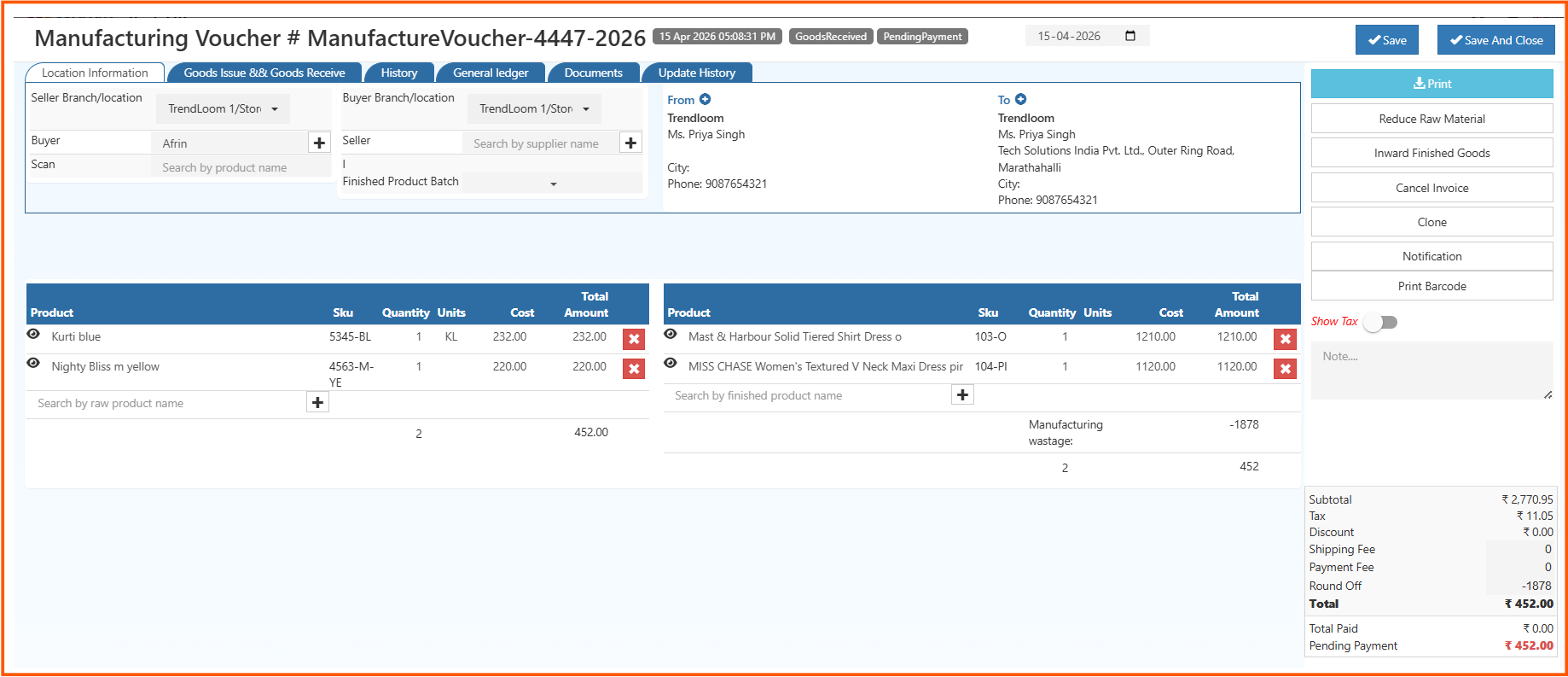
To edit a voucher, click on its voucher number from the list page. The voucher opens in edit mode with additional tabs and action buttons.
3.1 Additional Tabs
When editing an existing voucher, the following tabs are available:
- Location Information — Edit branch and party details.
- Goods Issue && Goods Receive — View or update goods issue and receipt status.
- History — View the change history of the voucher.
- General Ledger — Edit raw materials and finished goods.
- Documents — Attach supporting documents.
- Update History — Review all system-level updates made to the voucher.
3.2 Action Buttons (Edit Mode)
The right panel in edit mode provides additional action options:
- Print — Print the manufacturing voucher.
- Reduce Raw Material — Trigger a stock reduction for raw materials consumed.
- Inward Finished Goods — Record the inward movement of finished goods into stock.
- Cancel Invoice — Cancel the voucher if required.
- Clone — Duplicate the voucher for a similar production entry.
- Notification — Add or view notifications.
- Print Barcode — Print the barcode for the voucher.
6. Support
For help with Manufacturing Vouchers or any other module in O2VEND:
📧 Email Support [email protected]
Clicking the email link opens your default mail app with the address pre-filled.
7. Example Scenarios (Industry Specific)
Food & Beverage Manufacturing
Raw materials: pulp, sugar → Finished goods: bottled juice Features: batch tracking, expiry date management
Garment Manufacturing
Raw materials: fabric, thread → Finished goods: shirts, trousers
Pharmaceutical Production
Raw materials: active ingredients → Finished goods: capsules, tablets Features: strict batch and lot control
Cosmetic Production
Raw materials: oils, fragrances → Finished goods: creams, lotions