Delivery Challan in O2VEND
Complete GST-Compliant Goods Management Solution
Master delivery challan creation, tracking, and management with O2VEND's integrated ERP system. Streamline shipment tracking, automate goods issue workflows, generate professional invoices, and maintain real-time inventory accuracy.
What is a Delivery Challan? – The Complete Guide
A Delivery Challan (DC) is a legally recognized shipping document that records goods movement without invoice generation. It captures item details, quantities, dispatch dates, and customer information—serving as proof of shipment for GST compliance, stock transfers, job work, and approval-based deliveries.
Key Benefits:
- ✓ Ensures accurate goods dispatch with quantity verification
- ✓ Maintains synchronized inventory and logistics records
- ✓ Streamlines invoicing and billing processes
- ✓ Provides audit-ready documentation for compliance
- ✓ Resolves delivery discrepancies, damages, and returns
Why Use O2VEND Delivery Challan?
O2VEND's combines goods issue tracking, partial shipment support, and GST compliance into one unified platform. Manage shipments efficiently while maintaining accurate inventory records and seamless billing integration.
Quick Access
- Go to: Back Office → Inventory → Delivery Challan
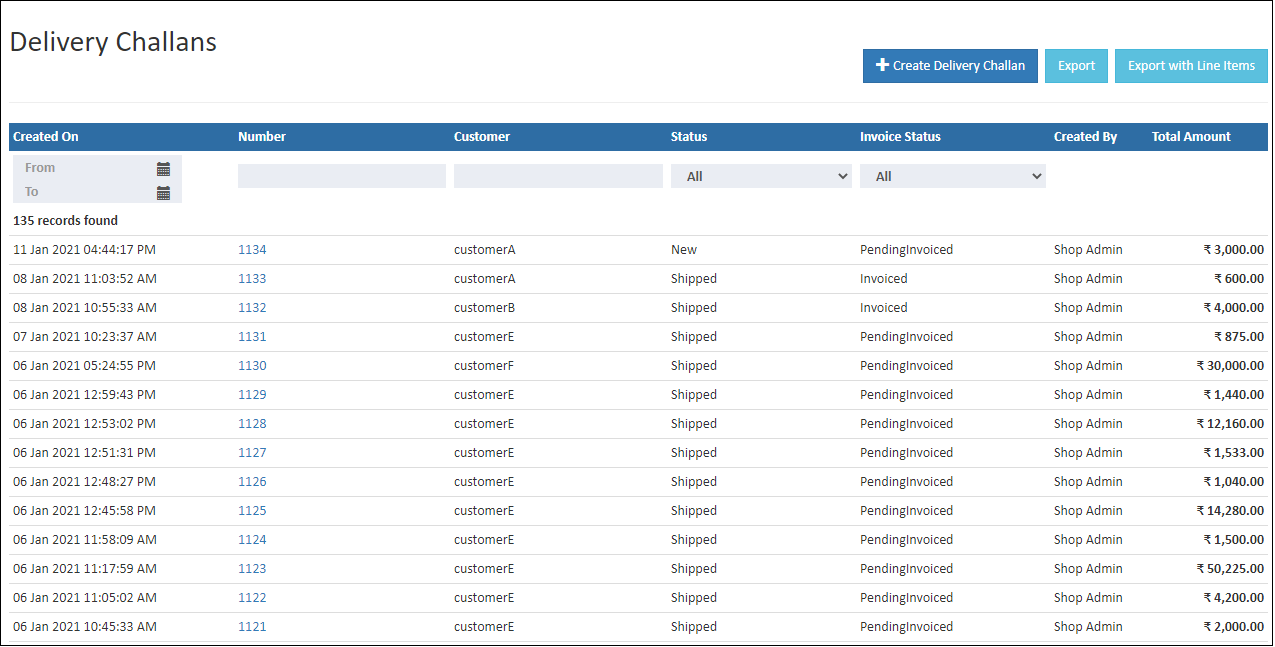
How to Create a Delivery Challan – 3 Quick Methods
Method 1: Auto-Generate from Sales Orders
Click Deliver & Create Delivery Challan in any sales order for instant challan generation.
Method 2: Manual Creation
Open Delivery Challan module and create new. The Goods Issue button activates automatically.
Method 3: Customer Reference-Based
Generate challans using customer or internal reference numbers for faster processing.
Delivery Challan Status Tracking Dashboard
Monitor real-time delivery status with O2VEND's intuitive list view showing customer details, reference information, and shipment progress.
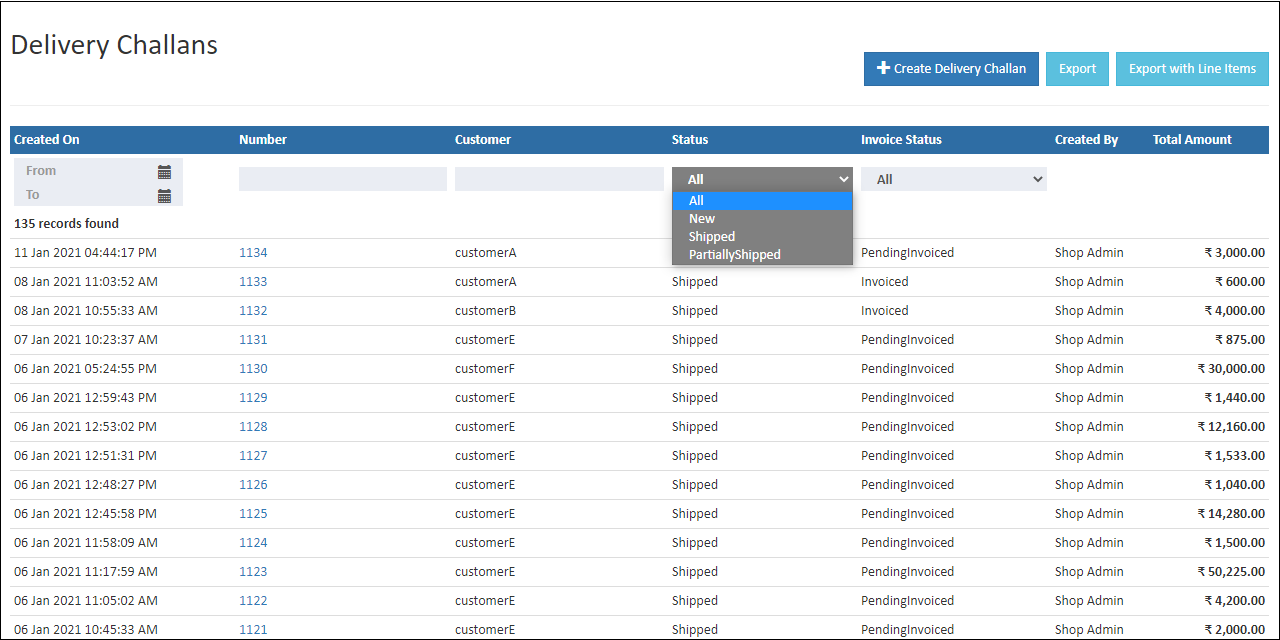
Status Types at a Glance
| Status | Definition |
|---|---|
| New | Challan created; no shipment processed |
| Shipped | 100% of items dispatched to customer |
| Partially Shipped | Multi-batch shipments in progress |
| Canceled | Challan canceled by customer/admin |
Invoice Status Indicators
| Status | Meaning |
|---|---|
| Invoiced | Fully billed and paid |
| Over Invoiced | Payment exceeds total amount |
| Partial Invoiced | Balance pending payment |
Create Delivery Challan – Step-by-Step
Steps to Set Up Your First Challan
- Navigate to Back Office → Inventory → Delivery Challan
- Click Create Delivery Challan (top-right corner)
- Fill in customer and product details
- Review pricing summary
- Save or press Ctrl + S
Customer Information Section
| Field | Details |
|---|---|
| Branch | Select source inventory location |
| Customer Name | Search & auto-fill saved details (Alt + C for new customer) |
| Customer PO | Link customer purchase order number |
| Transport | Choose Van, Truck, Auto, or logistics method |
| Bill/Ship To | Auto-populated; editable if needed |
Product Details Section
| Field | Details |
|---|---|
| Product | Search & select (Alt + C to create new) |
| SKU | Auto-filled |
| Quantity | Items being delivered |
| UOM | Unit of Measure (pcs, box, kg, etc.) |
| Price | Editable line item cost |
| Discount | Amount or percentage reduction |
| Total Amount | Final line item value |
Action Buttons & Features
| Action | Purpose |
|---|---|
| Goods Issue | Initiate shipment & stock deduction |
| Print Picklist | Generate warehouse picking list |
| Return Items | Record item returns |
| Create Invoice | Convert challan to invoice |
| Download PDF | Export delivery documentation |
| Share | Send via link or channels |
| Clone | Duplicate challan quickly |
Goods Issue Process – Automate Stock Deduction
The Goods Issue workflow reduces stock automatically once initiated. Verify changes in Stock History and Inventory reports.
Initiate Goods Issue in 7 Steps
- Click Goods Issue button from order screen
- Verify product details (SKU, quantity, units)
- Select Transport/Courier service
- Assign Rider from dropdown
- Enter LR/Tracking Number and tracking URL
- Confirm Branch/Location
- Click Save to complete
Goods Issue Advanced Features
- Bulk Entry: Update multiple products simultaneously
- Add Package: Define packaging count and grouping
- Print Pickup List: Generate warehouse picking sheet
Product Table Reference
| Column | Description |
|---|---|
| Product | Item name |
| SKU | Stock keeping unit |
| Quantity | Items to ship |
| Inspection Quantity | QC verified units |
| Rejected Quantity | Defective items |
| Units | Measurement type |
Pro Tip: Update order status in Order History after changing shipping methods for accurate tracking.
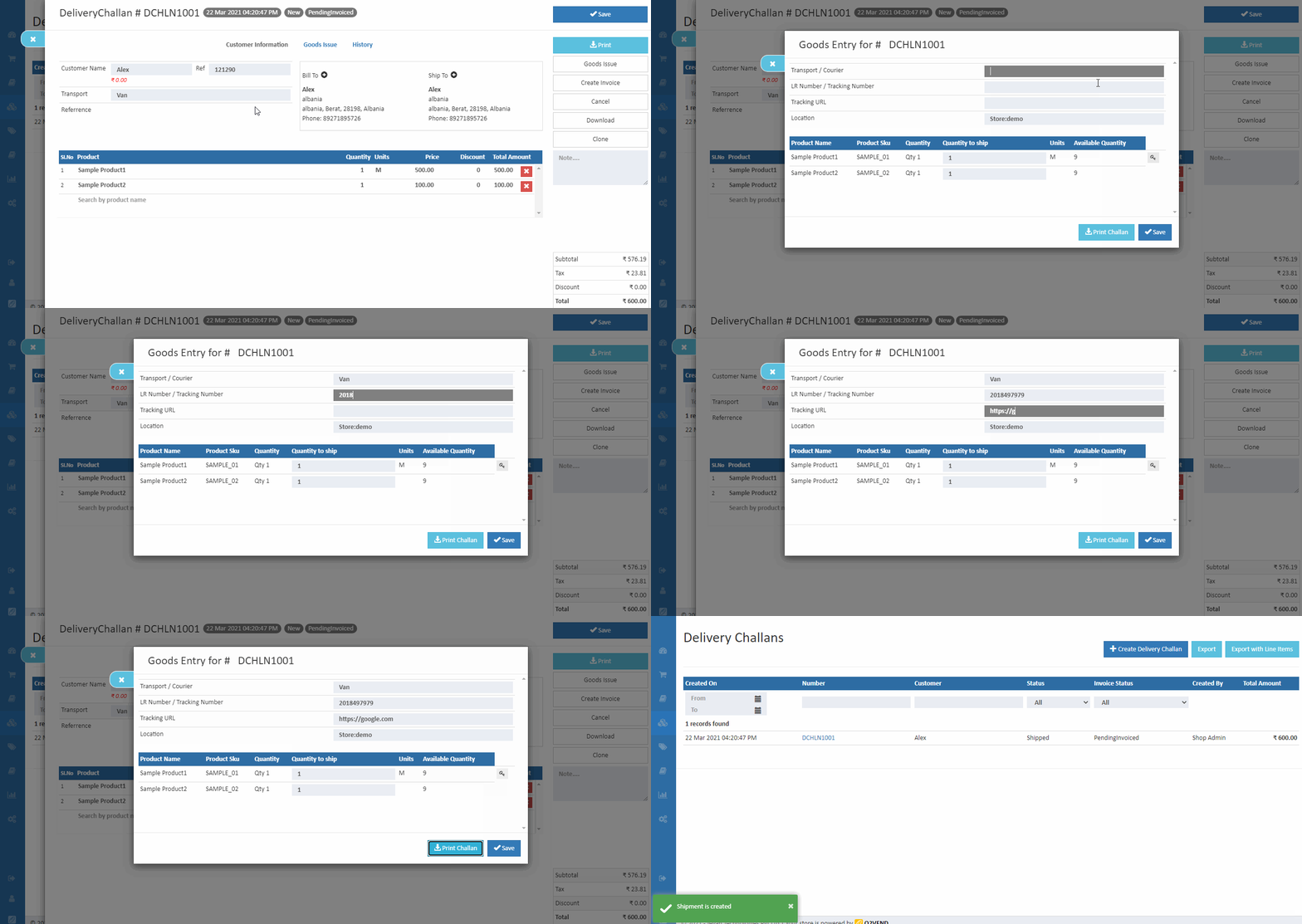
Allocate Lot Numbers – For Batch/Expiry Tracking
Add Lot in 4 Steps
- Click Goods Issue
- Click Allot Lot for each product
- Enter lot details:
- Lot Number
- Manufacturer Batch
- MFG Date
- Expiration Date
- Adjusted Quantity
- Click Save to allocate
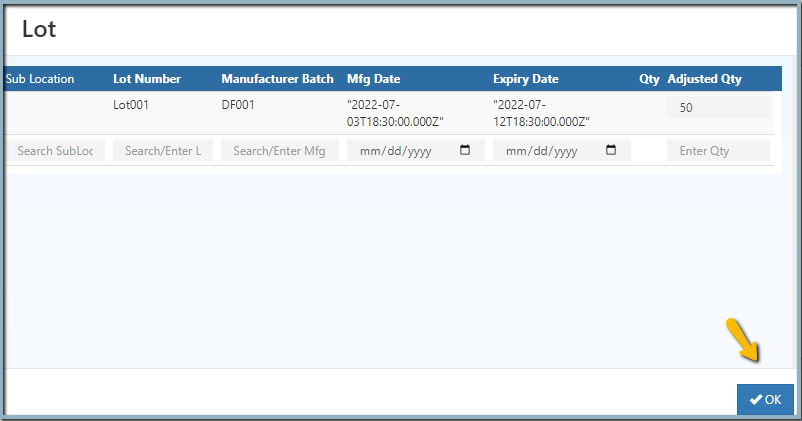
View & Edit Delivery Challan Details
How to Open Challan Details
- Go to Back Office → Inventory → Delivery Challan
- Double-click the Number column
- Review all order information
- Press ESC to return to list
Edit Challan Information
- Update customer name and addresses
- Add/modify products via search
- Adjust quantities and pricing
- Record item returns using Return Items button
Export Options: Use Export Orders or Export Orders With Order Lines to download CSV reports.
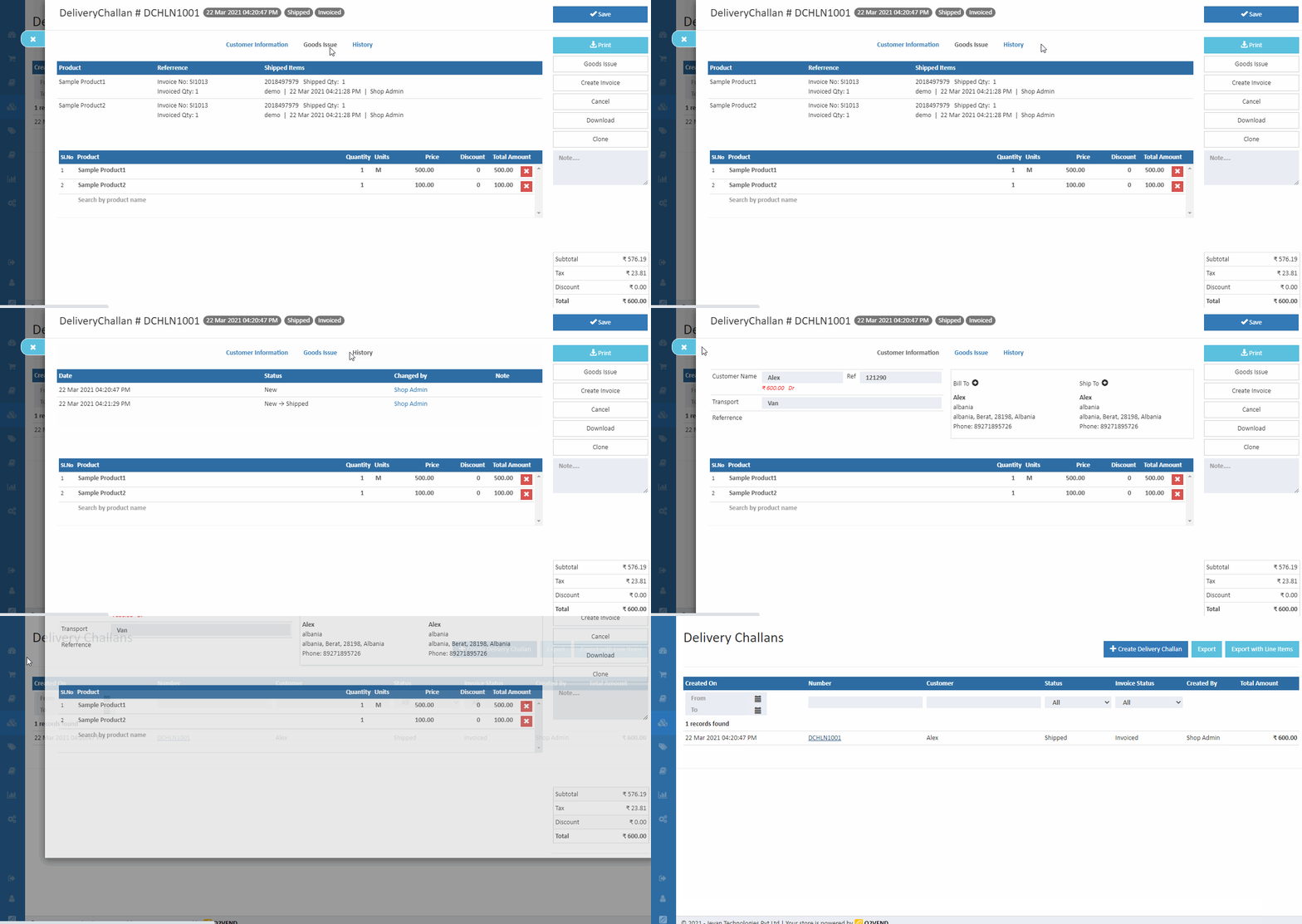
Complete Delivery Challan to Invoice Workflow
Convert Challan to Invoice
- Open completed delivery challan
- Click Create Invoice button
- Review invoice details
- Confirm and save invoice
Cancel or Reopen Challan
- Click Cancel to cancel delivery challan
- Select OK to confirm
- Use Reopen option to restore canceled challans
FAQ – Delivery Challan in O2VEND ERP
Q: What's the difference between Delivery Challan and Invoice?
A: Challan documents goods movement without billing; invoices include payment terms.
Q: When do I use Delivery Challan?
A: Use for GST stock transfers, job work, approval-based deliveries, or partial shipments.
Q: Does Challan creation reduce stock?
A: No. Stock updates only after Goods Issue is created.
Q: Can I convert Challan to Invoice later?
A: Yes. After goods issue completion, click Create Invoice to generate billing.
Q: What information is required?
A: Customer details, product list, quantities, transport mode, and shipping address.