O2VEND Retail ERP
  • Getting Started
  • Ecommerce
  • Back Office
  • POS
  • Agent App
  • PIM
  • Communication
  • CMS
  • OMS
  • WMS
  • O2C
  • Accounting
  • Reports
  • Themes and Apps
Search Results for

    Show / Hide Table of Contents
    • Warehouse Management
    • Stock Quantity
    • Stock History
    • Barcode Printing
    • Delivery Challan (DC)
    • Receipt Challan (RC)
    • Stock Transfer
    • Manufacturing Voucher
    • Stock Audit
    • Goods Inward (GRN)
    • Goods Dispatch (GDN)
    • Goods Dispatch Note (GDN)
      • GDN Meaning & Overview
      • How to Create GDN
      • GDN Module Guide (Goods Issue)
      • GDN Packages & Package Handling
      • Outward Route Configuration

    Stock Take & Inventory Management | O2VEND Warehouse System

    Manage inventory counts efficiently with O2VEND. Choose physical inventory or cycle count methods for accurate warehouse management and real-time stock tracking.

    Master accurate inventory counts with O2VEND's stock take feature. Designed for warehouse managers and inventory operators, our system simplifies physical inventory and cycle count methods to ensure your inventory records match physical stock, reduce shrinkage, and optimize operations.

    Stock Take Methods

    Your business needs different counting strategies. O2VEND offers two proven approaches:

    Physical Inventory – Comprehensive annual or bi-annual counts of all warehouse items. Perfect for complete reconciliation between recorded inventory and actual stock on hand. Typically conducted quarterly or yearly during low-activity periods.

    Cycle Count – Continuous rotating counts of specific warehouse sections on a set schedule. Maintain accurate inventory year-round with minimal operational disruption. Count daily, weekly, monthly, or quarterly based on your business needs.

    How to Create a Stock Take in 6 Steps

    1. Open Back Office
    2. Navigate to Inventory Menu
    3. Select Stock Take
    4. Click Create Stock Take (top right)
    5. Enter required details (name, location, branch, type)
    6. Press Save
    Stock Take & Inventory Management | O2VEND Warehouse System

    Required Fields

    Name – Identify your stock take (e.g., "Q1 Physical Inventory")

    Location – Select your physical store location

    Branch – Specify the branch performing the count

    Type – Choose Physical Inventory or Cycle Count

    How to Start Counting

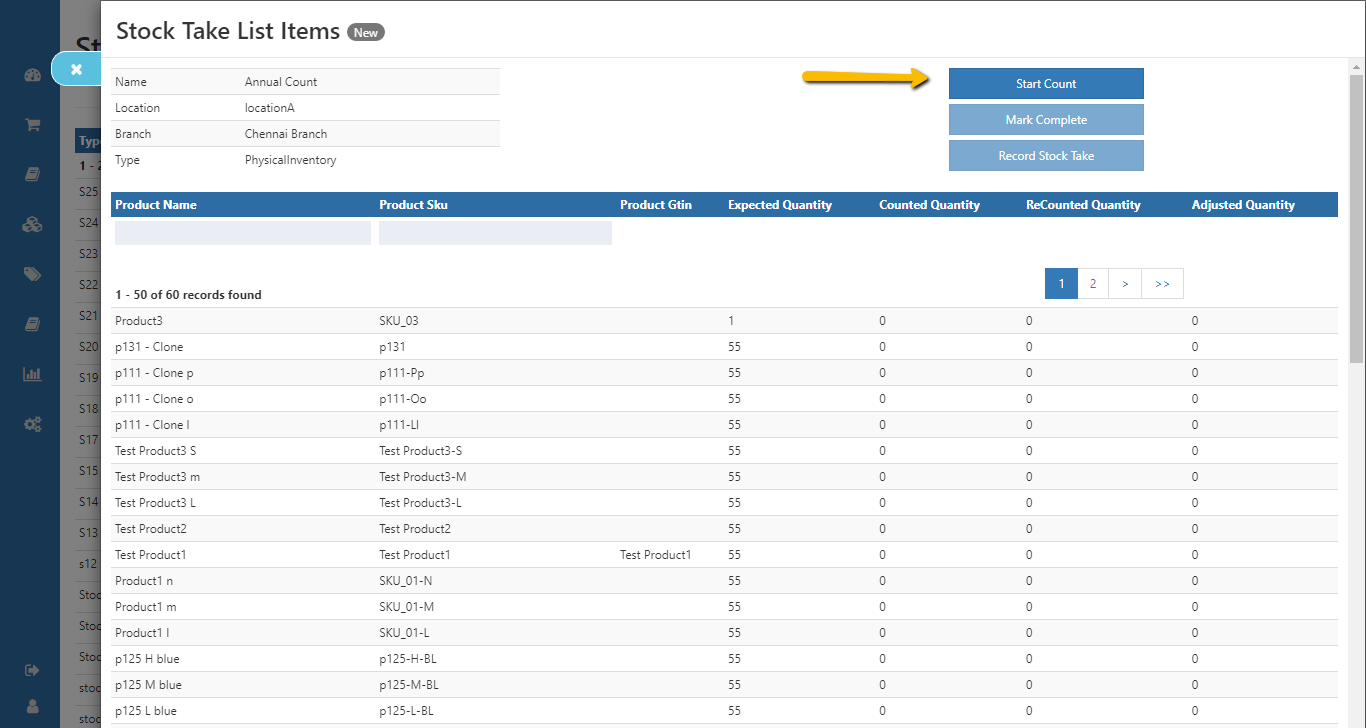
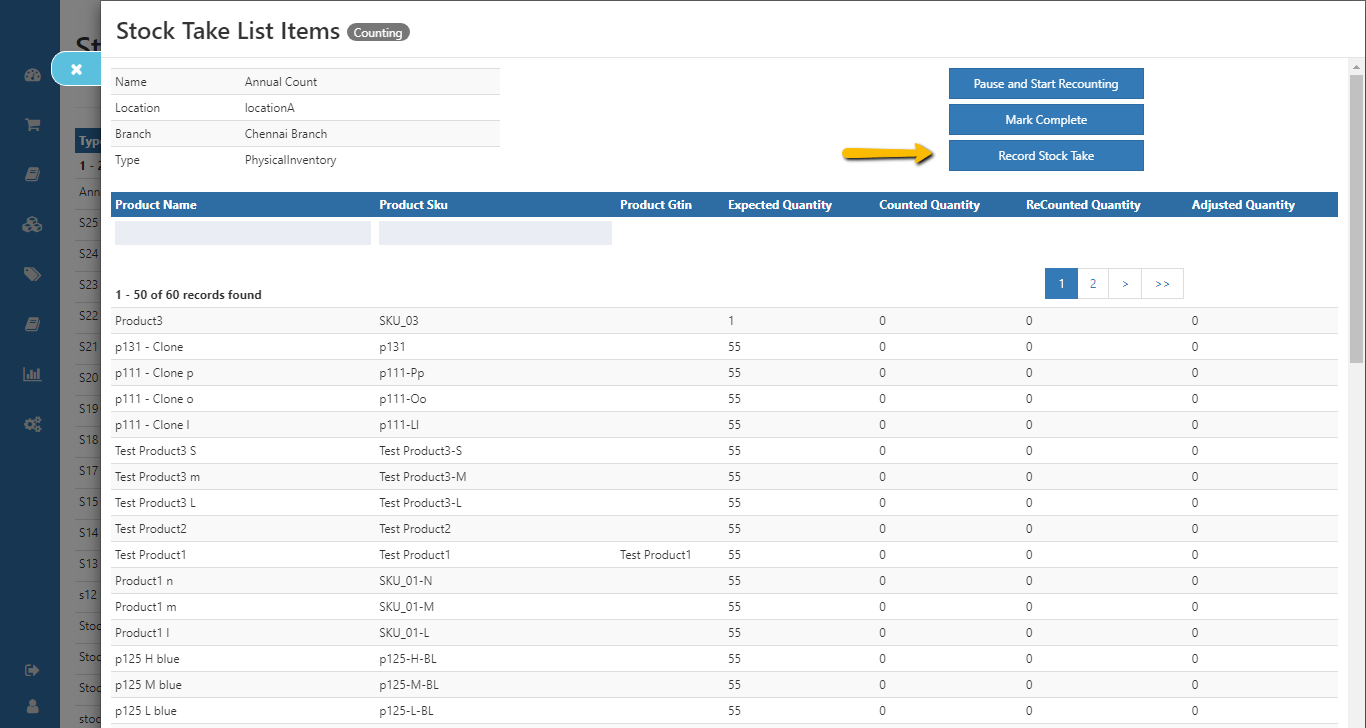
    1. Click Start Count button
    2. Select Record Stock Take to scan (SKU/GTIN) or manually enter products and quantities
    3. Click Save when complete
    Stock Take & Inventory Management | O2VEND Warehouse System

    Recount & Verify

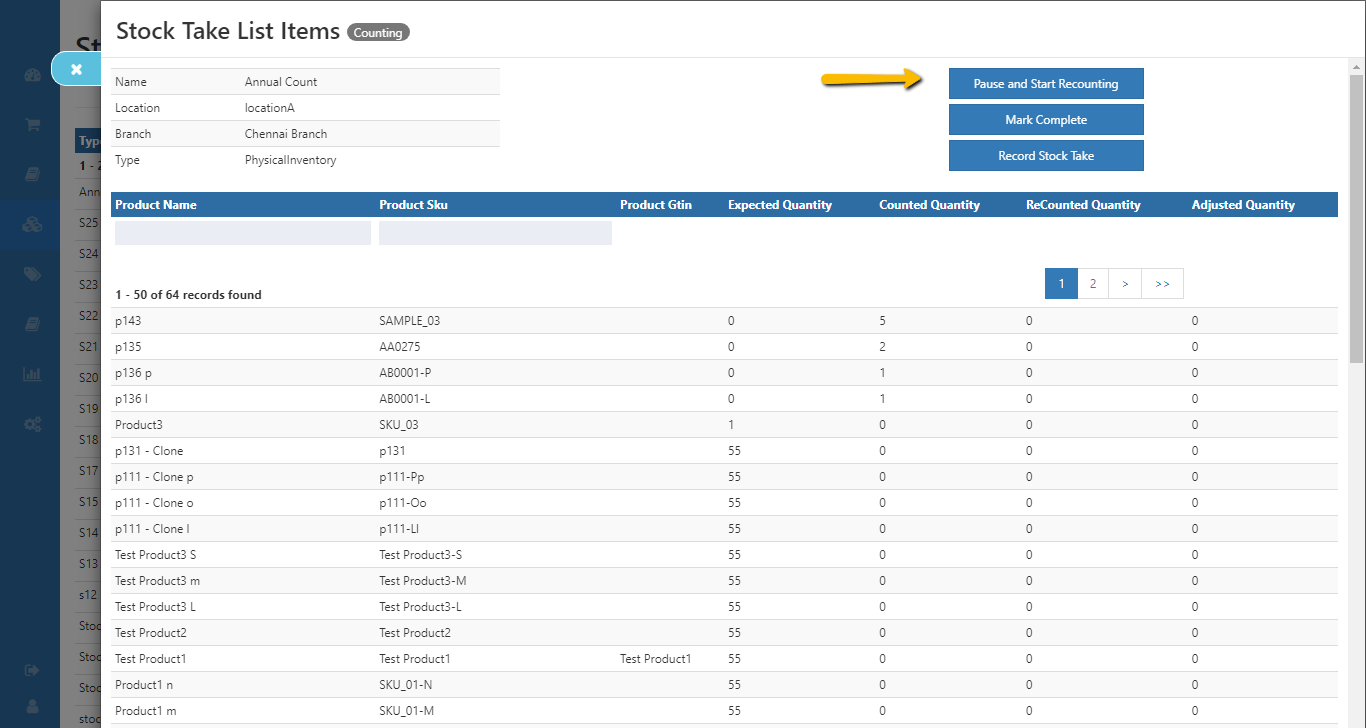
    1. Click Pause and Start Recounting
    2. Select Record Stock Take again
    3. Click Save to confirm verified counts
    Stock Take & Inventory Management | O2VEND Warehouse System

    Adjust Stock Quantities

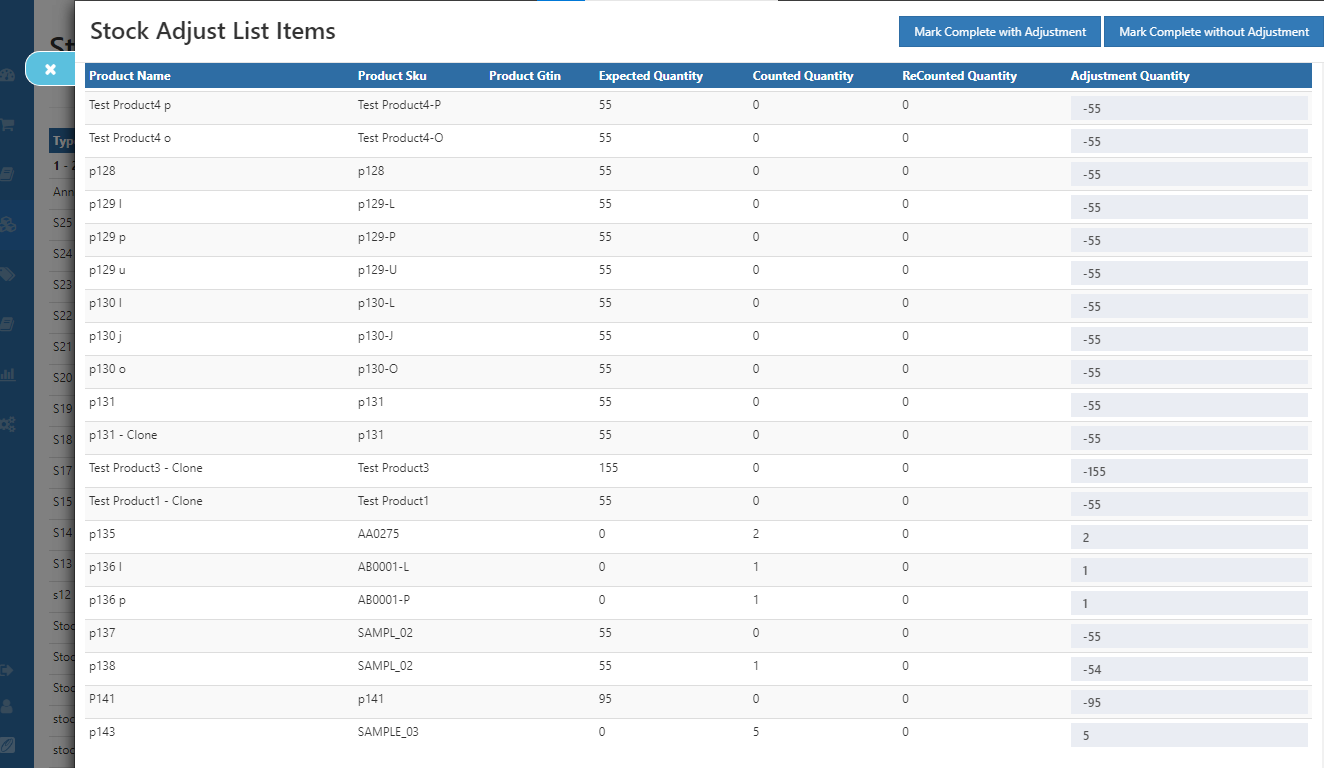
    1. Click Mark Complete
    2. Review and adjust item quantities as needed
    3. Select Mark Complete with Adjustment OR Mark Complete Without Adjustment
    Stock Take & Inventory Management | O2VEND Warehouse System

    View Final Inventory Records

    After completion, access counted and recounted records on the stock take list page to verify all adjustments.
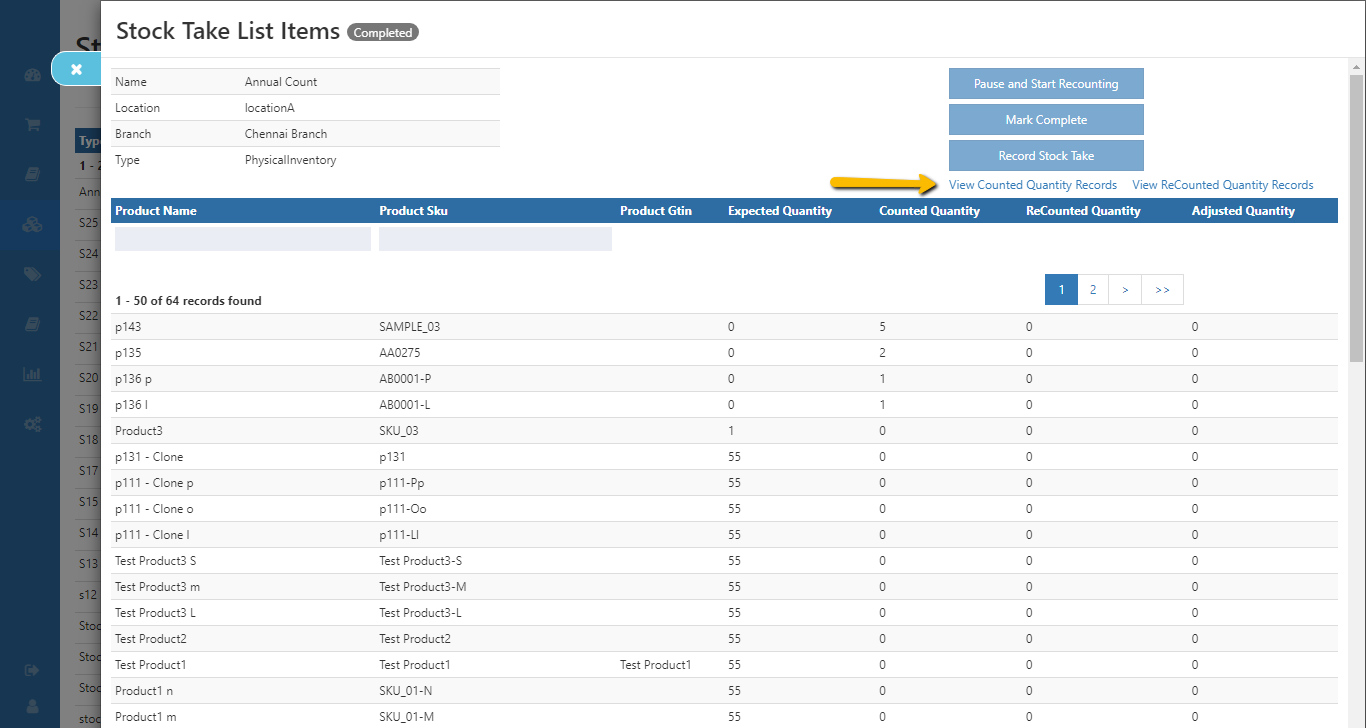
    Stock Take & Inventory Management | O2VEND Warehouse System

    Why Stock Take Matters

    Reduce shrinkage, prevent stockouts, improve cash flow, and make data-driven decisions with accurate inventory counts.

    In this article
    Back to top _includes/footer.html
    © 2019–2026 Jeyan Technologies Private Limited • www.o2vend.com • Create your own store