How to Print Barcode Labels (Step-by-Step Guide)
Bulk & Single Product Printing
Want to generate barcode labels quickly in Back Office?
This complete step-by-step guide explains how to print barcode labels from Stock History, Purchase Voucher, and Product page with quantity control and bulk selection options.
Barcode label printing helps improve inventory accuracy, billing speed, and warehouse stock tracking.
Why Use Print Barcode Label Feature?
- Print barcode stickers in bulk
- Reprint damaged barcode labels
- Label newly purchased stock instantly
- Improve retail billing accuracy
- Manage warehouse inventory efficiently
Method 1: Print Barcode Labels from Stock History (Bulk Printing)
This is the most commonly used method for printing multiple product barcode labels at once.
Steps to Print Barcode from Stock History
- Login to Back Office
- Navigate to Stock History
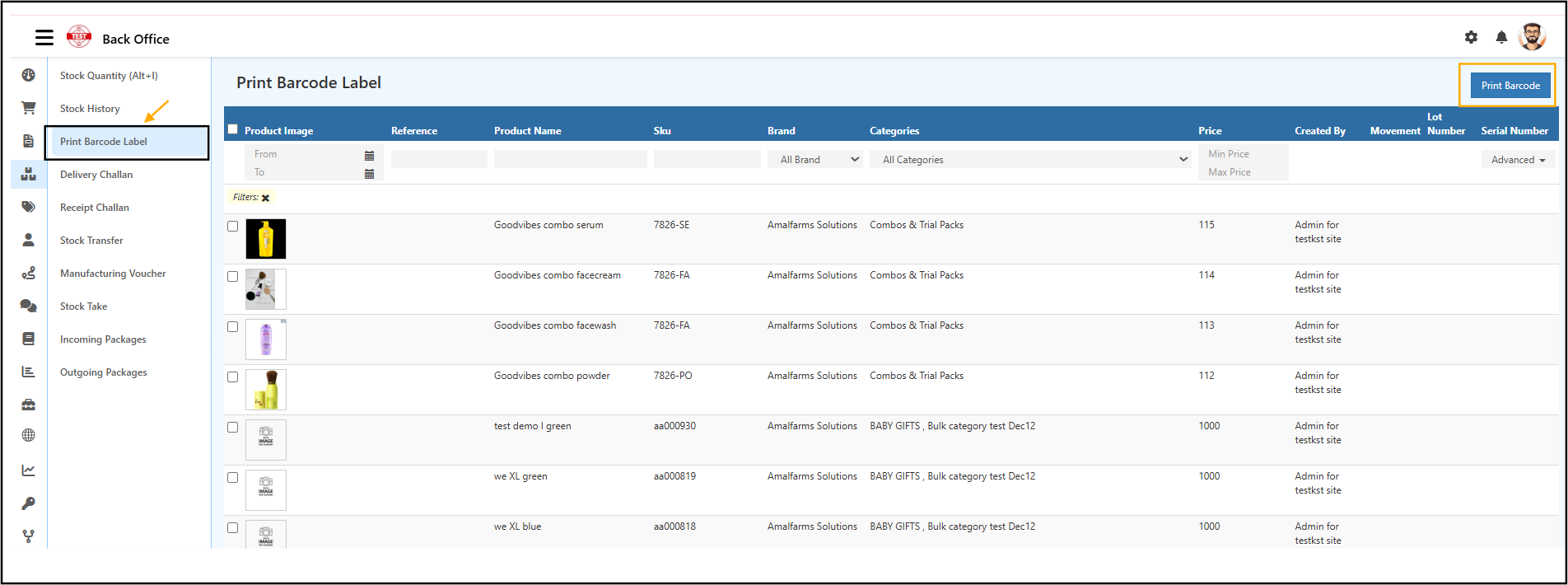
- Click on Print Barcode Label
- Apply filters if required:
- From / To Date
- Brand
- Category
- SKU
- Price Range
- Select products using checkboxes
- Click the Print Barcode button (Top Right Corner)
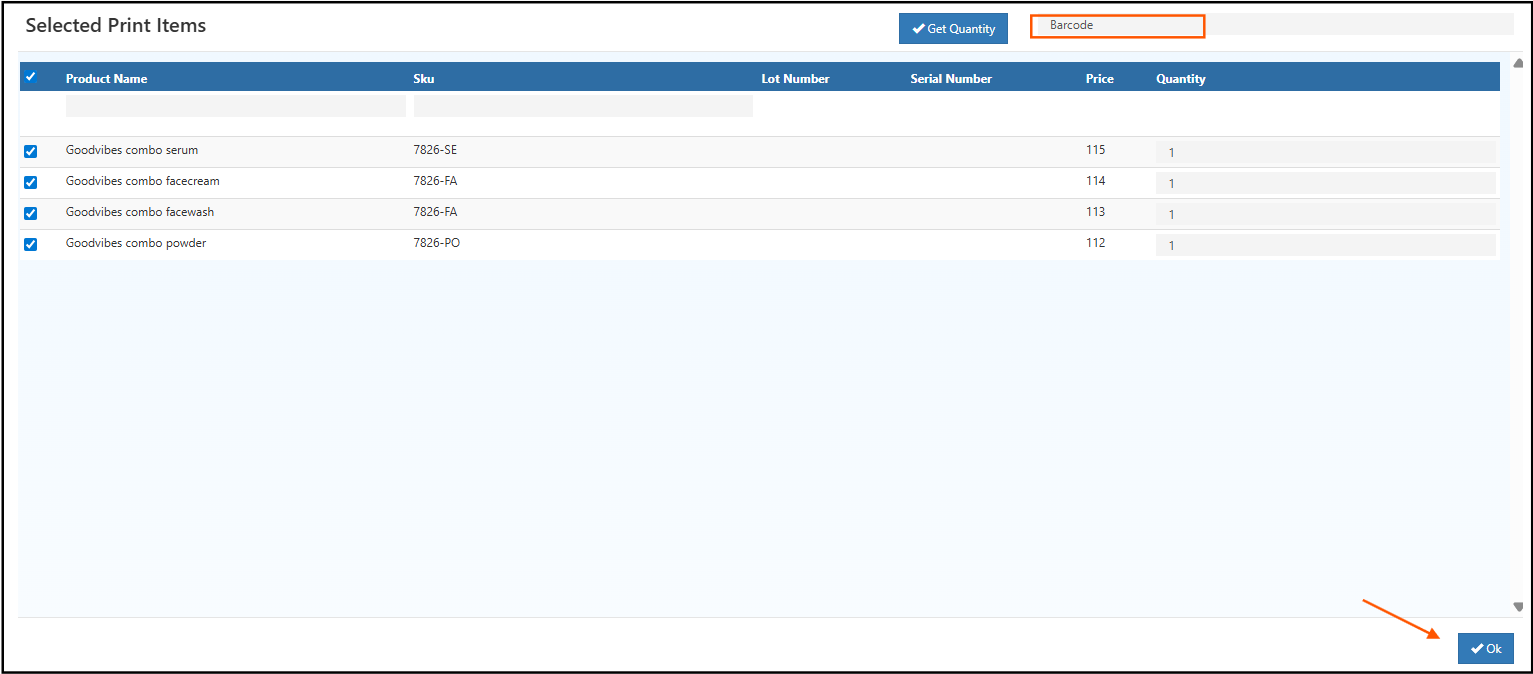
- Verify products in the Selected Print Items screen
- Enter required Quantity
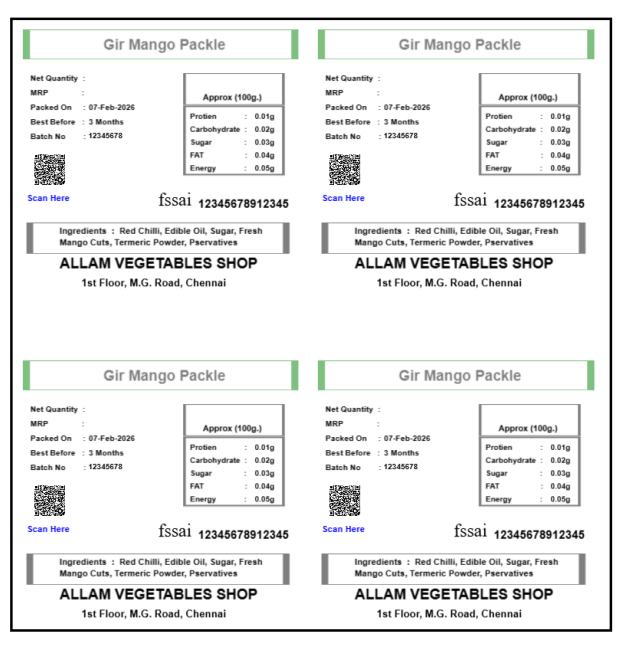
- Click OK to generate barcode labels
💡 Tip: Always verify selected products before bulk printing to avoid unnecessary sticker waste.

Print Barcode Label screen showing filters, product list, and Print Barcode button in Back Office.
Method 2: Print Barcode Labels from Purchase Voucher
Use this method to print barcode labels immediately after stock purchase.
Steps to Print Barcode from Purchase Entry
- Go to Back Office
- Navigate to Vouchers
- Click on Purchase
- Open the required Purchase Invoice
- Click Print Barcode
- Select correct Barcode Template
- Enter required Label Quantity
- Click OK
This ensures newly received stock is labeled before moving to shelves.

Print Barcode option available inside Purchase Voucher for instant barcode generation.
Method 3: Print Barcode for Individual Product
Need to print barcode for only one product? Use this method.
Steps
- Go to Back Office
- Navigate to Catalog
- Click on Products
- Open the required product
- Click Print Barcode (Top Right)
- Select barcode template
- Enter label quantity
- Click OK
Ideal for reprinting damaged or missing barcode stickers.

Print Barcode option available inside individual product page.
Important Guidelines for Barcode Printing
- Ensure barcode is generated in product settings
- Select correct template matching sticker sheet size
- Test print before bulk printing
- Check printer alignment
- Confirm quantity before final print
- Use quality barcode sticker paper
Common Issues & Troubleshooting
Barcode Not Printing?
- Check printer connection
- Verify template selection
- Confirm barcode exists for product
- Allow browser popups
Barcode Alignment Issue?
- Adjust printer margins
- Recheck label template size
- Print test page before final print
Benefits of Using Barcode Labels in Back Office
- Faster billing process
- Reduced manual entry errors
- Accurate stock tracking
- Better warehouse control
- Efficient retail operations
Related Topics
- Catalog Print Barcode Label
- Purchase Order Print Barcode Label
- Settings Inventory Barcode Setup Guide
Related Blogs
How to Create a Printable Product Catalog
Learn how to design and print a professional product catalog for your retail or wholesale business.Step-by-Step Guide to Barcode Label Creation
Complete tutorial to create, configure, and manage barcode labels efficiently.How to Setup Barcode Printer
Configure and connect your barcode printer properly for smooth label printing.How to Generate Barcodes for Inventory Tracking
Learn how to generate barcodes for accurate stock tracking and better stock management.