O2VEND Retail ERP
  • Getting Started
  • Ecommerce
  • Back Office
  • POS
  • Agent App
  • PIM
  • Communication
  • CMS
  • OMS
  • WMS
  • O2C
  • Accounting
  • Reports
  • Themes and Apps
Search Results for

    Show / Hide Table of Contents
    • Warehouse Management
    • Stock Quantity
    • Stock History
    • Barcode Printing
    • Delivery Challan (DC)
    • Receipt Challan (RC)
    • Stock Transfer
    • Manufacturing Voucher
    • Stock Audit
    • Goods Inward (GRN)
    • Goods Dispatch (GDN)
    • Goods Dispatch Note (GDN)
      • GDN Meaning & Overview
      • How to Create GDN
      • GDN Module Guide (Goods Issue)
      • GDN Packages & Package Handling
      • Outward Route Configuration

    How to Create GDN (Goods Dispatched Note) | Step-by-Step Guide

    Learn how to create GDN (Goods Dispatched Note) in O2VEND ERP with our complete step-by-step guide. Manage outbound shipments, track deliveries, and reduce inventory errors. GDN (Goods Dispatched Note) is essential for accurate inventory management and shipment tracking in O2Vend ERP. This guide helps warehouse teams create GDN efficiently.

    Navigation to Goods Dispatched Note (GDN)

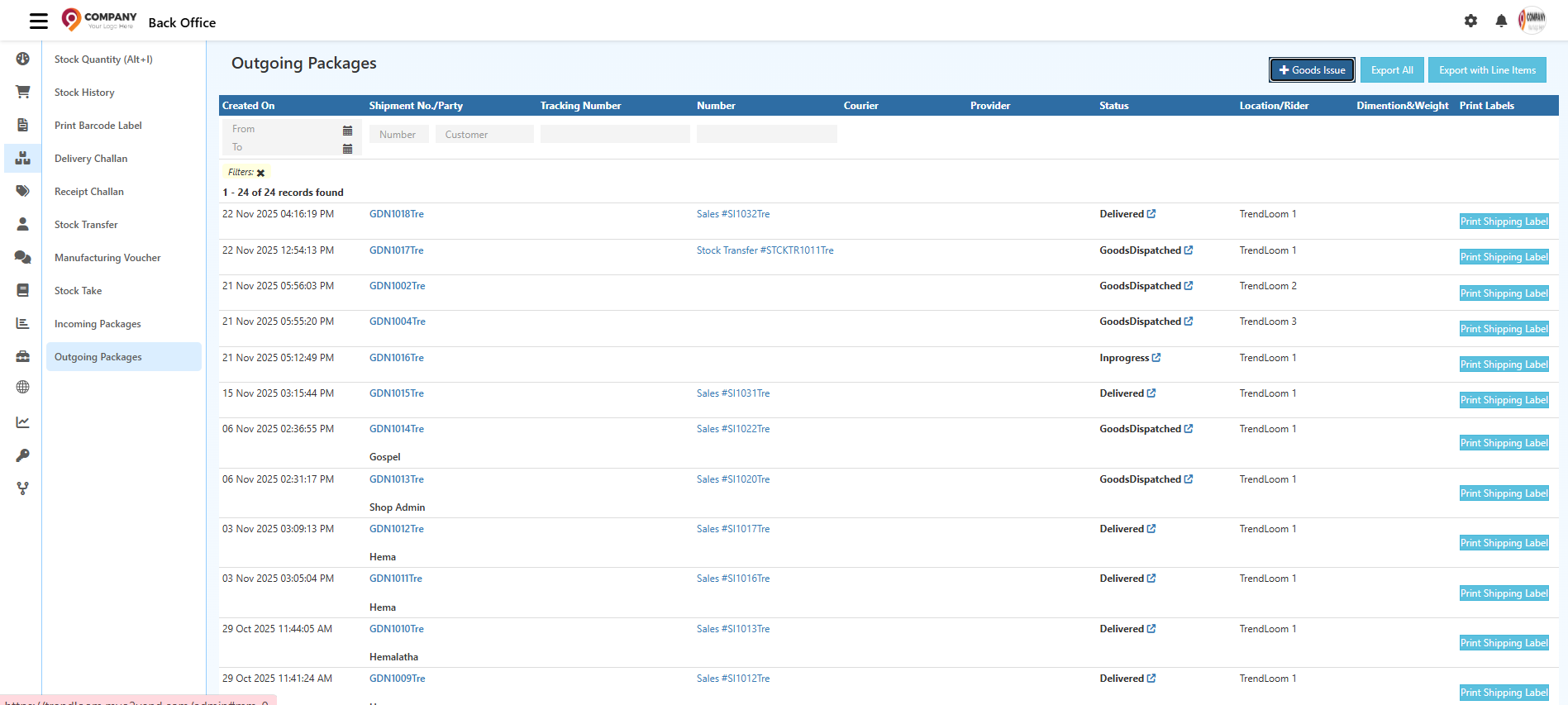
    Access GDN entries from the Outbound Shipments list in your ERP system.

    Steps to Access GDN:

    1. Open the Back Office
    2. Go to Inventory menu
    3. Select Outgoing Packages
    4. Click Goods Dispatched to view GDN list
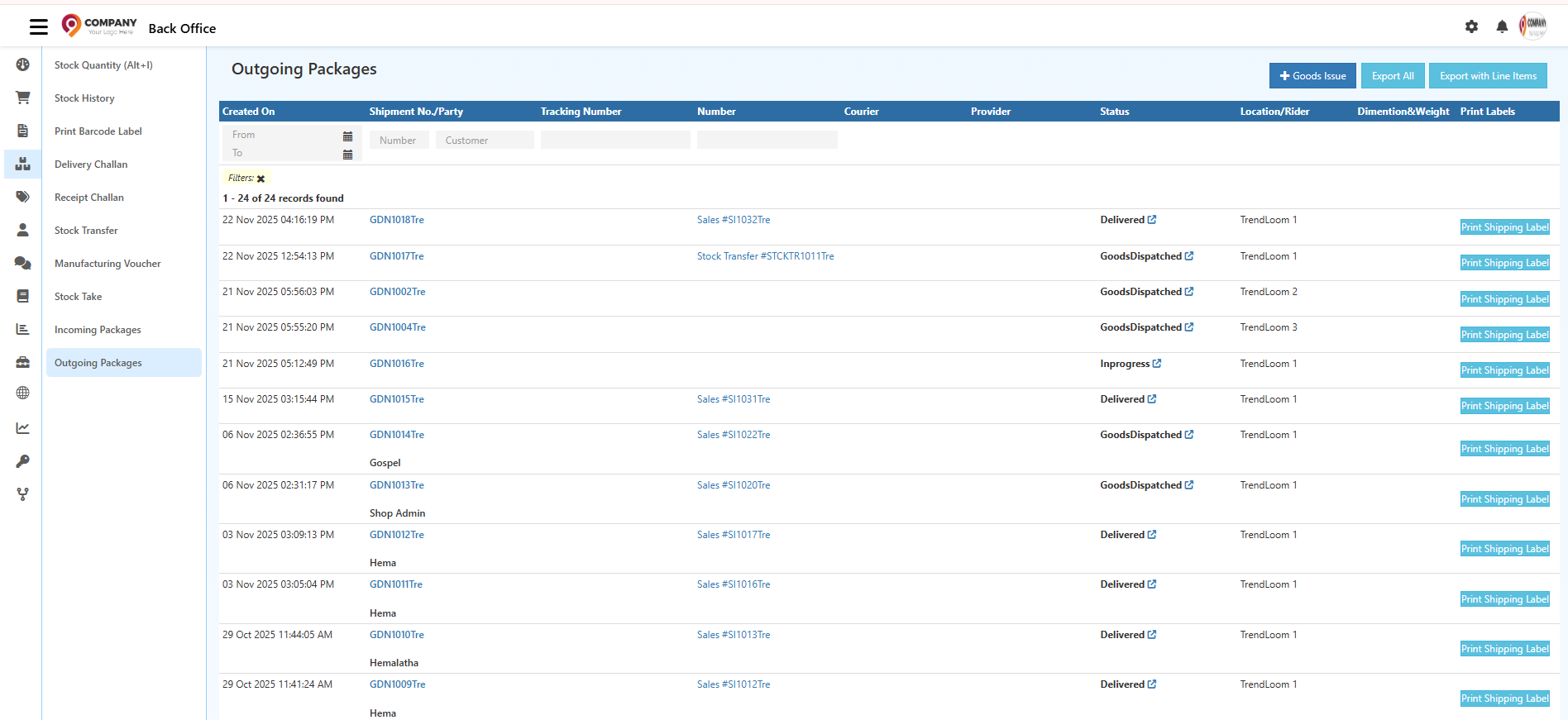
    Goods Dispatched list in O2Vend ERP

    This page displays all outbound shipments with dispatch status and tracking details.


    How GDN Works in O2VEND ERP

    Goods Dispatched (GDN) manages:

    • Outgoing packages
    • Sales order dispatches
    • Delivery challan shipments
    • Branch transfers

    GDN screen displays:

    • Shipment Date
    • Customer Details
    • Delivery Partner
    • Packaging Information
    • Shipment Status

    GDN ensures:

    • Accurate inventory stock-out updates
    • Verified picked, packed, and dispatched orders
    • Proper tracking of sales order deliveries
    • Delivery accuracy and audit compliance
    • Streamlined last-mile logistics
    O2Vend GDN workflow overview

    GDN Columns & Their Functions

    Understanding each column helps manage shipments efficiently.

    Column Function
    Created On Date and time GDN was created
    Shipment No / Customer Shipment reference number and customer details
    Tracking Number Courier tracking ID for shipment monitoring
    Delivery Challan / Order No Sales Order or Delivery Challan reference
    Courier Delivery partner or logistics provider name
    Status Current shipment stage (Dispatched, OutForDelivery, Delivered, etc.)
    Location / Rider Warehouse dispatch point and assigned rider
    Dimension & Weight Package measurements for courier charges

    GDN Status Types:

    • Dispatched – Handed to logistics partner
    • OutForDelivery – In transit for delivery
    • Delivered – Customer received package
    • Exception – Delivery issue occurred
    • AttemptFail – Delivery attempt unsuccessful
    • PickedUp – Pickup completed (returns)

    GDN Filters Section

    Use filters to locate specific outbound shipments quickly:

    • Date Filter (From/To) – View dispatches within date range
    • Shipment No / Order No – Search by reference
    • Customer – Filter by customer name
    • Tracking Number – Search by courier ID

    GDN Top Action Buttons

    Goods Issue - Creates GDN, deducts stock automatically, marks order as dispatched

    Export All - Exports complete outbound shipments list

    Export with Line Items - Exports product-level details for reporting


    Step-by-Step Process to Create a GDN

    Step 1: Open Goods Dispatched Screen

    Navigate to: Inventory → Goods Dispatched

    Or open directly from Sales Order or Delivery Challan.

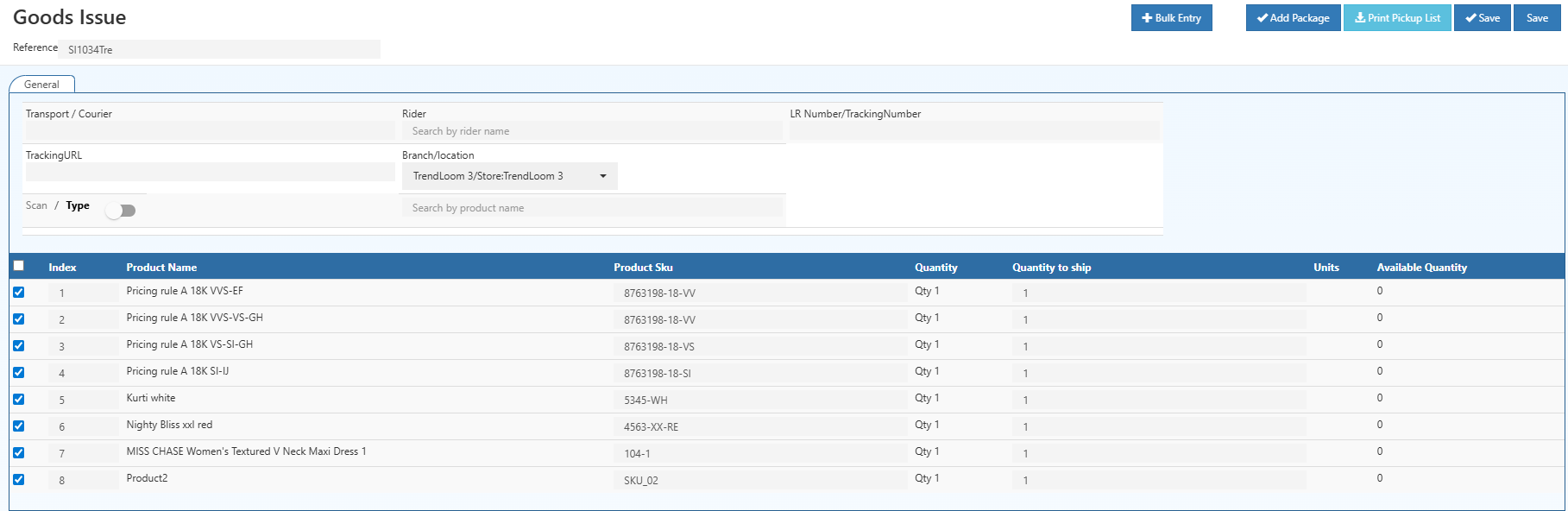
    Creating GDN in O2Vend ERP

    Step 2: Enter Transportation Details

    Provide logistics information:

    • Courier / Transporter Name
    • Rider (for own delivery)
    • Tracking Number / LR Number
    • Tracking URL (if available)

    Step 3: Verify Order & Dispatch Location

    Confirm:

    • Reference (Sales Order or Delivery Challan Number)
    • Dispatch Location (Warehouse or Branch)
    • Sub-location (Shelf, rack, or bin)

    Step 4: Choose Item Entry Mode

    Select entry method:

    • Scan Mode – Barcode scanning (faster, fewer errors)
    • Type Mode – Manual product search

    Step 5: Review Product List

    Verify:

    • Product Name
    • SKU Code
    • Quantity Ordered
    • Units
    • Sub-location

    Step 6: Enter Dispatched Quantities

    Enter final dispatch quantity:

    • Supports full dispatch
    • Supports partial dispatch
    • Prevents over-dispatch

    Step 7: Assign Units & Sub-Locations

    Confirm:

    • Unit selection (Box, Piece, Carton, etc.)
    • Sub-location details

    Step 8: Add Package Details

    Enter:

    • Package dimensions
    • Weight
    • Number of packages

    Step 9: Bulk Entry (Optional)

    Upload product dispatch details using Excel for large orders.

    Step 10: Review & Confirm

    Verify before saving:

    • Courier details
    • Tracking number
    • Product quantities
    • Package details
    • Dispatch location

    Step 11: Save the GDN

    Once saved:

    • Inventory stock reduces in real-time
    • GDN status changes to Dispatched
    • Delivery logs recorded in system
    • Shipment available for tracking

    Final Outcome of GDN Process

    After completing GDN:

    • Goods marked as officially dispatched
    • Stock-out entry recorded automatically
    • Delivery workflow begins
    • Audit trail maintained

    A properly executed GDN ensures smooth warehouse operations, accurate inventory management, and reliable delivery performance.

    Pro Tip: A well-managed GDN workflow improves operational efficiency, reduces errors, and strengthens supply chain performance.

    Need Help with GDN Workflow?

    Get support with GDN setup, courier configuration, outbound shipments, and dispatch process optimization in O2Vend ERP.

    Contact O2Vend Support →
    In this article
    Back to top _includes/footer.html
    © 2019–2026 Jeyan Technologies Private Limited • www.o2vend.com • Create your own store