Shipping Class in O2VEND – Product-wise Delivery & Shipping Configuration
Learn how to assign pre-created shipping classes to O2VEND catalog products. Configure product-specific delivery options, shipping rules, and enhance checkout experience.
The Shipping Class tab in O2VEND Catalog Product setup is used to assign pre-created shipping classes to a specific product.
This controls how the product is delivered, which delivery options are shown to customers, and what shipping rules apply during checkout.
⚠️ Shipping Classes must be created in advance under Store / Shipping Settings.
In this tab, you only select and apply existing shipping classes to the product.
- If a product does not have a shipping class assigned, it will automatically use the default shipping class created in the Online store - Shipping Providers.
Using the correct shipping class ensures:
- Accurate delivery options at checkout
- Better customer experience
- Fewer order and shipping issues
Always review shipping classes before publishing the product.
What Is the Shipping Class Tab Used For?
In the Shipping Class tab, you define:
- Which delivery methods are allowed for the product
- How the product behaves during shipping calculation
- What shipping options appear on the checkout page
- Whether the product supports standard, express, or free delivery
This tab works at the product level, allowing different products to have different shipping rules.
How Shipping Class Works in O2VEND
Shipping Classes control delivery behavior, while actual shipping charges, zones, and conditions are configured globally in Shipping Settings.
Key Points:
- Shipping Classes are not created here
- Only already created shipping classes are selectable
- One product can have multiple shipping classes
- Checkout options depend on the assigned shipping classes
Add Shipping Class (Product Level)
The Add Shipping Class field displays all available shipping classes configured in the system. Once selected, the shipping class appears in the assigned list for the product.
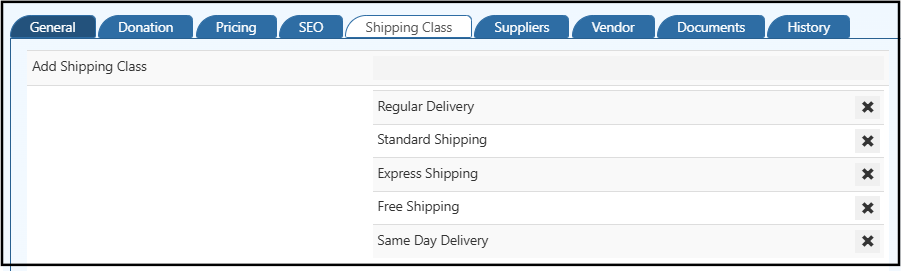
How to Assign an Existing Shipping Class to a Product
Follow these steps:
- Go to Catalog → Products
- Create a new product or edit an existing one
- Open the Shipping Class tab
- Click on Add Shipping Class
- Select one or more shipping classes from the list
- Selected shipping classes appear on the right side
- Use the Remove (✖) icon to delete any assigned class
- Click Save to apply changes
The selected shipping classes are now active for the product.
Assigning Multiple Shipping Classes to One Product
O2VEND allows you to assign multiple shipping classes to a single product.
Example:
- Regular Delivery
- Express Shipping
- Free Shipping
During checkout, customers can choose their preferred delivery option based on availability and cost.
📈 Allowing multiple shipping methods improves customer flexibility and increases conversion rates.
Removing a Shipping Class from a Product
To remove a shipping class:
- Click the Remove (✖) icon next to the shipping class
- The shipping class will be unassigned from the product
- Save the product to confirm changes
Removing a shipping class prevents that delivery option from appearing during checkout.
Related Resources
- Create Shipping Classes – Step-by-step guide to creating shipping classes in O2VEND