Tutorial: Setting Up and Managing Pricing Rules in O2Vend
(For Jewellery and Laboratory Businesses)
💡 Introduction to Pricing Rules
A Pricing Rule helps automatically determine product prices based on changing parameters like metal rate, purity, material cost, and markup.
This automation saves time and reduces manual errors when prices fluctuate in the market.
Typical Use Cases
- Jewellery Outlets: Prices are based on current gold rate + wastage + making charges.
- Laboratory Supplies: Prices depend on chemical purity + base rate + measured quantity.
With the O2Vend Pricing Rule Engine, your store pricing remains consistent, accurate, and responsive to market changes.
🔹 Step 1: Open the Pricing Rules Section
- Sign in to your O2Vend Back Office account.
- From the main menu, go to
Catalog → Pricing Rules. - You’ll see a list of all existing pricing rules with their Display Text, Formula, and Rate configurations.
🔹 Step 2: Add a New Pricing Rule
- Click on + Add Pricing Rule.
- Provide the necessary details as shown below:
| Field | Description |
|---|---|
| Category | Choose between Jewellery or Laboratory. |
| Template | Use Dynamic Pricing Formula (DYNAMIC_PRICING_V1). |
| Brand | (Optional) Apply brand-level filtering for specific products. |
- Select Save to record the rule.
🔹 Step 3: Specify Pricing Formula and Rate Details
Once saved, navigate to the Rates tab to define how the pricing will be computed dynamically.
Each rate component represents a variable or constant value that contributes to the overall product price.
🔹 Step 4: Modify or Remove Rules
| Action | Explanation |
|---|---|
| Edit (✎) | Revise formulas or adjust pricing details as needed. |
| Delete (✖) | Permanently remove the selected pricing rule. |
🔹 Step 5: Manage Rate Components
Within the Rates Tab, define the calculation parameters — including constants, multipliers, and formulas — that determine the final selling price.
| Column | Purpose |
|---|---|
| Display Text | Name of the rate or cost factor (e.g., PlatingRate, StoneSettingCost). |
| IsFormula | Mark as true if the rate should be derived from a formula instead of a fixed number. |
| Formula | Mathematical equation applied when IsFormula is selected. |
| Rate | A specific numeric value used directly for calculations. |
| Actions | ➕ Add / ✔ Save / ✖ Delete components as needed. |
🔹 Step 6: Configure Product Attributes
- Go to Back Office → Products → Edit Product.
- Open the Attributes section.
- Set or modify attributes such as GoldWeight = 20.95g or DiamondCarats = 4.2.
- Click Save to update the product data.
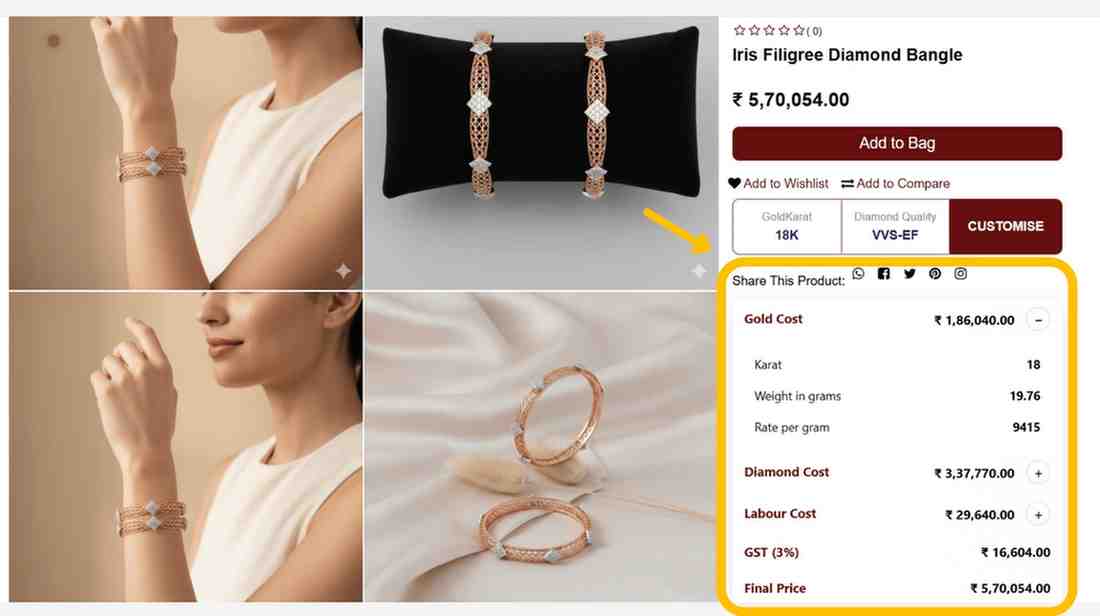
🔹 Step 7: Display on Online Store
After attribute configuration, the values are automatically shown on the Product Detail Page of your O2Vend eCommerce store.
This provides customers with real-time product information, including:
- Gold Karat
- Diamond Clarity
- Item Weight
- Complete Price Breakdown (Metal, Stones, Labour, Taxes)
Example:
Gold Karat: 18K
Diamond Grade: VVS-EF
Weight: 20.95g
Final Price: ₹6,24,869
Related Blogs
Want to improve catalog visibility, inventory handling, and search performance?
Explore these related articles:
How to Create a Printable Product Catalog
Learn how to create and share printable product catalogs for easy offline and customer-friendly product presentation.Best 10 Wholesale eCommerce Platforms for Businesses
Explore the top wholesale eCommerce platforms and choose the right solution for scaling your business operations.Wholesale eCommerce Explained: 10 Best Platforms for Wholesale
A detailed guide to wholesale eCommerce models and the best platforms to manage bulk selling efficiently.