Product Categories
Product categories are used to group products in a logical and meaningful manner, making it easier for customers to find and browse products on a website. They are often used to organize products by type, function, or use case, and they can be used to create a hierarchical structure for the website.
In O2VEND eCommerce, product categories can be created and managed in the back-end system, typically by selecting the option to create a new category. Once a category is created, products can be associated with it by selecting the appropriate category when creating or editing a product.
Product categories are also used in online sales, by providing customers with a more organized and easy to navigate website, it can help to increase sales and customer satisfaction. Additionally, they can also be used in reports, as they can provide valuable insights into which products are popular and how they are being used by customers.
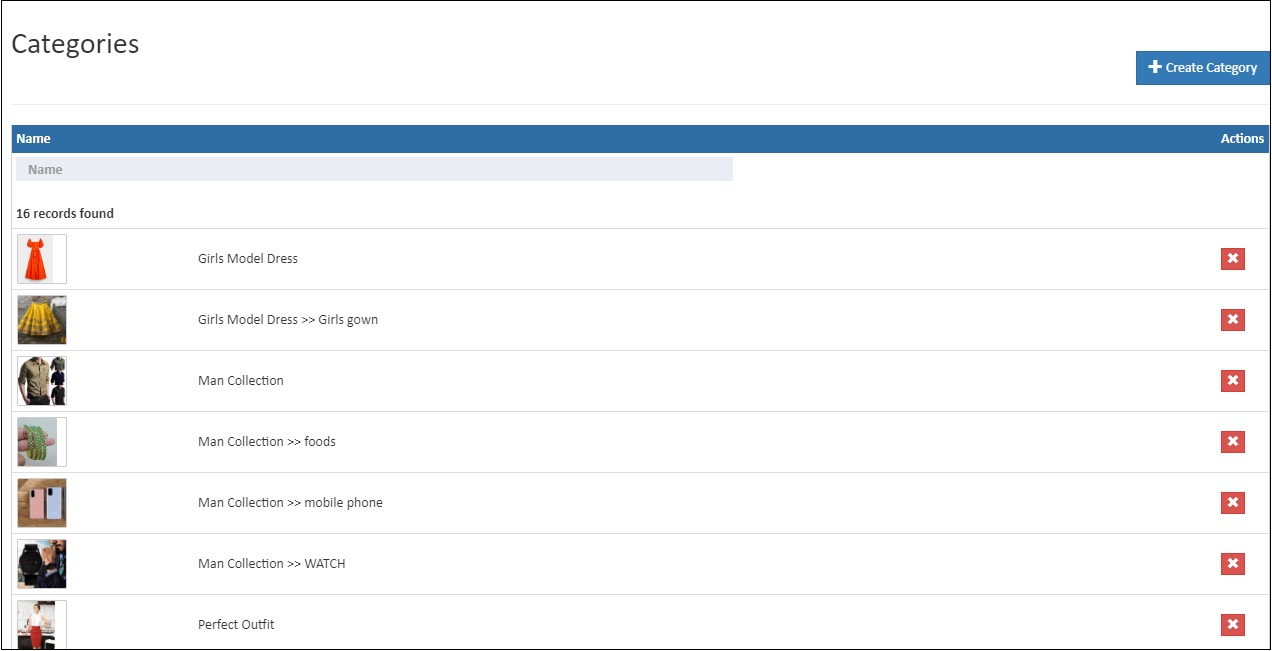
Create Category
Create a new category along and choose products grouped under it.
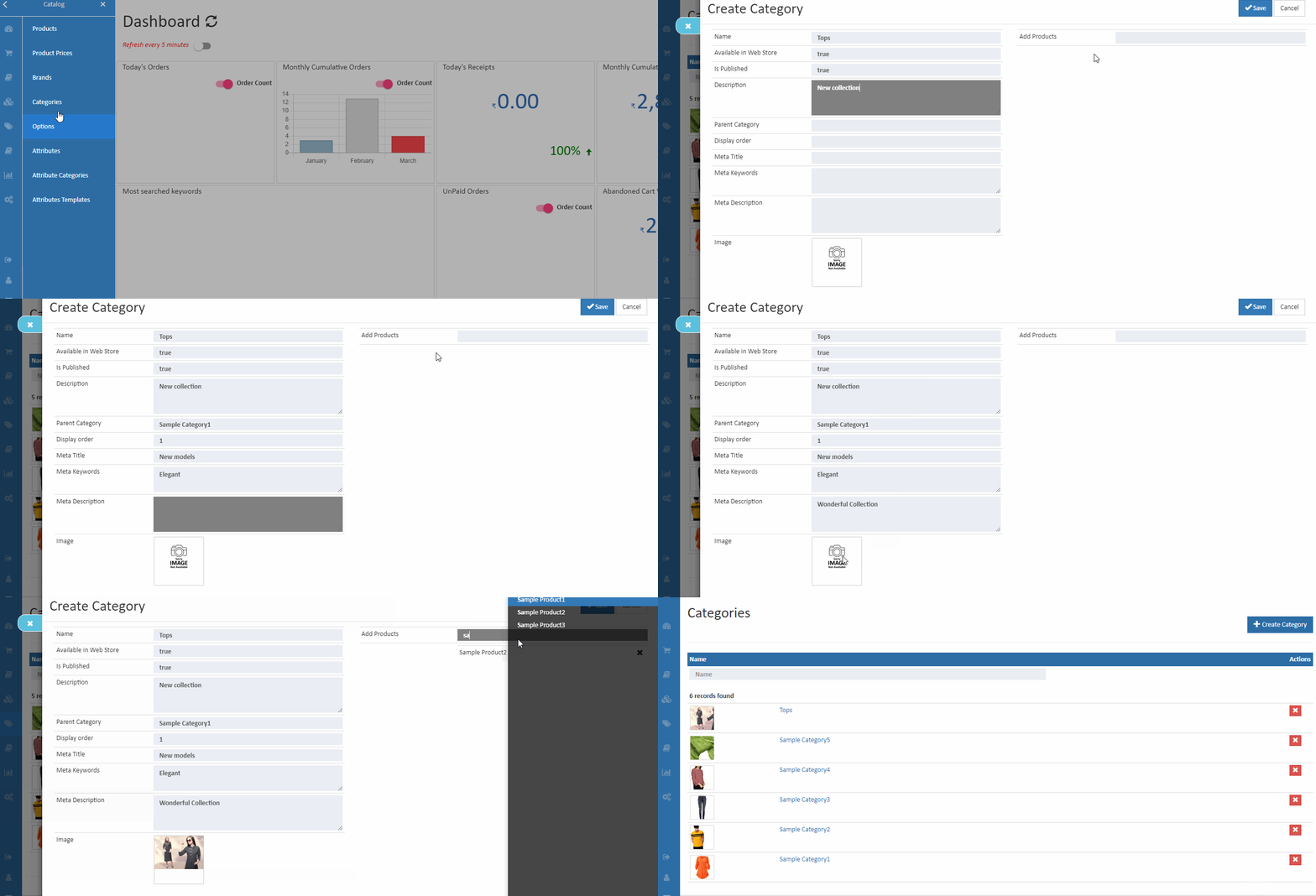
How to create a Category
- Open Back Office.
- Go to Catalog Menu.
- Click and open Categories section.
- Click Create Catagory button in the top right corner.
- Enter all needed details and press Save button to create a new category.
General
Name
Enter Name of the category.
Available in Web store (Online)
When Available in Web store (Online) is enabled, the category will be shown in the categories menu on the web page (based on Theme).
Warning
Search in the Web store will only search for products mapped to one of the categories for which Available in the Web store (Online) is enabled.
Is Published
When Is Published is enabled, the category becomes active. A not published category is considered an inactive category and considered as a draft.
Description
Describe the category. O2VEND suggests having a detailed description of the category.
Parent Catagory
Select an already existing category as Parent Category for the new category getting created.
Tip
Select Patent category as Top if there is no parent category for the new category.
Display order
Some of our themes use Category display order to display the Categories menu in ascending order.
Tip
Setting up display orders with same numbers for multiple categories - allow the themes to display categories menu by default order.
Meta Tags
Fill in the Meta Tags details. See Meta Title, Meta Description and Meta Keyword for more information.
Category Image
Upload category image here. It will be useful for category widgets.
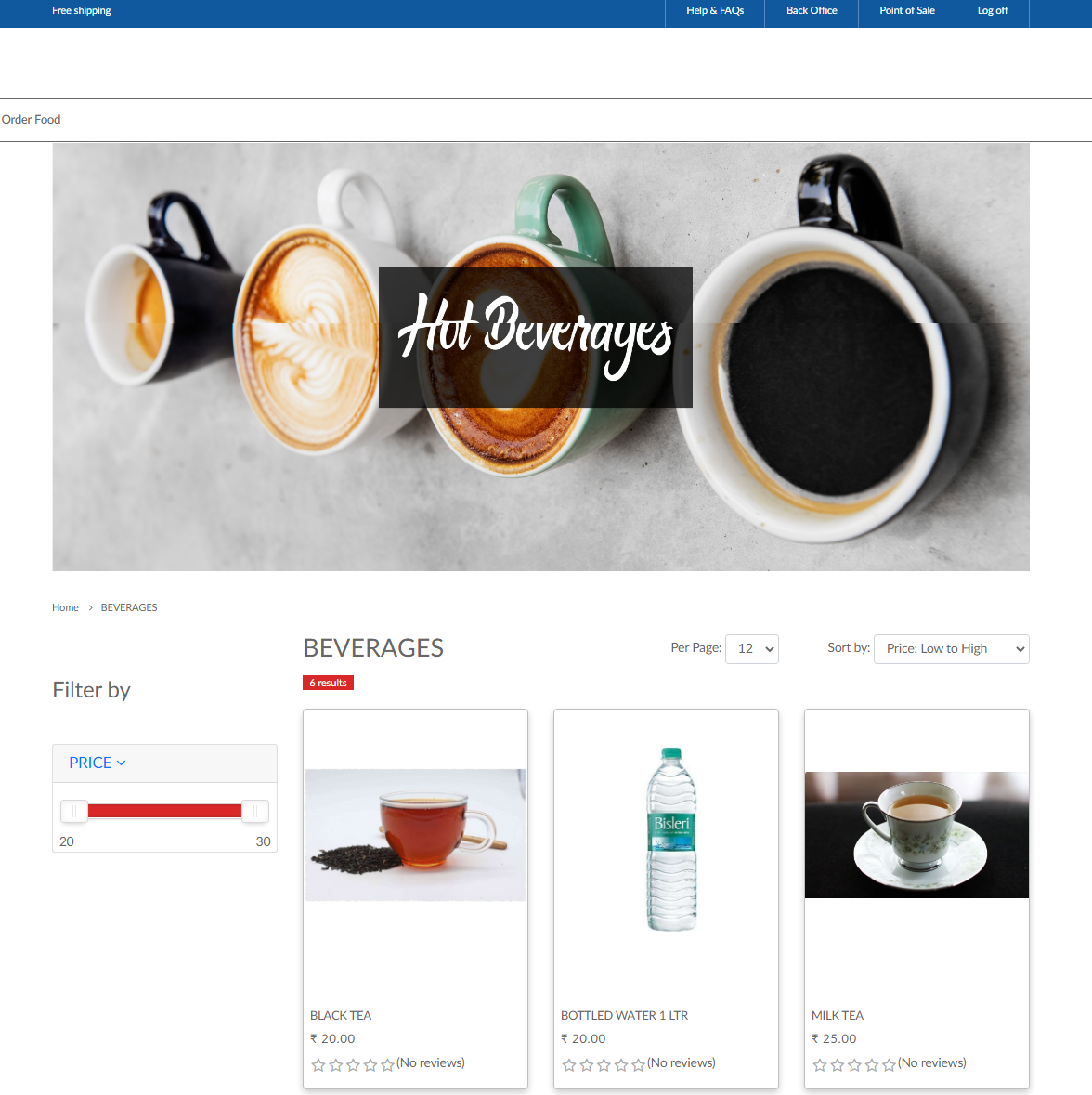
Banner Image
Upload banner image here. It will display on the top of the category page on the website.

Show Banner
Banner will be display only the show banner is "TRUE". If it is false, it will not display.
Products
Products
Add products into the category.
Edit Category
Edit existing categories with all details.
How to edit a category
- Open Back Office.
- Go to Catalog Menu.
- Click and open Categories section.
- List of already existing categories will be shown.
- Click Category Name against the category to be edited.
- Update all the details as needed.
- May also update the category display order in the categories.
Sub category
Sub category list of this category is updated in this section.
Specification
In this section, add the product information about the wash care, size chart and return policy details.
SEO
In this section, add the URL slug name, meta title, meta keyword and meta description of the categories.
Category SEO URL Slug:
Slug is part of a URL that comes at URL ends it representing a particular page of a website. By default, the URL slug name took from the category name. Admin and SEO managers can change the slug name. Ensure that the slug URL field does not require the addition of specific numbers, special characters and unnecessary words.
How to create SEO URL Slug
- open the SEO tab.
- Enter the category SEO URL slug name.
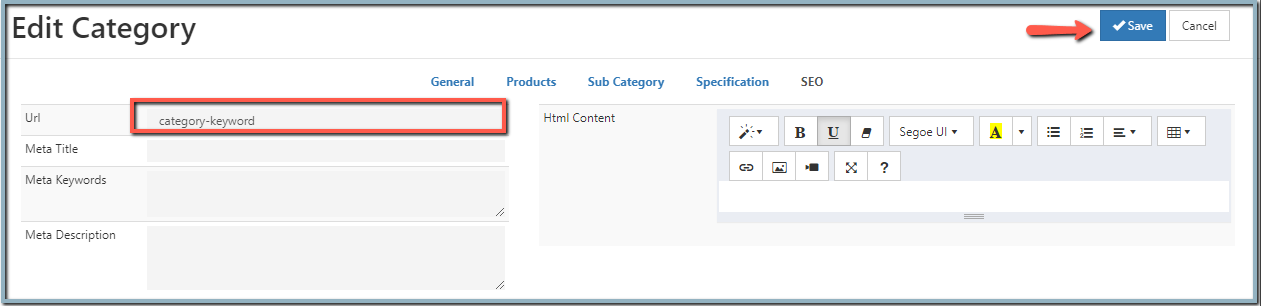
An example is the URL "https://o2vend.com/categoryname-keyword/" where the slug is "categoryname-keyword".

HTML Content
Enter details in HTML content. The administrator can write content about their category on the category detail page. Use pictures, different fonts, colors to create the layout of the page.
Related Blogs
Want to improve catalog visibility, inventory handling, and search performance?
Explore these related articles:
How to Create a Printable Product Catalog
Learn how to create and share printable product catalogs for easy offline and customer-friendly product presentation.Best 10 Wholesale eCommerce Platforms for Businesses
Explore the top wholesale eCommerce platforms and choose the right solution for scaling your business operations.Wholesale eCommerce Explained: 10 Best Platforms for Wholesale
A detailed guide to wholesale eCommerce models and the best platforms to manage bulk selling efficiently.Easily Manage Your Inventory Using the Import Products Option
Discover how bulk product import simplifies inventory setup and saves time when managing large product catalogs.Understanding Meta Descriptions: Importance and Basics
Understand how meta descriptions improve product visibility, search rankings, and click-through rates.Essential Tips for Writing SEO-Friendly Website Titles
Learn how to write effective, SEO-friendly titles that attract clicks and improve search engine performance.