Set Up Stock Levels
In this section, the user can set stock levels of the products. Set the minimum and maximum level of the products and set the reorder quantity level of the products.
Stock level refers to the number of raw materials that businesses need to maintain their daily business operations and avoid situations such as low or high stocking.
Each company should always have an optimum quantity of goods to ensure the regular operation of its manufacturing activities.
Stock levels has 3 types,
Minimum level - This is the number of items that the company should be held at all times. If the minimum stock level is reduced, the shop work will be stopped due to low materials.
Maximum Level - This is the quantity of items a company should not have more than its maximum level. If the company has too much stock, it will lead to higher material prices and it will reach the expiration date.
Reorder Quantity - When the quantity of goods reaches a certain level, a new order will be sent to the supplier to buy goods again. The order will be sent to the buyer before the goods reach the minimum balance level.
If admin want to set as default quantity - Go to the Settings menu and see Stock Levels in the Stock Settings section. Click and open Stock Levels. Enter the quantity and click the save button.
Setup lead time and safety stock
A company needs some time to process the order and, the supplier/seller needs time to execute the order. The time it takes to process an order and then executes the order is called lead time. It is necessary to maintain some inventory to meet production requirements during this period. Enter the number of days in this box. (For example: If in 10 days, give 10)
Safety stock is an additional stock held to reduce the risk of a company running out of stock for that product.
Enter the number of quantities in this box.
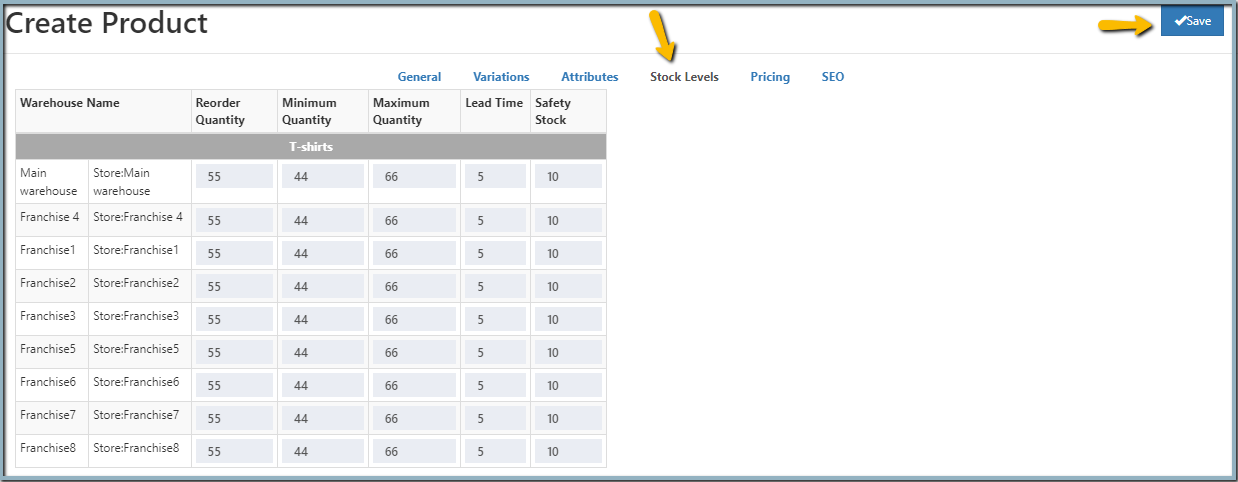
Add Stock Levels for a product
- Open the product in edit mode or while creating the product.
- Open the Stock Levels tab.
- Enter the stock levels quantity in the warehouse.
- Enter the lead time and safety stock of the products.
- Click the Save button.