Clone Products & Print Barcodes | Fast Catalog Management
Learn how to clone products, update quantities, and print barcodes in O2VEND. Save time, launch variants faster, and maintain consistent product data effortlessly.
Speed up product catalog management in O2VEND by cloning products, updating stock quantities, and printing barcodes—all in just a few clicks. Save time, reduce errors, and maintain consistent product data across your stores and warehouses.
The Clone Product feature lets you duplicate any existing product with all its configurations, assign a new product name, and instantly launch similar items without starting from scratch.
Cloned products inherit:
- General details & descriptions
- Pricing rules & tax settings
- Attributes & variants
- Stock behavior & warehouse assignment
- SEO metadata & linked configurations
These settings can be customized after cloning to match new product specifics.
Why Clone Products?
Cloning products in O2VEND helps you:
- ✅ Reduce manual data entry
- ✅ Maintain consistency across similar products
- ✅ Launch product variants faster
- ✅ Reuse pricing, tax, and inventory logic
- ✅ Improve operational efficiency for large catalogs
Step-by-Step: How to Clone a Product
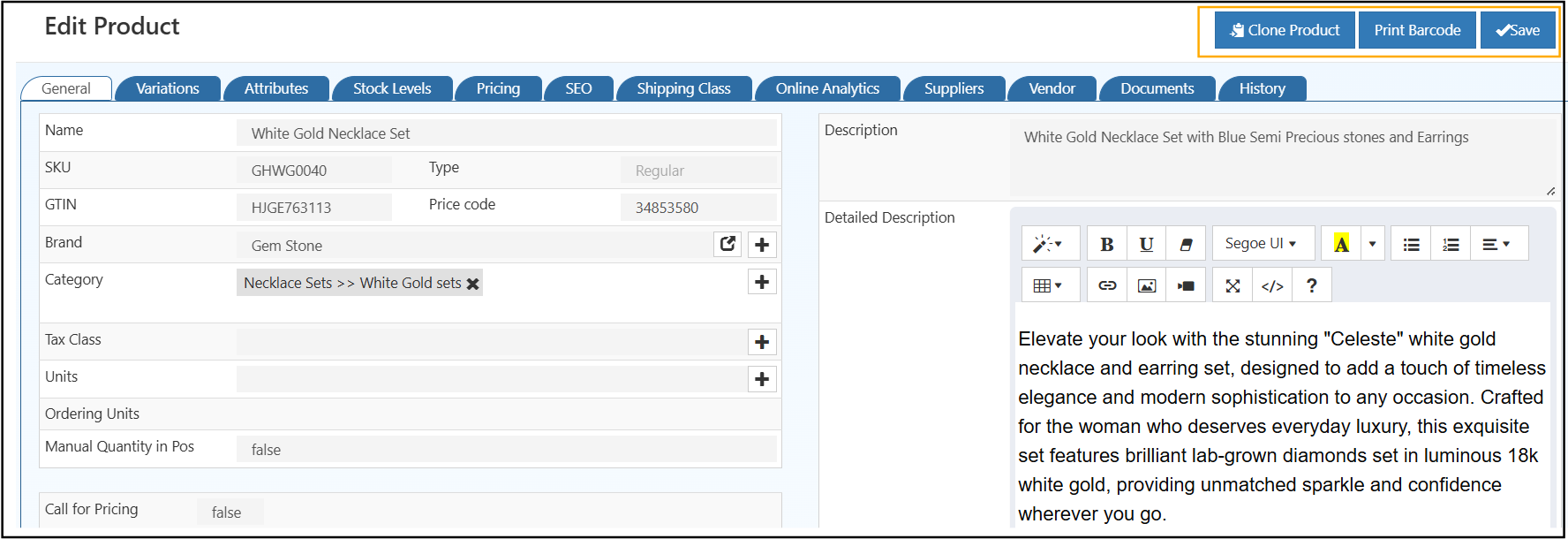
- Go to Back Office
- Navigate to Catalog > Products
- Select the product you want to clone
- Click Clone Product at the top-right
- Enter a New Product Name
- Click Save
Tip
Clone first, then update only the fields that differ (name, SKU, price, or attributes) to save time and maintain consistency.
Print Product Barcodes
Generate and print scannable barcodes directly from the product screen. Ideal for POS billing, warehouse operations, and inventory tracking.
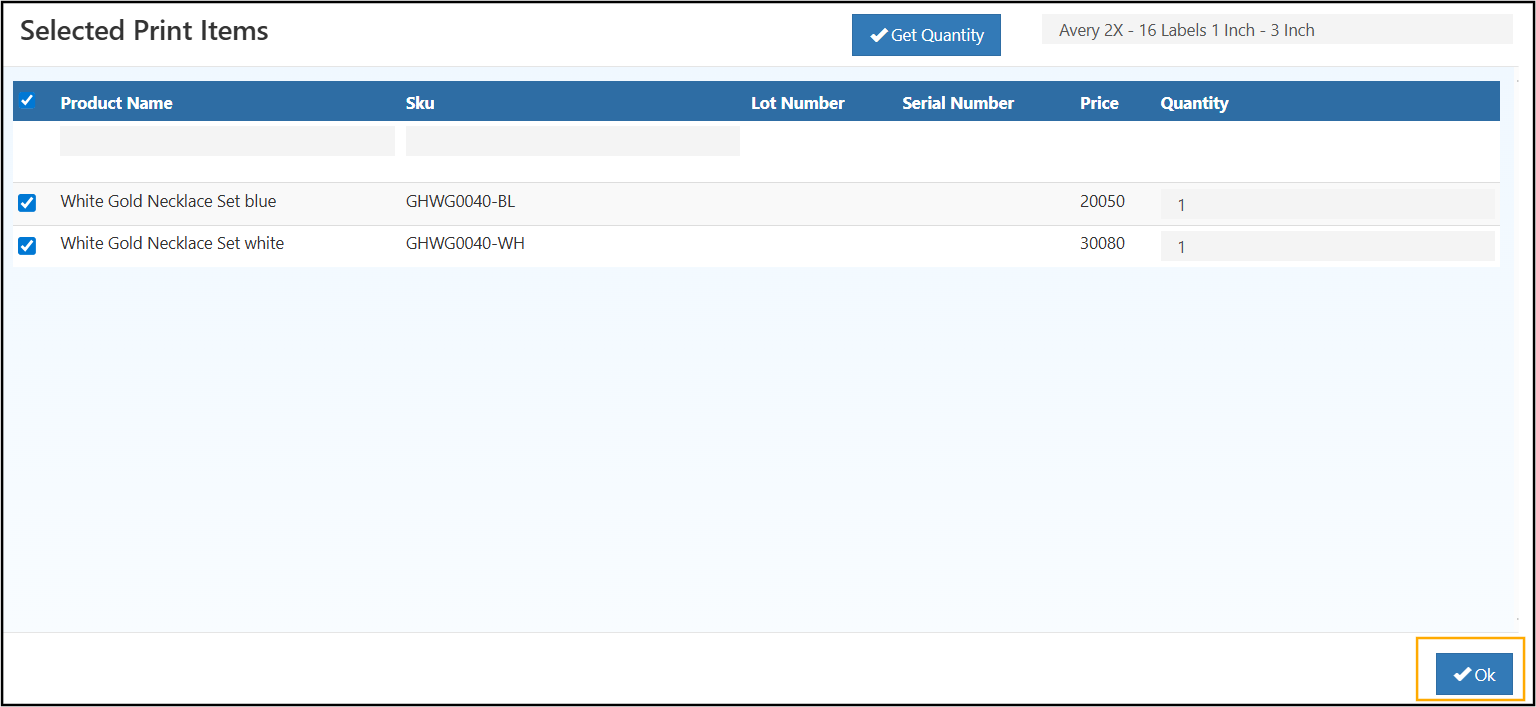
Benefits of Printing Barcodes
- ✅ Scannable barcodes for faster POS checkout
- ✅ Accurate inventory tracking
- ✅ Reduced manual identification errors
- ✅ Streamlined warehouse picking & audits
How It Works
- Click Print Barcode on the product screen
- System generates a barcode using the product SKU or code
- Print and attach to packaging, shelves, or inventory labels
Note: Barcode generation does not modify product data. Update product identifiers if needed and reprint barcodes for accuracy.
Update Product Quantities Instantly
Adjust stock levels directly from the Product List page without opening individual products. Perfect for bulk updates, warehouse corrections, or stock audits.
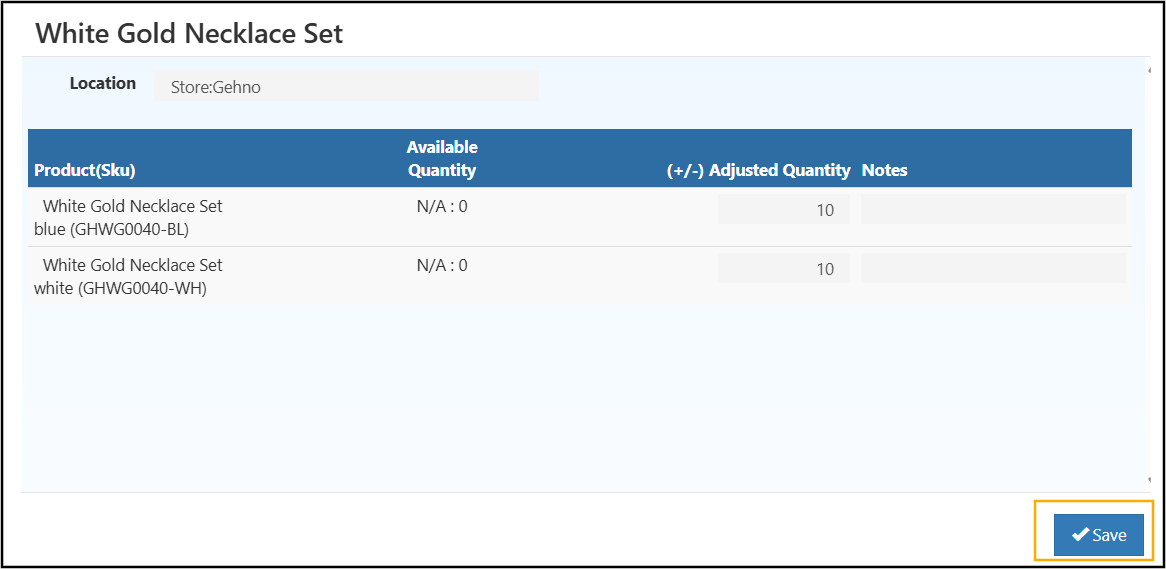
Steps to Update Quantity
- Go to Back Office > Catalog
- Click Update Quantity
- Select the Warehouse
- Click ✎ to edit a product
- Enter Adjusted Quantity (added to current stock)
- Add Notes for reference
- Click Save
Changes reflect immediately in inventory records.
Notes & Best Practices
- Quantity updates are warehouse-specific
- Notes ensure audit tracking
- Export products to CSV for bulk reconciliation or offline updates
Tip
Regularly update quantities and use barcode printing to streamline inventory checks and reduce errors.
Related Topics
Product Setup & Management
- SKU Rule – Learn how to define and apply SKU rules for consistent product identification.
- Product Template – Use templates to create new products faster and maintain uniform configurations.
- Product Categories – Organize your catalog for easier navigation and management.
- Pricelist – Set pricing rules, discounts, and price variations across your catalog.
- Bulk Product Updates – Update multiple products simultaneously to save time and reduce errors.