How to Create Product Variations for Ecommerce & POS
Want to sell products in multiple sizes, colors, or styles without creating separate listings?
This guide explains how to create product variations for ecommerce and POS stores while improving inventory accuracy, product visibility, and customer buying experience.
Product variations allow businesses to manage multiple versions of the same product using a single catalog listing. By configuring SKU, GTIN, pricing, and variation images correctly, you can streamline inventory tracking and increase conversions across ecommerce and POS sales channels.
What are Product Variations?
Product variations are different versions of a base product that vary by color, size, material, design, or other attributes. Each variation can have its own SKU, GTIN, pricing, and product images, allowing businesses to manage stock and pricing independently for each option.
Example:
A towel product can include variations such as Red, Blue, or Green, where each color is treated as an individual purchasable variant.
Why Product Variations Matter
Implementing structured product variations helps businesses improve catalog management and customer experience.
Key Benefits
✔ Offer multiple product options under a single product listing
✔ Maintain accurate inventory using unique SKUs and GTINs
✔ Improve product discoverability in ecommerce stores
✔ Increase conversions through better product presentation
✔ Support flexible pricing for different product options
Step-by-Step: How to Create a Product Variation
Follow these steps to configure product variations efficiently.
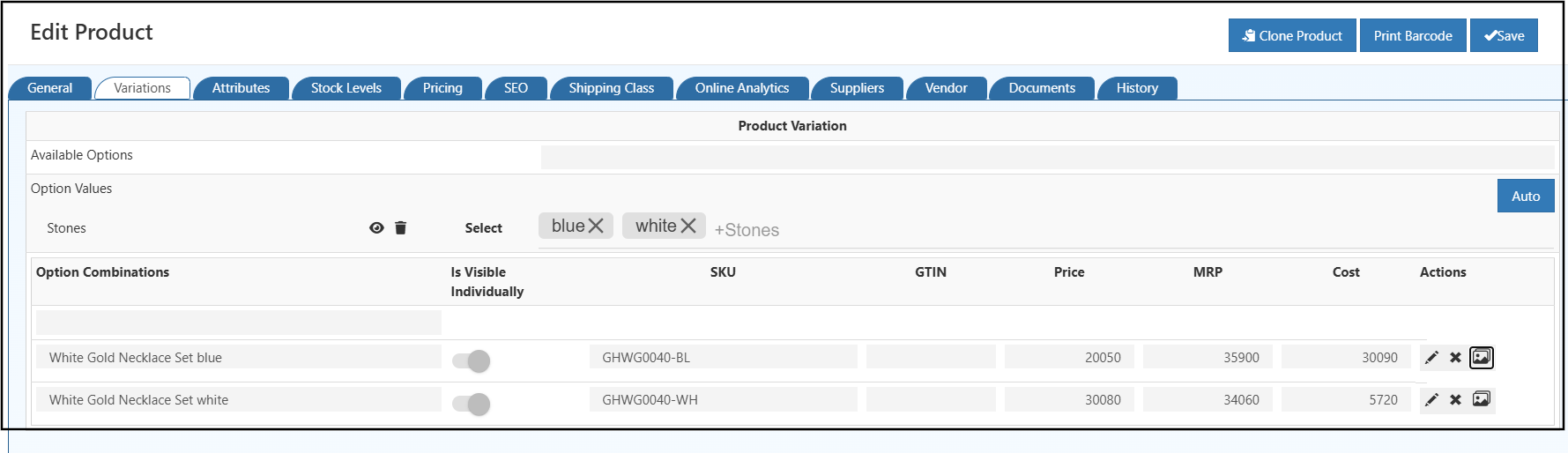
Step 1 – Open the Variation Tab
- Navigate to the Variation tab inside the product configuration page.
Step 2 – Select Variation Attributes
Choose attributes that define your product variations, such as:
- Color
- Size
- Material
- Style or Design
Enter attribute values and press Enter to add each variation option.
Click here to - create Product Option
Step 3 – Configure Variation Display Settings
Use the Display Settings (Eye Icon) to control how variation options appear in ecommerce storefronts:
- Display variations as Text Labels
- Display variations as Color Swatches
This improves customer product selection and enhances shopping experience.
Step 4 – Generate Variation Combinations
In the Product Variation section:
- Select available variation combinations
- Each combination becomes an independent sellable variant
Step 5 – Configure Variation Details
For every variation, define:
- Cost Price
- Selling Price
- SKU (Stock Keeping Unit)
- GTIN / Barcode
Each variation must have a unique SKU to ensure accurate stock tracking and order processing.
Step 6 – Upload Variation Images
If supported by your theme:
- Upload individual images for each variation
- Use clear and high-quality images to represent variation differences
Pro Tip: Variation-specific images improve customer trust and significantly increase ecommerce conversion rates.
Auto Generate Product Variations
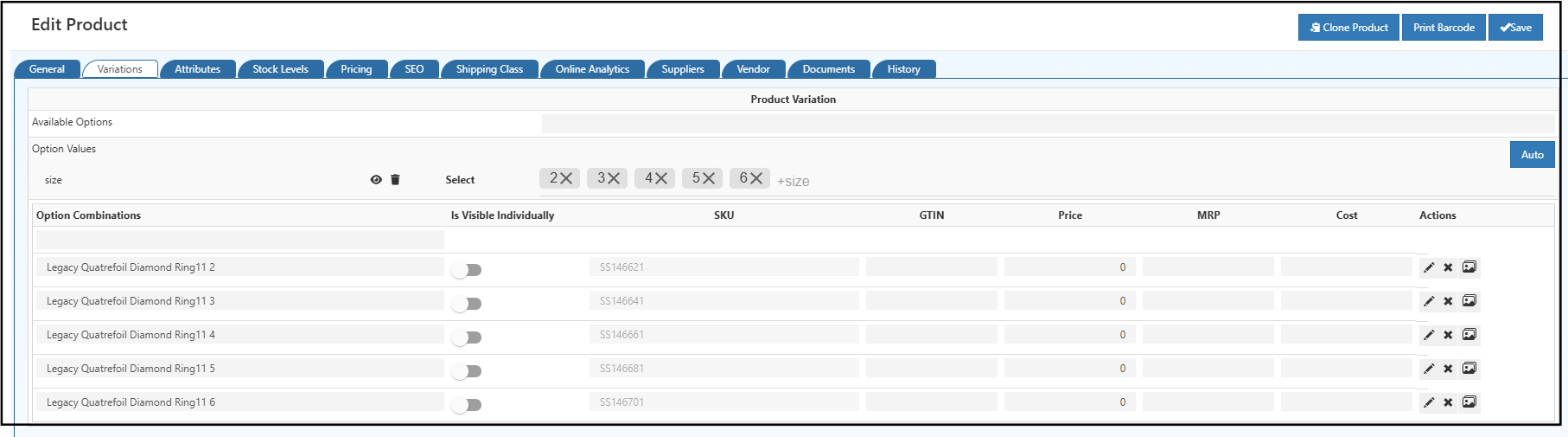
The Auto button helps quickly create multiple product variation combinations instead of adding them manually.
Where to Find
Go to:
👉 Catalog → Product → Edit Product → Variations Tab
How to Use Auto Generate
- Add required Option Values (Example: Size, Color)
- Click Auto
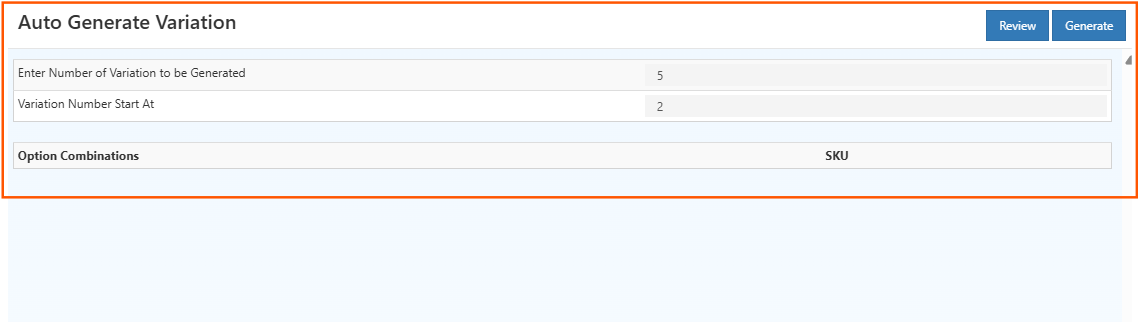
- Enter number of variations to generate
- Click Review
- Click Generate
🧾 Fields Explanation
| Field | Description |
|---|---|
| Enter Number of Variations to be Generated | Defines how many variation combinations the system should create automatically. |
| Variation Number Start At | Sets the starting sequence number used while generating variation SKUs. |
| Review | Allows previewing variation combinations before creation. |
| Generate | Automatically creates variation combinations with SKU mapping. |
Why Use This Feature
✔ Saves time
✔ Reduces manual work
✔ Creates variation combinations automatically
Edit Product Variation
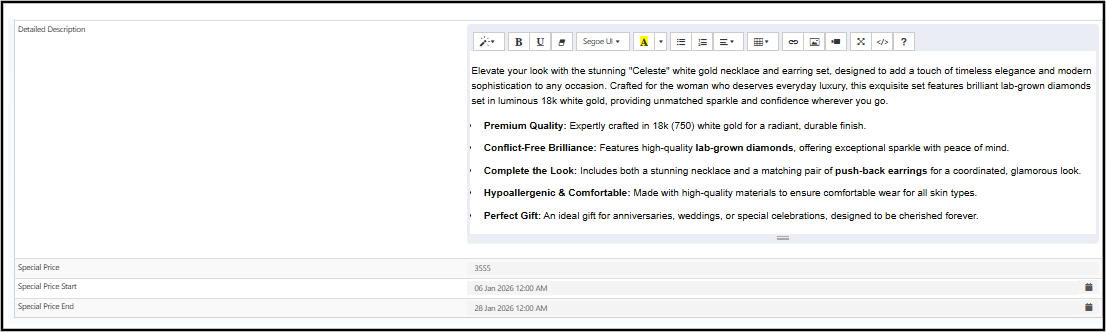
The Edit Product Variation screen allows you to update important variation-level settings such as pricing, inventory behavior, visibility, and product descriptions. Proper configuration ensures accurate stock tracking, better ecommerce presentation, and improved conversion performance.
Below is how the variation editing interface appears during configuration.
Variation Fields Explained
Each field in the variation editor controls how the product behaves across ecommerce and POS channels.
| Field | Description |
|---|---|
| Tax Class | Defines the tax category applied to the variation during checkout (e.g., GST or VAT). |
| Price Code | Internal reference used for pricing rules or promotional strategies. |
| Brand | Manufacturer or brand name associated with the variation. Helps improve product search and filtering. |
| Category | Determines where the variation appears in product listings and navigation structure. |
| Units | Measurement unit used for selling the variation (optional). |
| Allow to Order | Enables customers to place orders for this variation when set to true. |
| Allow Negative Stock | Allows selling even when stock is below zero. Typically disabled to prevent overselling. |
| Featured | Highlights the variation as a promoted or recommended product. |
| Publish | Controls whether the variation is visible in the ecommerce store. |
| Visible Individually | Allows the variation to appear as a standalone product listing instead of only inside the parent product. |
| Lot | Enables selling the variation in bundle or lot quantities. |
| Show in Web Store | Controls ecommerce storefront visibility of the variation. |
| Description | Short product summary highlighting key variation features. |
| Detailed Description | Provides comprehensive product information. Helps improve SEO ranking and customer trust. |
| Special Price | Discounted selling price applied during promotions or campaigns. |
| Start Date | Date when the special price becomes active. |
| End Date | Date when the special price expires automatically. |
Adding Variation Images
Variation images allow customers to visually compare product options, helping them make faster purchase decisions and reducing return rates.
Steps to Add Variation Images
- Click the Images icon for the variation
- Upload multiple high-quality product images
- Save changes to apply updates
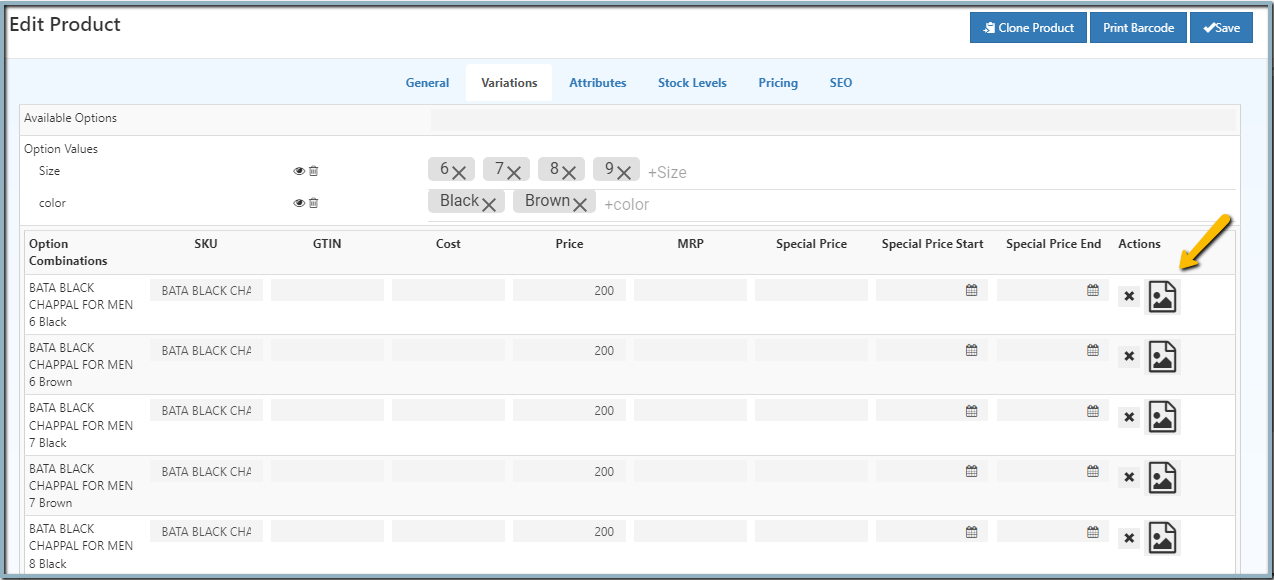
Variation images automatically update when customers select different product options in the ecommerce store.
Adding Alt Text for Variation Images
Adding Alt Text improves product SEO performance and ensures accessibility compliance.
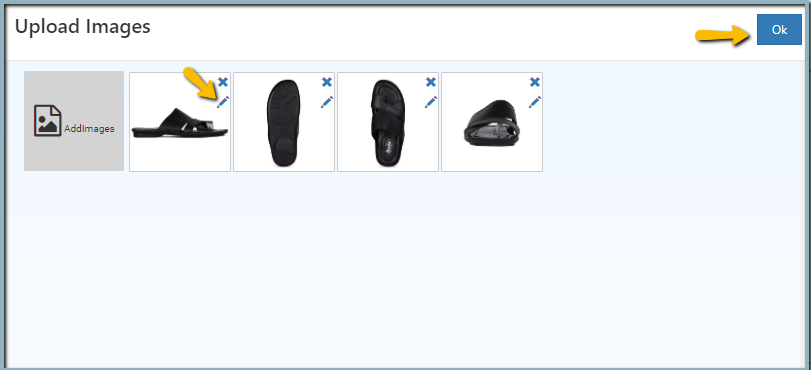
Steps to Add Alt Text
- Open the product configuration page
- Select the variation image and click Edit
- Enter descriptive alt text including variation details
- Click OK and Save
Key Takeaways
- Every variation must have a unique SKU, GTIN, and pricing structure
- Variation images improve customer confidence and increase conversion rates
- Optimized alt text improves image SEO and accessibility
- Correct visibility settings ensure products appear properly across ecommerce and POS channels
Related Blogs
- How to Write an Effective Product Title and Description
- How to Price Your Product for Wholesale and Retail
- The Beginner’s Guide to Drop Shipping
Best Practices for Managing Product Variations
✔ Assign unique SKU for each variation to maintain inventory accuracy
✔ Use GTIN or barcode for reliable product identification
✔ Upload high-quality, variation-specific images
✔ Use keyword-rich alt text to improve search visibility
✔ Maintain accurate pricing for each variation
✔ Enable only necessary variations for ecommerce display