Product Options
Product options can be created and managed in the back-end system, typically by selecting the option to create a new option. Once an option is created, it can be associated with product variations by selecting the appropriate option when creating or editing a product variation.
For example, if a product has the option of "Color" with values "Red", "Blue", "Green", and "Yellow". When creating a product variation, you can select the option "Color" and select the value "Red" for one variation, "Blue" for another variation and so on.
Product options can be useful in increasing sales by providing customers with more options and configurations to choose from. It's important to make sure that the options are relevant to the products and align with the overall business strategy. Also, it's important to review and adjust the options periodically to ensure that they are still relevant and up-to-date.
Tip
For a garment product normally Size and Color will be product options.
Create Product Option
Creation a product option.
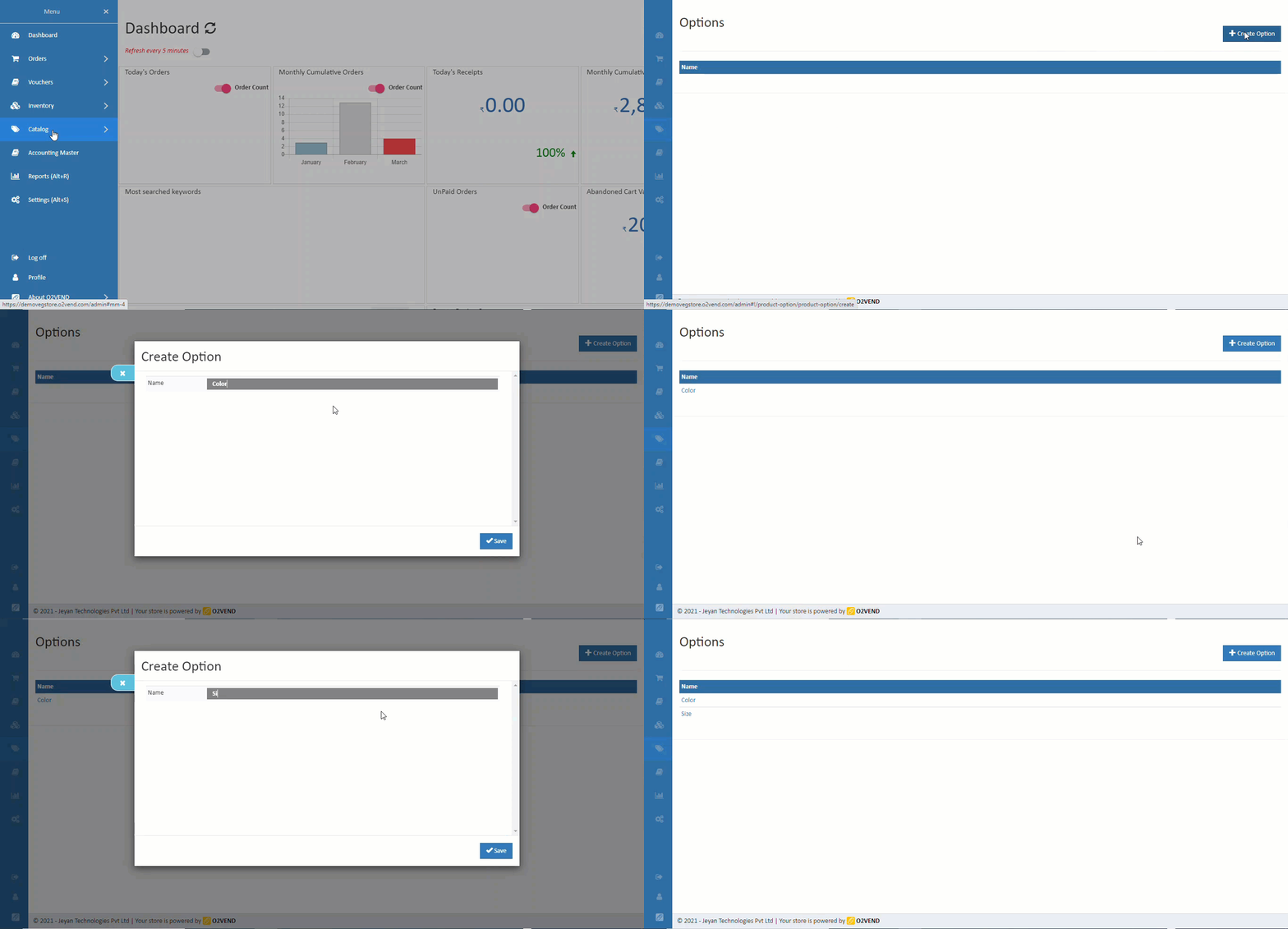
How to Create Product Option
- Open Back Office.
- Go to Catalog Menu.
- Click and open Product Options section.
- Click Create Product Option button in the top right corner.
- Enter Name of the product option.
- press Save button.
Modify a Product Option
Product option's name can be changed anytime.
How to Modify Product Option
- Open Back Office.
- Go to Catalog Menu.
- Click and open Product Options section.
- List of existing product options will be shown.
- Click Edit button against the product option to be edited.
- Update the Name of the product option.
- Press Save button to save the updated information.
Related Blogs
Want to improve catalog visibility, inventory handling, and search performance?
Explore these related articles:
How to Create a Printable Product Catalog
Learn how to create and share printable product catalogs for easy offline and customer-friendly product presentation.Best 10 Wholesale eCommerce Platforms for Businesses
Explore the top wholesale eCommerce platforms and choose the right solution for scaling your business operations.Wholesale eCommerce Explained: 10 Best Platforms for Wholesale
A detailed guide to wholesale eCommerce models and the best platforms to manage bulk selling efficiently.Easily Manage Your Inventory Using the Import Products Option
Discover how bulk product import simplifies inventory setup and saves time when managing large product catalogs.Understanding Meta Descriptions: Importance and Basics
Understand how meta descriptions improve product visibility, search rankings, and click-through rates.Essential Tips for Writing SEO-Friendly Website Titles
Learn how to write effective, SEO-friendly titles that attract clicks and improve search engine performance.