Create Combination Products in O2VEND Back Office – Stepwise Guide
Learn how to create Combination/Combo Products in O2VEND Back Office. Step-by-step guide with images, price rules, child items, and bundle configuration.
Combination products in O2VEND Back Office allow packaging multiple individual items into a single sellable unit. This is useful for retailers and e-commerce businesses that want to create bundles, combo packs, hampers, or multi-item offers.
This guide explains how to create a Combination Product using the Back Office interface.
Step 1: Access the Product Creation Menu
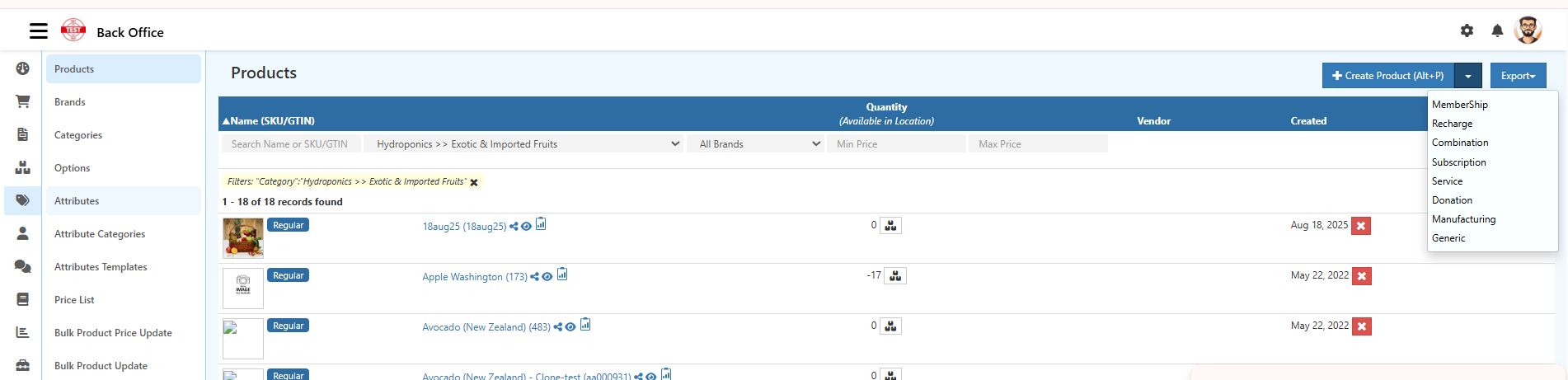
From the Back Office → Products the product list displays all active items with filtering options such as:
- Category
- Brand
- SKU / GTIN
- MRP & Selling Price filters
- Product Status
- Date Filters
To create a new Combination Product:
- Navigate to the Products module.
- Click Create Product (Alt+P).
- Select Combination from the dropdown menu.
This opens the Combination Product creation form.
Step 2: Configure Combination Product Details
After entering the basic information in the General section, the next step is to define the structure of the combination product inside the Products tab.
This section allows adding individual child items, setting selection rules, pricing logic, and quantity configurations.
⚠️ Important Requirement — Create Child Products Before Combo Setup
Combination creation will not show any selectable items until all child/variation products are created separately in the Products module.
Child products must exist first → only then they can be added to the combo group.
Example:
If the combo includes child combo 1, child combo 2, child combo 3,
these three must already be created as individual variant product.
Each Field in the Combination Product
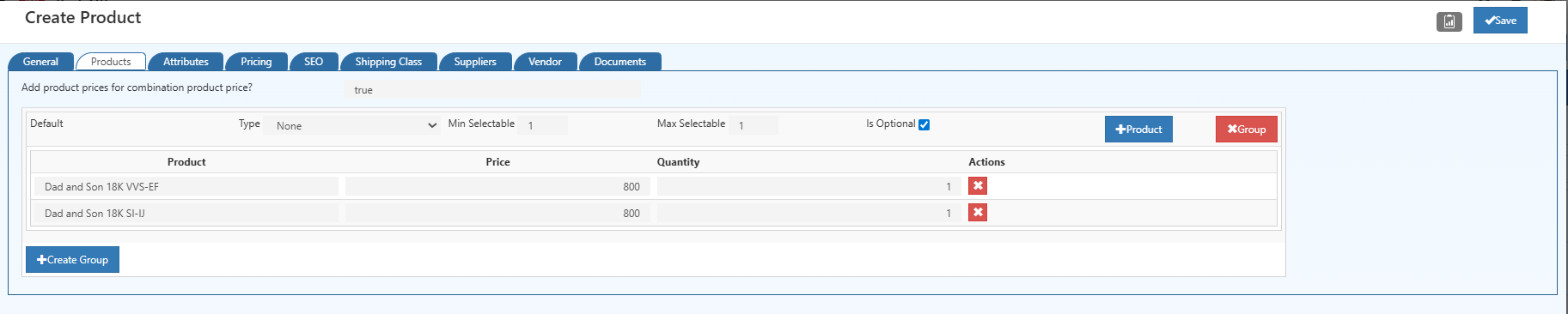
1. Add product prices for combination product price?
- Set to true if the combo’s price should be calculated based on the price of selected child items.
- Set to false if the combo product has a fixed price (entered in General → Pricing).
2. Default Group
Each combination section starts with a Default Group, where you can configure:
Type
- Defines how the customer selects items.
- Example shown: Checkbox — customer can select multiple child items.
Other possible types:
- Dropdown
- Checkbox
3. Min Selectable
- Minimum number of child items that the customer must select.
- Example: 1 → User must pick at least one item from the group.
4. Max Selectable
- Maximum number of child items the customer can choose.
- Example: 2 → User cannot select more than two items.
This allows flexible bundle rules like Buy any 2 from these 3 items.
5. Is Optional
- When enabled, selecting items from this group is optional for customers.
- If disabled, they must select items according to Min/Max rules.
Add Product List
Product
The individual items added to the combination.
Price
- The price of each child product (used only if pricing is set to calculate dynamically).
Quantity
- Quantity of each child item included in the combo.
Actions
- Delete icon → remove a child item from the group.
Buttons
+ Product
Adds another product to the current group.
+ Group
Creates a brand-new group of child items with different rules (useful for complex bundles).
Save
Saves the entire combination product.
Edit Combo Product – Overview
The Edit Combo Product page allows updating all details of an existing combination product, including price rules, selectable items, and product group configurations.

Key Sections on the Edit Page
Product Groups
- View and modify all groups added to the combo.
- Add or remove child products from each group.
- Update prices, quantities, and selection rules (Min/Max).
- Mark groups as optional or mandatory.
Selection Rules
- Min Selectable – minimum number of items a customer must choose.
- Max Selectable – maximum allowed selections for the group.
These rules help define how the combo behaves in the store (e.g., “Pick any 2 items”).
Price & Quantity
Each child product listed in the group includes editable fields:
- Price – additional price for selecting that item.
- Quantity – how many units are included when the combo is purchased.
Additional Actions
Clone Product
The Clone Product button instantly creates a duplicate of the current combo product.
It copies:
- Product groups
- Child items
- Pricing
- Rules and settings
Useful for creating multiple similar combo products without re-entering details.
Print Barcode
The Print Barcode option generates a scannable barcode for the combo product.
How the Combo Product Appears in the Online Store
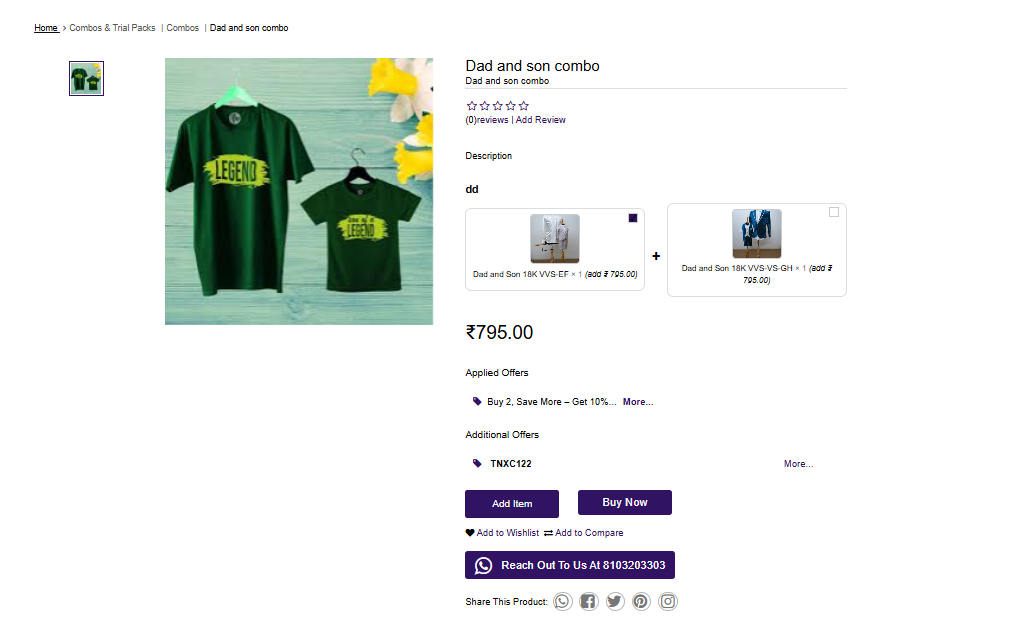
- The combo shows the main product image along with child item thumbnails.
- Each child item displays its name, image, and price contribution.
- The final Combo Price is shown clearly on the product page.
- The customer sees selectable child items based on the Min/Max rules set in the Back Office.
- Options like Add to Cart, Buy Now, Wishlist, and Compare appear as usual.
- Applicable offers, discounts, and coupons are displayed below the price.
- A quick-contact / WhatsApp button appears for customer support.
Related Topics
Explore other product types in O2VEND:
- Combination Product – Create products with multiple variants or options.
- Donation Product – Setup donation-based products for your catalog.
- Generic Product – Standard product creation and management.
- Manufacturing Product – Manage products produced in-house.
- Recharge Product – Setup prepaid or recharge-based products.
- Service Product – Add service-based offerings to your catalog.
Related Blogs
Learn more about product management, optimization, and selling strategies with these related blog articles:
Maximize Sales and Efficiency: The Power of Combination Products
Discover how combination products can boost sales, simplify inventory management, and improve customer buying experience.Sprouting Your Success: Organic Products to Sell Online
Explore trending organic product ideas, sourcing tips, and best practices for selling organic goods online.Smart Ways to Take Professional Product Photos
Learn proven techniques for capturing high-quality product photos that improve conversions and customer trust.Effective Methods for Organizing Retail Products by Category
Understand how proper product categorization improves navigation, inventory control, and sales performance.AI Optimization for Product Visibility in 2025
Learn how AI-driven optimization helps products rank better in search results and increases online visibility.
💡 Tip:
Combining strong product setup with smart categorization, high-quality visuals, and AI optimization can significantly improve both operational efficiency and sales performance.