Manage Price List
The price list feature in O2VEND is a powerful tool that allows sellers or administrators to create customized prices for different customer groups or individual customers. This means that different prices can be set for different types of customers, such as wholesalers, retailers, or new customers.
The admin can create a price list by defining the specific customer group or customers that the list will apply to. Once the list is created, it can be applied in various platforms such as eCommerce, point of sale, back-office, and the O2VEND application. This ensures that the correct prices are applied across all platforms, making it easy to manage and maintain.
For example, if a seller wants to offer a discount to new customers, they can create a price list that applies only to new customers and set the prices accordingly. Similarly, if they want to offer a different price to wholesalers, they can create a separate price list for wholesalers with the appropriate prices.
In eCommerce, the price list will be automatically applied to the products when the customer logs in, and the prices will be displayed according to the price list that is assigned to that customer. In Point of Sale, the price list will be applied to the products when the customer is selected and the prices will be updated according to the price list.
Overall, the price list feature in O2VEND is very useful for those who want to offer different prices for different customers, it allows the seller to better manage their prices and offers, and also improves the sales process by making it more efficient and accurate.
O2VEND Price list Features
- The admin can add and edit the price lists.
- Set the date range in which the price list will be active.
- Add the price list product new price.
- Easily assign the created price list to the existing or default price list ( Use price list to clone option )
- Admin can also assign a special price for the list of products.
- Set the date range in which the special price list will be active.
- Association of price lists to customer groups.
- Price list selection on orders and invoices.
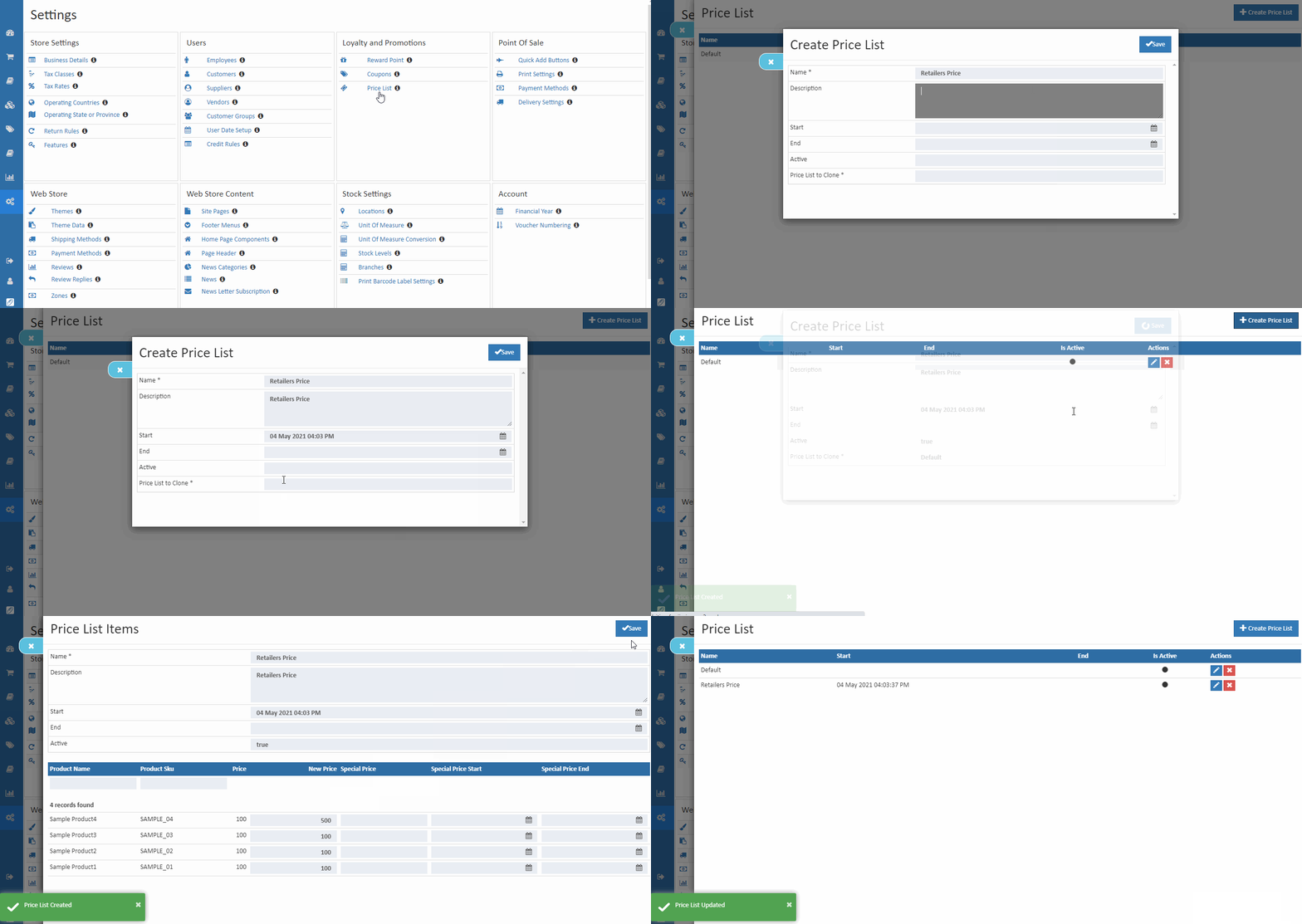
How to create the price list
- Open Back Office.
- Go to the Settings menu and see the Loyalty and Promotions section.
- Click and open the Price List section
- Click Create Price List in the top right corner.
- Enter the Name and other details.
- Press the Save button.
- Now, add the price or special price for the product.
- Set the date range in which the price or special price list will be active.
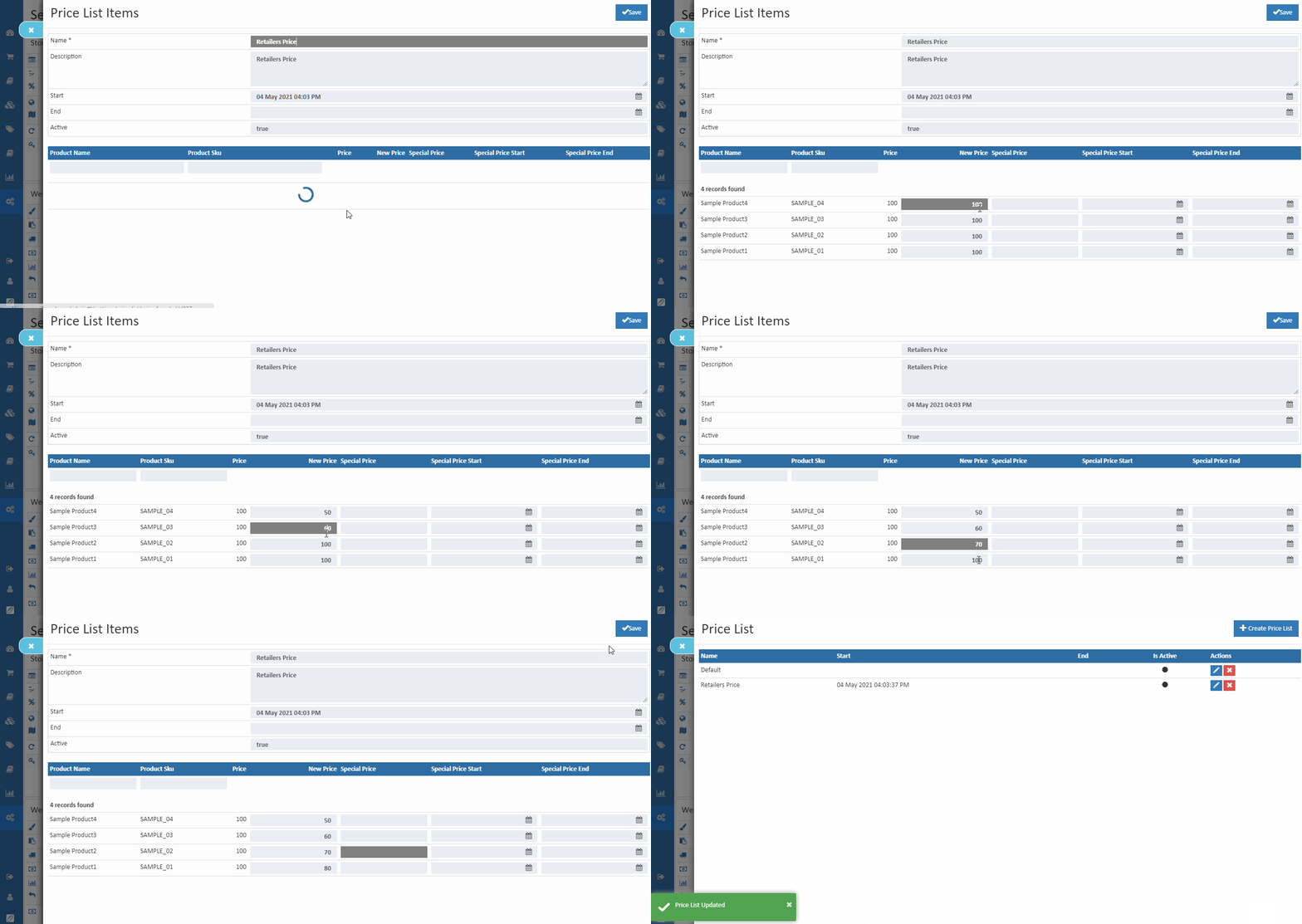
Change the price list product price
Admin can change the price list product prices.
Name
Enter the name of the price list.
Description
Enter the description of the price list.
Start and End date
Set the date range in which the price list will be active.
Active
Set the price list is active or not.
Price List to Clone
If the admin wants to clone the price list, select the existing or default price list. ( prices defined in the existing price list are cloned to the new price list )
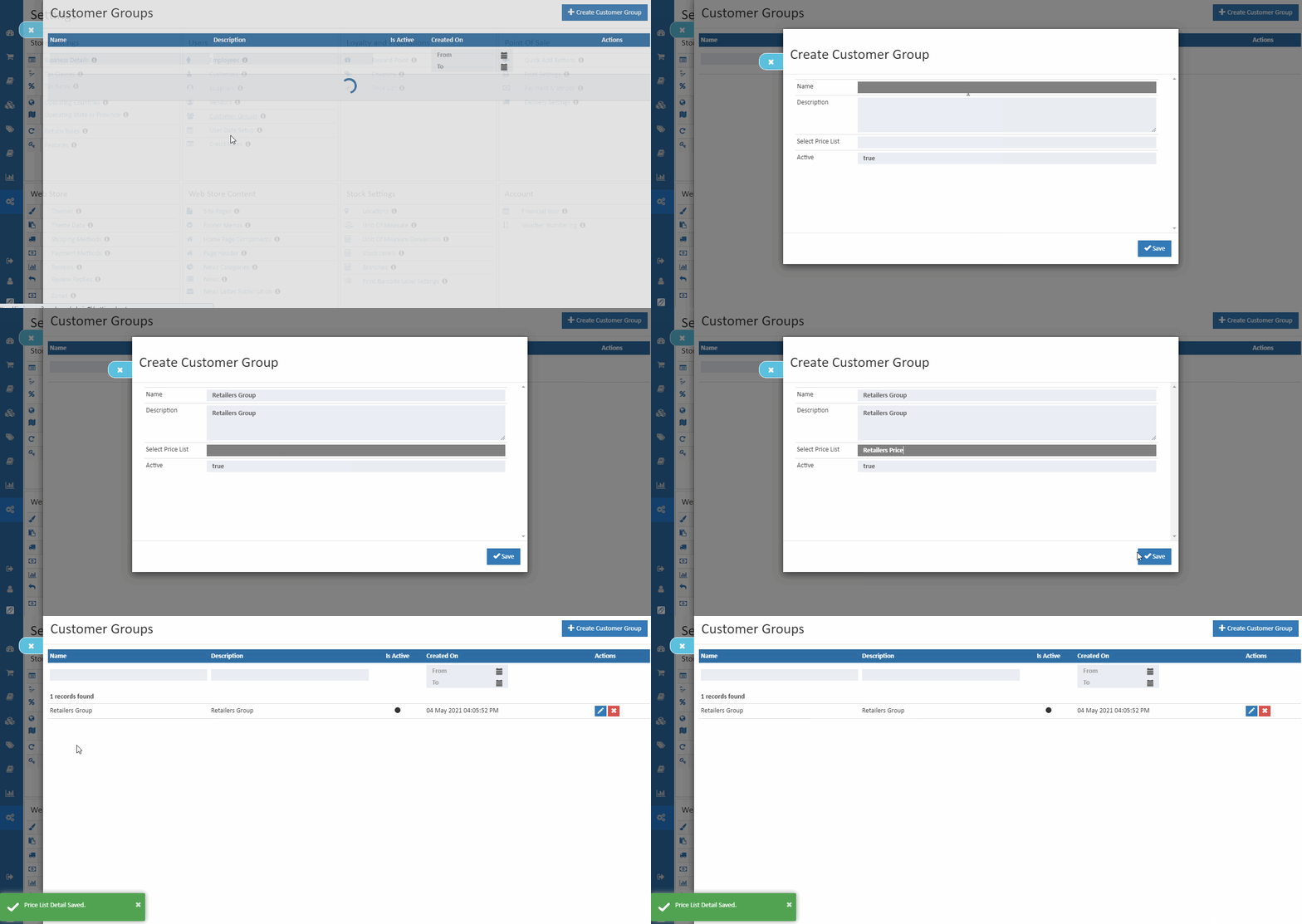
Association of price lists to customer groups
Admin can associate a price list with a customer group so that the prices of the selected price list are applied to the customers within that customer group.
Tip
By selecting the Settings > Users Section > Customer Groups. From here it is possible to add the price lists that can be associated with each of the customer groups.
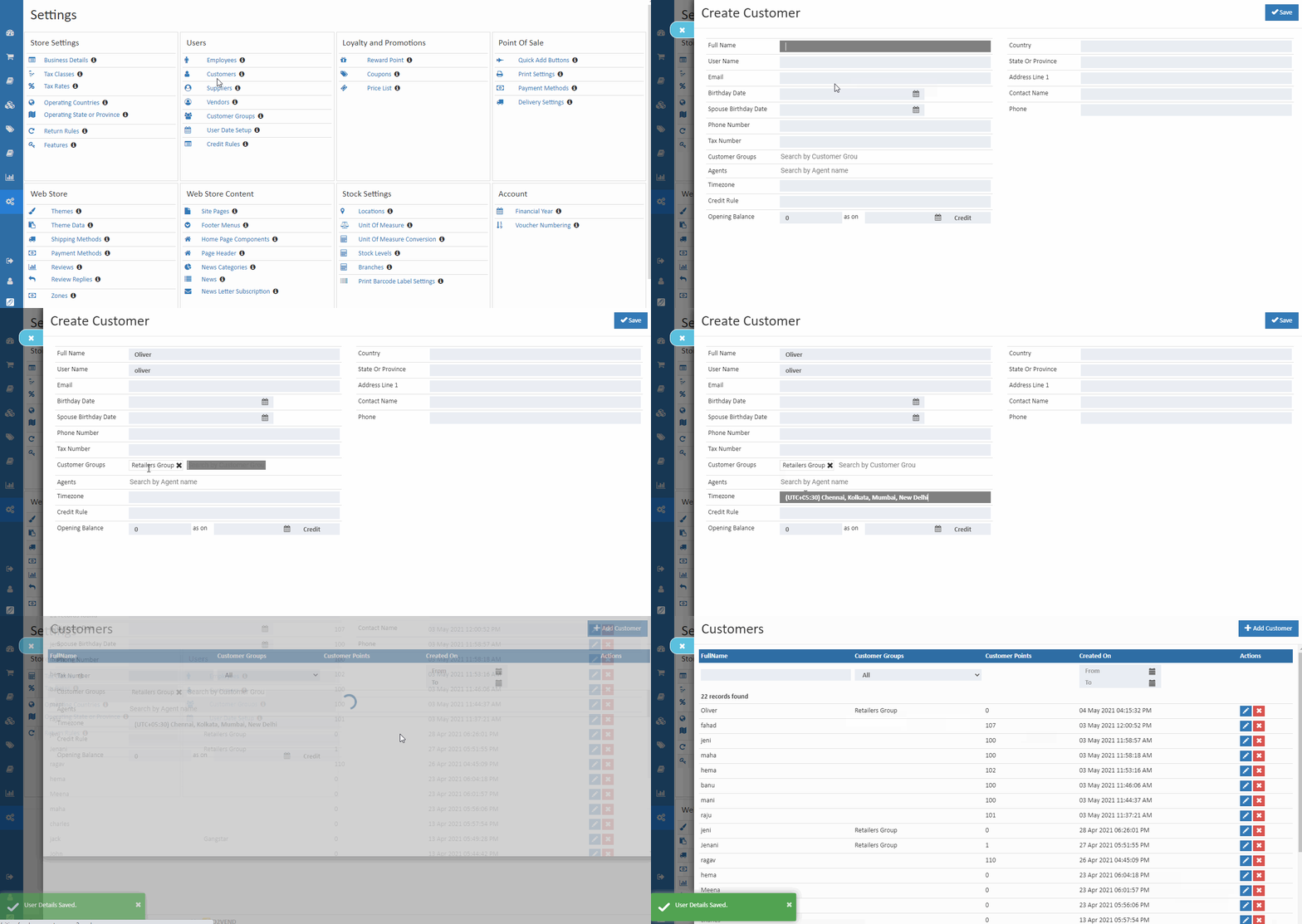
Association of customer group to the customer
Admin can associate a price list with a customer so that the prices of the selected price list are applied to the customers within that customer group.
Price list selection on orders and invoices
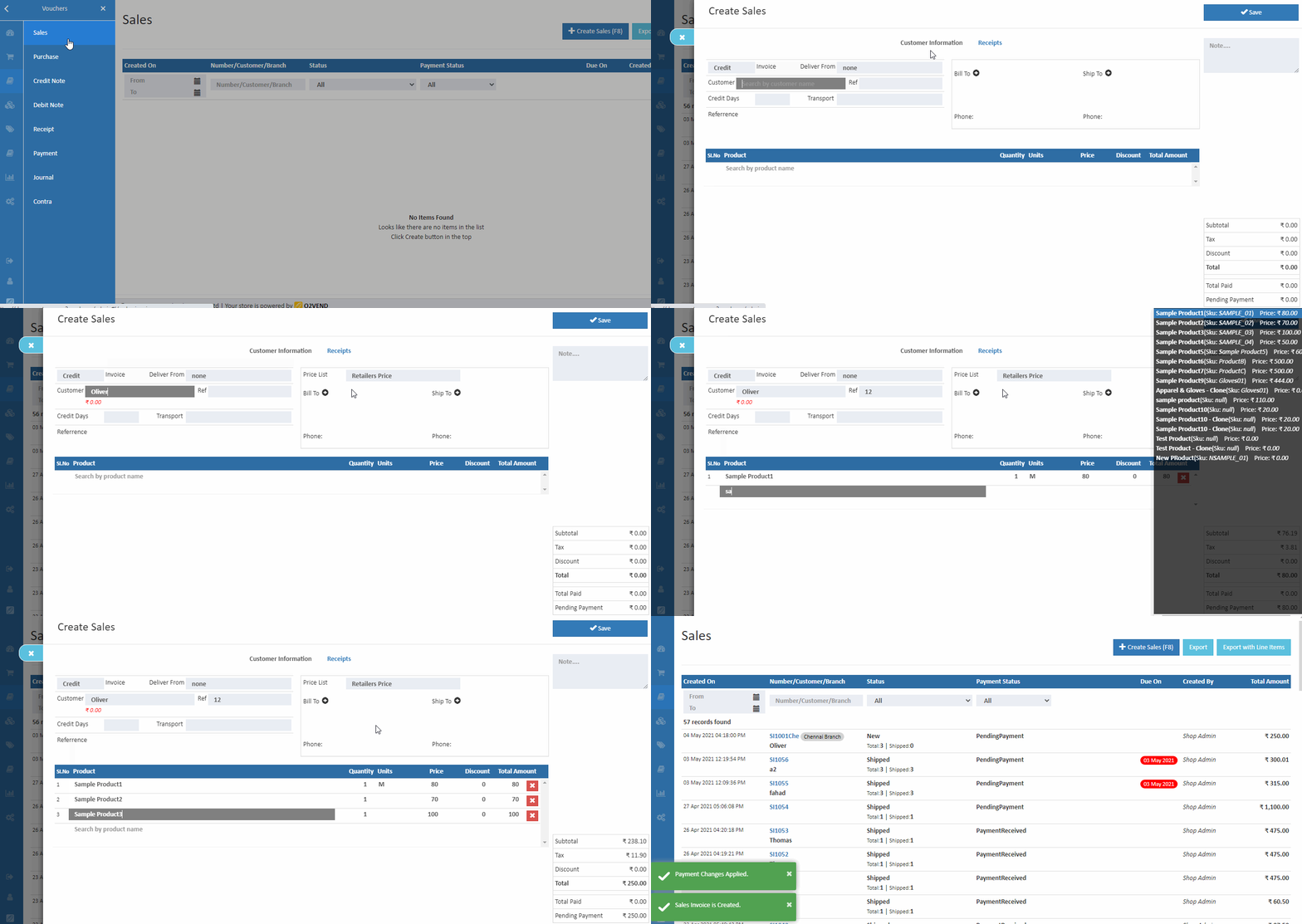
After selecting the customer, the associated price list is applied directly to the invoice and order.
Revise Pricelist
The price list feature in O2VEND allows for bulk resetting of prices using the "Revise Pricelist" button. This button can be found in the admin panel and allows the seller or administrator to select the appropriate price list and formula to apply to the prices.
By using this feature, the seller or administrator can quickly and easily update the prices for a specific customer group or individual customers. They can select the price list that they want to revise and apply a formula to change the prices. The formula can be a percentage increase or decrease, or a fixed amount.
For example, if a seller wants to increase the prices of all products by 10%, they can select the appropriate price list and apply a formula that increases the prices by 10%. Similarly, if they want to decrease the prices by a fixed amount, they can apply a formula that decreases the prices by a certain amount.
This feature is especially useful when there is a need to update prices for a large number of products or customers. It saves the seller or administrator time and effort by allowing them to make changes to the prices in bulk. It also ensures that the prices are updated consistently across all platforms, such as eCommerce, point of sale, and back-office.
Related Blogs
Want to improve catalog visibility, inventory handling, and search performance?
Explore these related articles:
How to Create a Printable Product Catalog
Learn how to create and share printable product catalogs for easy offline and customer-friendly product presentation.Best 10 Wholesale eCommerce Platforms for Businesses
Explore the top wholesale eCommerce platforms and choose the right solution for scaling your business operations.Wholesale eCommerce Explained: 10 Best Platforms for Wholesale
A detailed guide to wholesale eCommerce models and the best platforms to manage bulk selling efficiently.Easily Manage Your Inventory Using the Import Products Option
Discover how bulk product import simplifies inventory setup and saves time when managing large product catalogs.