Print Barcode Labels in Purchase | O2VEND Purchase Management
Generate barcode labels directly from the Purchase Invoice screen in O2VEND. Select the barcode template, enter label quantity, and print instantly for received stock.
Use the purchase invoice barcode printing option to generate barcode for products received through purchase vouchers. This helps with faster scanning, stock tracking, and warehouse tagging.
Step 1 — Open the purchase invoice
- Go to Back Office → Voucher → Purchase
- Open the purchase invoice for the stock you want to label
- Click the Print Barcode button at the top right of the screen
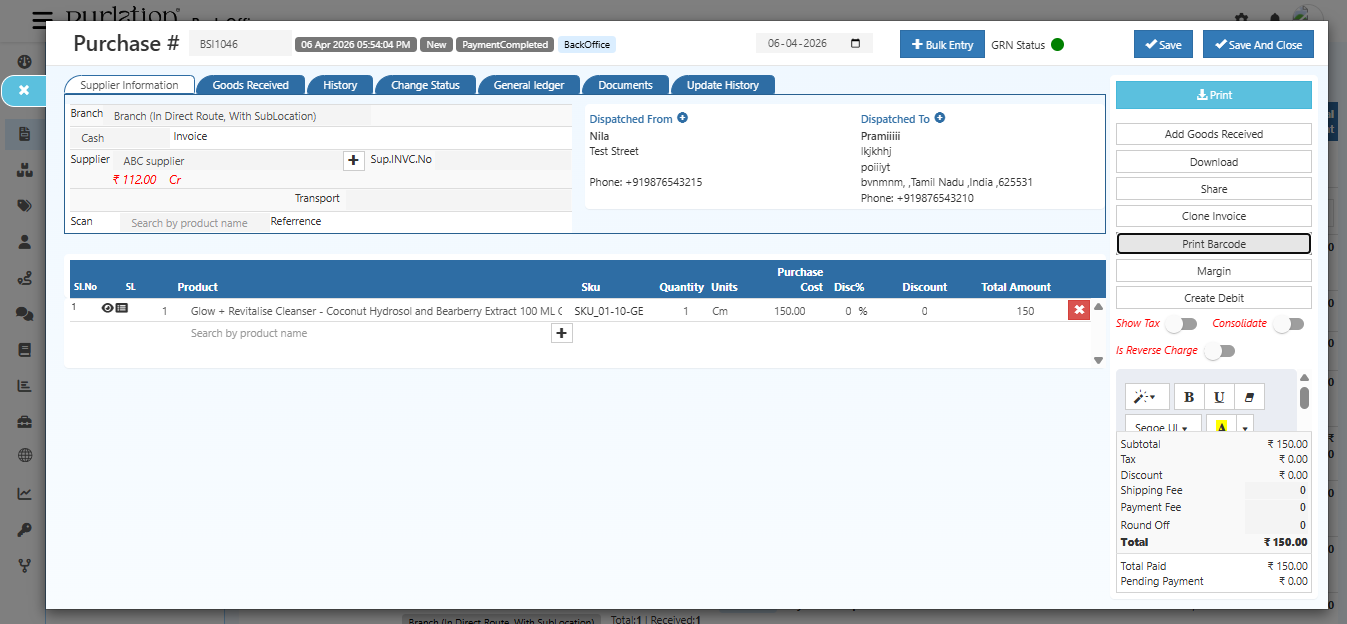 Click the Print Barcode button from the purchase invoice.
Step 2 — Select the barcode template
The print dialog opens and shows the template selector in the top right corner.
- Choose the barcode template you want to use
- Confirm the label layout and printer settings
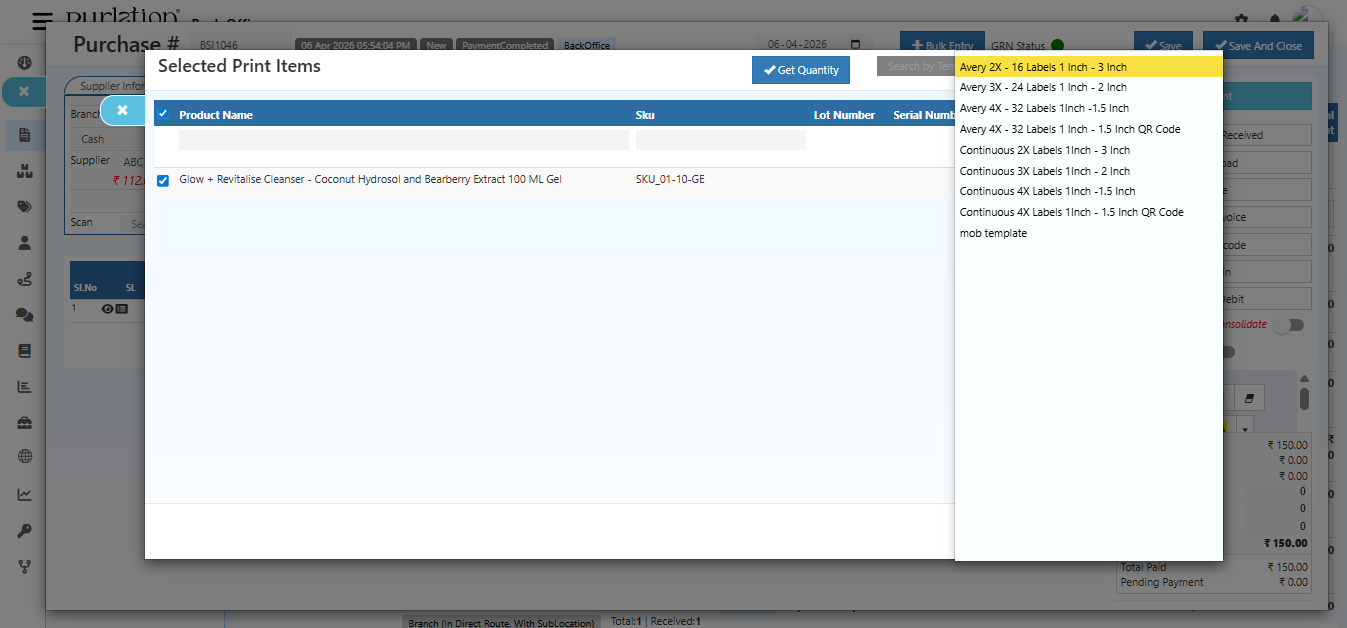 Select the barcode template before printing.
Step 3 — Enter the number of labels
- Enter how many barcode labels you need for the selected product
- Verify the quantity and label details
- Click OK to generate the labels
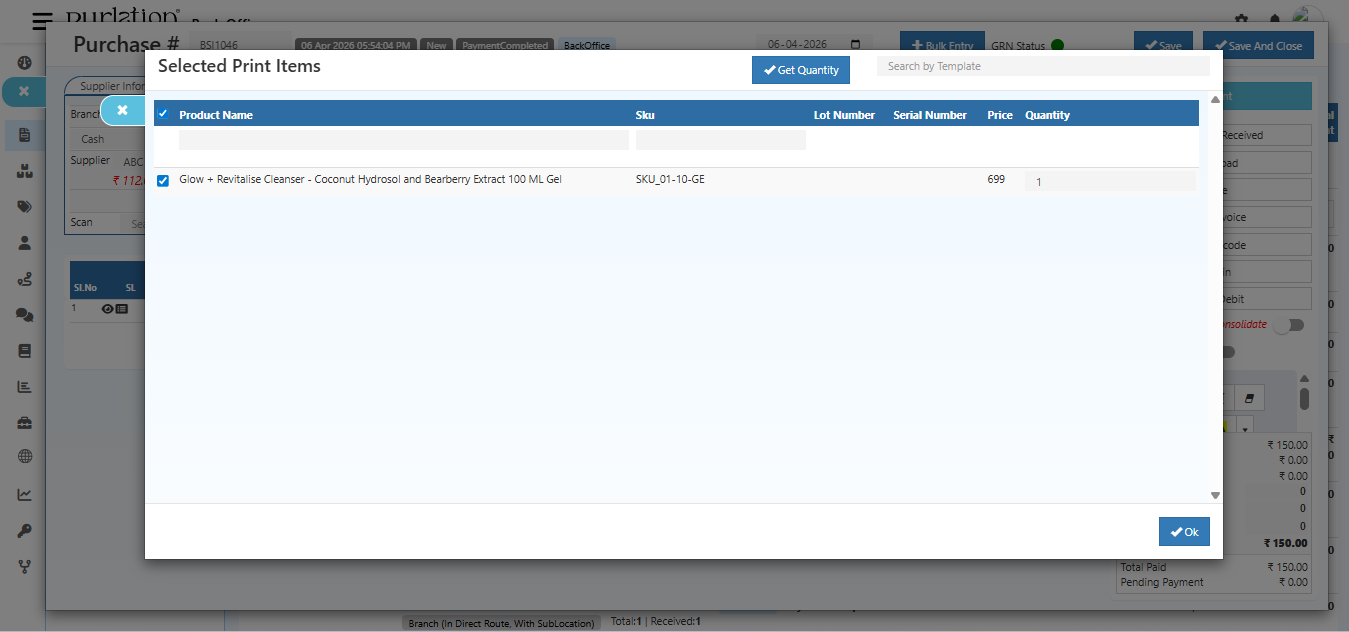 Enter label count and confirm the print action.
Step 4 — Review the print setup
After clicking OK, the final print setup screen appears. Review the printer preview, paper size, and label settings.
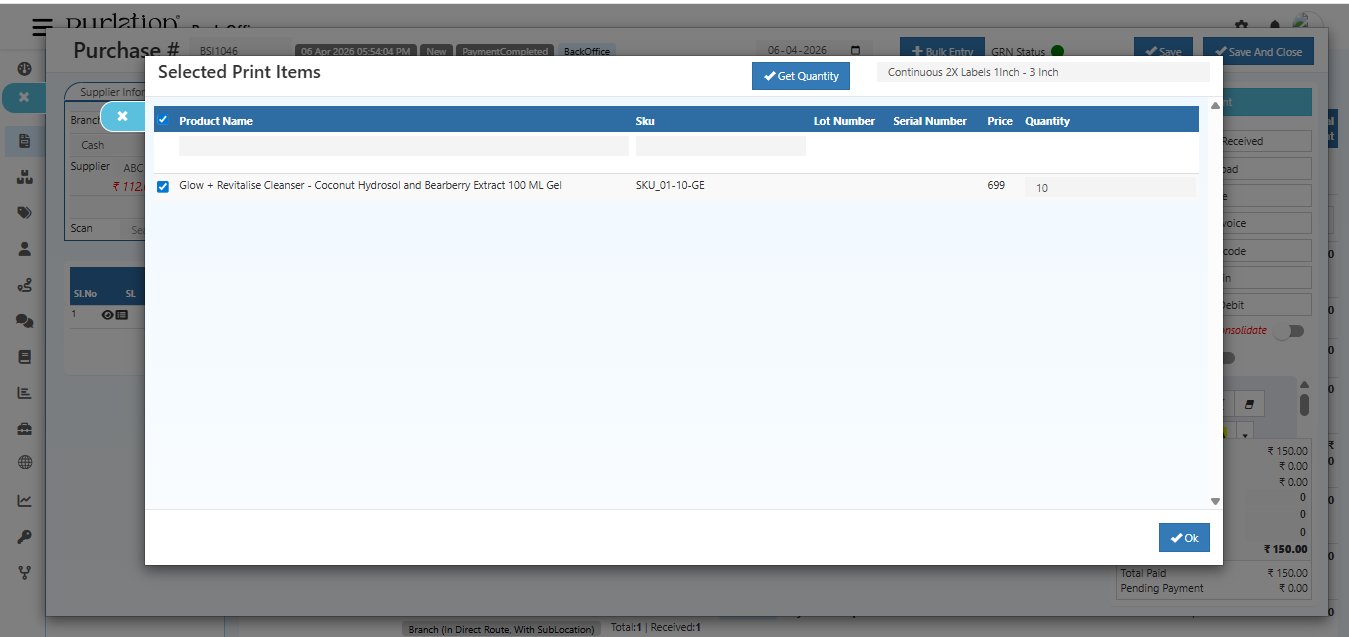 Confirm the final print configuration before sending to the printer.
Step 5 — View the printed barcode result
The system generates the barcode labels and displays the result ready for printing.
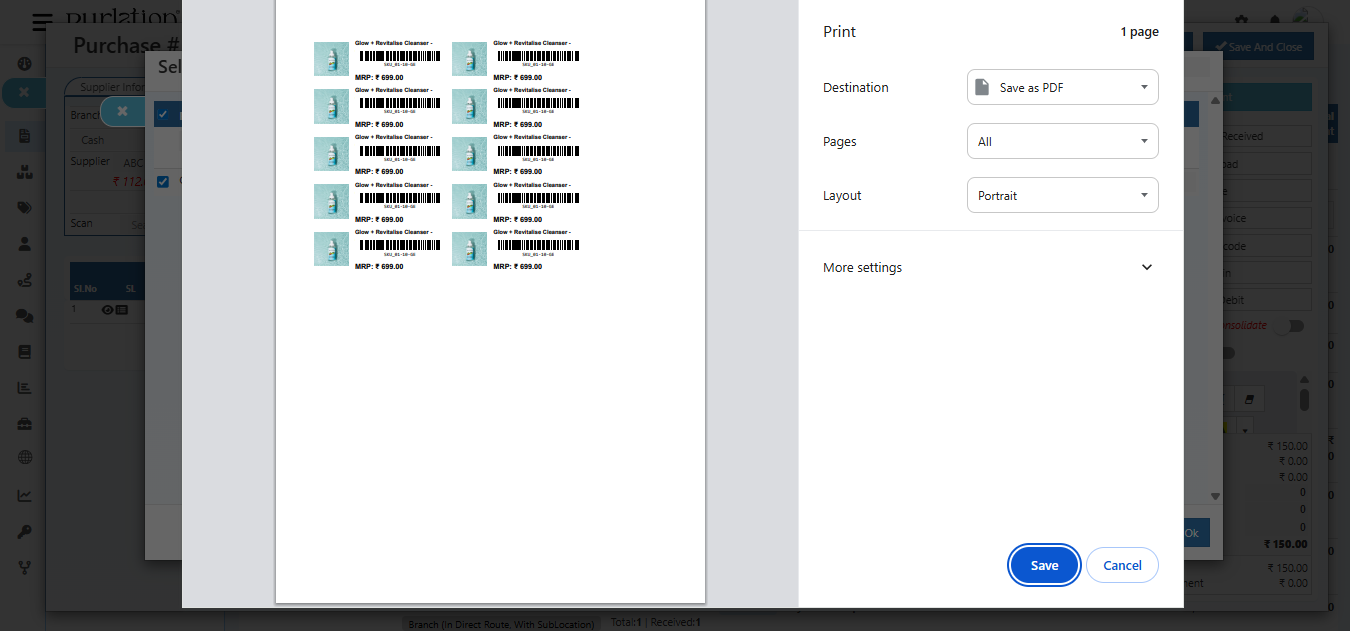 Generated barcode labels ready for printing or download.
Quick summary
- Open the purchase invoice and click Print Barcode
- Select the barcode template in the dialog
- Enter the number of barcode labels to generate
- Click OK and verify the final print setup
- Print the labels for received products