Contra Entry in O2VEND | How to Create and Manage Contra Transactions
A contra entry is used to record transactions that involve both cash and bank accounts.
In O2VEND, contra entries help you manage internal fund transfers accurately without affecting your overall business balance.
What Is a Contra Entry?
A contra entry is an accounting transaction where:
- Both debit and credit involve cash or bank accounts
- The entry is recorded in the cash book
Since the transaction happens within your business, it does not affect profit or loss—only the movement of funds is tracked.
Contra Entry Examples
Here are some common examples:
- Cash received from customers and deposited into bank
- Cash withdrawn from bank for office use
- Transfer between cash and bank accounts
These are internal transactions, not income or expenses.
How to Create a Contra Entry in O2VEND
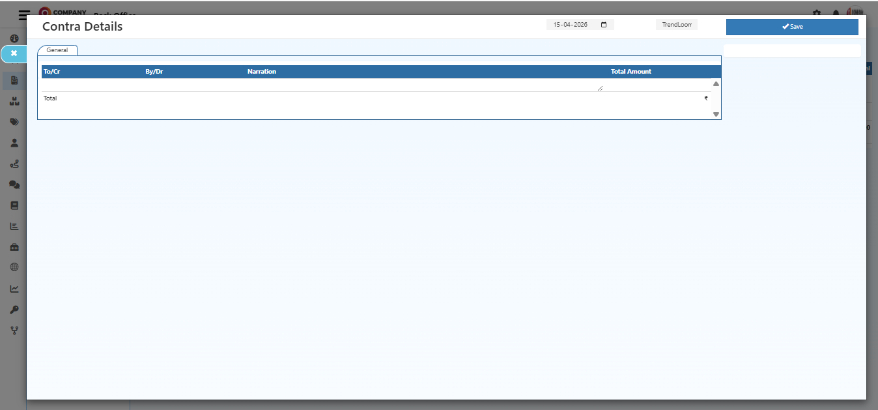
Follow these steps to create a contra voucher:
- Open Back Office
- Go to Vouchers
- Click on Contra
- Click Create Contra (top-right corner)
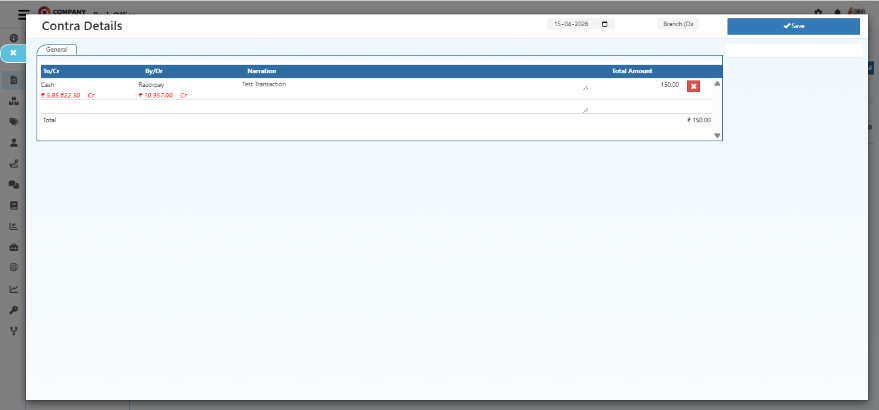
- Select:
- Creditor account
- Debitor account
- Enter details in the Narration field (optional but recommended)
- Enter the total amount and press Enter to add it
- Add multiple debit/credit rows if required
- Click Save
Create Contra Entry (Screenshots)
Viewing Contra Entries
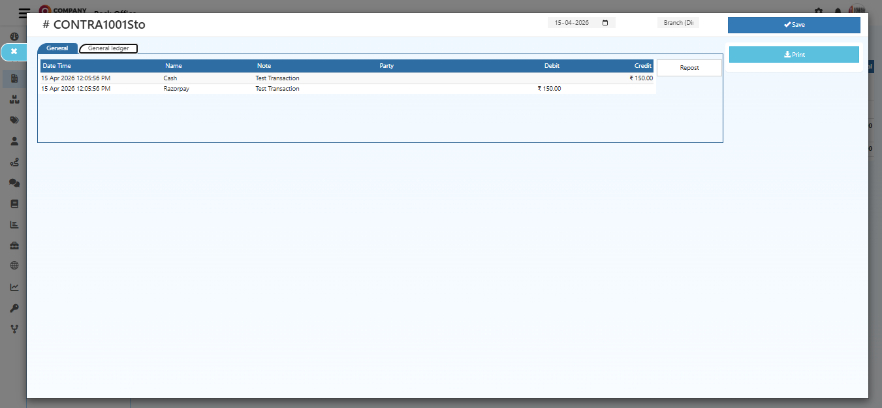
Once saved, all contra entries are listed in the Contra section.
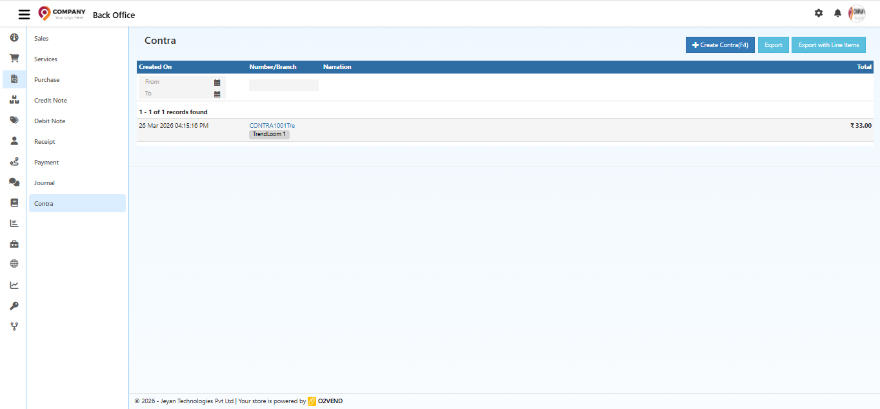
To view a specific entry, open it from the list:
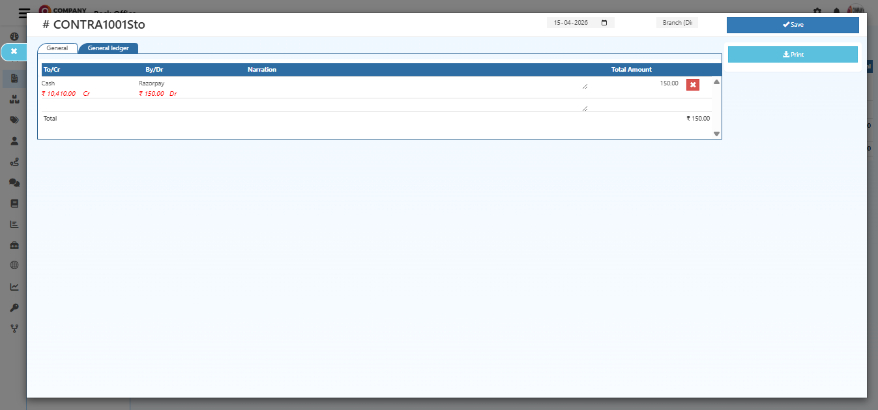
Contra Entry in General Ledger
Contra transactions are automatically reflected in the general ledger, as they impact both cash and bank accounts.
Best Practices
- Always verify creditor and debitor accounts
- Use narration for better tracking and audit clarity
- Record entries regularly to maintain accuracy
- Use contra entries only for internal fund transfers
FAQ – Contra Entry
What is a contra entry in simple terms?
A contra entry is a transaction that moves money between cash and bank accounts within the same business.
Does a contra entry affect profit or loss?
No, it only changes the location of funds and does not impact income or expenses.
Can I add multiple debit and credit entries?
Yes, O2VEND allows multiple rows in a single contra voucher.
Related Topics
A contra entry in O2VEND helps you record cash-to-bank and bank-to-cash transactions accurately.
By using contra entries correctly, you can maintain clean financial records, better tracking, and easy reconciliation.