Manage Sales Invoice - Sales Invoice Management
Learn how to manage sales invoices in O2VEND. View, filter, and track sales invoices by status, payment status, channel, and more from the Back Office.
What is a Sales Invoice?
A Sales Invoice is a document generated for a customer order that records:
- Which items the customer purchased
- How many units were ordered and shipped
- Any discounts applied
- The total amount owed or paid
In O2VEND, sales invoices can be created and managed from:
Back Office → Voucher → Sales
How to Create a Sales Invoice
You can create a sales invoice in O2VEND using the following methods:
- Automatically create a sales invoice by clicking Create Sales Invoice from a Sales Order.
- Sales invoices are created automatically in Point of Sale (POS) after payment is completed.
- Create a sales invoice manually from the Sales section in Back Office.
- Create a sales invoice using a reference number to fetch an existing customer order and generate the invoice.
💡 After creating the invoice, click Goods Issue to prepare the order for shipping.
Sales Invoice List
The Sales page shows all invoices across every channel in one list view.
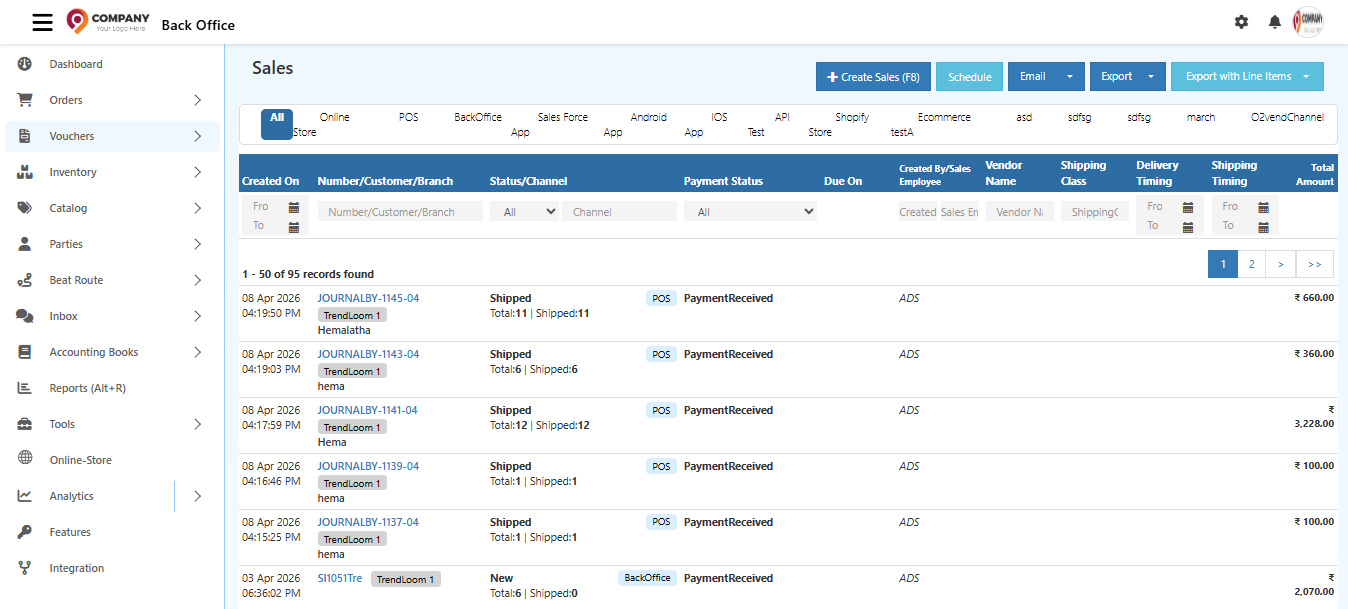
Channel Tabs
At the top of the list, you can filter invoices by sales channel:
| Tab | Description |
|---|---|
| All | Shows invoices from all channels |
| Online Store | Orders from the ecommerce website |
| POS | Orders from Point of Sale |
| Back Office | Invoices created manually in Back Office |
| Sales Force App | Orders from the Sales Force mobile app |
| Android App | Orders from the Android app |
| IOS App | Orders from the iOS app |
| API Test | Test orders via API |
| Shopify Store | Orders synced from Shopify |
| Ecommerce | Orders from other ecommerce integrations |
| O2vendChannel | Orders from O2VEND-to-O2VEND channel |
List Columns Explained
| Column | Description |
|---|---|
| Created On | Date and time the invoice was created |
| Number / Customer / Branch | Invoice ID, customer name, and branch tag — click the number to open the invoice |
| Status / Channel | Order fulfillment status and the channel it came from. Also shows Total items and Shipped items (e.g., Total:11 \| Shipped:11) |
| Payment Status | Whether payment is pending, partial, or completed |
| Due On | Payment due date — shown in red if overdue |
| Created By / Sales Employee | Admin or sales rep who created the invoice |
| Vendor Name | Vendor associated with this invoice |
| Shipping Class | Shipping method selected for this order |
| Delivery Timing | Scheduled delivery time slot |
| Shipping Timing | Scheduled shipping time slot |
| Total Amount | Total invoice value |
Filtering Invoices
Use the filter bar below the column headers to narrow down invoices:
- From / To — Filter by date range
- Number / Customer / Branch — Search by invoice number, customer name, or branch
- Status — Filter by fulfillment status
- Channel — Filter by sales channel
- Payment Status — Filter by payment status
- Created By / Sales Employee — Filter by the staff member
- Vendor Name — Filter by vendor
- Shipping Class — Filter by shipping method
- Delivery Timing / Shipping Timing — Filter by delivery or shipping date range
Invoice Status Types
| Status | What It Means |
|---|---|
| New | Invoice created — no shipment or payment captured yet |
| Shipped | All items have been shipped to the customer |
| Partially Shipped | Order is being delivered in multiple shipments — some items shipped |
| Canceled | Order was cancelled by the customer or admin |
Payment Status
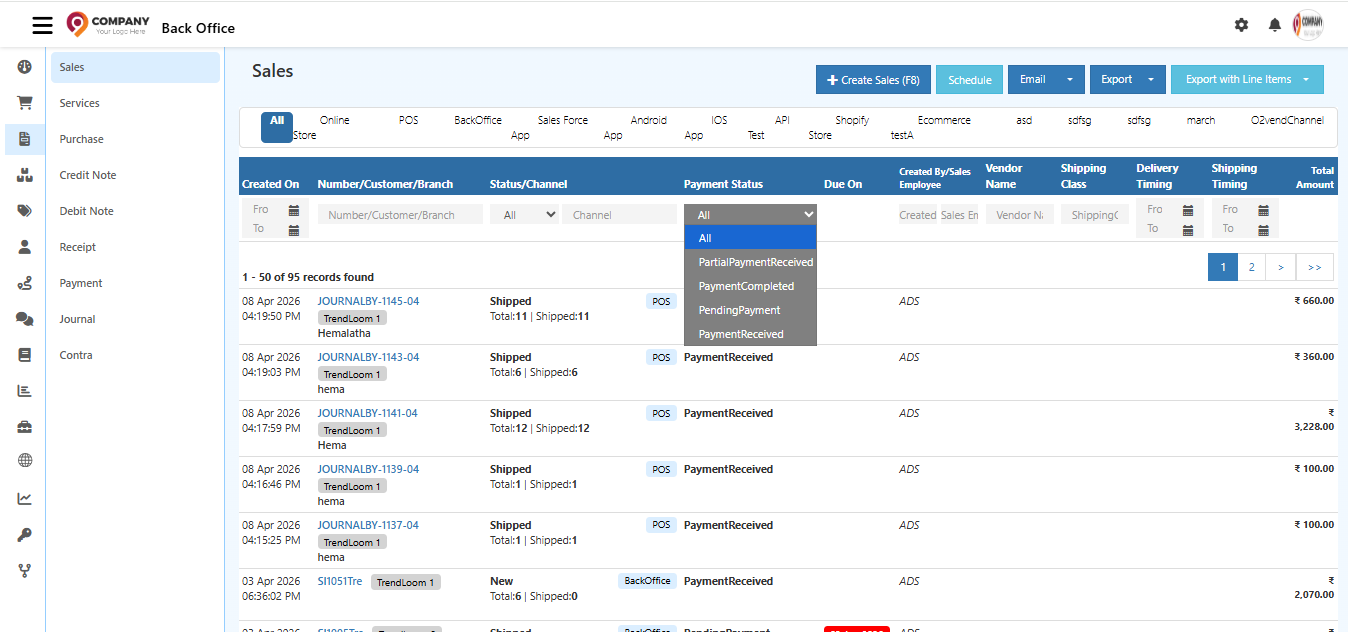
Use the Payment Status dropdown to filter invoices by payment state:
| Status | What It Means |
|---|---|
| PendingPayment | Payment not yet received — bank transfer or card payment in progress |
| PartialPaymentReceived | Part of the payment has been received — balance is still pending |
| PaymentReceived | Full payment received via cash or online |
| PaymentCompleted | Payment fully settled and confirmed |
The Due On date appears in red when payment is overdue, helping you quickly identify unpaid invoices.
Quick Actions from the List
Hover over any invoice row to see inline action buttons.
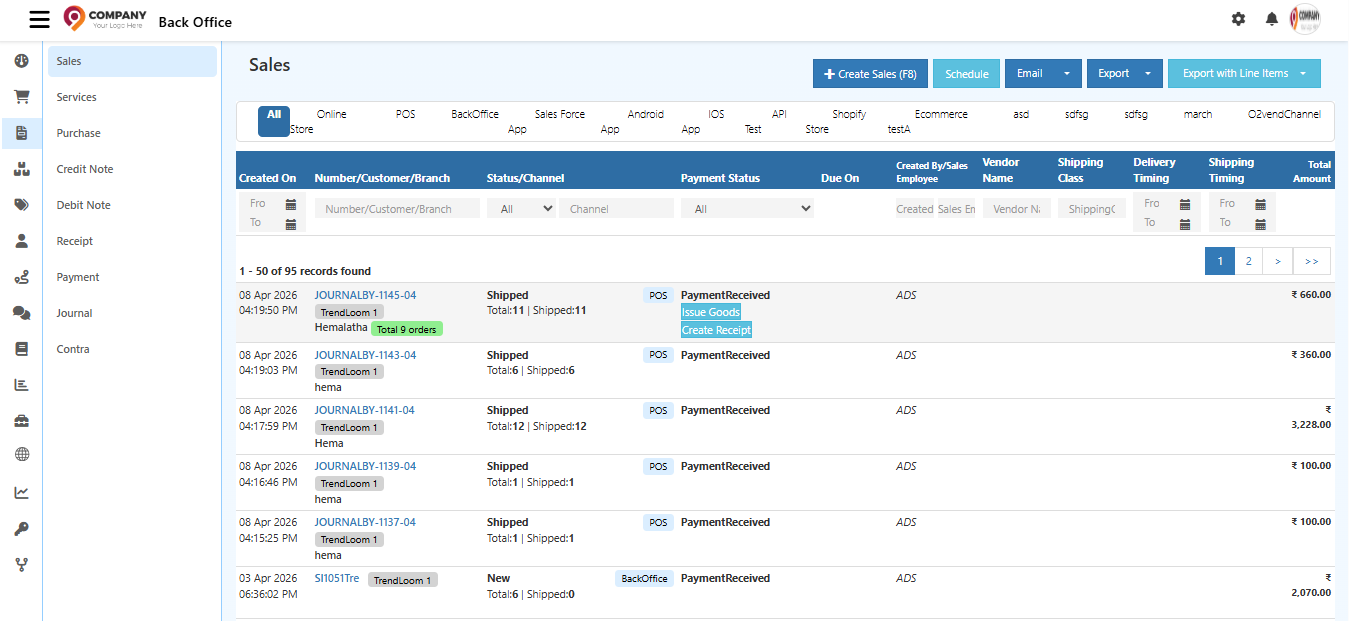
| Button | Action |
|---|---|
| Issue Goods | Open the Goods Delivery Note (GDN) to ship items for this invoice |
| Create Receipt | Record a payment receipt directly from the list |
| Total X orders | Shows the total number of linked orders for this invoice (e.g., Total 9 orders) |
Export Options
From the Sales list page (top right):
| Button | What It Does |
|---|---|
| Export | Downloads invoice records as a .csv file |
| Export with Line Items | Downloads invoices with full product-level detail as .csv |
| Schedule | Schedule automated export or email delivery |
| Email the invoice list directly |
Key Fields Reference
Created On
The date and time the sales invoice was created.
Invoice Number
A unique ID automatically assigned to every sales invoice (e.g., JOURNALBY-1145-04, SI1051Tre).
Click the number to open the full invoice detail.
Due On
The payment due date set on the invoice. Used to encourage customers to pay within a specific timeframe.
Overdue dates are highlighted in red.
Total Amount
The total value of the customer's order including all products, discounts, taxes, and fees.
Quick Summary
| Task | How |
|---|---|
| View all invoices | Go to Back Office → Voucher → Sales |
| Filter by channel | Click the channel tab (POS, Online Store, Back Office, etc.) |
| Filter by status | Use the Status dropdown in the filter bar |
| Filter by payment | Use the Payment Status dropdown |
| Ship an order | Hover over the row → click Issue Goods |
| Record payment | Hover over the row → click Create Receipt |
| Export invoices | Click Export or Export with Line Items |
| Create new invoice | Click + Create Sales (F8) or press F8 |