How to Create a GRN (Goods Receipt Note)
A Goods Receipt Note (GRN) is created to confirm that goods have been physically received from the supplier. Once a GRN is created, the stock is automatically updated in your inventory.
What Happens When You Create a GRN?
- Stock quantity is increased in the warehouse
- Purchase invoice status updates to GoodsReceived or PartiallyGoodsReceived
- Stock history and stock inventory are updated automatically
How to Open the Goods Receive Screen
After creating a purchase invoice:
- Open the invoice from Back Office → Voucher → Purchase
- Click the Add Goods Received button on the right panel
The Goods Receive screen will open.
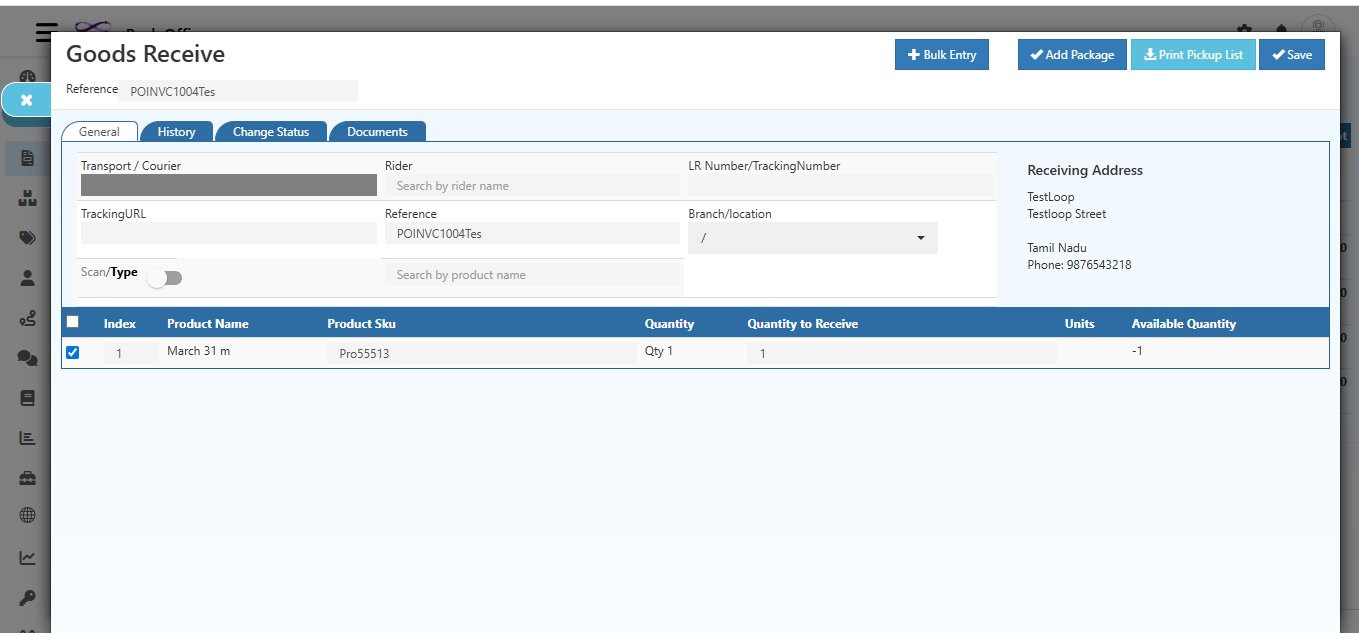
Goods Receive Form — Field Reference
General Tab
| Field | Description |
|---|---|
| Reference | Auto-filled with the purchase invoice number (e.g., POINVC1004Tes) |
| Transport / Courier | Enter the name of the transport or courier company used for delivery |
| Rider | Search and assign a delivery rider if applicable |
| LR Number / Tracking Number | Enter the Lorry Receipt number or shipment tracking number. This helps track where the ordered product is and when it will be delivered |
| Tracking URL | Paste the courier tracking link for easy reference |
| Reference | Additional reference number for this goods receipt |
| Branch / Location | Select the branch or stock location where goods are being received |
| Scan / Type | Toggle to scan product barcodes or type product names to receive items |
| Receiving Address | Auto-filled from the invoice — shows the delivery address |
Product Receipt Table
| Column | Description |
|---|---|
| Index | Row number |
| Product Name | Name of the product to be received |
| Product SKU | SKU code of the product |
| Quantity | Original ordered quantity from the invoice |
| Quantity to Receive | Enter how many units you are receiving now |
| Units | Unit of Measure for the product |
| Available Quantity | Current stock available in the selected warehouse |
Note: Quantity to Receive cannot be more than the original order quantity or the remaining unreceived quantity.
Steps to Create a GRN
- Open the purchase invoice from Back Office → Voucher → Purchase
- Click Add Goods Received from the right panel
- The Goods Receive screen opens with the invoice reference auto-filled
- Enter Transport / Courier name if applicable
- Enter the LR Number / Tracking Number for shipment tracking
- Paste the Tracking URL if available
- Select the Branch / Location where goods are received
- In the product table, enter the Quantity to Receive for each product
- For serial or lot-enabled products — enter the serial number and lot number. Click the key icon to enter serial numbers based on quantity
- Click Save — GRN is created and stock is updated automatically
Additional Actions
| Button | Action |
|---|---|
| + Bulk Entry | Add multiple products at once |
| + Add Package | Add package details for this shipment |
| Print Pickup List | Print the list of items to be received |
| Save | Save the GRN and update stock |
After Saving the GRN
- The purchase invoice status automatically updates to:
- GoodsReceived — if all items are received
- PartiallyGoodsReceived — if only some items are received
- Stock quantity increases in the selected warehouse
- You can verify the updated stock in Stock History and Stock Inventory
Tip: After creating the GRN, update the order status in the History tab of the invoice. This helps keep a clear audit trail for managing orders.
Other Tabs in the Goods Receive Screen
| Tab | What It Shows |
|---|---|
| General | Main form to enter receipt details and quantities |
| History | Timeline of all changes made to this GRN |
| Change Status | Manually update the GRN status |
| Documents | Attach or view documents related to this receipt |
Quick Summary
| Step | Action |
|---|---|
| 1 | Open the Purchase Invoice |
| 2 | Click Add Goods Received |
| 3 | Enter Transport, Tracking Number, and Location |
| 4 | Enter Quantity to Receive for each product |
| 5 | Enter serial/lot numbers if applicable |
| 6 | Click Save |
| Stock updated — Invoice status changes to GoodsReceived |