Purchase Order Management | Create, Manage, and Receive Purchase Orders
Learn how to create Purchase Orders, edit saved Purchase Orders, receive goods, and continue the purchase process in O2VEND.
Use Purchase Order Management in O2VEND to create supplier purchase orders, review and update saved orders, receive goods from suppliers, and continue the purchase process clearly.
A Purchase Order helps you record supplier purchases, manage ordered products, track received stock, and continue the process for invoicing and payment follow-up.
Access the Purchase Order Module
Back Office -> Orders -> Purchase Order
Understand the Purchase Order Workflow
The usual Purchase Order process in O2VEND is:
- Open the Purchase Orders list page
- Create a new Purchase Order
- Enter supplier and product details
- Save the Purchase Order
- Open the saved order and review it
- Edit the order if changes are needed
- Record goods received when stock arrives
- Continue the process for invoice creation and payment tracking
View the Purchase Orders List Page
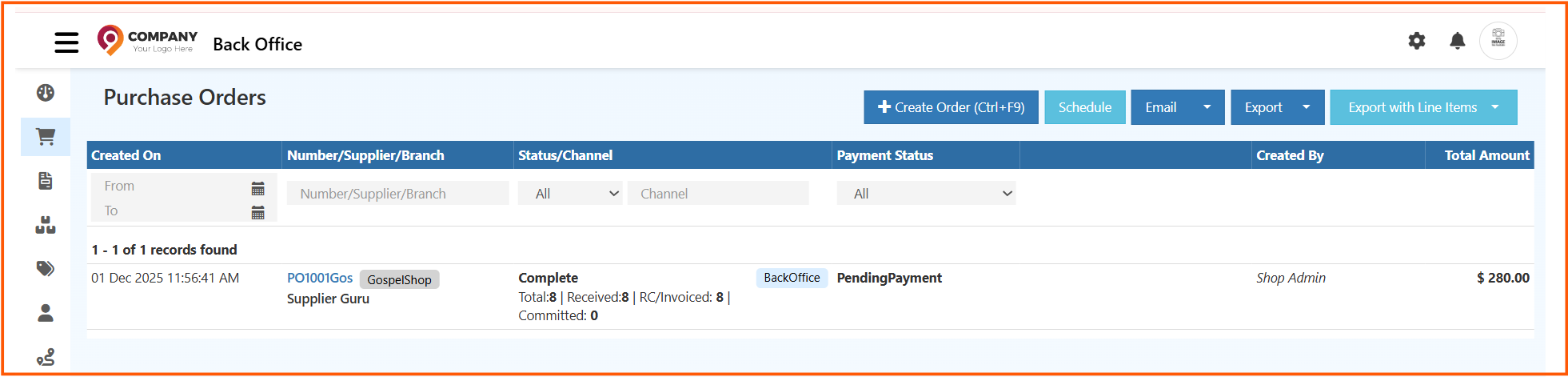
The Purchase Orders list page shows all created purchase orders in one place.
From this page, you can:
- view created purchase orders
- filter orders by date, supplier, status, or payment status
- create a new purchase order
- schedule, email, or export data
Important Columns
- Created On: Shows when the Purchase Order was created.
- Number / Supplier / Branch: Shows the order reference, supplier, and branch.
- Status / Channel: Shows the current order stage and source.
- Payment Status: Shows whether payment is pending or completed.
- Created By: Shows the user who created the order.
- Total Amount: Shows the final Purchase Order value.
Top Actions
- Create Order: Opens the Purchase Order creation page.
- Schedule: Schedules Purchase Order reports.
- Email: Sends Purchase Order data by email.
- Export: Exports Purchase Order data.
- Export with Line Items: Exports order data with product details.
Create a New Purchase Order
Use the Create Purchase Order page when you want to place a new order with a supplier.
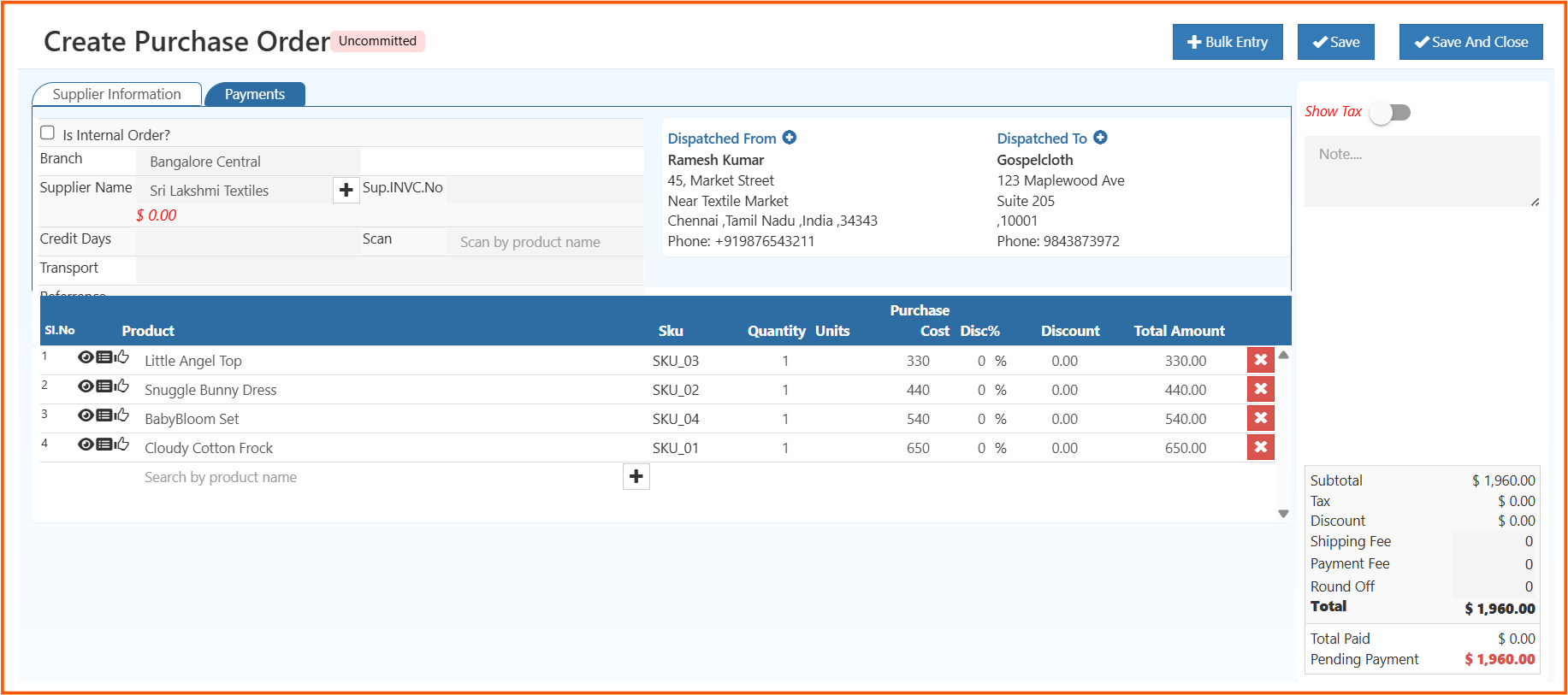
In this screen, you select the supplier, add product details, review the order total, and save the Purchase Order for further processing.
Steps to Create a Purchase Order
- Go to Back Office -> Voucher -> Purchase Order
- Click Create Order
- Select the Supplier Name
- Enter supplier and address details
- Add products
- Review the summary section
- Click Save or Save And Close
Main Areas in the Create Purchase Order Screen
Supplier Information
This section is used to enter the main supplier and order details.
- Branch: Shows the branch creating the Purchase Order.
- Supplier Name: Selects the supplier for the Purchase Order.
- Sup.INVC.No: Stores the supplier invoice reference if available.
- Credit Days: Shows the supplier payment period.
- Transport: Stores transport or delivery details.
- Reference: Stores an additional order reference.
- Internal Order: Used when the order is created for internal branch movement.
Address Section
This section shows the sender and receiver address details linked to the order.
- Dispatched From: Shows the source address of the order.
- Dispatched To: Shows the destination address for delivery.
Product Section
This is the main section where order items are added.
Each product row usually includes:
- Sl.No
- Product
- SKU
- Quantity
- Units
- Purchase Cost
- Disc%
- Discount
- Total Amount
Summary Section
The summary section helps you review the final Purchase Order value before saving.
It usually includes:
- Show Tax
- Note
- Subtotal
- Tax
- Discount
- Shipping Fee
- Payment Fee
- Round Off
- Total
- Total Paid
- Pending Payment
Top Actions
- Bulk Entry: Adds multiple products quickly.
- Save: Saves the Purchase Order.
- Save And Close: Saves the Purchase Order and closes the page.
Edit and Manage a Saved Purchase Order
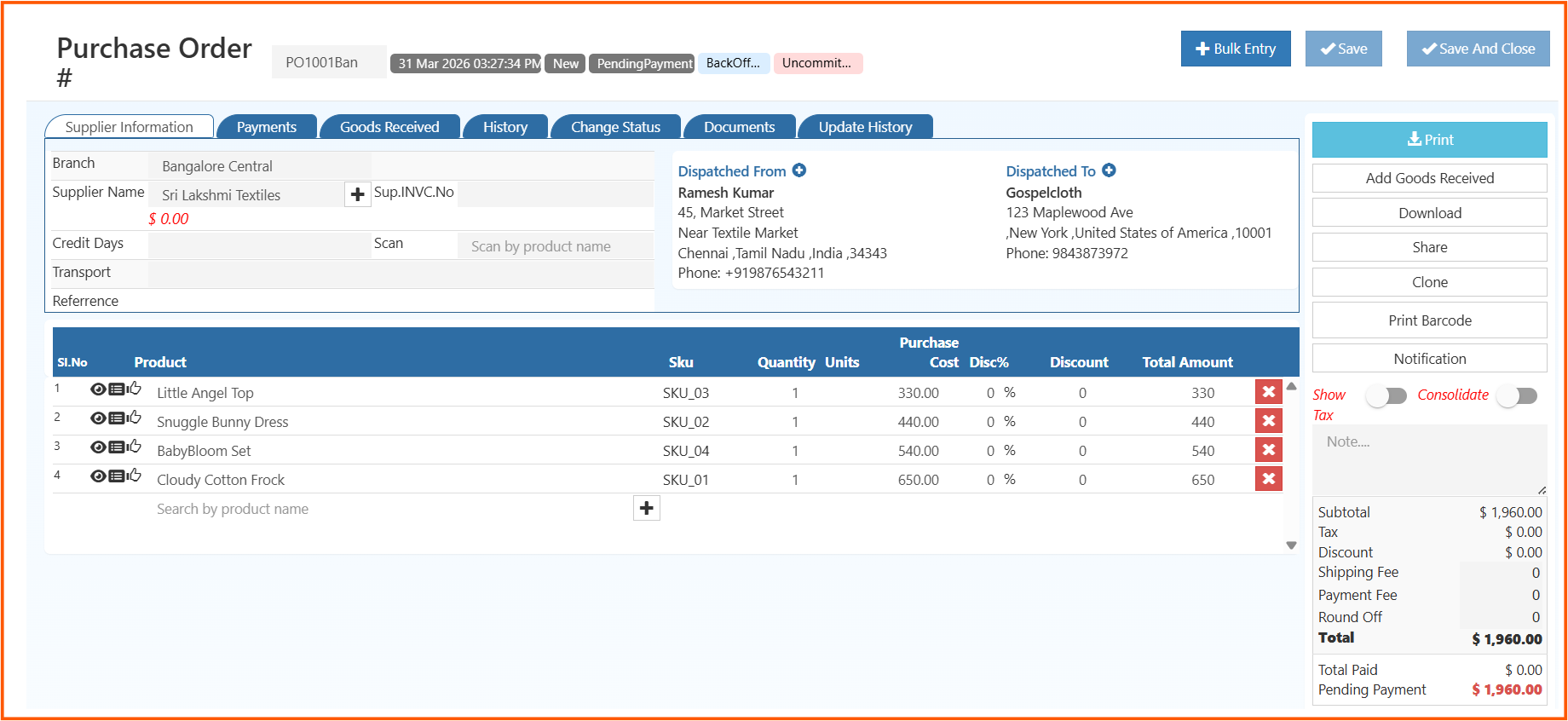
After saving, you can open the Purchase Order again from the list page to review, update, or continue the process.
This screen is useful when you need to check supplier details, update products, review status, or proceed with goods received.
Steps to Edit a Purchase Order
- Open the Purchase Orders list page
- Select the required Purchase Order
- Review the supplier and order details
- Update the required fields or product lines
- Review the updated summary
- Save the changes
What You Can Do in the Manage Purchase Order Screen
From the saved Purchase Order screen, you can:
- review supplier details
- check ordered products
- update quantities or pricing if allowed
- view payment details
- print the order
- download or share the order
- clone the order
- open goods received
- track order history
Tabs in the Purchase Order Detail Screen
- Supplier Information: Shows supplier and order details.
- Payments: Shows payment-related details.
- Goods Received: Opens the goods receive section.
- History: Shows actions completed on the order.
- Change Status: Used to update the order status.
- Documents: Stores attachments and related files.
- Update History: Shows the full change history.
Right Side Action Buttons
- Print: Prints the Purchase Order.
- Add Goods Received: Opens the goods receive page.
- Download: Downloads the order.
- Share: Shares the order.
- Clone: Creates a copy of the order.
- Print Barcode: Prints barcode labels if available.
- Notification: Sends order-related updates.
- Show Tax: Shows or hides tax values.
- Consolidate: Combines order details in one view if enabled.
Receive Goods and Create GRN
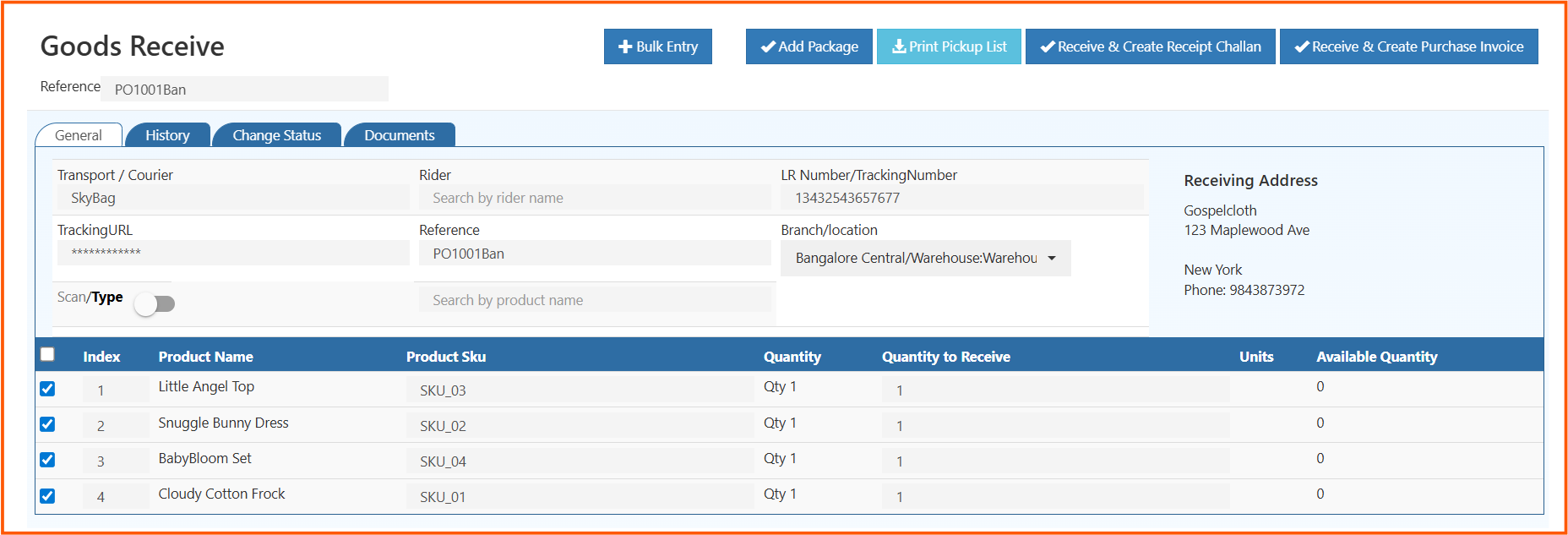
When the supplier delivers the products, use the Goods Receive page to record the received stock.
This step confirms what has physically arrived and updates inventory accordingly. It also helps create the GRN for the received goods.
Steps to Add Goods Received
- Open the required Purchase Order
- Click Add Goods Received
- Review the reference and delivery details
- Check the receiving branch or location
- Review the product list
- Enter Quantity to Receive
- Click Receive & Create Receipt Challan
After saving, the received stock is updated in inventory and the GRN is created.
Tabs in the Goods Receive Screen
- General: Shows goods receive entry details.
- History: Shows actions completed in the goods receive entry.
- Change Status: Used to update the GRN status.
- Documents: Stores related files.
Main Areas in the Goods Receive Screen
Delivery Details
This section helps you review transport and receipt details.
- Reference: Shows the linked Purchase Order number.
- Transport / Courier: Shows the delivery transport details.
- Rider: Shows the delivery person if entered.
- LR Number / Tracking Number: Stores shipment tracking details.
- Tracking URL: Stores the shipment tracking link.
- Branch / Location: Shows where the goods are being received.
- Receiving Address: Shows the delivery location.
- Scan / Type: Helps search items quickly.
Product Receive Section
This section shows the products included in the goods receive process.
It usually includes:
- Index
- Product Name
- Product SKU
- Quantity
- Quantity to Receive
- Units
- Available Quantity
Top Actions
- Bulk Entry: Adds multiple entries quickly.
- Add Package: Adds package details for received goods.
- Print Pickup List: Prints the item list for verification.
- Receive & Create Receipt Challan: Saves goods received and creates GRN.
- Receive & Create Purchase Invoice: Saves goods received and continues to invoice creation.
Continue with Purchase Invoice
After goods are received and verified, you can continue with purchase invoice creation from the goods receive process or Purchase Order screen.
This helps continue the process for supplier billing and accounting updates.
Using Purchase Order Management in O2VEND, you can create Purchase Orders, edit saved orders, receive goods, create GRN, and continue the purchase process clearly from one workflow.