POS Sales Management – Create Orders, Apply Offers & Generate Receipts in O2VEND POS
O2VEND POS Sales Management module helps retail stores create sales orders, apply promotions, manage customer billing, and generate invoices efficiently. This guide explains how to process physical store orders, manage cart operations, apply discounts, print bills, and handle serial & lot number tracking inside the O2VEND Point of Sale system.
The Sales screen acts as the central checkout engine for retail billing operations.
What is POS Sales Management in O2VEND?
POS Sales Management in O2VEND is a retail billing workflow that allows:
- Fast product billing using SKU, GTIN, or barcode scanner
- Customer registration during checkout
- Real-time inventory validation
- Omnichannel offer application
- Order hold and resume functionality
- Instant invoice generation
- Thermal and A4 bill printing
This module connects directly with:
How to Create a Sales Order in O2VEND POS (Step-by-Step Guide)
Creating a retail sales order in O2VEND POS involves the following process:
- Open the Point of Sale (POS) application.
- Navigate to the Sales section.
- Search for a registered customer using Name or Phone Number.
- Add products using:
- SKU
- GTIN
- Barcode Scanner
- Product Search popup
- Update product quantity if required.
- Click Save to hold the order OR
- Click Save and Proceed for Receipt to generate invoice.
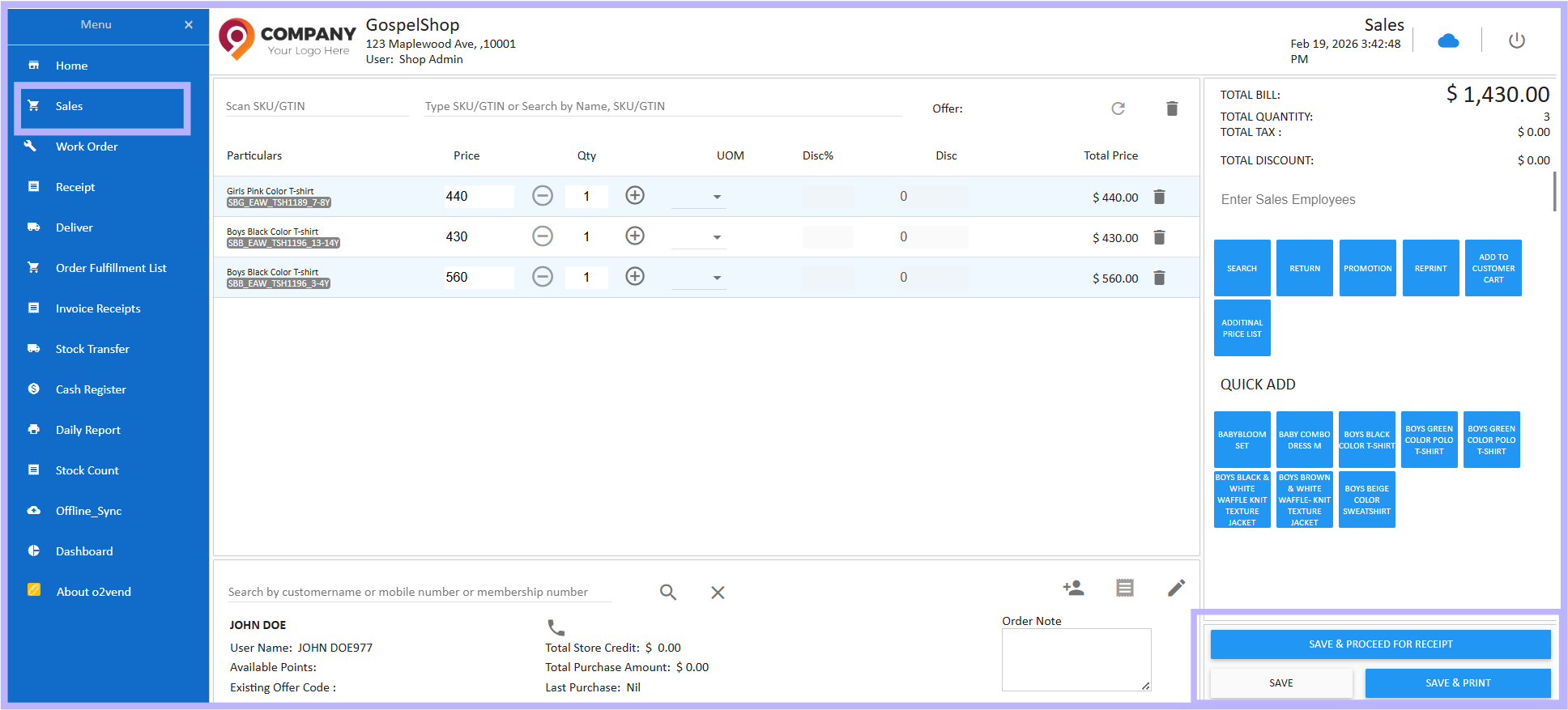
Real-time O2VEND POS Sales screen interface used in retail stores for billing, applying promotions, managing cart items, customer details, cash register handling, and generating invoices instantly.
Add Products to Cart Using SKU, Barcode, or Search
Add Product Using SKU or Barcode Scanner
- Enter SKU or scan barcode in the Sales Item field.
- Product automatically gets added to cart.
- Repeat for multiple products.
Search Products from POS Sales Screen
- Click Search button.
- Use product name, SKU, or keywords.
- Click Add to Sale Item.
- Product appears in cart instantly.
This method improves billing speed in high-volume retail counters.
Quick Add Products for Faster Checkout
O2VEND POS supports Quick Add buttons to speed up retail billing.
Steps to Use Quick Add
- Open Sales screen.
- Select products displayed under Quick Add section.
- Selected product automatically moves to cart.
Quick Add products can be configured in:
Quick Add Setup
Apply Promotions and Offers in POS Billing
O2VEND provides centralized omnichannel offer management across:
- Ecommerce
- Physical Stores
- Mobile
- Social commerce
How to Apply Promotions in POS
- Open Sales screen.
- Click Promotions button.
- View applicable offers.
- Select offer → Click Apply.
- Discount reflects in cart automatically.
If cart items or customer changes after applying offer, reapply promotion.
Advanced offer configuration available in:
Cart Price Rule Settings
Generate Invoice and Print POS Bill
Once order validation is complete:
- Click Save and Print
- Invoice is generated instantly
- Print using:
- Thermal Printer
- Laser A4 Printer
Reprint option available under: Reprint in Sales Order
POS invoices are automatically recorded in financial reports and synced with:
Assign Serial Number or Lot Number During Billing
For serialized or lot-tracked products:
- Add product to cart.
- Enter serial or lot number when prompted.
- Validate and Save.
This ensures accurate inventory tracking and compliance for electronics, medical, and regulated goods.
Sales Order to Invoice Workflow in O2VEND
Sales Order → Hold (Optional) → Receipt Screen → Invoice Generation → Financial Recording
Final invoice conversion happens inside:
Receipt Management
Why O2VEND POS Sales Module Improves Retail Efficiency
- Faster checkout time
- Reduced billing errors
- Real-time stock update
- Centralized offer engine
- Omnichannel data sync
- Accurate financial reporting
- Integrated inventory management
O2VEND POS is built for modern retail stores looking to manage billing, promotions, and inventory within a single unified platform.
Related POS Tutorials
- POS Overview
- POS Login & Branch Selection
- Order Fulfillment List
- Delivery Management
- Stock Transfer in POS
- Offline Sync in POS
- About O2VEND POS System
O2VEND POS Overview > POS Sales Management