Vendor Commission Setup – O2Vend
The Vendor Commission feature in O2Vend defines commission rates for vendors based on products, categories, or other business criteria.
This configuration automates commission calculations and ensures consistent vendor payments across transactions.
Steps to Create Vendor Commission
1. Navigate to Vendor Commission
- Open the Back Office.
- Go to Settings → Vendor Commission → Create Vendor Commission.

2. General Information
Enter the required details to define a commission rule.
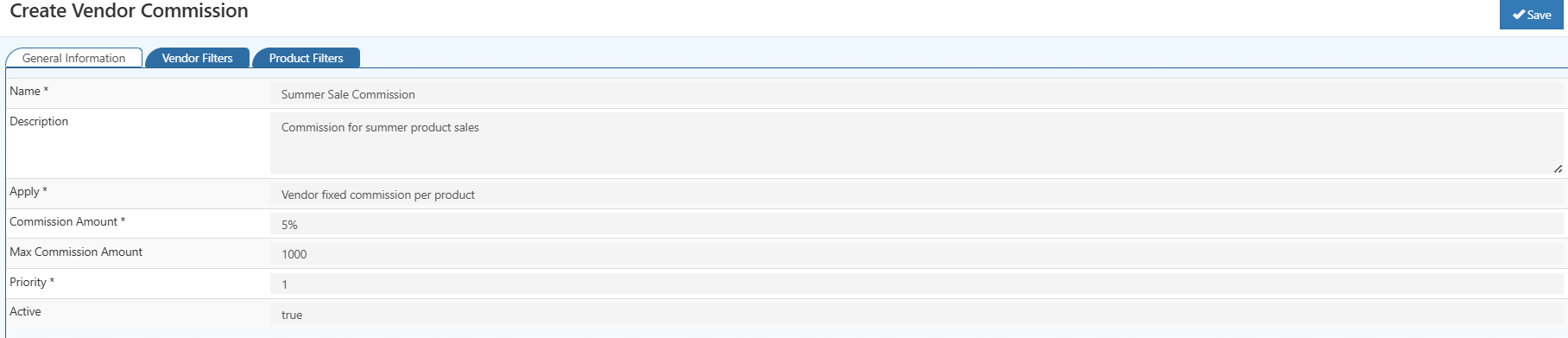
| Field | Description |
|---|---|
| Name* | Descriptive name for the commission rule. |
| Description | Optional note describing the purpose of the rule. |
| Apply* | Defines the commission type. Options include Vendor Fixed Commission per Product or Vendor Percentage Commission per Product Price. |
| Commission Amount* | Specifies the percentage or fixed amount for the commission. |
| Max Commission Amount | Sets an optional limit for the maximum commission amount. |
| Priority* | Determines the order in which commission rules are applied when multiple rules exist. |
| Active | Enables or disables the commission rule. |
3. Vendor Filters
Vendor filters restrict the commission rule to selected vendors.
If no vendor is specified, the rule is applied to all vendors.
4. Product Filters
Product filters define which products or categories the commission rule applies to.
If no filters are selected, the rule applies to all products.
5. Save Commission Rule
After completing all required fields, select Save.
The system automatically applies the commission based on the defined filters and priority.
Editing Vendor Commission Rules
Existing commission rules can be modified through the Vendor Commission list view.
- Select the Edit icon next to a rule to open the configuration screen.
- Update fields such as Commission Amount, Priority, or Status (Active/Inactive) as required.
- Save changes to apply the updated configuration.
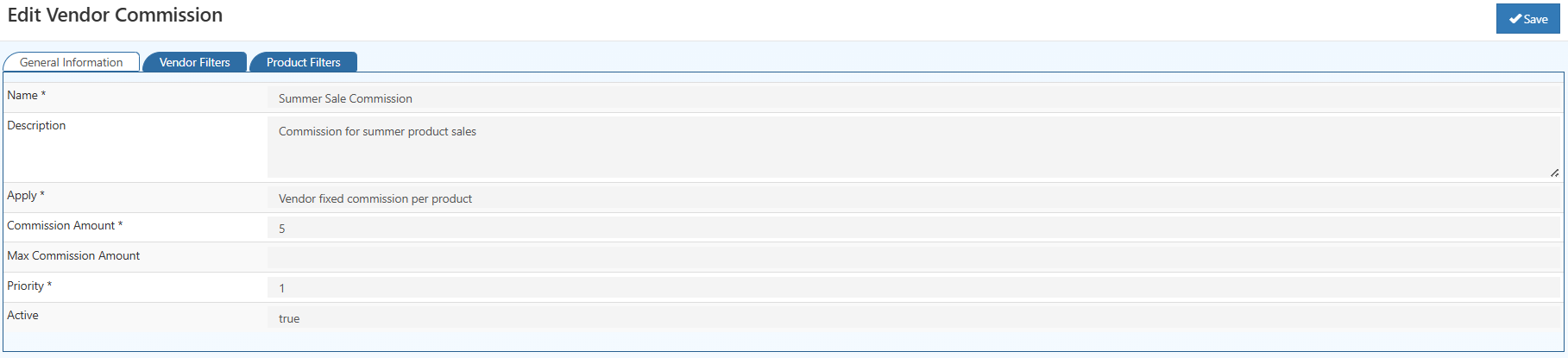
Example Configuration
| Field | Example Value |
|---|---|
| Name* | Summer Sale Commission |
| Description | Commission for summer product sales |
| Apply* | Vendor Percentage Commission per Product Price |
| Commission Amount* | 5% |
| Max Commission Amount | 1000 |
| Priority* | 1 |
| Active | True |
Apply Options
Vendor Fixed Commission per Product
Applies a fixed commission amount for each product sold.
Example: If the amount is ₹100, the vendor receives ₹100 for every product sold.
Usage: Recommended for commission structures with consistent earning amounts per product.
Vendor Percentage Commission per Product Price
Applies a percentage-based commission calculated on the product’s sale price.
Example: If the percentage is 5% and the product price is ₹1,000, the vendor commission is ₹50.
Usage: Suitable for commissions that vary according to product price.
Benefits of Vendor Commission Setup
- Automates vendor commission calculations.
- Enables detailed targeting using vendor and product filters.
- Ensures fair and consistent vendor payments.
- Supports multiple commission rules with defined priorities.
- Reduces manual calculation errors in vendor transactions.