O2VEND Affiliate Program Setup
The Affiliate Program in O2VEND enables businesses to track and reward customers or partners who refer new buyers through unique affiliate links.
This feature helps increase online sales, build customer engagement, and automate referral marketing within the Back Office.
Each affiliate has a dedicated referral link, and all sales through that link are automatically tracked for rewards or commissions.
Accessing the Affiliate Module
- Open Back Office.
- Navigate to Settings → Loyalty and Promotions.
- Select Affiliates.
O2VEND Affiliate Program Workflow and Setup Guide
Complete Workflow Summary
| Step | Action | Description |
|---|---|---|
| 1 | Customer Creation | Create a customer record in Back Office |
| 2 | Create Benefits | Define reward type and value for affiliates |
| 3 | Create Affiliate | Link customer and benefit under one affiliate profile |
| 4 | Generate Coupon | Connect the affiliate and benefit for referral-based discounts |
This structured workflow provides accurate affiliate sales tracking, insight into performance, and automated reward allocation.
Step 1: Customer Creation
- Navigate to Back Office → Parties → Customers.
- Click Create Customer.
- Enter required details such as name, contact number, and email.
- Save the record.
The created customer will later be linked to the affiliate profile.
Step 2: Create Benefits
Define the benefits or rewards that affiliates receive for each successful referral.
- Go to Settings → Loyalty and Promotions → Benefits.
- Click Create Benefit and configure the reward type (percentage, points, fixed amount, etc.).
- Save the benefit.
Refer to the detailed article: Create Benefit
Step 3: Create Affiliate and Link Benefits
After benefits are created, configure the affiliate record and link them.
- Click Create Affiliate.
- Fill in all necessary details as shown below.
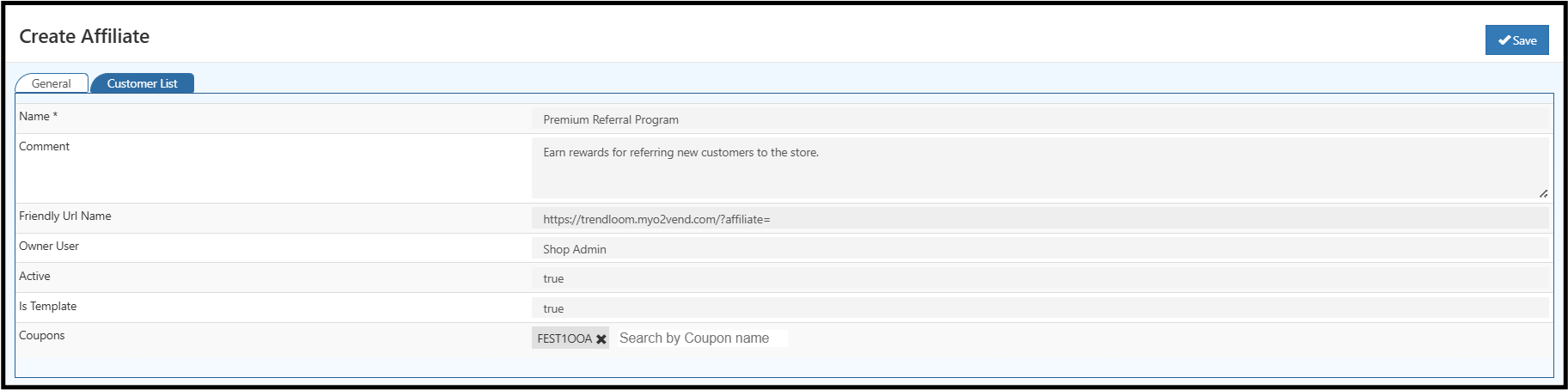
Name
Enter the affiliate name (e.g., partner, influencer, or program).
Comment
Add internal notes about the affiliate program.
Example: Rewards assigned for Premium Referral Program.
Friendly URL Name
Generates a unique referral tracking link.
Example:
https://trendloom.myo2vend.com/?affiliate=10
This link tracks all referral-based sales.
Owner User
Assigns the responsible internal user or manager.
Active
Activates the affiliate program.
Is Template
Marks this setup as a template for future affiliate campaigns.
🔸 Coupons
Attach promotional coupons to enable referral-based discounts.
Customer List Tab & Filter Options
The Customer List tab shows all customers linked to an affiliate.
This helps identify which customers are part of a particular referral program.
Applying Customer Filters
- Open the Customer List tab.
- Use the Search or Filter bar to find customers by name.
- Select and apply the customer filter.
Once the filter is applied, the affiliate program will apply only to those specific customers, ensuring controlled reward distribution and accurate tracking.
Step 4: Create Coupon and Link Affiliate
In this step, the affiliate and benefit are connected through a coupon.
Orders placed using the affiliate’s referral link automatically apply discounts or rewards.
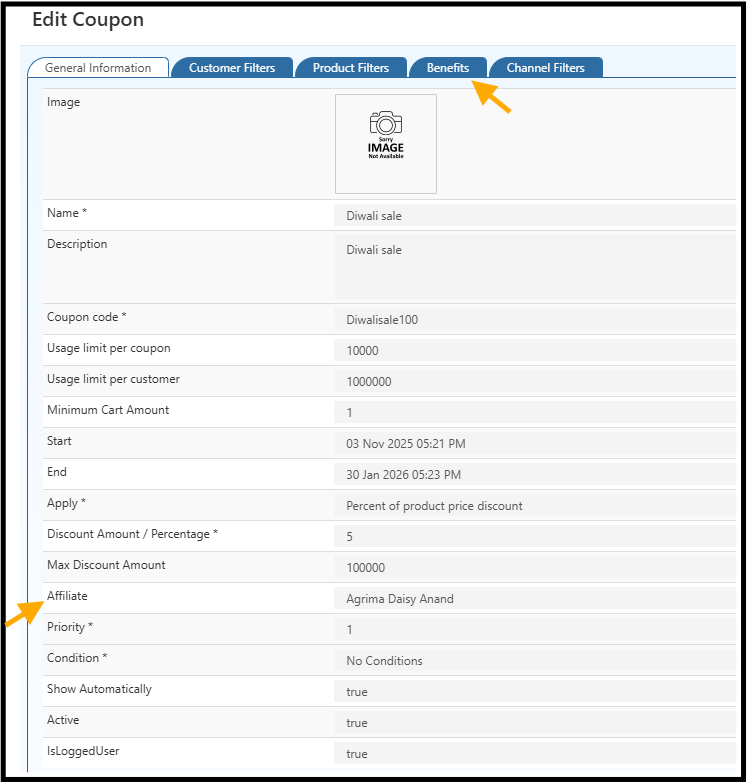
- Go to Settings → Loyalty and Promotions → Coupons.
- Click Create Coupon or open an existing one.
- Fill in coupon details such as name, discount percentage, and date range.
- In the Benefits tab, select the previously created Benefit.
- In the Affiliate field, choose the Affiliate name.
- Save the coupon.
Key Advantages of O2VEND Affiliate System
- Automates referral-based marketing and commission handling.
- Tracks customer referrals with unique affiliate links.
- Integrates seamlessly with coupons and reward systems.
- Improves brand visibility through partner-driven campaigns.
- Reduces manual administrative work with automated tracking.