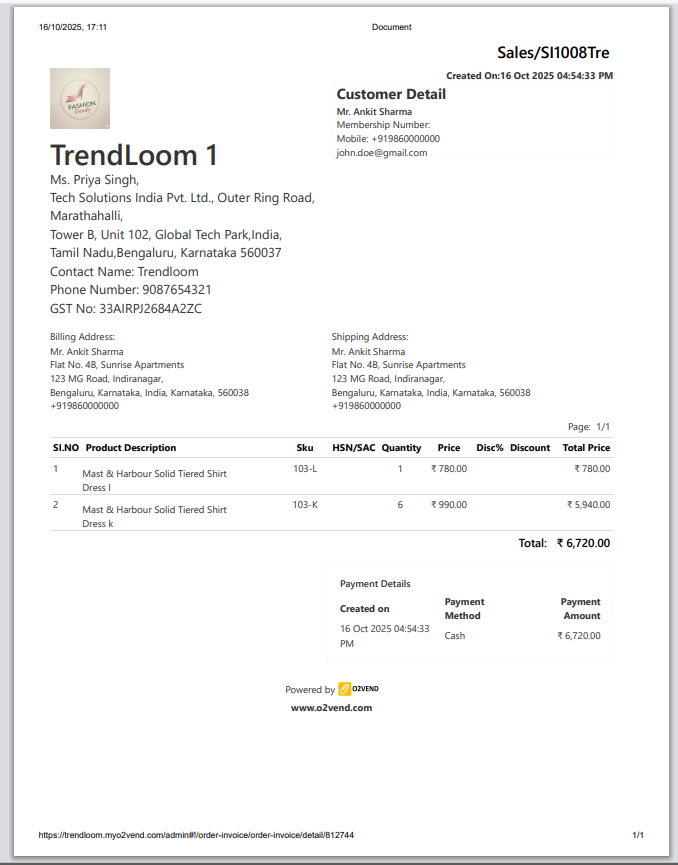
Back Office Print Details – O2VEND Settings Guide
Learn to configure and customize Back Office Print Details in O2VEND to control invoice and receipt layouts. Print formats in the Back Office can be personalized to reflect brand identity and maintain consistency across printed documents.
Purpose of Back Office Print Details
The Back Office Print Settings section in O2VEND allows complete customization of how printed business documents—such as sales invoices, payment receipts, quotations, and delivery notes—appear from the Back Office module. This feature helps businesses maintain a professional, branded look while ensuring all printed outputs contain accurate and relevant details for internal and customer records.
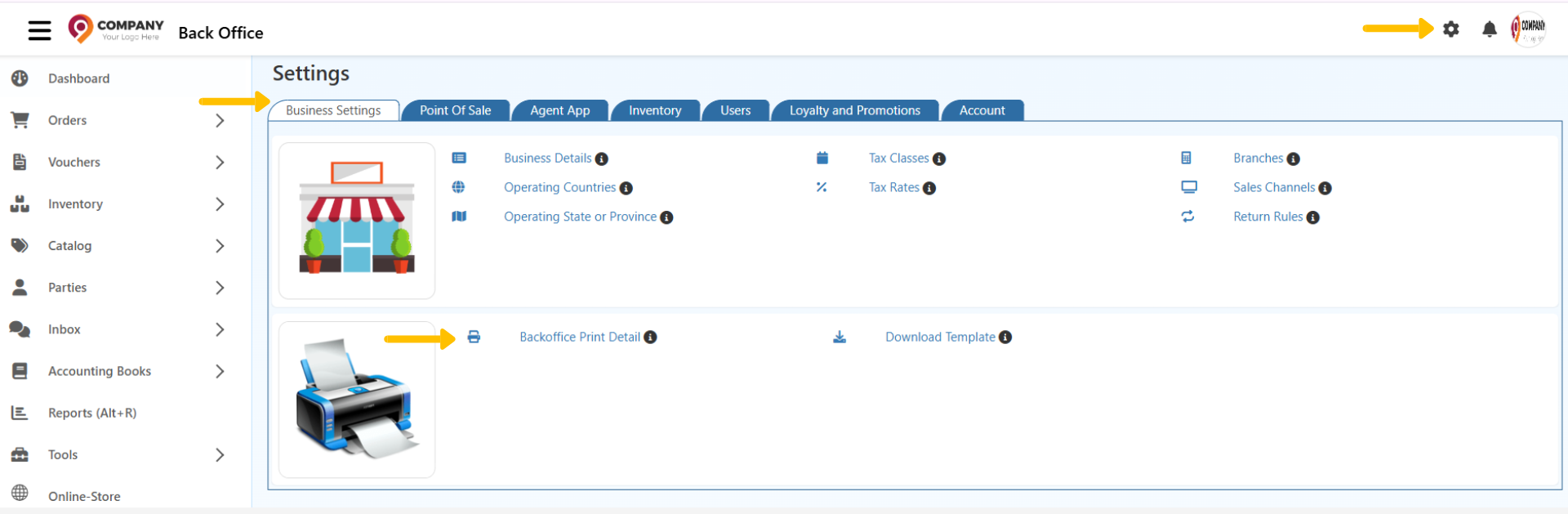
Located under Settings → Business Settings → Back Office Print Details, this module is exclusively used to manage printing behavior for the Back Office only. It does not affect print settings for POS, Online Store, or Mobile Apps, which have their own separate configurations.
How to Configure Print Details
- Each print option in this section includes a True/False toggle to control visibility:
- Select “True” to enable and display the field on printed receipts or invoices.
- Select “False” to disable or hide the field from printed outputs.
Once all preferences are set, click Save to apply the updates immediately.
Key Print Configuration Options
Each print setting can be adjusted to display details based on business preferences. Below are the main options available:
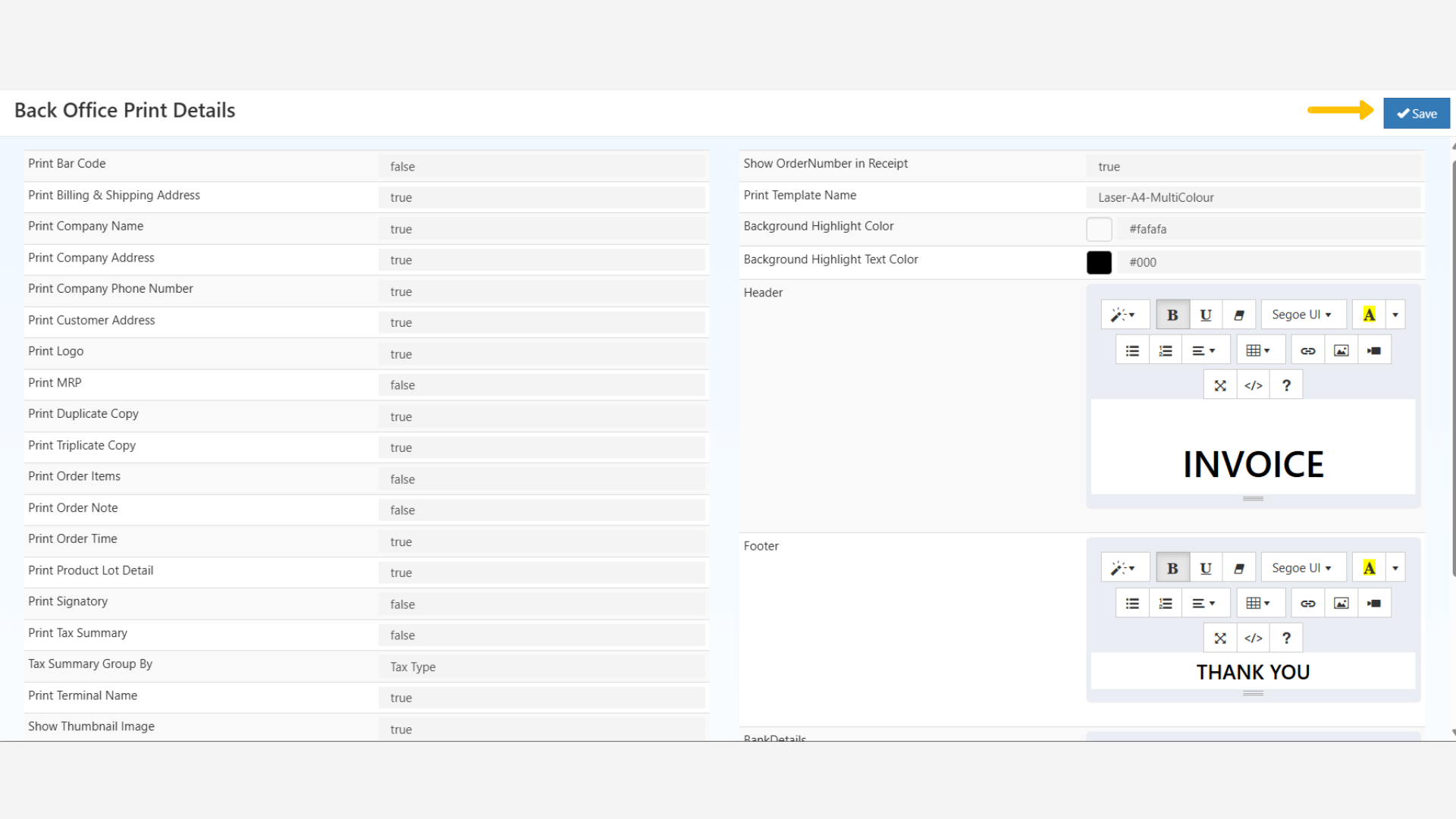
| Key Print Configuration Options | Option Description |
|---|---|
| Print Bar Code | Displays a barcode on printed receipts for easy scanning. |
| Print Billing & Shipping Address | Adds customer billing and shipping addresses to receipts |
| Print Company Name | Displays the registered business name on invoices. |
| Print Company Address | Prints the company’s physical location. |
| Print Company Phone Number | Includes the business contact number. |
| Print Customer Address | Shows customer address for reference. |
| Print Logo | Adds the company logo to invoices for brand identity. |
| Print MRP | Displays the Maximum Retail Price of listed items. |
| Print Duplicate Copy / Triplicate Copy | Enables generating multiple invoice copies. |
| Print Order Items | Shows detailed item descriptions, quantity, and pricing. |
| Print Order Note | Shows detailed item descriptions, quantity, and pricing. |
| Print Order Time | Displays the exact order time on the receipt. |
| Print Product Lot Detail | Includes batch or lot details for inventory traceability. |
| Print Signatory | Adds a signature field for authentication. |
| Print Tax Summary | Shows a clear summary of all texes included in the bill on the printed copy. |
| Tax Summary Group By | Group By Shows a breakdown of applied taxes, grouped by type or rate. |
| Print Terminal Name | Displays the terminal or counter used for billing. |
| Show Thumbnail Image | The Show Thumbnail Image option controls the visibility of product images on printed documents. |
| Order Invoice heading | Defines the title displayed on order invoices, such as “Order Invoice” or “Customer Order.” |
| Payment Invoice heading | Specifies the heading for payment receipts, typically labeled “Payment Invoice” or “Receipt.” |
| Deliver Invoice heading | Sets the title for delivery-related documents, often titled “Delivery Note” or “Dispatch Invoice.” |
| Service Invoice heading | Used for invoices related to services rendered rather than product sales. Common labels include “Service Invoice” or “Work Order.” |
| Quotation heading | Defines the title for quotation or estimate documents, such as “Sales Quotation” or “Price Estimate.” |
| Show OrderNumber in Receipt | Displays the unique invoice number on printed receipts for easy identification and record tracking |
| Print Template Name | Specifies the layout style used for printing documents, allowing selection from predefined templates. |
| Header | Allows inclusion of company logo, name, or promotional text. |
| Footer | Commonly used for disclaimers, contact information, return policies and thank you notes. |
| Bank Details | Displays payment information such as account number, IFSC CODE, or UPI ID for customer reference. |
Editing Print Details
Steps
- Navigate to Settings → Business Settings → Back Office Print Detail.
- Select the required print options and adjust values to true or false depending on visibility preferences.
- Modify the Header and Footer templates using the built-in text editor.
- Add elements such as the company logo, legal disclaimers, or payment instructions.
- Click Save to apply the changes instantly.