O2VEND Retail ERP
  • Getting Started
  • Ecommerce
  • Back Office
  • POS
  • Agent App
  • PIM
  • Communication
  • CMS
  • OMS
  • WMS
  • O2C
  • Accounting
  • Reports
  • Themes and Apps
Search Results for

    Show / Hide Table of Contents
    • Retail ERP Back Office Overview
    • Back Office Dashboard
    • Analytics & Reports
      • Visitor Analytics
      • E-commerce Analytics
      • Product Analytics
      • Campaigns Analytics
    • API & Webhook Integration
      • Webhook
      • Examples of JSON format data via webhook
      • Testing webhook
    • System Settings
      • Settings
      • Business Settings
        • Business Details
        • Tax Classes
        • Tax Rates
        • Operating Countries
        • Operating State or Province
        • Branches
        • Sales Channels
        • Return Rule
        • Backoffice Print Detail
        • Download Template
      • Point Of Sale
        • Quick Add Buttons
        • Print Settings
        • Payment Methods
        • Delivery Settings
        • Language
        • POS Offline Mode
      • Agent App
        • Agent App Print Details
      • Inventory
        • Unit Of Measure
        • Location
        • Unit Of Measure Conversions
        • Stock Levels
        • Sub Location
        • Print Barcode Label Settings
        • Package Material
      • userSettings
        • vendors
        • User Date Setup
        • Employees
          • Set Up Employee Roles
          • Ecommerce
          • Point Of Sale
          • Back Office
          • Sales App
        • Vendors Commission
        • Credit Rules
        • Automatic User Code
      • Loyalty and Promotions
        • Reward Points
        • Coupons
        • Gift Vouchers
        • Offers and Discounts
        • Benefits
        • Affiliate
        • Coupon Print Setting
      • Account
        • Financial Year
        • Voucher Numbering
        • Sales Account Map
        • Voucher Numbering Rules
    • Profile

    Stock Levels - O2Vend Inventory Guide

    The Stock Levels feature in O2Vend helps maintain optimal inventory by setting limits for product availability.
    Proper stock level configuration prevents both overstocking and stockouts, ensuring smooth order fulfillment and efficient warehouse management.


    Stock Levels

    Stock levels define how much of a product should be available in the inventory at any given time.
    They include parameters like reorder quantity, minimum and maximum limits, and safety stock � all crucial for inventory control and replenishment planning.


    How to Set Up Stock Levels

    1. Open the Back Office.
    2. Navigate to the Settings menu.
    3. Under Stock Settings, select Stock Levels.
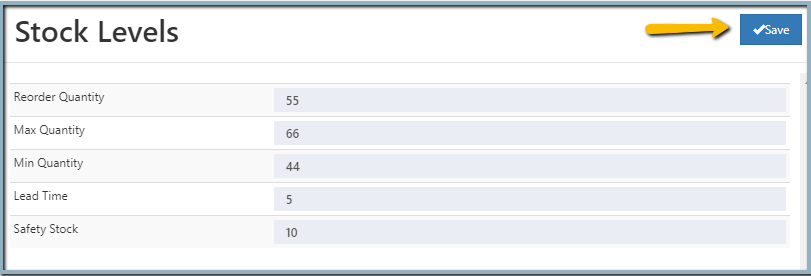
    4. Enter the required details:
      • Reorder Quantity: The quantity at which a product should be reordered to avoid running out of stock.
      • Max Quantity: The maximum stock level that should not be exceeded.
      • Min Quantity: The minimum stock level below which a reorder should be triggered.
      • Lead Time: The number of days required to restock the product after placing an order.
      • Safety Stock: The buffer quantity maintained to handle sudden demand spikes or supply delays.
    5. Click the Save button in the top-right corner to apply changes.

    Once saved, these values will automatically apply to newly created or updated products, ensuring consistent stock monitoring.
    Stock Levels - O2Vend Inventory Guide
    In this article
    Back to top _includes/footer.html
    © 2019–2026 Jeyan Technologies Private Limited • www.o2vend.com • Create your own store