How to Create and Configure Coupon Print Settings in O2VEND
The Coupon Print Settings feature in O2VEND Back Office allows businesses to design and configure custom coupon templates for gift voucher programs. This configuration ensures that printed coupons are well-aligned, professional, and accurately dimensioned for any media type.
Access and Navigation
Steps to Access:
- Log in to the O2VEND Back Office.
- Go to Settings → Business Settings → Coupon Print Settings.
The Coupon Template List displays all existing templates with the following key details:
| Column | Description |
|---|---|
| Name | Template identifier assigned for easy reference. |
| Size | Physical dimensions of the coupon (in millimetres). |
| Media Type | Type of print media used — Paged Media or Continuous (Roll) Media. |
| Labels Per Row | Number of coupons printed horizontally per page. |
| Rows Per Page | Number of coupon rows per page for paged media. |
To create a new template, click Create Coupon Template.
Each template supports Edit, Delete, or Clone actions.
Coupon Print Settings Workflow
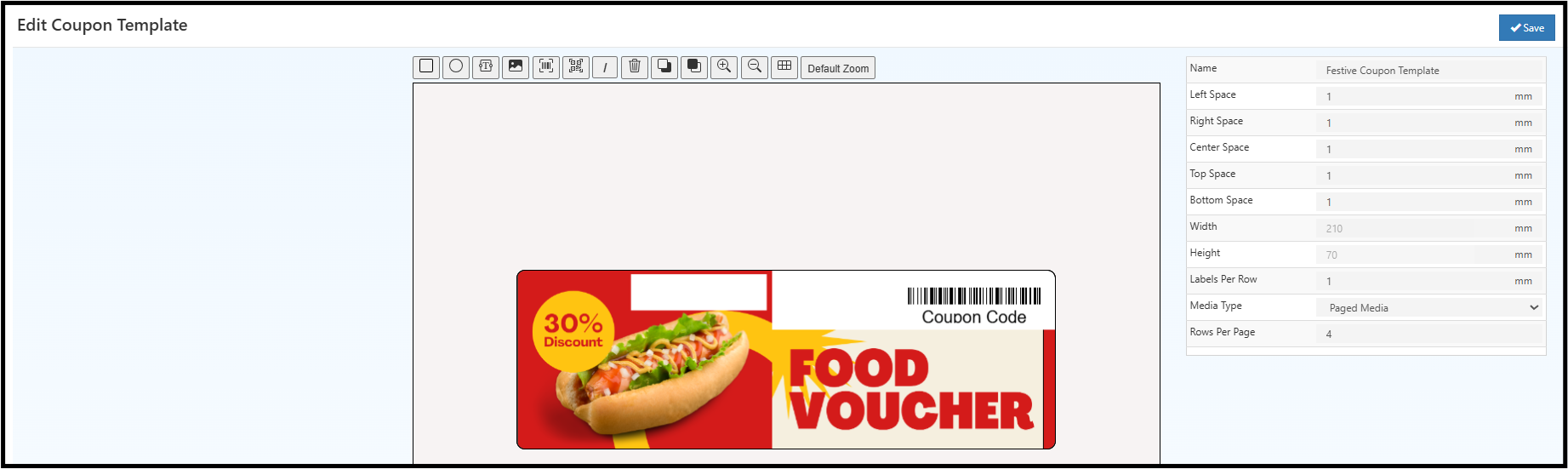
The Coupon Template editor provides a WYSIWYG (What You See Is What You Get) design canvas, enabling users to position, resize, and align layout elements precisely.
Toolbar Functions
| Tool | Description |
|---|---|
| Rectangle / Shape | Draw boxes or outlines to define layout boundaries. |
| Circle / Ellipse | Add circular or decorative elements for design aesthetics. |
| Text | Insert static text or dynamic fields (e.g., {COUPON_CODE}, {EXPIRY_DATE}). |
| Image | Add brand logos or product images (supported formats: PNG, JPG). |
| Barcode | Insert scannable barcodes (EAN, Code128, or QR Code). Ensure barcode encoding matches the POS/scanner format. |
| Grid / Align | Enable grid snapping for precise alignment. |
| Zoom / Pan | Navigate within the canvas for detailed design control. |
| Preview | View how the coupon will appear when printed. |
Each element’s size and position are specified in millimetres (mm) for exact alignment with printer offsets and label dimensions.
Field Definitions and Configuration
General Template Properties
| Field | Description |
|---|---|
| Name | Unique name identifying the template in the Back Office registry. |
| Left / Right / Center / Top / Bottom Space (mm) | Margins that control print boundaries and adjust for printer offset. |
| Width / Height (mm) | Defines coupon size and ensures it matches printer page setup. |
| Labels Per Row | Number of coupons printed per row (horizontal alignment). |
| Rows Per Page | Number of coupons printed per page (vertical alignment). |
| Media Type | Select between Paged Media (A4, Letter sheets) or Continuous Media (roll/thermal printers). |
 ---
---
Editing Existing Coupon Templates
Steps:
- Open Coupon Print Settings from Settings → Business Settings.
- Locate the desired template in the list.
- Click the Edit icon to open the design editor.
- Modify dimensions, margins, or layout components as required.
- Click Save to update the template.
Related Topics
- Reward Point Setup in O2VEND
- Affiliate and Coupon Creation Workflow
- Benefits and Gift Voucher Configuration