O2VEND Retail ERP
  • Getting Started
  • Ecommerce
  • Back Office
  • POS
  • Agent App
  • PIM
  • Communication
  • CMS
  • OMS
  • WMS
  • O2C
  • Accounting
  • Reports
  • Themes and Apps
Search Results for

    Show / Hide Table of Contents
    • Retail ERP Back Office Overview
    • Back Office Dashboard
    • Analytics & Reports
      • Visitor Analytics
      • E-commerce Analytics
      • Product Analytics
      • Campaigns Analytics
    • API & Webhook Integration
      • Webhook
      • Examples of JSON format data via webhook
      • Testing webhook
    • System Settings
      • Settings
      • Business Settings
        • Business Details
        • Tax Classes
        • Tax Rates
        • Operating Countries
        • Operating State or Province
        • Branches
        • Sales Channels
        • Return Rule
        • Backoffice Print Detail
        • Download Template
      • Point Of Sale
        • Quick Add Buttons
        • Print Settings
        • Payment Methods
        • Delivery Settings
        • Language
        • POS Offline Mode
      • Agent App
        • Agent App Print Details
      • Inventory
        • Unit Of Measure
        • Location
        • Unit Of Measure Conversions
        • Stock Levels
        • Sub Location
        • Print Barcode Label Settings
        • Package Material
      • userSettings
        • vendors
        • User Date Setup
        • Employees
          • Set Up Employee Roles
          • Ecommerce
          • Point Of Sale
          • Back Office
          • Sales App
        • Vendors Commission
        • Credit Rules
        • Automatic User Code
      • Loyalty and Promotions
        • Reward Points
        • Coupons
        • Gift Vouchers
        • Offers and Discounts
        • Benefits
        • Affiliate
        • Coupon Print Setting
      • Account
        • Financial Year
        • Voucher Numbering
        • Sales Account Map
        • Voucher Numbering Rules
    • Profile

    Setup Tax Rates

    This section guide to create tax rates.

    Tax Rates

    Tax Rate means the percentage of an amount or value that has to be paid in tax. This section allows to apply different tax rates to different states or countries.

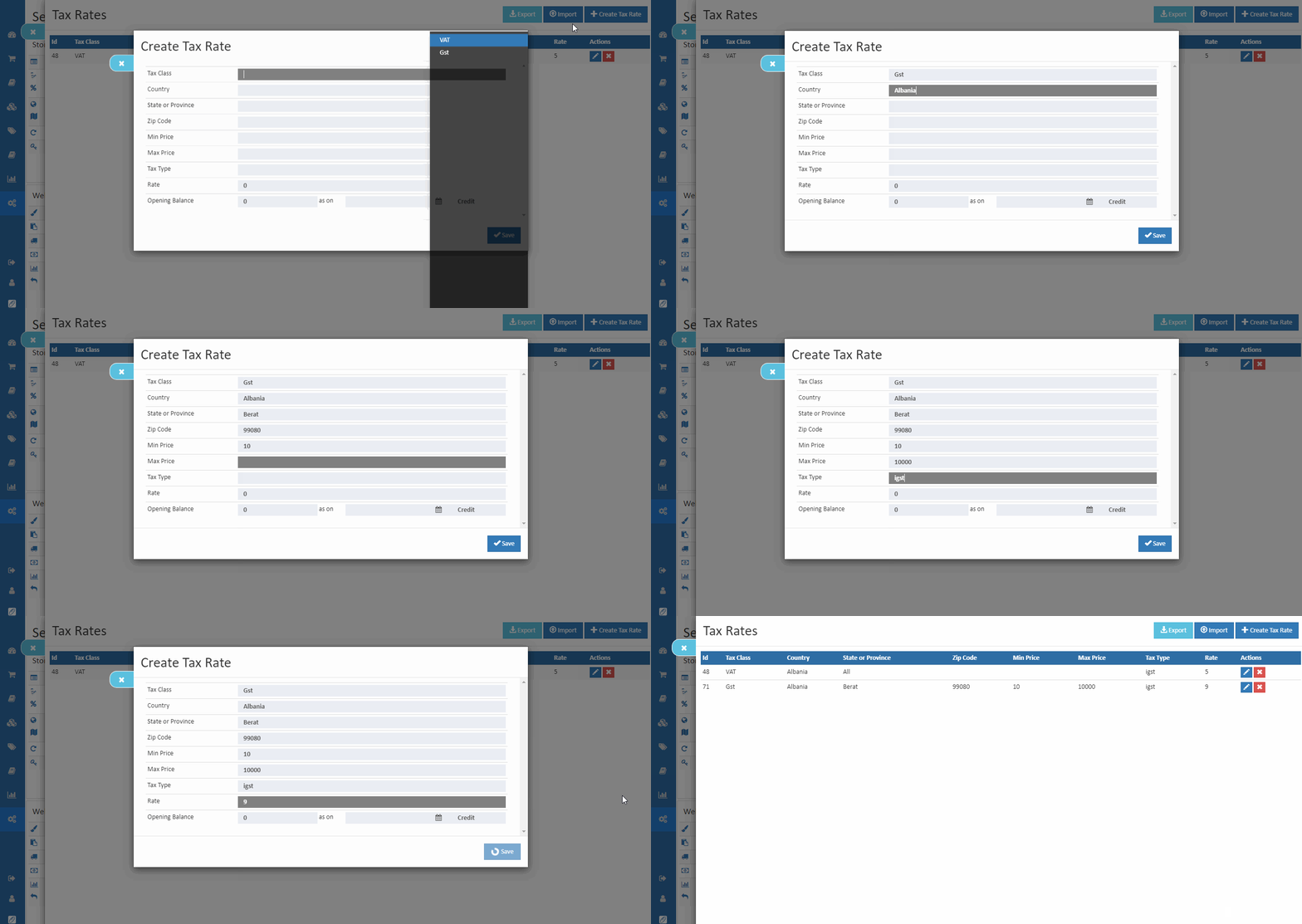
    How to create Tax Rates

    1. Open Back Office.
    2. Go to Configurations menu and Click Tax.
    3. Click and open Tax Rate. The available Tax rate list will be shown.
    4. Click Create Tax Rate in the top right corner.
    5. Choose the country where the tax rate applies. (for more details: create country - country section)
    6. Choose the state where the tax rate applies. (for more details: create state - state/provinces section)
    7. To apply the tax rate to a ZIP code, enter the code in the Zip Code field.
    8. Set the min and max price of the tax rate.
    9. Select the tax types in the list.
    10. Enter the tax rate, for example, 20.000 for a tax rate of 20%.
    11. Press Save button.
    Setup Tax Rates

    Tax types

    Select any types of tax.c

    Tip

    Create Tax class before set tax rate.

    IGST

    It means Integrated GST (Integrated Goods and Service). IGST is for the interstate sale of goods or service. Eg. Chennai to Mumbai

    CGST

    It means Central GST (Central Goods and Service). It is charged and collected by the central government.

    SGST

    It means State GST (State Goods and Service). SGST is for intrastate sale of goods or service. Eg. Chennai to Madurai

    To apply the tax rate to a single ZIP or postal code, enter the code in the Zip/Post Code field.

    In this article
    Back to top _includes/footer.html
    © 2019–2026 Jeyan Technologies Private Limited • www.o2vend.com • Create your own store