Voucher Numbering Rules
Voucher Numbering Rules define the format and sequence of voucher numbers for various channels such as Ecommerce, POS, Agent App, and Shopify.
It helps maintain unique and organized numbering across branches and business operations.
Navigation Path
Back Office → Settings → Account → Voucher Numbering Rules
Step 1: Access Voucher Numbering Rules
- Go to the Settings section in the Back Office menu.
- Select the Account tab under Settings.
- Click on Voucher Numbering Rules.
- The list view displays:
- Created On
- Template
- Branch
- Channel
- Action (Edit/Delete)
📌 Note:
For e-Invoice generation, the voucher numbering must be 16 characters or fewer.
If the voucher number exceeds 16+ characters, the system cannot generate e-Invoice.✔ Ensure your voucher sequence is properly configured before creating invoices.
Step 2: Create a New Voucher Rule
- Click the ➕ Create Voucher Rule button on the top-right corner.
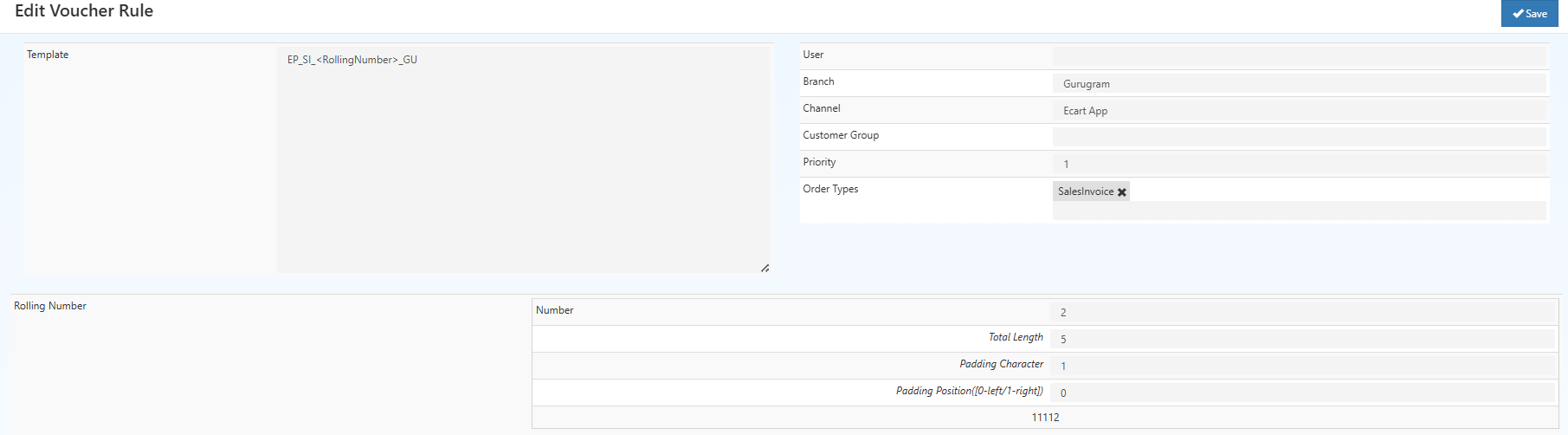
- Fill out the following fields carefully:
| Field | Description |
|---|---|
| Template | Define your voucher pattern. Example: Shopify-SO-<RollingNumber>-SY |
| User | Assign a specific user (optional). |
| Branch | Choose the applicable branch like Delhi NCR, Mumbai, Gurugram. |
| Channel | Select the channel such as POS, Ecart App, Shopify. |
| Customer Group | Specify a customer group if needed. |
| Priority | Lower number = higher rule priority. |
| Order Types | Select order types (ECommerce, POS, Purchase, etc.). |
Step 3: Configure Rolling Number
In this section, you define how voucher numbers will increase automatically.
| Setting | Description | Example |
|---|---|---|
| Number | Starting number in the sequence. | 1 |
| Total Length | Defines the total characters in voucher number. | 5 |
| Padding Character | The character used to fill empty spaces. | H |
| Padding Position | 0 = Left padding, 1 = Right padding. |
0 |
| Preview | Displays generated voucher format. | HHHHH1 |
Step 4: Save and Apply
- Once all details are filled, click 💾 Save.
- The voucher numbering rule will be applied for the selected Branch, Channel, and Order Type.
Example Setup
Template: Shopify-SO-<RollingNumber>-SY
Branch: Delhi NCR
Channel: Shopify
Order Types: ECommerce, POS
Rolling Number:
- Start: 1
- Total Length: 5
- Padding Character: H
- Padding Position: 0
Resulting Vouchers: Shopify-SO-HHHH1-SY Shopify-SO-HHHH2-SY Shopify-SO-HHHH3-SY