Gift vouchers play a vital role in increasing customer engagement and driving sales. The Gift Voucher Module in O2VEND enables seamless creation, distribution, and tracking of vouchers across sales channels. This guide outlines the complete process of configuring and managing gift vouchers within the system. A Gift Voucher represents a digital or printed code that allows customers to receive a discount on eligible purchases.
Configuring Gift Vouchers in O2VEND
The Gift Voucher configuration page provides options to define voucher parameters, discount structures, and validity periods.
Accessing the Gift Voucher Module
Steps
Navigate to: Settings → Gift Vouchers → Add New Voucher.
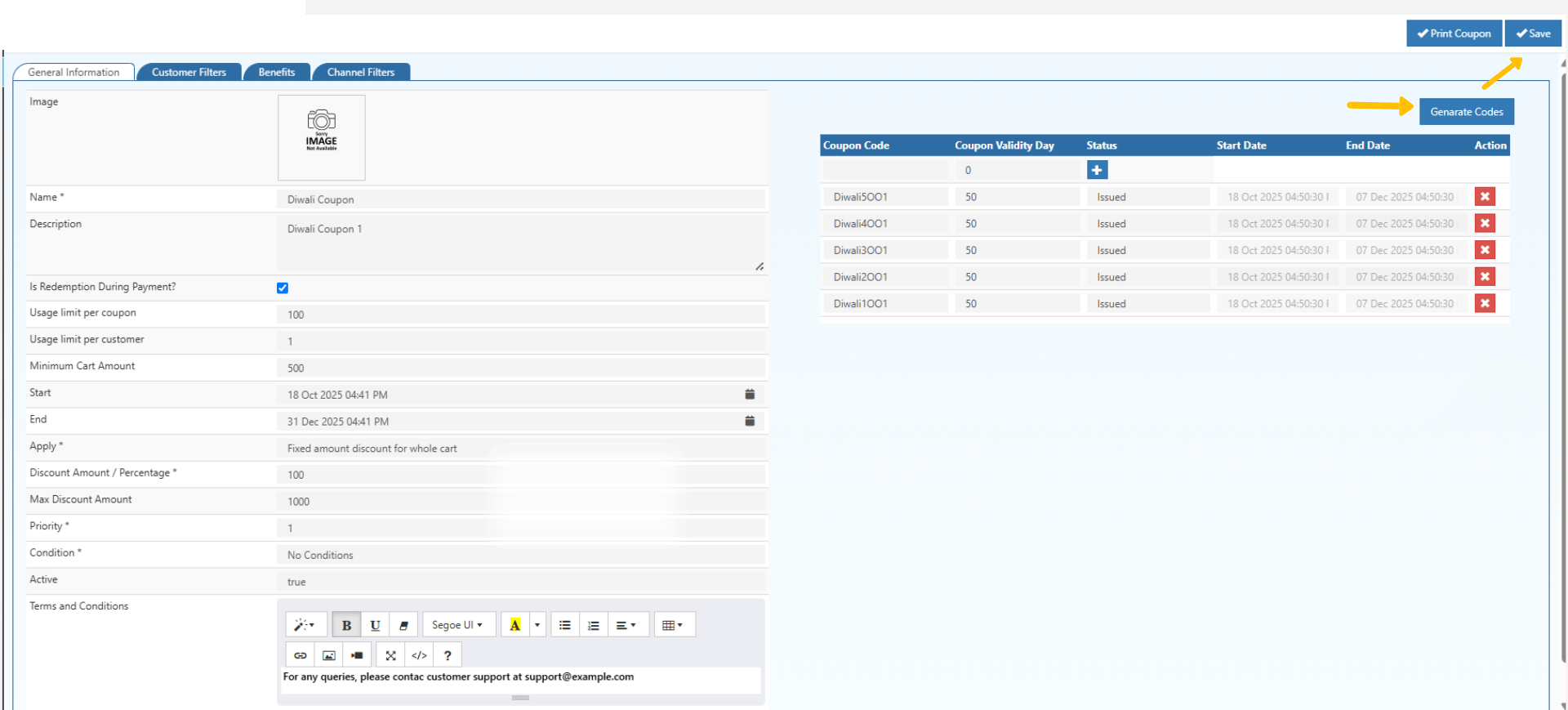
The “Edit Gift Voucher” interface displays all required input fields and management options.
Defining General Information
Steps
The following key details are entered to configure a new voucher:
- Name: Identifier for the voucher campaign (e.g., “Festive20”, “WelcomeOffer”).
- Description: Purpose or details of the voucher.
- Is Redemption During Payment: Enables redemption directly at checkout.
- Usage Limit per Coupon: Total number of redemptions allowed for a single voucher.
- Usage Limit per Customer: Restricts individual customer usage frequency.
- Minimum Cart Amount: Minimum order value for eligibility.
- Start and End Dates: Defines the validity period for redemption. 8.Discount Type: Fixed amount or percentage-based.
- Discount Amount / Percentage: Specifies the discount value.
- Maximum Discount Amount: Caps the discount for percentage-based offers.
- Priority: Determines order of application when multiple vouchers are active.
- Conditions: Can include specific product categories, customer groups, or channels.
Generating and Managing Voucher Codes
Selecting Generate Codes creates multiple coupon codes automatically.
Generate Code Section
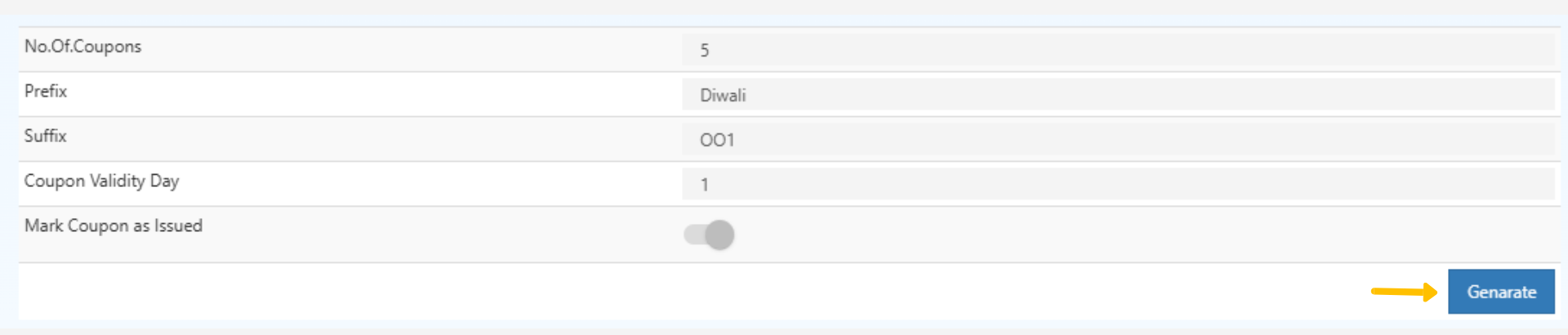
The Generate Code section is used to create multiple unique gift voucher codes based on defined parameters. Each code can include a prefix, suffix, validity period, and issuance status.
- No. of Coupon: Specifies the total number of coupon codes to generate.
- Prefix: Adds a unique identifier at the beginning of each code, typically used to represent a campaign or event.
- Suffix: Appends a fixed value at the end of each code, often used for year or batch identification.
- Coupon Validity Day: Defines the number of days the coupon remains valid from the issue date.
- Mark Coupon as Issued: When enabled, all generated coupons are automatically marked as issued and become active immediately.
Each code is a unique gift voucher valid for the specified duration.
Steps to Generate Voucher Codes
- Open the Generate Code tab.
- Enter the required number of coupons.
- Define a suitable prefix and suffix for easy identification.
- Set the coupon validity period in days.
- Enable Mark Coupon as Issued if the coupons need to be activated instantly.
- Select Generate to create the list of unique voucher codes.
- The generated codes appear under the Coupon List section for further reference or export.
🧾 Print Coupon
The Print Coupon feature in O2VEND allows administrators to print customized voucher coupons based on predefined Coupon templates.
Refer to the detailed article: Coupon Print Settings
Accessing the Print Coupon Option
After creating or editing a gift voucher, click Print Coupon in the top-right corner of the screen.
Selecting Coupons for Printing
- Choose the Coupon Template Name from the available dropdown list.
- Select one or more Coupon Codes by checking their boxes.
- Verify the details — Coupon Code.
- Click Proceed to generate printable vouchers.
Viewing the Printed Coupon
After clicking Proceed, O2VEND displays the printed coupons using the selected Coupon template layout.
Each coupon includes the design, barcode, and code as per your chosen print configuration.
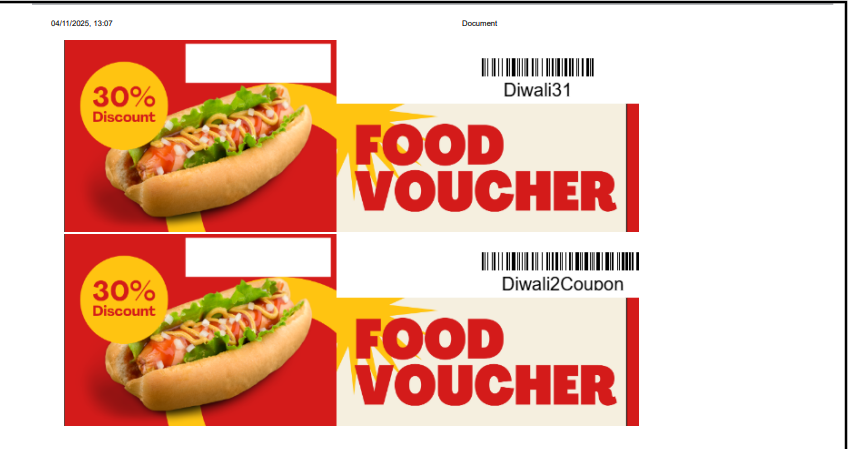
Printed Coupon Includes:
- Voucher design and layout from the selected template.
- Coupon code with machine-readable barcode.
- Offer details such as discount value or campaign name.
Gift Voucher in POS and Agent App
The Gift Voucher feature in O2VEND allows customers to redeem vouchers in both Point of Sale (POS) and the Agent App.
In POS, cashiers can scan or enter the voucher code during billing to auto-apply discounts or credits. In the Agent App, agents can apply vouchers in the same way for on-site or mobile sales.