O2VEND Inventory UOM Setup – Step-by-Step Configuration
Learn how to set up Units of Measure (UOM) in O2VEND quickly. Improve stock accuracy, pricing, and inventory control with this easy step-by-step guide.
Unit of Measure (UOM) in O2VEND
The Unit of Measure (UOM) module in O2VEND Back Office defines how products are bought, stocked, and sold. Items can be managed in pieces, kilograms, litres, packets, or pack formats such as 6-pack, 12-pack, and 2-litre bottles.
Why UOM Setup Is Important
- Accurate inventory tracking
- Consistent pricing and billing
- Precise order fulfilment
- Smooth operations across retail and online channels
- Stronger inventory control for multi-category products
Optimized for Retail Efficiency
O2VEND supports flexible, multi-level UOM configuration for supermarkets, FMCG, pharmacies, and omnichannel stores. This structure maintains accurate stock levels, reduces errors, and enables efficient multi-unit product management.
Video Tutorial: How to Configure UOM in O2VEND
Navigate to Unit of Measure Settings
Follow these steps to access the UOM configuration page in O2VEND:
- Go to Back Office Dashboard.
- Select Settings → Inventory.
- Click Unit of Measure to view, create, or manage all available UOMs.
You can view all your existing measurement units such as grams, litres, pieces, or packets and edit them anytime. This helps maintain consistent product measurement across all sales channels.
Create a New Unit of Measure
Click on Create UOM to add a new measurement unit.
| Field | Description |
|---|---|
| Name | Enter the full name of the unit. (Example: Kilogram, Litre, Meter, Packet) |
| Symbol | Add the abbreviation or short form. (Example: Kg, Gm, Lt, Pc) |
| Active | Choose True to enable or False to disable the UOM. |
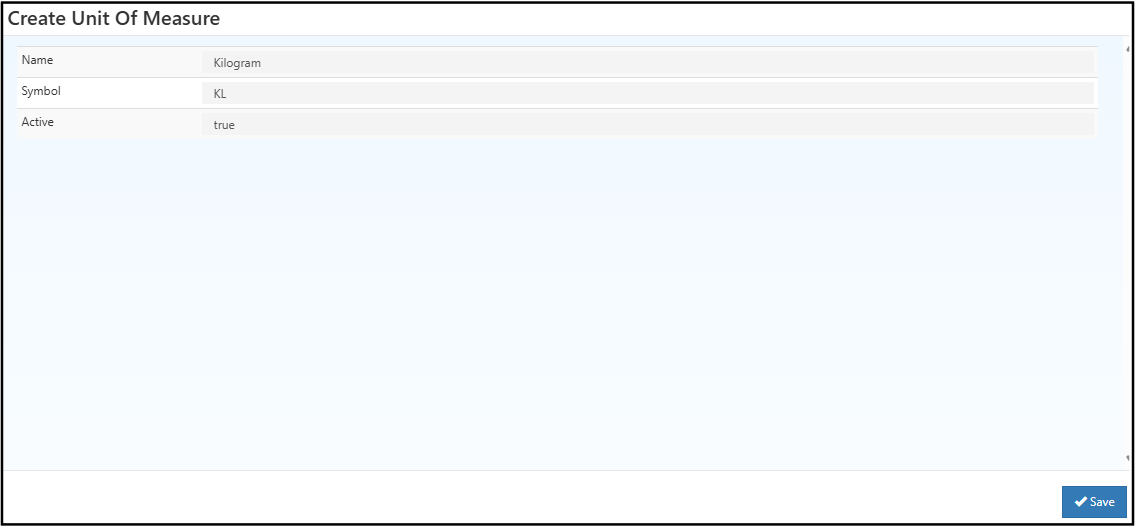
Steps to Add or View Units of Measure
- Open O2VEND Back Office.
- Navigate to Settings → Inventory → Unit of Measure.
- Click Create UOM at the top-right.
- Enter the UOM Name and Symbol.
- Set the Active status.
- Click Save to store your UOM.
- Add this UOM to products during Product Creation or Inventory Updates.
- You can also Edit or Delete existing units anytime.
This enables smoother product configuration and error-free multi-unit pricing across your POS, online store, and inventory reports.
Edit Unit of Measure
Modify an existing Unit of Measure (UOM) in O2VEND Back Office.
The UOM name, symbol, or active status can be updated from this page.
Fields displayed:
- Name – Full name of the measurement unit. (Example: Kilogram)
- Symbol – Standard abbreviation for the unit. (Example: Kg)
- Active – Indicates whether the UOM is currently enabled.
- true → UOM is active
- false → UOM is inactive
Click Save to apply the changes and update the UOM details.
Best Practices for Retail UOM Setup
1. Use standard global abbreviations
Kg, Lt, Ml, Pc, Mtr → clear and universally understood across staff and systems.
2. Avoid duplicate or similar UOM names
E.g., "Piece", "Pc", "Pcs" → choose only one to prevent reporting issues.
3. Always link UOMs during product creation
Ensures correct billing, barcode mapping, stock accounting, and reorder accuracy.
Internal Links
FAQs – Unit of Measure (UOM)
What is a UOM in O2VEND?
A measurement standard used to track, price, and sell products accurately.
Can multiple UOMs be added for a single product?
Yes, pack-level and base units can be mapped for multi-size products.
✅ Try it now: Click Create UOM in your Back Office and set up your first measurement unit.
💡 Need help? Contact O2VEND Support for personalized assistance.
Ready to Optimize Your Inventory?
Take control of your stock today by configuring UOMs correctly.
Boost inventory accuracy, reduce errors, and improve multi-unit management across your POS and online store!