Package Material Setup in O2VEND Back Office — Complete Guide
The Package Material Setup in O2VEND Back Office helps manage all packaging materials used in sales, inventory, and shipment operations.
It ensures accurate logistics, consistent packaging standards, and efficient order fulfillment across all sales channels.
Defining parameters such as dimensions, weight, and shipment type helps improve fulfillment accuracy, inventory control, and delivery efficiency.
Navigate to Package Material
Steps
- From the Back Office Dashboard, open Settings.
- Select Inventory → Package Material.
- View all existing materials used across Online Store, POS, and Marketplace channels.
Create a New Package Material
Steps
- Click Create Package Material.
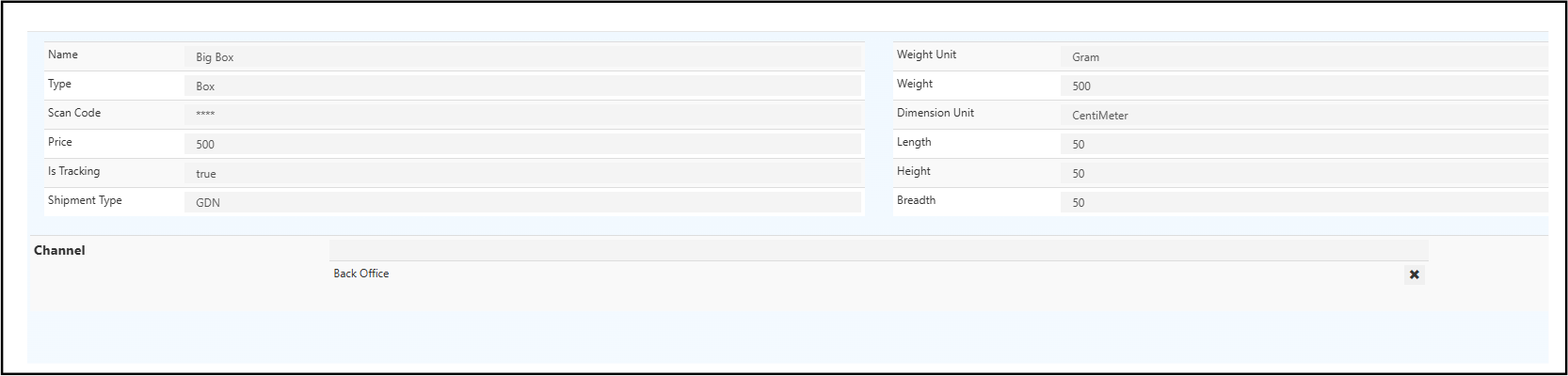
- Fill in the required fields:
| Field | Description |
|---|---|
| Name | Package name (e.g., Box, Bag, Envelope). |
| Type | Packaging type used for shipping or handling. |
| Shipment Type | Define use with modules like GDN (Goods Delivery Note). |
| Scan Code | Barcode or scan code for quick identification. |
| Price | Cost per package unit. |
| Is Tracking | Enable for shipment tracking support. |
 ---
---
Define Dimensions & Weight
| Field | Description |
|---|---|
| Dimension Unit | e.g., Centimeter |
| Length / Height / Breadth | Physical package size |
| Weight Unit | e.g., Gram or Kilogram |
| Weight | Total package weight |
Assign Channels
Link materials with:
- Online Stores
- Retail POS
- Marketplaces
Ensures uniform packaging and centralized control.
Save / Edit / Delete
- Click Save to store details.
- Use ✏ Edit to update or 🗑 Delete to remove old entries.
Regular updates keep records clean and accurate.
Package Material Workflow in O2VEND — Complete Step-by-Step Guide
This document describes the complete flow after package material creation in O2VEND:
- Configure Location routes (Inward / Outward).
- Map the Location to a Branch.
- Open Goods Issue (GDN) and Initiate Goods Issue.
- Open New Package, select package material and Add.
1) Configure Location — Inward & Outward Route
Purpose: Define how stock is received into the location (Inward Route) and how stock leaves the location (Outward Route). Proper route configuration ensures correct handling of GRN and GDN workflows.
Steps
- Open Create or Edit Location screen for the required warehouse/location.
- Under Inward Route, select one of:
Direct— goods go directly into stock.Draft_Inspection— goods enter a review/inspection workflow before stock update.
- Under Outward Route, select one of:
Direct— immediate dispatch.Pick_PackAndDelivery— standard pick, pack and dispatch workflow.
2) Map Location to Branch
Purpose: Associate a branch record with the configured location so branch-based operations (POS, stock visibility, GDN origin) use the correct physical location.
Steps
- Open Edit Branch screen (branch record management).
- Locate the Locations field (multiselect or tag list).
- Add the previously configured location (example:
Store:Delhi NCR) and Save.
3) Open Goods Issue (GDN) — Initiate Goods Issue
Purpose: Create a Goods Issue (GDN) record to dispatch items from the selected branch/location. The GDN screen is the starting point for packaging and dispatch.
Steps
- Navigate to Inventory → Goods Issue and create or open a GDN record.
- Verify the Branch/location selection shows the branch with mapped location (e.g.,
Delhi NCR/Store:Delhi NCR). - Click Initiate Good Issue (if applicable) to begin the dispatch workflow.
4) Packages Tab — Open New Package
Purpose: Assign physical package materials to the GDN so dispatch labels, weight and dimensions are consistent with the package material setup.
Steps
- In the GDN screen, switch to the Packages tab.
- The tab is typically next to the General tab and displays overall totals (Total Quantity, Approved Quantity, etc.).
- Click Open New Package (or Add Package) to begin adding packages for the GDN.
5) Select Package Material and Add
Purpose: Select predefined package material (created earlier under Inventory → Package Material) and add it to the open package. This binds dimensions, weight and scan codes to the physical parcel.
Steps
- After clicking Open New Package, a package selection screen appears.
- Search or click the desired package material (buttons or tiles may appear; examples:
Medium Box,Big Box). - Select the package material and click Add to insert the package into the GDN.
6) Add Products via Scan or Manual Selection
Steps
- In the Scan/Type field, scan the product barcode or type the product name.
- The product details automatically appear in the list below.
- Select Add Quantity and input the number of units per box.
Note: Only approved quantities are deducted from stock upon saving.
7) Step 4: Save and Approve GDN
Steps
- Once all items are added, click Save.
- Then select Approve to finalize the goods issue.
- The system automatically reduces the stock from the corresponding warehouse.
8) Step 5: Same Process for GRN (Goods Receipt Note)
Steps For inbound stock (GRN), follow the above same steps:
- Select GRN screen.
- Add product using Scan or Type.
- Apply package material and Approve.
- Stock quantity increases automatically.