Reward Points Setup – Ecommerce Loyalty Program Guide
Ecommerce Loyalty Program in O2VEND | Customer Rewards & Retention System
Want to increase repeat purchases and customer retention using loyalty rewards? This step-by-step guide shows how to configure reward points, earning rules, and redemption settings in O2VEND to build a high-performing ecommerce loyalty program.
This tutorial covers complete setup inside the O2VEND Loyalty & Promotions Module (Back Office Configuration). You will learn how to create flexible reward strategies, control redemption limits, and automate customer engagement across POS and ecommerce channels.
Reward points help businesses encourage repeat purchases, increase average order value, and build long-term customer relationships. O2VEND allows you to design custom earning structures, manage reward expiry, and send automated customer notifications for reward updates.
Businesses can also combine reward points with coupon-based promotions to maximize conversions.
👉 Coupon & Discount Rule Setup Guide in O2VEND.
What You Will Learn
✔ Enable reward points and loyalty rules quickly
✔ Build ecommerce loyalty strategies that improve sales performance
✔ Track customer reward transactions and engagement
✔ Automate loyalty communication across all sales channels
Quick Start:
Activate reward points, configure earning rules, and automate customer rewards in just a few steps. Begin by reviewing the setup overview below.
📽️ Watch the setup video to understand the configuration workflow before creating reward rules.
Quick Summary
Reward Points allow businesses to reward customers for purchases and engagement activities.
O2VEND enables automated reward earning, redemption, expiry control, and loyalty communication across POS and ecommerce platforms.
What Are Reward Points in Ecommerce Loyalty Programs?
The Reward Points feature in O2VEND allows businesses to implement a structured loyalty program that motivates repeat purchases and enhances customer retention.
Each completed order earns points based on pre-defined rules, which can later be redeemed for discounts or offers.
This automated loyalty system helps businesses strengthen customer relationships and increase long-term revenue.
How to Access Reward Points Settings
- Open Back Office.
- Navigate to Settings → Loyalty and Promotions → Reward Points.
- The Reward Points Configuration page will open, displaying all existing reward schemes.
How to Create a Reward Points Rule
To configure a new loyalty reward rule:
- Click Create Reward Point in the top-right corner.
- Fill in the required details as described below.
Reward Points Configuration Explained
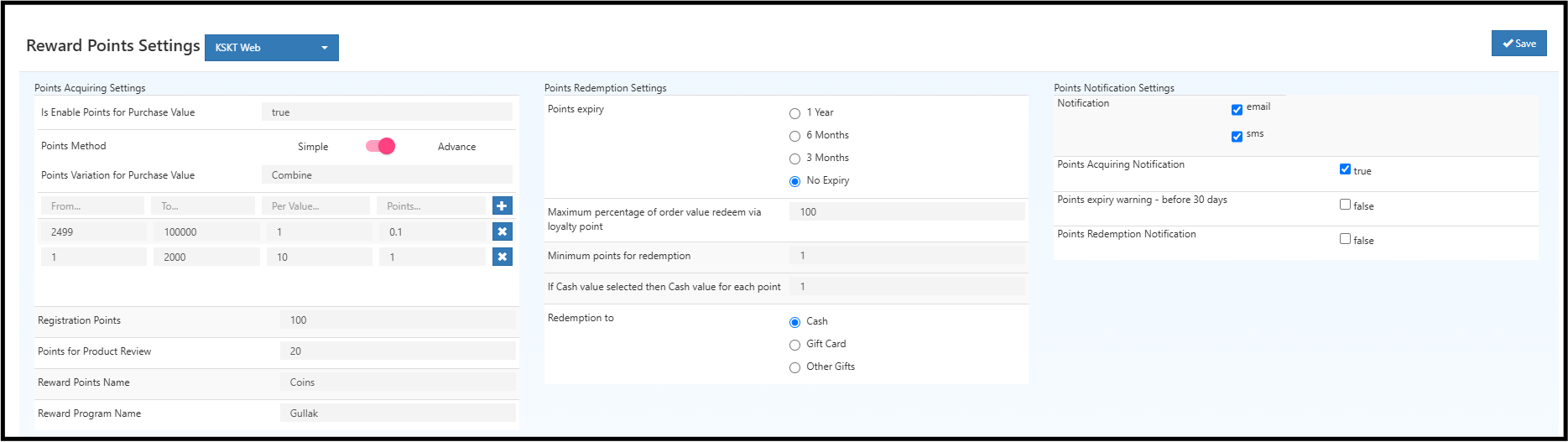
The Reward Points Settings page in O2VEND defines the logic for acquiring, redeeming, and notifying customers about reward points.
It is divided into three main sections:
- Points Acquiring Settings
- Points Redemption Settings
- Points Notification Settings
🔹 Points Acquiring Settings
| Field | Description |
|---|---|
| Is Enable Points for Purchase Value | Activates or deactivates the earning of reward points for purchase transactions. When set to true, reward points are applied based on the defined configuration. |
| Points Method | Determines the calculation mode for earning points. • Simple – Points are assigned at a fixed rate per purchase. • Advance – Allows advanced conditions or percentage-based earning (configured in reward rule). |
| Points for Purchase Value | Specifies how many points are given for a set purchase value. Example: 1 point for every ₹100 spent. |
| Registration Points | Defines the number of points a new customer receives upon successful registration. This encourages new sign-ups. |
| Points for Product Review | Sets points earned when a customer submits a product review, supporting engagement and feedback. |
| Reward Points Name | Custom label used to display points to customers. Example: “Coins,” “Stars,” or “Credits.” |
| Reward Program Name | The overall name of the loyalty program. Example: “Gullak,” “Premium Rewards,” etc. It helps brand the loyalty initiative uniquely. |
🔸 Points Variation for Purchase Value
Defines how points are assigned based on the purchase range or spending slab.
When the Points Method is set to Advanced, this section appears.
| Column | Description |
|---|---|
| From | The minimum purchase amount for the range. Example: ₹1. |
| To | The maximum purchase amount for the range. Example: ₹2000. |
| Per Value | Defines how many currency units are required to earn the given points. Example: For every ₹10 spent. |
| Points | The number of reward points earned for each range. Example: 1 point per ₹10. |
| + / × | The ‘+’ button adds new variation rows, and the ‘×’ button deletes a range. |
Example Setup:
- ₹1 to ₹2000 → 1 point for every ₹10 spent
- ₹2499 to ₹100000 → 0.1 point for every ₹1 spent
This flexibility helps create tier-based or loyalty-level reward systems for different spending groups.
🔹 Points Redemption Settings
| Field | Description |
|---|---|
| Points Expiry | Determines how long earned points remain valid. Options include: • 1 Year • 6 Months • 3 Months • No Expiry – Points never expire. |
| Maximum Percentage of Order Value Redeem via Loyalty Point | Sets the maximum limit (in %) of an order total that can be paid using reward points. Example: 100% means the full order can be redeemed with points. |
| Minimum Points for Redemption | Minimum number of points required before redemption is allowed. Example: 100 points must be collected to redeem. |
| If Cash Value Selected, then Cash Value for Each Point | Specifies the monetary value of a single point. Example: 1 point = ₹1. |
| Redemption To | Defines how redeemed points are converted. Options include: • Cash – Deducted directly from the order total. • Gift Card – Converted into a digital gift card value. • Other Gifts – Exchanged for physical or promotional gifts. |
💡 Pro Tip: Setting expiry reminders increases redemption rates and improves customer return visits.
🔹 Points Notification Settings
| Field | Description |
|---|---|
| Notification (Email / SMS) | Enables automatic notifications through email and/or SMS when reward points are earned, redeemed, or about to expire. |
| Points Acquiring Notification | Sends an alert when points are credited after a purchase or activity. Setting true ensures customers are informed immediately. |
| Points Expiry Warning - Before 30 Days | Triggers a reminder notification 30 days before points expire. Useful for encouraging redemptions before expiry. |
| Points Redemption Notification | Sends a message confirming that points have been successfully redeemed from a customer’s account. |
How to Save and Activate Reward Rules
After completing all the above fields, click Save to apply the Reward Points Settings.
Once saved, these configurations automatically control all loyalty transactions for the selected store or channel.
Below is how customers can redeem reward points during ecommerce checkout.
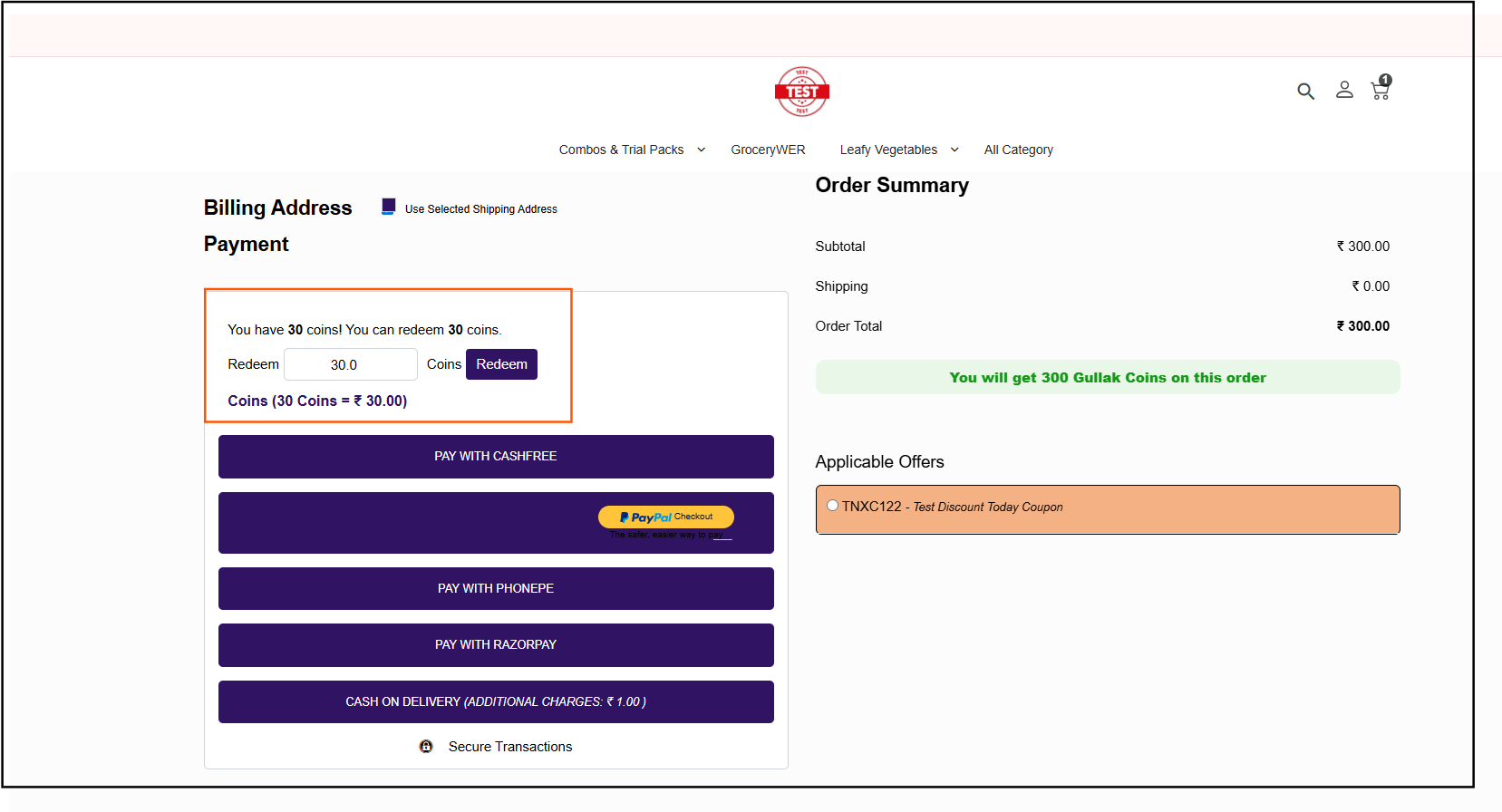
Figure: Customer redeeming reward points during checkout. The screen displays available loyalty coins, redemption value, and payment options.
How to View Reward Points History
All reward point transactions are logged in the Reward Points History section.
This log displays details such as date, customer name, earned points, redeemed points, and balance.
Transaction history helps in monitoring program performance and analyzing customer engagement levels.
Benefits of Using Reward Points for Customer Loyalty
- Encourages repeat purchases and boosts customer loyalty.
- Automates earning and redemption processes.
- Provides transparent point tracking for both business and customers.
- Increases average order value through point-based incentives.
Related Blogs
📚 Learn more about building high-performing loyalty programs and customer retention strategies:
- Exploring Loyalty Programs – Guide & Top 5 Examples
- How O2VEND Loyalty Programs Improve Customer Retention
- Complete Guide to Setting Up O2VEND Loyalty Programs
Related Articles
- Affiliate Loyalty Program Configuration Guide
- Customer Creation & Management Guide
- POS Billing and Sales Order Creation Guide
- Customer Group Setup & Segmentation Guide
- Gift Voucher & Promotions Module Setup
- Product Review & Customer Benefits Configuration
- Offer & Discount Campaign Setup Guide
Frequently Asked Questions
Q: How do Reward Points work in O2VEND?
Reward Points are earned on purchases and redeemed on future orders based on store-defined rules.
Q: Do reward points work in both POS and ecommerce?
Yes, O2VEND reward points automatically sync across POS, adn online store orders.
Q: Can reward points expire automatically?
Yes, expiry duration can be configured and customers receive automated expiry reminders.
Start Building Your Loyalty Program Today
Reward your customers, increase repeat purchases, and improve long-term retention using O2VEND.
✔ Launch your reward points program quickly
✔ Configure earning and redemption rules easily
✔ Automate loyalty engagement across sales channels
Configure Reward Points Now | Contact O2VEND Support
Turn first-time buyers into loyal repeat customers.