Offers and Discounts
The Offers and Discounts feature in the O2VEND Back Office enables businesses to create promotional deals that attract customers and increase sales.
Offers can be applied automatically or configured for specific conditions, such as product, category, customer type, or channel.
This feature helps manage all types of promotions — from simple percentage discounts to complex multi-buy offers — ensuring every campaign runs efficiently across both online and POS channels.
Purpose
The Offers and Discounts module helps:
- Boost customer engagement through automated promotions.
- Set rules that apply discounts based on purchase quantity or value.
- Create seasonal, bulk, or loyalty-based discounts.
- Manage multiple offer campaigns simultaneously with full control over validity and priority.
How to Access Offers and Discounts
- Open Back Office.
- Navigate to Settings → Loyalty and Promotions.
- Select Offers and Discounts.
The offer list view displays all active, inactive, and scheduled offers along with their start and end dates.
 ---
---
How to Create an Offer
- Click Create an Offer on the top right of the Offers page.
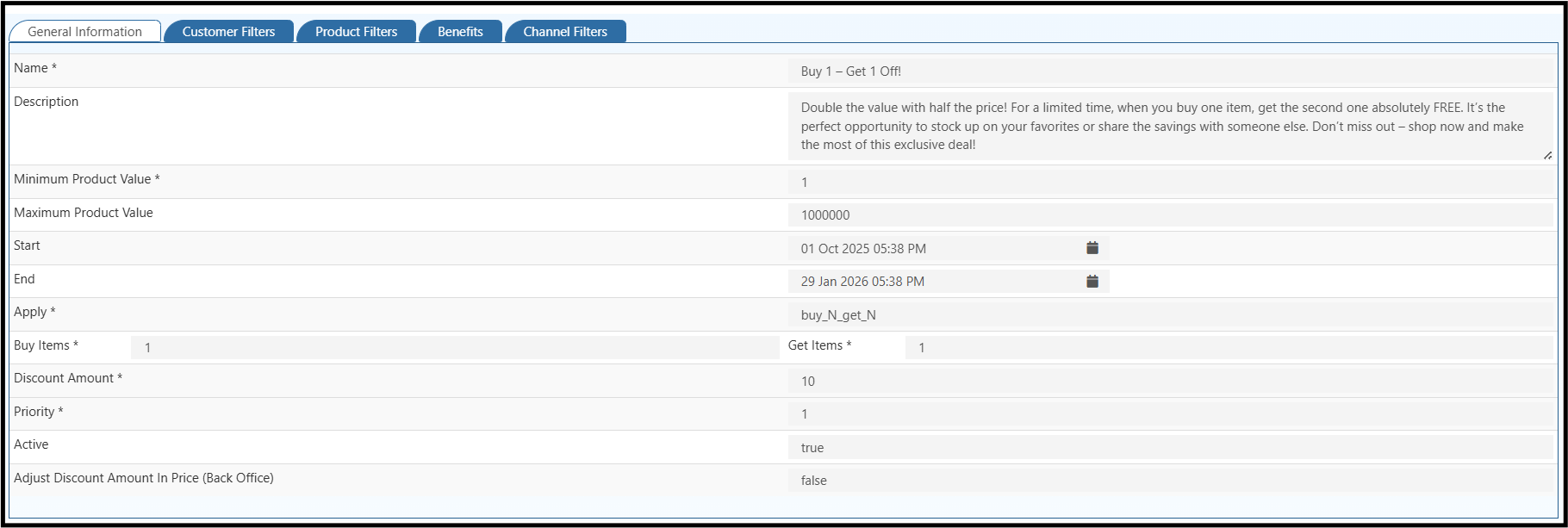
- Fill in the required offer details under the General Information tab.
General Information
| Field | Description |
|---|---|
| Name* | Enter the name of the offer. Example: Buy 2, Save More – Get 10% Off! |
| Description | Provide a brief summary of the promotion. Example: Get 10% off when purchasing 2 or more products. |
| Minimum Product Value* | Set the minimum cart or product value required to activate the offer. |
| Maximum Product Value | Optional limit for the maximum purchase value applicable for the discount. |
| Start | Define when the offer becomes active. |
| End | Define when the offer expires. |
| Apply* | Choose the discount type (e.g., buy_N_get_%, buy_X_get_Y, fixed discount, etc.). |
| Buy Items* | Specify the number of items a customer must buy to activate the discount. |
| *Discount Percentage (%) | Enter the percentage of discount offered. |
| Discount Amount* | For fixed discounts, enter the flat amount to be reduced. |
| Priority* | Set the order in which multiple offers are applied. Lower values indicate higher priority. |
| Active | Toggle ON to enable the offer. |
| Adjust Discount Amount in Price (Back Office) | Set true if the discount should adjust the product price directly in back office. |
Filter Tabs Overview
1. Customer Filters
Apply offers to specific customer groups, membership levels, or individual customers.
2. Product Filters
Target particular product categories, brands, or SKUs.
Example: Apply 10% discount only for “Footwear” products.
3. Benefits
Set additional benefits like free shipping, bonus points, or free products with purchase.
4. Channel Filters
Choose where the offer applies — Online Store, POS, or Mobile App.
Offer Management Actions
- Edit (✏️) – Modify existing offers at any time.
- Delete (❌) – Remove expired or inactive offers.
- Activate/Deactivate (Toggle) – Control whether the offer is currently live.
Benefits of Offer and Discount Management
- Enhances customer retention through smart discount campaigns.
- Encourages bulk and repeat purchases.
- Automates discount application to reduce manual effort.
- Ensures consistent promotion handling across multiple sales channels.
- Provides insights for marketing strategies and sales analysis.