POS Analytics Dashboard Tutorial and KPI Guide
Track orders, receipts, unpaid orders, top products, and customer trends to make faster, high-impact retail decisions.
Why this dashboard matters
The POS Analytics Dashboard gives a single view of demand, revenue, and customer behavior. Use it to detect receipt drops early, find fast-moving products, and prioritize customer follow-up.
Before you start
- Confirm your user role has dashboard access in Back Office.
- Select the correct
BranchandChannelfilters before reviewing metrics. - Keep the same filter selection when comparing daily and monthly widgets.
Step 1: Open the POS Analytics Dashboard
- Sign in to POS.

- Go to
Dashboardfrom the left menu. - Open the dashboard screen in backoffice.

Step 2: Set Branch and Channel filters
At the top of the dashboard:
- Choose your
Branchto analyze store-level performance. - Choose your
Channelsuch as POS, ecommerce, or consolidated. - Refresh and wait for widgets to update before taking action.
Step 3: Read the top performance widgets
Focus on these cards first:
Today's Orders: immediate order volume trend.Monthly Cumulative Orders: month-to-date order progress.Today's Receipts: today's revenue collection.Monthly Cumulative Receipts: month-to-date revenue performance.UnPaid Orders: pending collections that need follow-up.
Step 4: Review order and customer insights
Use these sections for operational decisions:
Latest orders: identify delayed or high-value orders quickly.Recent Buying Customers: spot repeat buyers and top-value customers.Most searched keywords: understand demand and customer search intent.
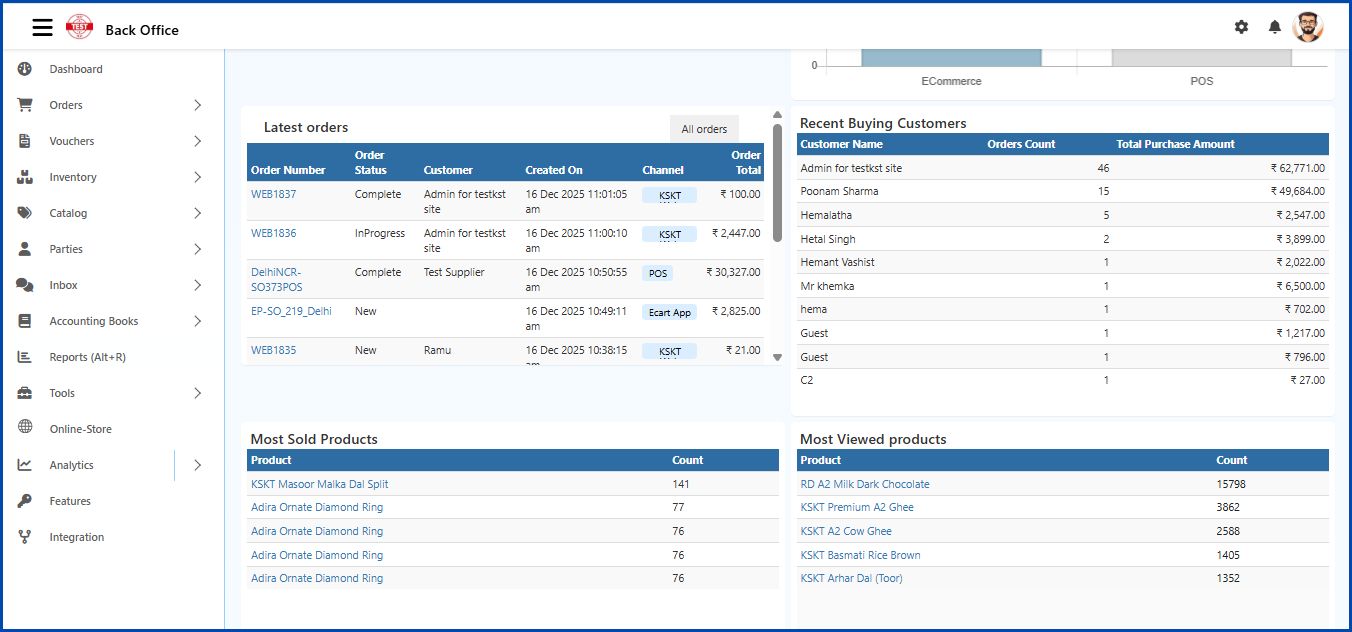
Step 5: Track product and review intelligence
Use the lower panels for merchandising and conversion improvements:
Most Sold Products: restock and promote your best sellers.Most Viewed Products: find high-interest products with weak conversion.Pending reviewsandPending review replies: close response gaps faster.

5-minute daily operating checklist
- Check
Today's ReceiptsandToday's Ordersat store opening. - Compare
UnPaid Orderswith yesterday and assign follow-up ownership. - Review
Most Viewed Productsand update stock, price, or listing content. - Review pending customer reviews and close open replies.
KPI targets to monitor
- Order conversion trend by channel.
- Receipt growth percentage day over day.
- Unpaid order reduction rate.
- Repeat customer purchase count.
- Top product revenue contribution.