POS Stock Transfer in Retail | Multi-Store Inventory Transfer Management
Manage POS stock transfer between stores and warehouses with real-time inventory tracking. Learn how to transfer stock, update quantities instantly, and avoid stock mismatch in retail POS software.
Efficient POS stock transfer management ensures accurate inventory levels across multiple stores and warehouses.
Stock transfer functionality helps maintain real-time stock visibility, prevent stock mismatches, and improve retail operations efficiency.
What is POS Stock Transfer?
POS Stock Transfer is the process of moving inventory items from:
- One store to another store
- Warehouse to retail outlet
- Branch to head office inventory
This feature is essential in a multi-store POS system where centralized inventory control is required.
Why Stock Transfer is Important in Retail POS Software
Modern retail businesses depend on real-time inventory management.
Without stock transfer tracking:
- Stock discrepancies increase
- Sales loss occurs due to stock unavailability
- Inventory reports become inaccurate
- Audit compliance becomes difficult
Using a structured POS inventory management system, stock movements are recorded automatically.
How POS Stock Transfer Works
How to Create Stock Transfer in POS (Step-by-Step Guide)
Step 1: Open POS
Login to the Point of Sale system.
Step 2: Click Stock Transfer
Select Stock Transfer from the side menu.
Step 3: Select From Branch
Choose the Source Branch (From Branch).
Branch details will appear at the top of the screen.
Step 4: Select To Branch / Warehouse
Choose the destination branch or warehouse where stock should be transferred.
Step 5: Enable Transfer Type
Select:
- Deliver Items
- Received Items
This confirms the stock movement between branches.
Step 6: Add Products
Add products using:
- Barcode scan (SKU / GTIN)
- Product name search
- Manual SKU entry
Enter required quantity.
Step 7: Verify Details
Confirm:
- Product name
- Quantity
- UOM
- Source & Destination branch
Step 8: Save Transfer
Click Save to complete the transfer.
The system will:
- Deduct stock from source branch
- Add stock to destination branch
- Sync inventory automatically
Real-Time Inventory Synchronization
Once saved:
- Stock updates instantly
- Transfer record is generated
- Inventory levels reflect accurately
- Multi-branch visibility remains updated
Verify transfer from: Inventory > Stock Transfer (Back Office)
POS Stock Transfer Screen Overview
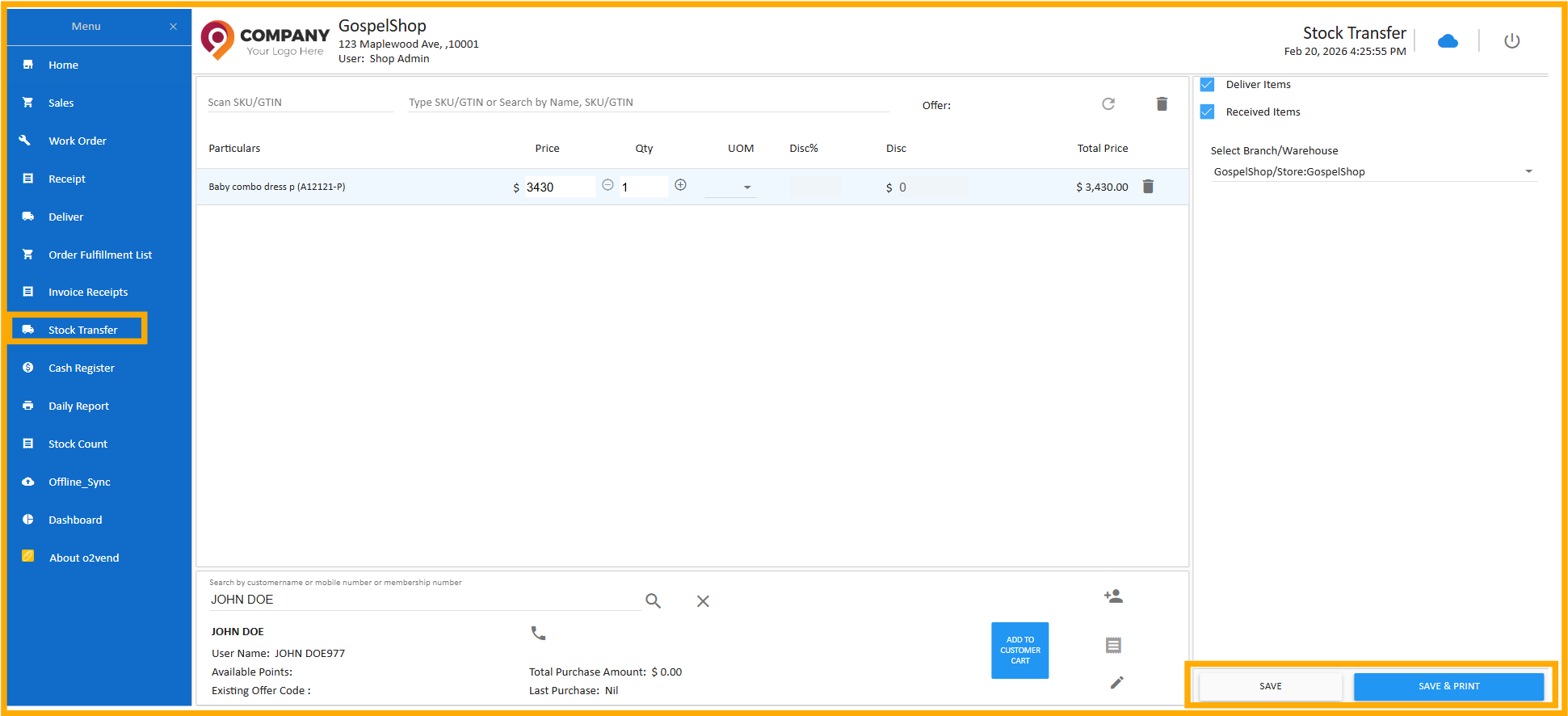
Retail POS stock transfer interface for moving inventory between warehouse and store with real-time quantity updates.
Key Features of POS Stock Movement Module
- Real-time stock deduction & addition
- Multi-branch inventory visibility
- Warehouse to store stock tracking
- Automated stock ledger updates
- Retail ERP inventory synchronization
- Audit-ready stock movement history
Benefits of Using POS Inventory Transfer System
✔ Avoid stock shortage situations
✔ Reduce manual inventory errors
✔ Improve multi-store coordination
✔ Maintain accurate stock reports
✔ Enhance retail supply chain efficiency
🔙 Back to:
A structured POS stock transfer process ensures seamless inventory control across multiple retail locations.
For growing retail businesses, real-time stock movement tracking is essential to maintain operational accuracy and improve profitability.