POS Receipt Management in O2VEND – Process Payments, Credit Sales & Print Invoices
Managing retail payments efficiently is critical for store operations. O2VEND POS Receipt Management system helps process payments, manage credit sales, accept multiple payment modes, and print GST invoices instantly.
O2VEND POS Receipt screen is the final checkout stage where sales orders are converted into invoices and payments are collected. The POS Receipt module allows retail stores to accept multiple payment methods, manage credit sales, apply discounts, generate credit notes, and print final invoices instantly.
This guide explains how to process payments and complete billing using the O2VEND POS Receipt system.
← Back to POS Sales Management
Efficient POS payment processing is essential for every retail store.
O2VEND POS allows fast and accurate payment collection for:
- Orders created in POS billing counter
- Orders placed via Online Store (Omnichannel retail)
- Multiple orders combined into a single receipt
This guide explains how to collect payments in POS, manage receipts, update customers, and print invoices using O2VEND Retail Billing Software.
POS Receipt Management – Collect Payments for Store Orders
The Receipts section in POS helps collect payments quickly and securely.
💡 O2VEND allows collecting payment for multiple orders in a single transaction — perfect for bulk billing and regular customers.
What is POS Receipt in O2VEND?
POS Receipt screen is used to:
- Convert Sales Order to Invoice
- Collect customer payment
- Accept multiple payment modes
- Generate final bill
- Print receipt
- Complete store transaction
Every sale processed in POS Sales must be completed in POS Receipt for accounting and financial records. All transactions are reflected instantly in Daily POS Reports and Cash Register Management.
Step-by-Step: How to Record Payments in POS System – Order to Invoice Flow
Step 1: Open POS Billing Screen
Navigate to: O2VEND POS Overview → Open Point of Sale
Step 2: Click Receipts Section
Go to Receipts from the POS dashboard.
Step 3: Enter Order Number
- Type the Order Number
- Or scan using barcode scanner for faster checkout
📌 Barcode billing improves checkout speed and reduces human errors.
Step 4: Verify Total Amount
The Total Payable Amount will automatically display.
Step 5: Select Payment Mode
Choose payment type:
- Cash Payment
- Card Payment
- UPI Payment
- Wallet Payment
- Split Payment (Cash + Card)
Payment methods can be configured from
POS Payment Methods Setup
⚠ Save button activates only when payment amount ≥ Order Total.
Step 6: Save Transaction
- Save → Save without printing
- Save and Print → Print receipt using:
- Thermal Printer
- A4 Laser Printer
POS Receipt Screen – Payment Collection Interface
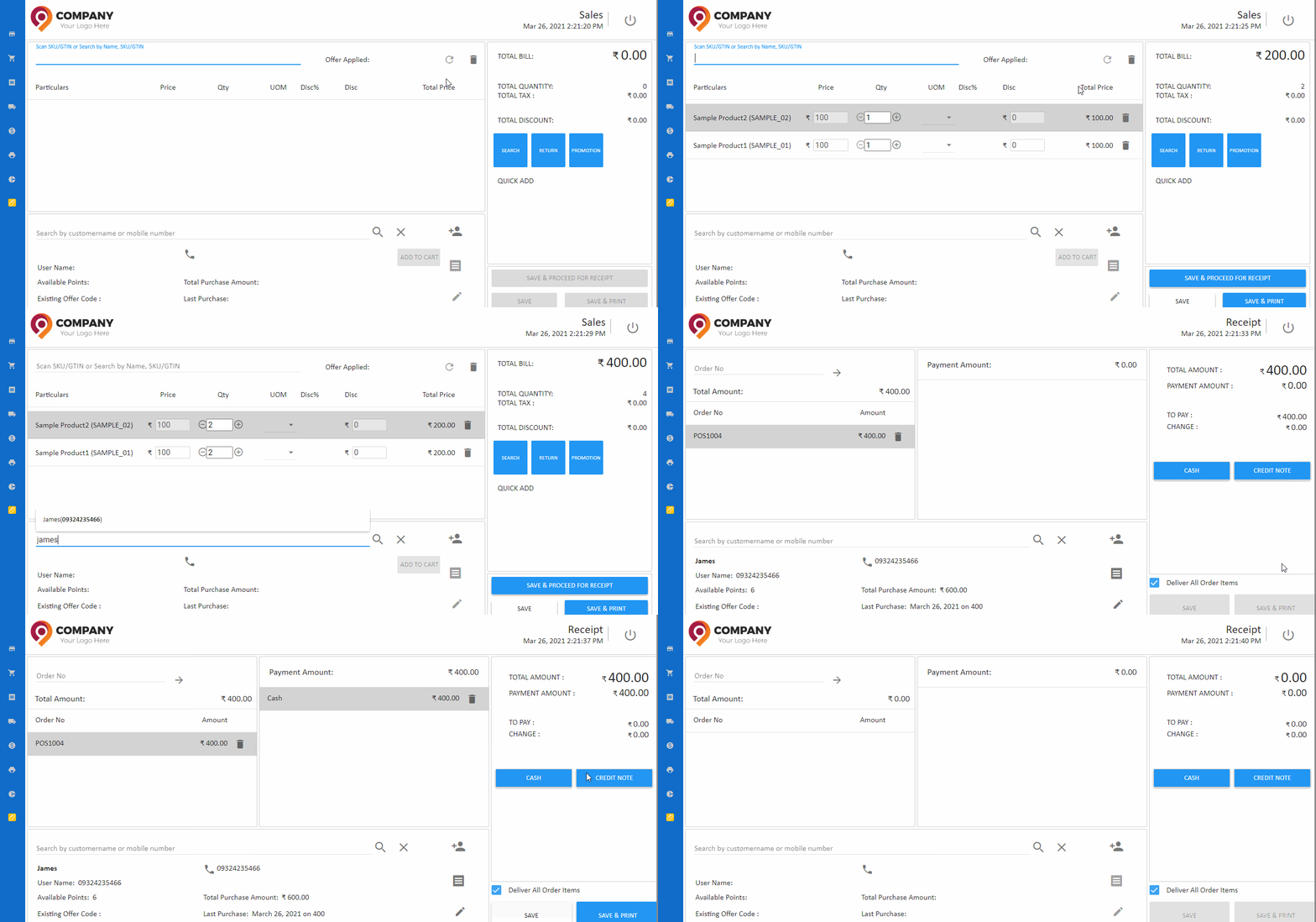
POS Receipt screen displaying order lookup and payment collection workflow.
POS Invoice Printing Screen
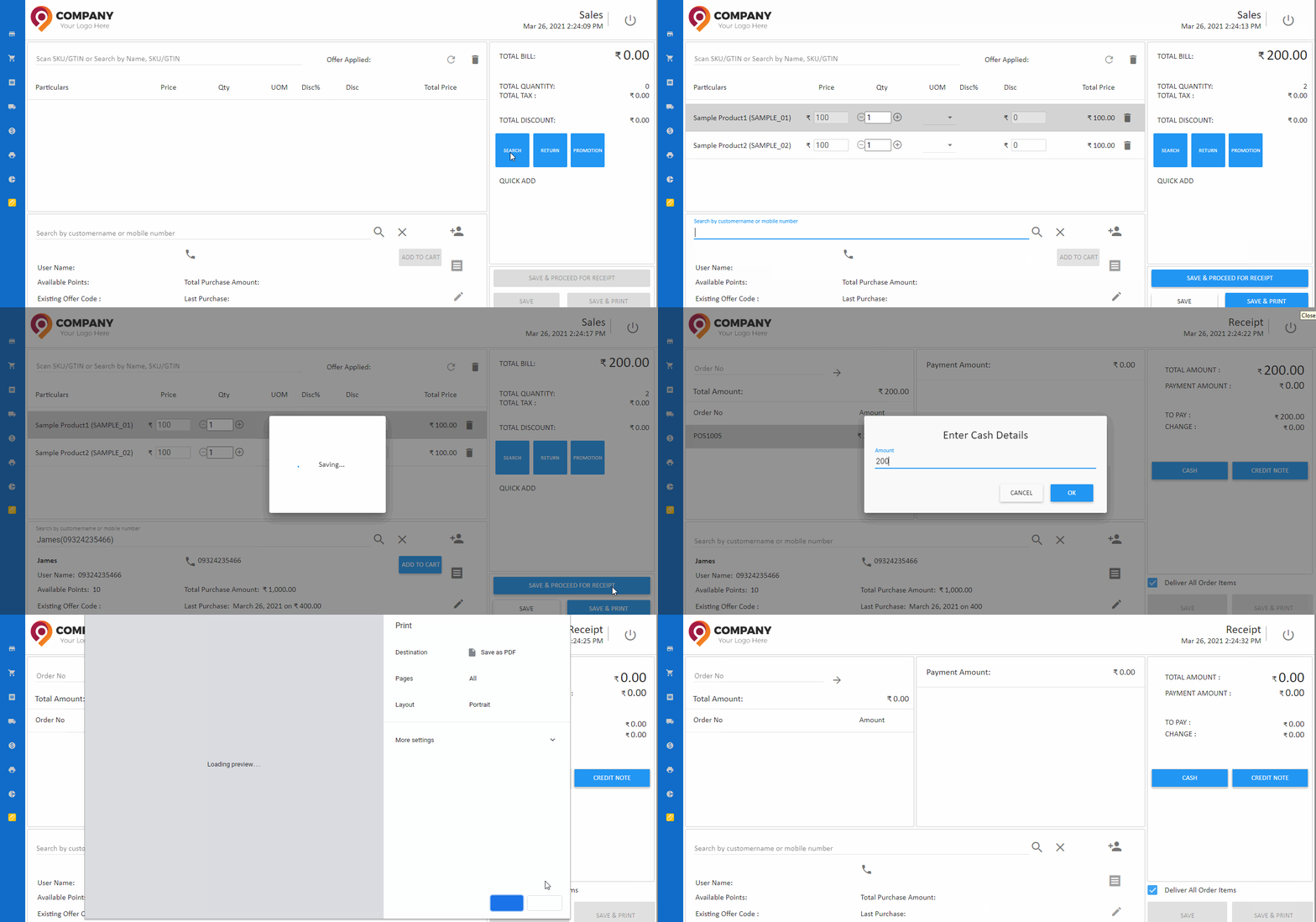
Save and Print option for generating POS billing receipt in physical store.
Reprint Previous POS Receipts
Already saved receipts can be reprinted from:
This helps in:
- Lost receipt recovery
- GST invoice duplicate printing
- Customer service support
Update Customer Details in POS Receipt Screen
Customer details can be updated during payment collection.
Steps:
- Open Receipt Screen
- Search customer by:
- Customer Name
- Phone Number
⚠ Updating customer here will override details entered in
POS Sales Management
❗ Fully paid orders will not appear again in Receipt section.
Different Payment Methods Supported in Retail POS System
Cash Payment in POS
- Click Cash
- Enter amount received
- System calculates change
- Complete transaction
Best for traditional retail stores.
Card Payment Processing in POS
- Click Card
- Enter payment amount
- Confirm transaction
- Print receipt
Used for debit/credit card transactions.
UPI & Digital Payment (GPay / Cashfree)
- Click GPay or Cashfree
- Enter payment amount
- Confirm digital payment
Ideal for modern retail environments.
Credit Sale in POS
- Click Credit Sale
- Invoice created without immediate payment
- Outstanding balance recorded under customer
Used for trusted customers and B2B retail.
Loyalty Points Redemption
- Click Loyalty Points
- Redeem available points
- Discount applied automatically
Improves customer retention strategy.
Coupon & Discount Application
- Click Coupon
- Apply promotional code
- System recalculates total
Supports omnichannel promotions.
Credit Note & Debit Note Usage
Credit Note:
- Used for returns
- Adjusts invoice amount
Debit Note:
- Used for additional charges
Ensures accurate financial reconciliation.
Gift Voucher Redemption
- Click Gift Voucher
- Enter voucher details
- Deduct from total bill
Common during festive promotions.
Split Payment in POS Receipt
O2VEND supports split billing:
Example:
- ₹1000 Cash
- ₹500 Card
- ₹200 Loyalty Points
System tracks each payment separately.
This improves retail payment flexibility.
Deliver All Order Items Option
"Deliver All Order Items" checkbox ensures:
- All products marked delivered
- Inventory updated
- Order closed properly
Recommended for standard retail checkout.
How to Complete POS Receipt
After selecting payment method:
- Click Save
- Or Click Save & Print
- Invoice is generated
- Receipt printed
Transaction is recorded in:
- POS Reports
- Cash Register
- Sales Analytics
- Backoffice Sales Module
How POS Receipt Module Updates Accounting, Inventory & Reports Automatically
POS Receipt module automatically:
- Updates daily sales report
- Updates cash register balance
- Updates inventory stock
- Updates customer purchase history
- Records payment method breakdown
This ensures financial accuracy.
POS Receipt vs POS Sales – Key Difference
| POS Sales | POS Receipt |
|---|---|
| Creates Order | Converts Order to Invoice |
| Adds products | Collects payment |
| Applies offers | Finalizes transaction |
| Pre-checkout stage | Final billing stage |
Both modules together complete the retail billing workflow.
Common POS Receipt Use Cases
- Retail store checkout
- Supermarket billing
- Apparel store billing
- Pharmacy invoice processing
- Electronics showroom checkout
- Multi-store retail payment collection
Best Practices for POS Receipt Management
- Always verify order total
- Use split payments when required
- Reconcile cash register daily
- Monitor credit sales regularly
- Track loyalty usage
- Generate daily Z report
Why POS Receipt Module is Critical for Retail Stores
A strong POS Receipt system ensures:
- Accurate invoice generation
- Secure payment processing
- Multi-mode payment flexibility
- Improved customer checkout experience
- Proper accounting & tax calculation
- Real-time retail sales tracking
O2VEND POS Receipt module simplifies retail billing, supports modern payment methods, and enhances store financial management.
Advanced POS Payment Processing Features
O2VEND POS supports:
- Multi-order payment collection
- Omnichannel order payment
- Retail counter billing
- Barcode scanning
- GST billing
- Split payment support
- Fast checkout workflow
Related POS Guides
- POS Sales Management
- POS Dashboard Overview
- Cash Register Management
- Daily POS Reports
- POS Analytics Dashboard
Why Proper POS Payment Handling Improves Retail Performance
Optimized POS payment process helps:
- Reduce checkout time
- Increase billing speed
- Improve customer satisfaction
- Reduce manual errors
- Ensure accurate accounting
- Improve retail store efficiency
Frequently Asked Questions (FAQ)
How do I receive payments in POS system?
Open POS → Go to Receipts → Enter Order Number → Select payment method → Save or Save & Print.
Can POS accept multiple payment methods?
Yes. O2VEND supports cash, card, UPI, wallet, credit sales, gift vouchers, loyalty points and split payments.
What is the difference between POS Sales and POS Receipt?
POS Sales creates order. POS Receipt converts order to invoice and collects payment.
Can I process credit sales in POS?
Yes. Credit Sale option allows invoice creation without immediate payment and records outstanding balance.