Sales Routes Management | Create Shipment Routes
Learn how to create and manage shipment routes in O2VEND Back Office. This tutorial explains the Shipment Routes list page, the Create Route form, beat selection, and how routes help organize delivery operations.
What Is a Shipment Route?
A shipment route is a delivery route used to group one or more beats under a single route for easier shipment planning and execution.
In simple terms:
Route = A delivery path made up of selected beats
Routes help businesses:
- organize deliveries by area
- connect multiple beats into one route
- simplify delivery planning
- improve shipment tracking
- support smooth route run execution
Navigation Path
Back Office -> Beat & Route -> Shipment Route
Shipment Routes List Page
The Shipment Routes page displays all created routes in one place.
Each row typically shows:
- Name
- Code
- Description
- Created On
- Actions
From this page, you can:
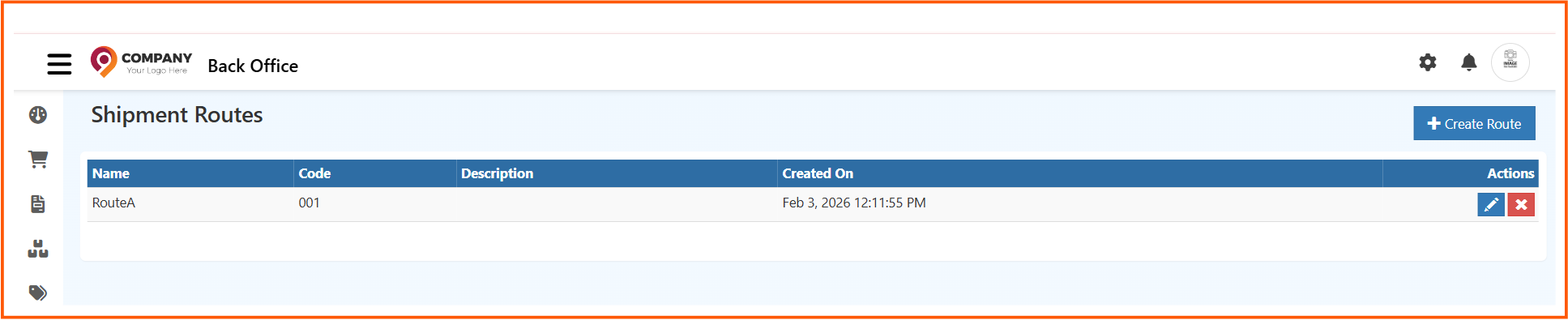
- click + Create Route to add a new route
- use Edit to update an existing route
- use Delete to remove a route if it is no longer needed
Based on the screenshot, the list page helps users quickly review existing routes and manage them from a single screen.
How to Create a Shipment Route
- Open Back Office
- Go to Beat & Route
- Click Shipment Route
- Click + Create Route
- Enter the route details
- Select the beats to include in the route
- Click Save
Create Route Form
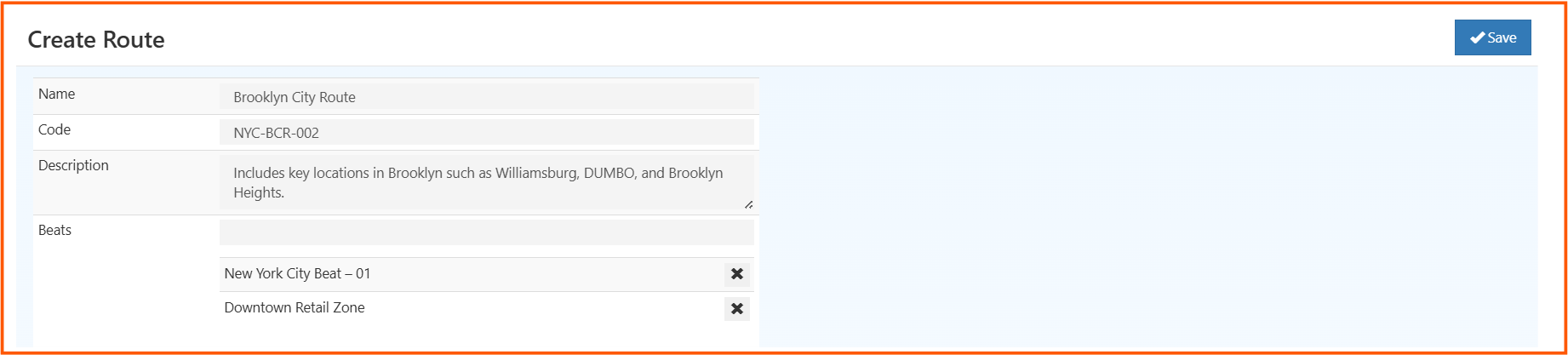
The Create Route screen is used to define a new shipment route and connect it with one or more beats.
Name
Enter the route name.
Example: Brooklyn City Route
Choose a clear name so the route is easy to identify during shipment planning and delivery execution.
Code
Enter a unique route code.
Example: NYC-BCR-002
The code helps with route identification, internal tracking, and reporting.
Description
Add a short explanation about the route coverage.
This makes it easier for teams to understand the route purpose.
Beats
Select the beats that belong to this route.
You can remove a selected beat using the X icon if needed before saving.
Save
After entering the route details and selecting the required beats, click Save to create the shipment route.
Why Route Setup Matters
Using shipment routes in O2VEND helps with:
- route planning across multiple beats
- better delivery organization
- faster shipment execution
- improved operational visibility
- easier tracking of route-based deliveries
What Happens After Route Creation?
After a route is created, it can be used for:
- shipment planning
- route run execution
- beat-based delivery grouping
- delivery team coordination
- route tracking and management