Active Carts Monitoring
The Active Carts section in O2VEND helps you view and manage carts that are currently created or still in progress. This is useful for tracking customer cart activity and for manually creating or updating carts from the Back Office.
Navigation Path
Back Office -> Orders -> ActiveCarts
Access Active Carts
- Login to the Back Office
- Open Orders
- Click ActiveCarts
This opens the Active Carts list page where all current carts are displayed.
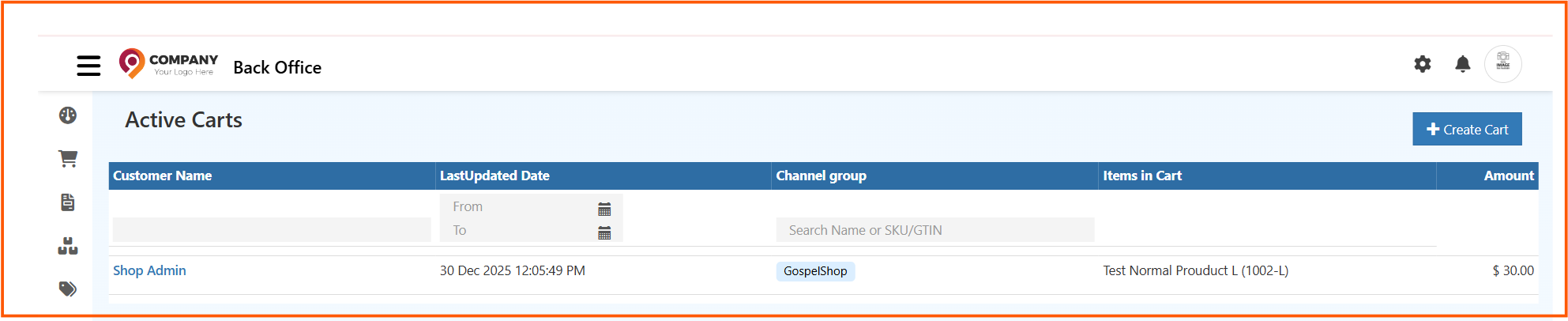
Active Carts List Screen
The Active Carts page shows all current carts in one place.
Fields in the List Screen
Customer Name
Shows the name of the customer linked to the cart.
Example shown:
Shop Admin
LastUpdated Date
Shows the most recent date and time when the cart was updated.
The date filter can also be used to search carts by update period.
Channel group
Shows the channel group linked to the cart.
Example shown:
GospelShop
Items in Cart
Shows the products currently added to the cart.
This helps identify what the customer or user has selected.
Amount
Shows the cart amount based on the products currently added.
Example shown:
$ 30.00
Create Cart
The Create Cart button is used to create a new cart manually.
Create Cart Screen
When you click Create Cart, the Create Cart page opens.
This page is used to add products, review customer information, and save the cart.
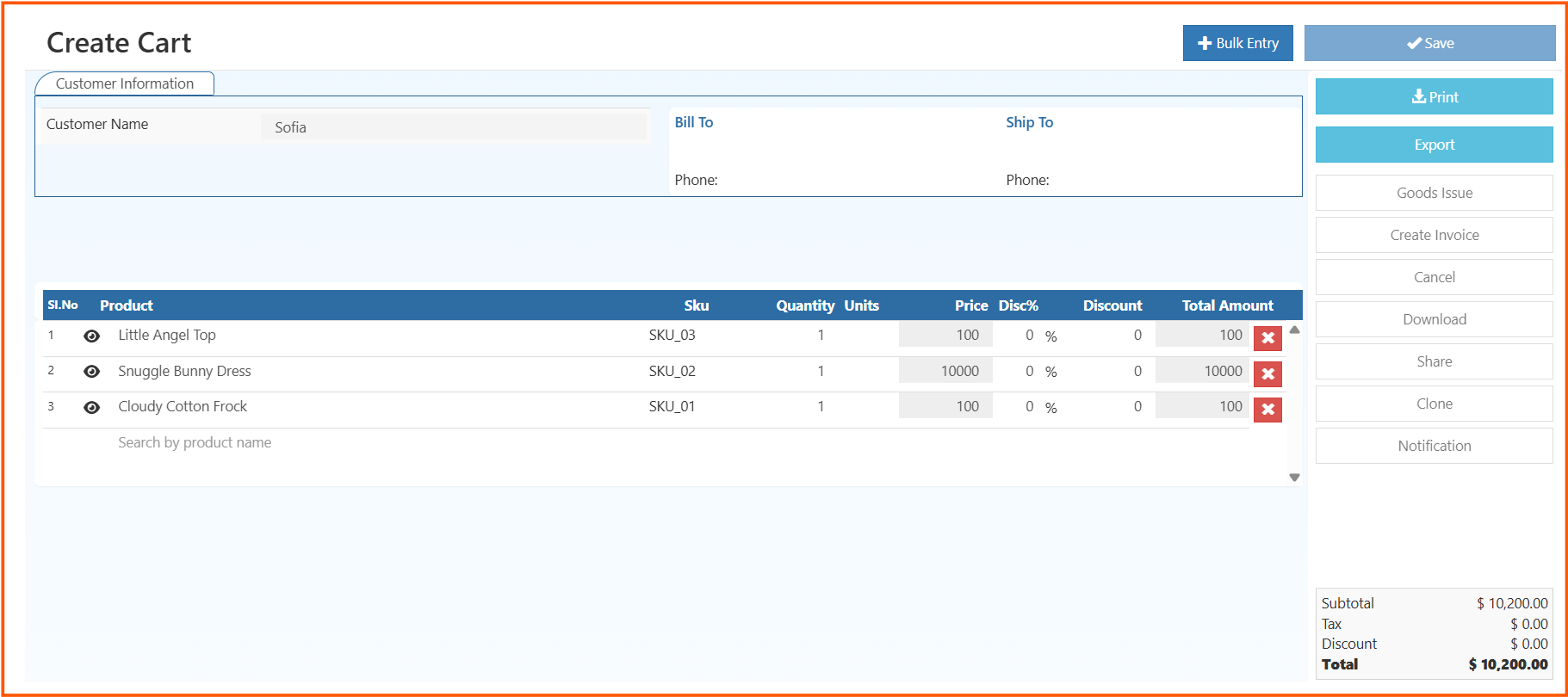
How to Create a Cart
- Go to Back Office -> Orders -> ActiveCarts
- Click Create Cart
- Select or confirm the Customer Name
- Add products using the product search field
- Review Quantity, Price, Discount, and Total Amount
- Check the customer billing and shipping details
- Review the total summary
- Click Save
Common Actions You Can Perform
Save
Saves the cart details and product changes.
Prints the cart details.
Export
Exports the cart information.
Goods Issue
Used when the cart needs to move to the next goods issue process.
Create Invoice
Used when the cart is ready to be converted into an invoice.
Cancel
Cancels the current cart process.
Download
Downloads the cart-related details.
Share
Shares the cart details externally if needed.
Clone
Creates a duplicate of the current cart.
Notification
Used to trigger or manage cart-related notifications.
Why Active Carts Monitoring Is Useful
This page helps you:
- track carts that are still active
- review what products are already added
- create carts manually for customers
- continue cart processing from the Back Office
- move carts toward invoicing or further order processing
Best Practices
- review customer name before saving the cart
- check quantity and total amount carefully
- use the product search field to avoid manual mistakes
- verify billing and shipping details before further processing
- use print or export only after confirming cart details
Result
After saving, the cart remains available in ActiveCarts and can be reviewed, updated, printed, exported, or processed further based on business needs.