Request for Quotation in O2VEND | Create, Manage, and Convert RFQ
Learn how to create RFQs, manage supplier quotation requests, and convert RFQs into Purchase Orders in O2VEND.
The RFQ module in O2VEND ERP helps businesses streamline the process of collecting supplier quotations, comparing prices, and making informed purchase decisions.
With this module, you can create RFQs, track supplier responses, and convert them into Purchase Orders, reducing manual work and avoiding pricing errors.
What Is an RFQ?
A Request for Quotation (RFQ) is a document sent to suppliers to request product pricing, availability, and terms before placing a Purchase Order.
RFQs act as:
- a pre-purchase planning tool
- a way to compare supplier pricing
- a record for procurement and audits
Why RFQ Management Is Important
Using RFQs helps you:
- collect and compare supplier quotes easily
- improve cost control and decision-making
- maintain transparent procurement records
- reduce errors in purchasing
- quickly convert RFQs into Purchase Orders
Open RFQ Module
Navigate to:
Back Office → RFQ (Request for Quotation)
This module acts as a central place to manage supplier quotations and track procurement activities efficiently.
Navigate to:
Back Office → Orders → Request For Quotation
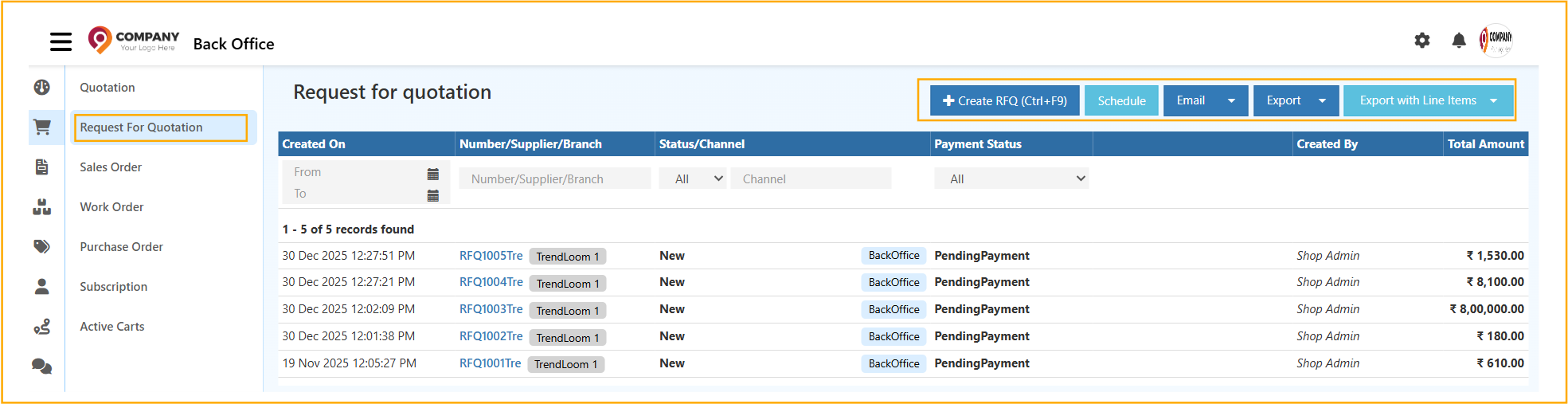
Once opened, the RFQ list page displays all RFQs created across branches, enabling fast monitoring of supplier requests, payment status, and procurement progress.
RFQ List in O2VEND ERP
Each column in the RFQ list provides actionable procurement intelligence.
| Column | Description |
|---|---|
| Created On | Shows the exact date and time when the RFQ was created. Useful for tracking sourcing activity by day, week, or month. |
| Number / Supplier / Branch | Displays the unique RFQ number along with the supplier name and issuing branch. Helps quickly identify vendor-wise RFQs. |
| Status / Channel | Indicates the RFQ stage (New, Pending Payment, Ordered) and the source channel such as Back Office. |
| Payment Status | Reflects whether payment is pending or completed, supporting accounts payable tracking. |
| Created By | Identifies the user who raised the RFQ, ensuring accountability and audit readiness. |
| Total Amount | Shows the final RFQ value including tax and adjustments for quick cost assessment. |
Best Practice:
Combining date + status filters improves procurement follow-ups, supplier response tracking, and management reporting accuracy.
Top Action Buttons – RFQ List Page
The top-right action panel provides quick access to critical RFQ operations.
➕ Create RFQ (Ctrl + F9)
Starts a new Request for Quotation workflow for supplier price collection and negotiation.
📅 Schedule
Automates RFQ reports and sends them via email at defined intervals for management visibility.
Shares RFQ reports instantly with internal stakeholders or procurement teams.
⬇️ Export
Downloads RFQ summary data in Excel or CSV format for offline analysis.
⬇️ Export with Line Items
Exports RFQs with detailed product-level information, ideal for cost comparison and audits.
Step 2: Create a New RFQ
Click Create RFQ to open the RFQ entry screen where supplier details, product requirements, and pricing expectations are captured.
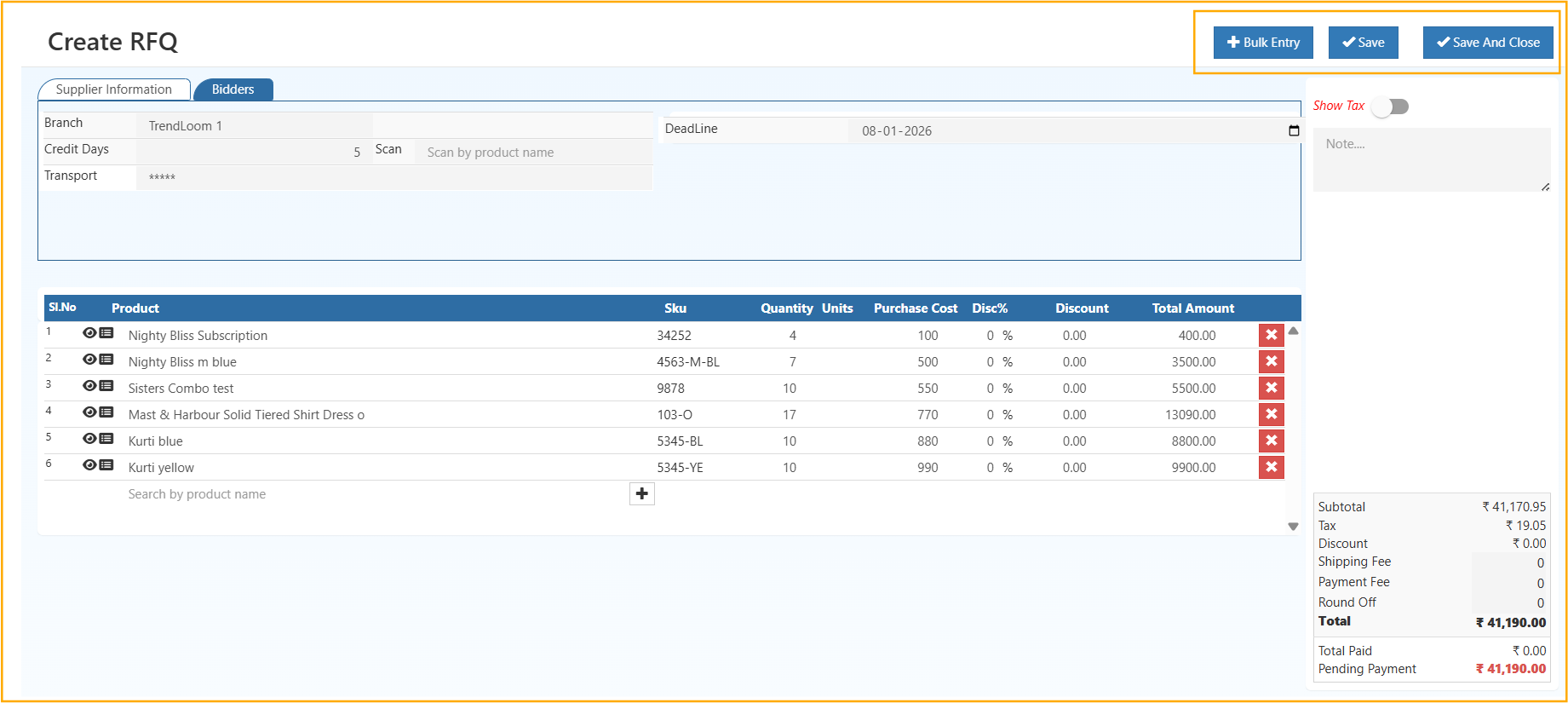
This screen ensures accurate sourcing, controlled negotiation, and structured procurement documentation before creating a Purchase Order.
Supplier Information Section (Procurement Setup)
This section defines the commercial and operational context of the RFQ.
Branch
- Identifies the business location issuing the RFQ
- Determines tax rules and reporting structure
Credit Days
- Defines supplier payment terms
- Used in payable and aging reports
Transport
- Records delivery or logistics method
- Supports inward planning and cost visibility
Deadline
- Sets supplier response due date
- Helps control procurement timelines
Product Entry Section
This section captures all products requested from suppliers.
Product Selection
- Searchable product master ensures accuracy
- Prevents SKU mismatches
SKU
- System-generated identifier
- Supports inventory and purchase tracking
Quantity & Units
- Defines purchase requirement clearly
- Impacts cost estimation and stock planning
Purchase Cost
- Captures expected or quoted supplier price
- Used for supplier comparison
Discount %
- Records supplier discount offers
- Automatically recalculates totals
Total Amount
- Line-wise calculated value
- Updates instantly with changes
Product Action Icons – Operational Efficiency
Three icons appear next to each product for quick access.
👁️ View Product Details
- Displays specifications and descriptions
- Confirms correct item selection
🧩 View Product Attributes
- Shows size, variant, or grade
- Ensures correct supplier pricing
👤 Assign Employee
- Links procurement or sales staff
- Improves accountability and reporting
Tax & Amount Summary Panel (Right Side)
Provides a consolidated financial view of the RFQ.
Subtotal
Total product value before tax.
Tax
Calculated automatically based on branch configuration.
Discount
Displays total discount applied.
Shipping Fee / Payment Fee
Optional additional charges when applicable.
Round Off
Adjusts minor decimal differences.
Total
Final RFQ value.
Total Paid / Pending Payment
Shows payment tracking status for finance coordination.
Saving Options
- Save – Stores RFQ as draft for further review
- Save and Close – Saves RFQ and exits screen
- Bulk Entry – Enables faster entry for large RFQs
Step 3: Manage and Edit RFQs (Request for Quotation)
Managing RFQs efficiently is essential for accurate procurement tracking, supplier coordination, and purchase cost control. The Manage RFQ screen in O2VEND Back Office centralizes supplier responses, document history, and order conversion in a single workflow.
Selecting any RFQ from the list opens the RFQ Management Page, where complete lifecycle actions are handled.
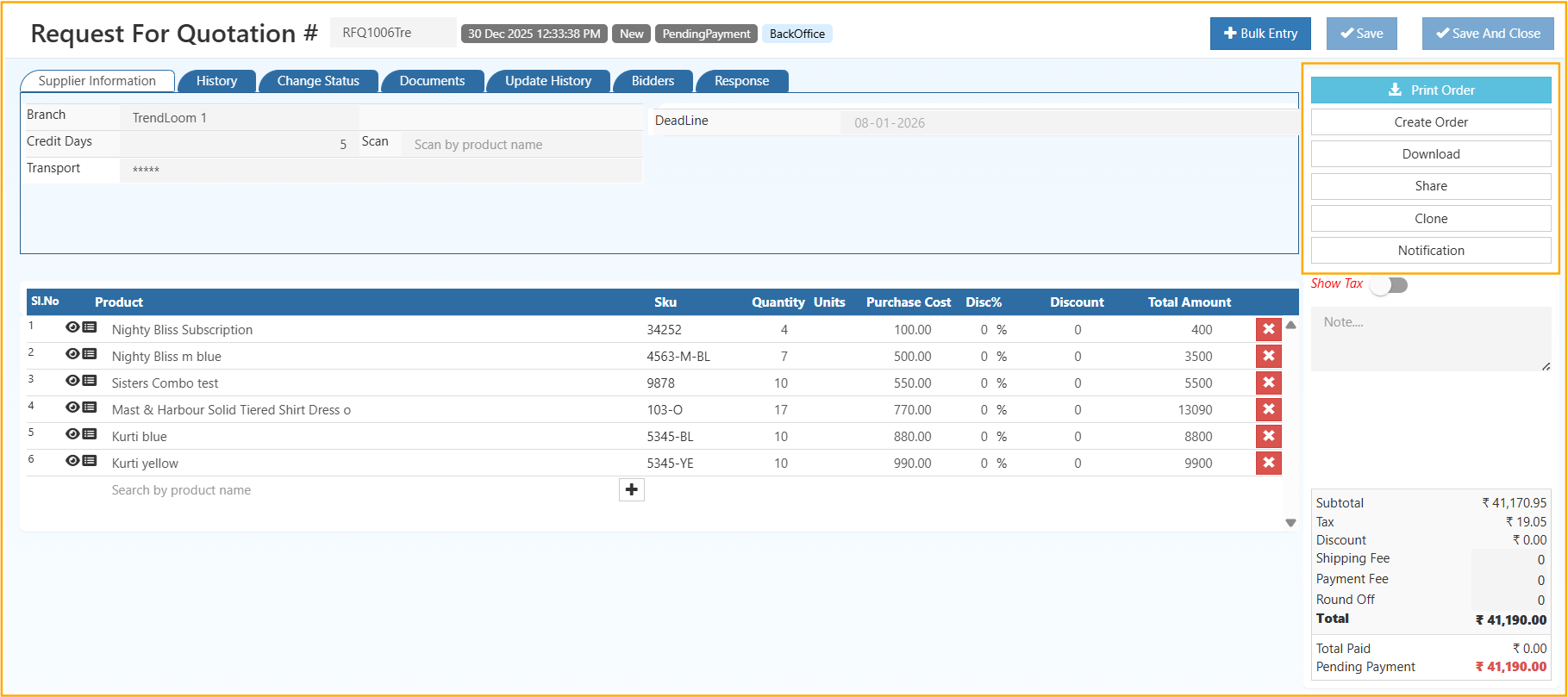
RFQ Header Overview
The RFQ header provides instant visibility into the document status and origin.
Header Details Displayed
- RFQ Number – Unique identifier for procurement tracking
- Date & Time – Creation timestamp for audit reference
- Status – New, Pending Payment, or Ordered
- Channel – Source of RFQ creation (Back Office or POS)
This summary supports quick validation before approvals, sharing, or order conversion.
RFQ Management Tabs – Explained
Each tab controls a specific RFQ function and supplier interaction.
Supplier Information
- Edit branch, credit days, transport method, and deadline
- Ensures correct tax rules, payment terms, and logistics planning
History
- Displays all RFQ-related actions
- Tracks edits, updates, and system events
Change Status
- Controls RFQ lifecycle movement
- Progresses RFQs from New → Pending → Ordered
Documents
- Stores supplier quotations, approvals, and attachments
- Maintains centralized procurement documentation
Update History
- Provides a complete audit trail
- Supports compliance and internal review
Bidders
- Tracks suppliers participating in the RFQ
- Enables transparent vendor comparison
Response
- Captures supplier pricing responses and remarks
- Supports informed purchase decisions
Right-Side Action Panel – Detailed Explanation
The action panel enables fast execution of key RFQ operations without leaving the page.
🖨️ Print Order
- Generates a printable RFQ document
- Used for internal review or supplier sharing
🧾 Create Order
- Converts the RFQ directly into a Purchase Order
- Reduces duplication and manual errors
⬇️ Download
- Downloads the RFQ as a PDF
- Useful for offline access and record keeping
🔗 Share
- Shares RFQ details externally or internally
- Speeds up approvals and supplier communication
📄 Clone
- Creates a duplicate RFQ for repeat procurement
- Saves time for recurring purchases
🔔 Notification
- Sends alerts and updates to stakeholders
- Improves response time and visibility
Key Benefits of RFQ Module in O2VEND
- Professional supplier sourcing process
- Transparent quotation comparison
- Reduced procurement errors
- Faster purchase order creation
- Audit-ready procurement records
Streamline supplier sourcing, control procurement costs, and improve purchase accuracy with the O2VEND RFQ Management Module.