O2VEND Retail ERP
  • Getting Started
  • Ecommerce
  • Back Office
  • POS
  • Agent App
  • PIM
  • Communication
  • CMS
  • OMS
  • WMS
  • O2C
  • Accounting
  • Reports
  • Themes and Apps
Search Results for

    Show / Hide Table of Contents
    • Order Management System
    • Order Management Overview
    • Quotation Management
    • Request for Quotation
    • Work Order Management
    • Purchase Order Management
    • Subscription Orders
    • Active Carts Monitoring
    • Sales Beats Management
    • Sales Routes Management
    • Beat Runs Tracking
    • Route Run Tracking
    • Create Sales Order
    • Edit Sales Order
    • Goods Issue in Sales Order

    Quotation Management in O2VEND ERP | Create, Track & Convert Quotes

    Create, manage, track, and convert quotations into sales orders using O2VEND ERP. Step-by-step guide with screenshots, exports, email & automation.

    How to Create & Manage Quotations in O2VEND – Complete Business Guide

    Quotation management directly impacts sales conversion, pricing accuracy, and revenue control. A structured quotation workflow helps standardize pricing, reduce manual errors, speed up approvals, and convert opportunities into confirmed orders faster.

    This complete guide explains how to create, manage, track, share, export, and convert quotations using the O2VEND Back Office Quotation module, with real screenshots and practical workflows.

    The O2VEND Quotation module is built for retail and distribution businesses to manage pre-sales pricing, customer negotiations, approvals, and quotation-to-order conversion efficiently across single and multi-branch operations.

    What Is a Quotation in O2VEND?

    A business quotation is a formal price proposal shared with customers before confirming a sale. In O2VEND, quotations function as structured pre-sales documents that can be directly converted into Sales Orders, ensuring:

    • Zero duplicate data entry
    • Accurate pricing, tax, and discount control
    • Faster order confirmation and billing

    Why Quotation Management Is Critical for Sales Teams

    The O2VEND Quotation module enables organizations to:

    • Standardize pricing and discount policies
    • Minimize manual and pricing errors
    • Track quotation lifecycle and approval status
    • Improve follow-up efficiency and conversion rates
    • Maintain a complete audit and update history

    Key Benefits of Using O2VEND for Quotations

    • Professional quotation documentation
    • Controlled discount and tax handling
    • Seamless conversion to sales orders
    • Centralized quotation tracking
    • Scalable for growing and multi-branch businesses

    This guide covers quotation creation, editing, approval, reporting, and conversion, helping teams streamline sales operations with accuracy and confidence.

    🚀 Simplify quotation management and convert quotes faster with O2VEND ERP.
    Try O2VEND Free – Create Your First Quotation

    Step 1: Access the Quotation Module in O2VEND ERP

    Navigate to:

    Back Office → Orders → Quotation

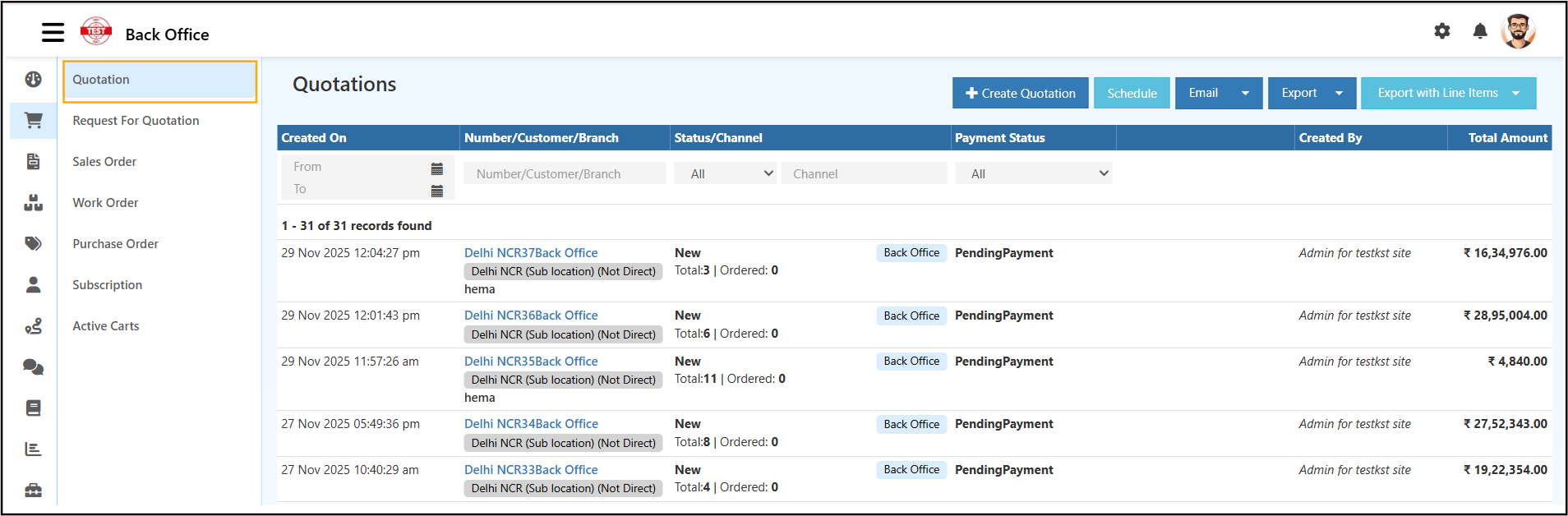
    Quotation List

    This page displays all quotations created across branches with complete tracking, actions, and reporting controls.


    Quotation List Columns – Detailed Explanation

    Column Description
    Created On Displays the quotation creation date and time. Useful for tracking daily, weekly, or monthly quotation activity.
    Number / Customer / Branch Shows the quotation number along with associated customer name and branch. Helps identify quotations quickly.
    Status / Channel Indicates quotation status (New, Pending Payment, Ordered) and the source channel (Back Office, POS, etc.).
    Payment Status Displays whether payment is pending, partial, or completed.
    Created By Identifies the user who created the quotation for accountability and audits.
    Total Amount Shows the final quotation value including tax and adjustments.

    Filters Section – Purpose & Usage

    Filters help narrow down quotation records efficiently.

    Available Filters

    • Created On – Filter by date range
    • Number / Customer / Branch – Search specific quotations
    • Status / Channel – View quotations by workflow stage
    • Payment Status – Track pending or completed payments

    Best Practice:
    Using date and status filters together improves follow-up efficiency and conversion tracking.


    Action Buttons Explained (Top Right)

    ➕ Create Quotation

    Initiates a new quotation creation workflow.


    Schedule – Automated Quotation Reports

    Schedule Report

    The Schedule option enables automated quotation reports to be sent via email at fixed intervals.

    Schedule Configuration Fields

    Field Description
    Select Data Size Choose data scope (All Data or minimum data).
    Schedule Type Frequency selection (Daily, Weekly, Monthly).
    Day / Time Defines when the report is generated and sent.
    Branch Selects the branch for which the report is generated.
    Previous Defines historical data range if required.
    Email ID Recipient email address for the scheduled report.
    Email Subject Subject line for report identification.
    Email Body Message content describing the report.

    Use Case:
    Automated weekly quotation summaries for sales managers and finance teams.


    Email – Send Quotation Report Instantly

    Send Email

    The Email option sends quotation data instantly without scheduling.

    Email Fields Explained

    • To Email ID – Recipient email address
    • Email Subject – Subject line of the email
    • Email Body – Description or notes related to the quotation report

    Use Case:
    Immediate sharing of quotation summaries with internal teams or management.


    Export – Download Quotation Data

    The Export option downloads quotation data for offline use.

    Supported Formats

    • Excel
    • CSV

    Benefits

    • Offline analysis
    • Accounting reconciliation
    • Audit and compliance documentation

    Export with Line Items – Detailed Product-Level Export

    The Export with Line Items option downloads quotations along with full product details.

    Included Data

    • Product names & SKUs
    • Quantity and unit
    • Price and discount
    • Line-wise totals

    Use Case:
    Detailed pricing analysis, margin review, and audit-level reporting.


    Business Benefits of These Actions

    • Automated reporting reduces manual effort
    • Email sharing improves communication speed
    • Export options support accounting and compliance
    • Line-item exports improve pricing transparency
    • Scheduling ensures consistent reporting discipline

    The Quotation module actions in O2VEND provide full control over quotation tracking, reporting, and communication while supporting scalable sales operations.

    Step 2: Create a Professional Business Quotation

    Select Create Quotation to open the quotation entry screen where customer details, products, pricing, and taxes are defined.

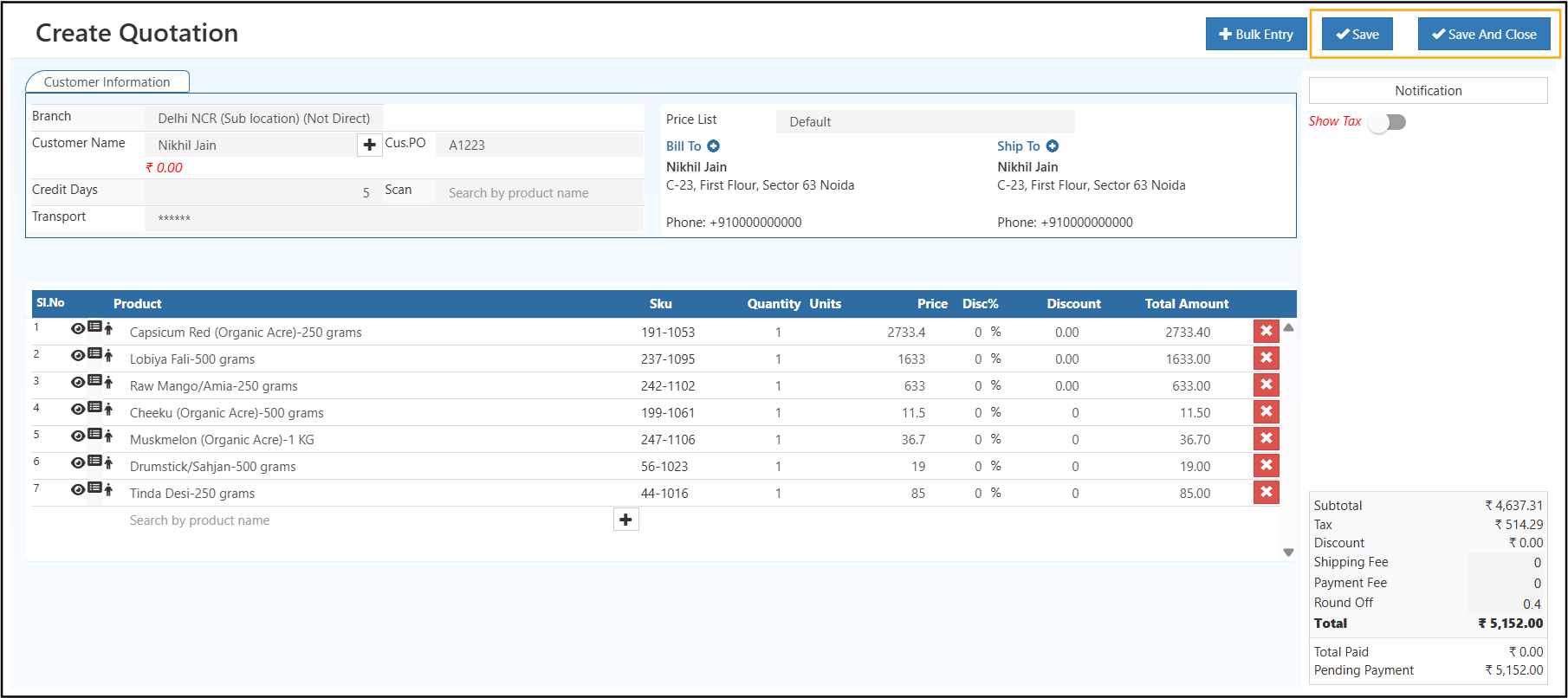
    Create Quotation

    This screen acts as the foundation for accurate pricing, approval workflows, and seamless conversion into Sales Orders.


    Customer Information Section

    The Customer Information section defines who the quotation is issued to and from which business location.


    Branch

    Specifies the branch issuing the quotation.

    Customer Name

    Identifies the customer receiving the quotation.

    • Auto-populates Bill To and Ship To addresses
    • Displays customer balance when applicable
    • Ensures customer-wise tracking and reporting

    Customer PO

    Captures the customer’s purchase reference number.

    • Useful for B2B documentation and audits
    • Enables easy reconciliation during invoicing and payment
    • Appears in downstream documents

    Credit Days

    Defines the allowed payment period.

    • Used to calculate due dates
    • Impacts receivables and outstanding reports
    • Helps enforce credit policies

    Transport

    Records the delivery or logistics method.

    • Supports internal coordination
    • Useful for dispatch planning and documentation
    • Can be referenced during order fulfillment

    Billing & Shipping Details

    These fields define financial and delivery destinations.

    Bill To

    Represents the legal billing address.

    • Used for invoices and tax documents
    • Should match statutory records

    Ship To

    Represents the delivery location.

    • Ensures correct fulfillment
    • Useful for multi-location customers

    Price List

    Controls how product prices are applied.

    • Ensures uniform pricing across sales channels
    • Automatically fetches product prices
    • Supports promotional or customer-specific pricing

    Product Details Section

    This section captures all line items included in the quotation.


    Product

    Selects the item being quoted.

    • Searchable product list
    • Ensures inventory and pricing linkage

    Product Action Icons – Quick Explanation

    Three action icons are available next to each product name in the quotation line items. These icons help manage product and sales details efficiently.


    👁️ View Product Details

    Opens the complete product information.

    • Displays product description and specifications
    • Helps confirm correct item selection

    🧩 View Product Attributes

    Shows product-specific attributes.

    • Displays size, variant, grade, or pack details
    • Ensures correct configuration for the quotation

    👤 Assign Sales Employee

    Links a sales representative to the product line.

    • Tracks sales responsibility
    • Useful for performance and commission reporting

    These icons improve quotation accuracy, product clarity, and sales accountability.

    SKU

    System-generated product identifier.

    • Ensures accurate tracking
    • Prevents duplication and mismatch

    Quantity & Units

    Defines the requested order quantity and unit of measure.

    • Affects pricing, stock planning, and fulfillment
    • Units must align with product configuration

    Price

    Fetched automatically from the selected price list.

    • Editable when permitted
    • Maintains pricing transparency

    Discount

    Supports negotiated pricing.

    • Percentage-based or fixed-value discount
    • Reflected instantly in line total
    • Useful for offers and sales negotiation

    Line Total

    Automatically calculated per product.

    • Includes quantity, price, and discount
    • Updates in real time

    Tax & Totals Summary

    This section provides a consolidated financial view.


    Subtotal

    Sum of all product line totals before tax.


    Tax

    Calculated based on:

    • Branch tax configuration
    • Product tax rules
    • Show Tax toggle

    Shipping Fee / Payment Fee

    Optional charges applied when required.

    • Used for logistics or payment gateway costs

    Round Off

    Adjusts minor decimal differences for accounting accuracy.


    Final Total

    Total quotation value displayed to the customer.

    • Used for approval and conversion
    • Appears in exports and emails

    Saving the Quotation

    Available actions:

    • Save
      Saves the quotation for further review or editing.

    • Save and Close
      Saves the quotation and exits the screen.

    • Bulk Entry
      Enables faster product addition for large quotations.


    Operational Benefits

    • Structured data entry reduces errors
    • Automatic calculations improve accuracy
    • Consistent pricing strengthens compliance
    • Faster quotation-to-order conversion

    The Create Quotation screen in O2VEND ensures professional quotation management with accuracy, consistency, and scalability.

    Step 3: Edit, Track & Convert Quotations

    Selecting a quotation from the list opens the quotation management screen, where status control, document handling, and order conversion are performed.

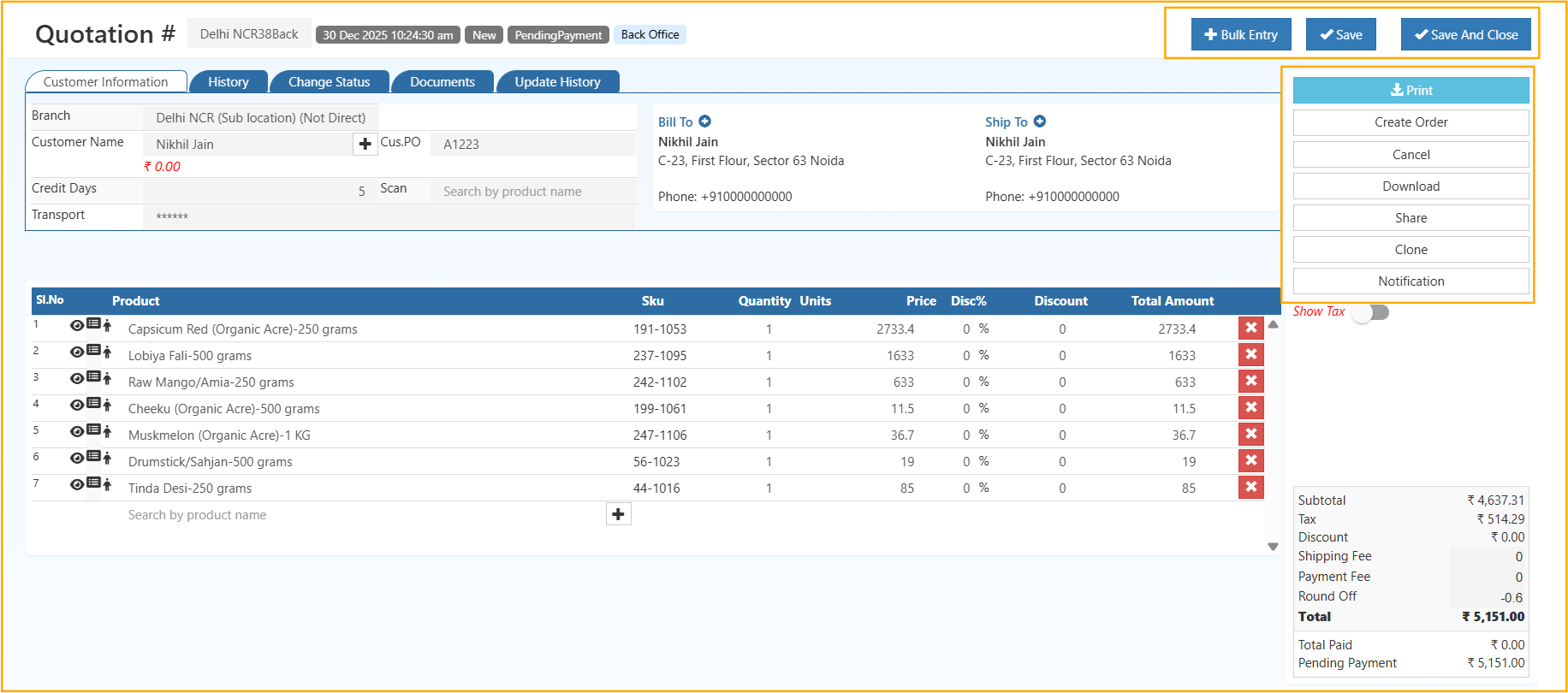
    Quotation Detail


    Quotation Header Section

    The header provides a quick snapshot of the quotation.

    Displayed Information

    • Quotation Number – Unique identifier for tracking
    • Date & Time – Creation timestamp
    • Status – Current stage (New, Pending Payment, Ordered, Cancelled)
    • Channel – Source of quotation (Back Office, POS, etc.)

    This information supports quick validation and operational clarity.


    Tabs Overview

    Customer Information

    • View and edit customer details
    • Update billing and shipping addresses
    • Ensures accuracy before order conversion

    History

    • Displays all actions performed on the quotation
    • Includes edits, status changes, and system updates

    Change Status

    • Updates the quotation lifecycle
    • Marks quotations as approved, cancelled, or progressed
    • Helps control sales workflow

    Documents

    • Upload and manage related files
    • Supports approval documents, customer confirmations, or references

    Update History

    • Maintains a complete audit trail
    • Useful for compliance and internal review

    Right-Side Action Panel – Detailed Explanation

    The action panel provides quick controls for quotation operations.

    🖨️ Print

    • Generates a formatted printable quotation
    • Used for offline sharing and internal review

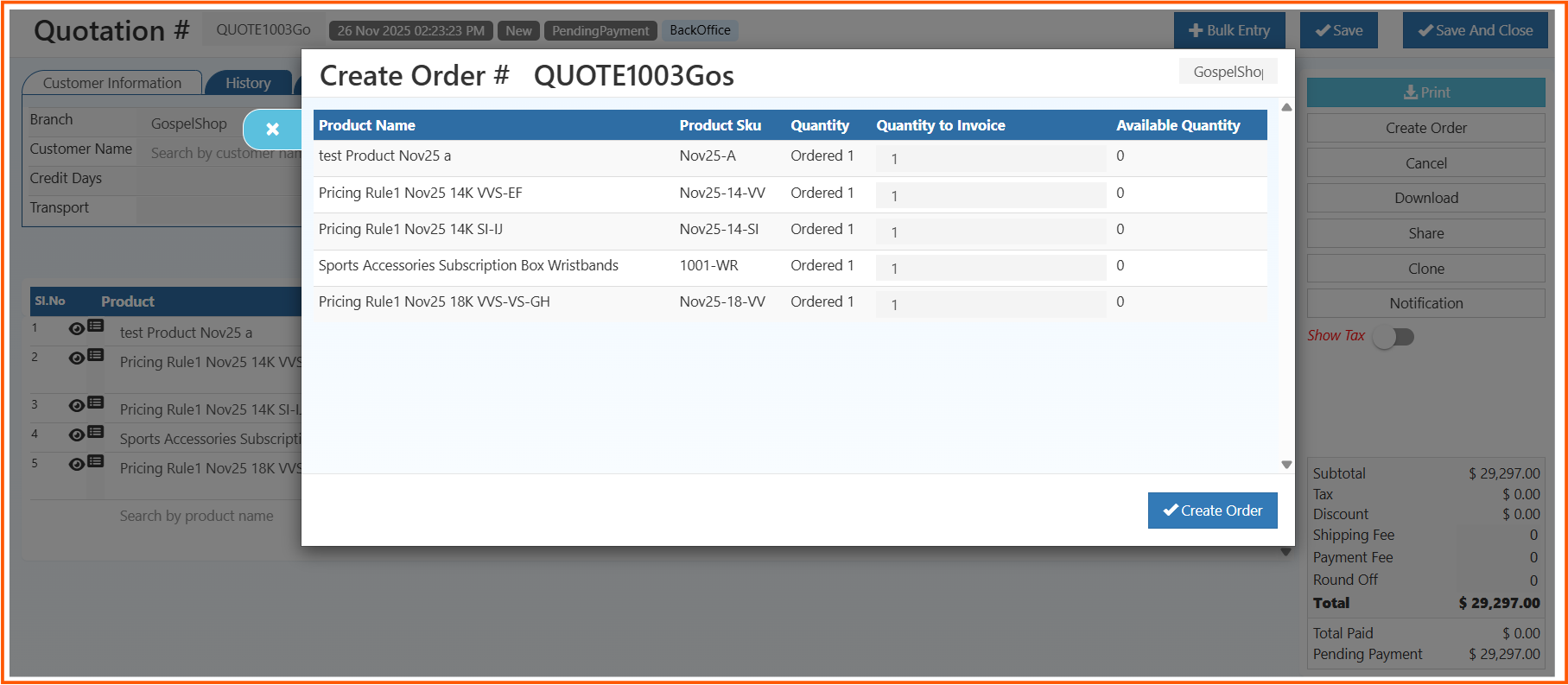
    🧾 Create Order

    • Converts the quotation directly into a Sales Order
    • Retains pricing, tax, and product details
    • Eliminates duplicate data entry

    ❌ Cancel

    • Cancels inactive or rejected quotations
    • Prevents accidental processing

    ⬇️ Download

    • Downloads the quotation as a PDF
    • Useful for records and audits

    🔗 Share

    • Shares the quotation externally
    • Used for customer communication and approvals

    📄 Clone

    • Creates a duplicate quotation
    • Saves time for repeat customers or similar orders

    🔔 Notification

    • Sends system notifications or alerts
    • Keeps stakeholders informed of quotation updates

    Business Best Practices

    • Review quotation status before conversion
    • Confirm pricing and tax accuracy
    • Use Clone for repeat business
    • Attach supporting documents when required
    • Maintain complete update history

    The Edit & Manage Quotation screen in O2VEND enables full lifecycle control with transparency, efficiency, and audit readiness.

    Frequently Asked Questions

    What is a business quotation?
    A quotation is a formal price proposal issued before confirming a sale.

    Can quotations be converted into orders?
    Yes, quotations can be directly converted into sales orders.

    How are taxes calculated in quotations?
    Taxes are calculated based on branch and configured tax rules.

    Can saved quotations be edited?
    Quotations can be edited until converted or cancelled.

    Related Topics

    • Request For Quotation
    • Purchase Order
    • Subscription
    • Credit NOte

    🔗 Related Sales Modules

    • Sales Order
    • Invoice
    • Ledger Report
    • Outstanding Report
    🚀 Start Quotation Management
    In this article
    Back to top _includes/footer.html
    © 2019–2026 Jeyan Technologies Private Limited • www.o2vend.com • Create your own store