Route Run Tracking | Initiate and Monitor Shipment Route Runs
Learn how to initiate and track shipment route runs in O2VEND Back Office. This tutorial explains the Shipment Route Runs list page, the Route Run initiation form, and the Route Run details screen used to monitor shipments and delivery progress.
What Is a Route Run?
A route run is a delivery execution record created for a selected route and date range.
In simple terms:
Route = Group of beats for delivery
Route Run = Delivery run created for that route
Route runs help businesses:
- plan deliveries route-wise
- group multiple beats under one run
- assign riders and shipping classes to route beats
- monitor shipments linked to the route
- track active delivery progress from one screen
Navigation Path
Back Office -> Beat & Route -> Route Runs
Shipment Route Runs List Page
The Shipment Route Runs page shows all initiated route runs in one place.

Each row typically displays:
- Code
- Status
- Start Date
- End Date
- Actions
From this page, you can:
- click + Initiate Route Run to create a new route run
- view the status of existing route runs
- open a route run using the View icon in the Actions column
The list page helps teams quickly identify active route runs and review route execution status.
How to Initiate a Route Run
- Open Back Office
- Go to Beat & Route
- Click Route Runs
- Click + Initiate Route Run
- Select the route
- Set the start date and end date
- Apply shipping class and rider details for the route beats
- Add or review beats under the route
- Click Initiate Route Run
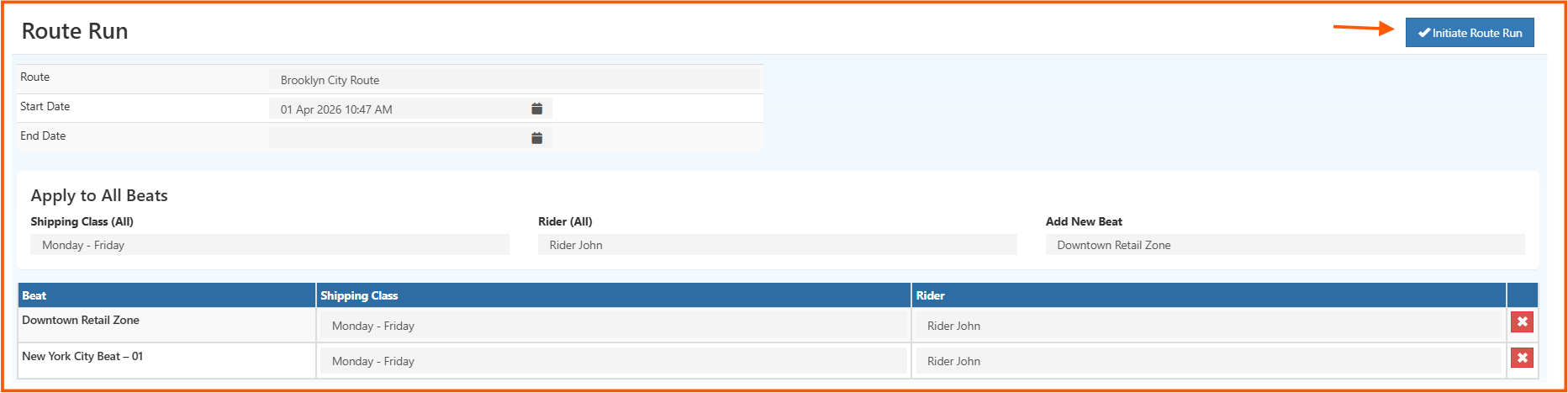
Route Run Initiation Form
The Route Run form is used to create a delivery run for a selected route.
Route
Select the route for which the run will be created.
This decides which beats are included in the route run.
Start Date
Enter the start date and time for the route run.
Use the calendar icon to select the required date.
End Date
Enter the end date if the route run covers a date range.
You can leave it empty until the route run is completed, depending on your workflow.
Apply to All Beats
This section is used to apply common delivery settings across all beats in the selected route.
It helps reduce manual work when the same setup is needed for every beat in the route.
Shipping Class (All)
Select the shipping class that should be applied to all beats.
This ensures delivery rules are assigned consistently.
Rider (All)
Select the rider who will handle the route run.
This helps assign delivery responsibility clearly.
Add New Beat
Use this option to add another beat to the route run if required.
Beat Table
The beat table shows the beats included in the selected route.
Each row typically includes:
- Beat
- Shipping Class
- Rider
- Remove Action
You can review or remove a beat before starting the route run.
Initiate Route Run
Click Initiate Route Run to create the route run.
Once saved, the system generates a route run code and opens the tracking screen.
Route Run Details Screen
After a route run is created, the details screen shows the main route run information at the top.
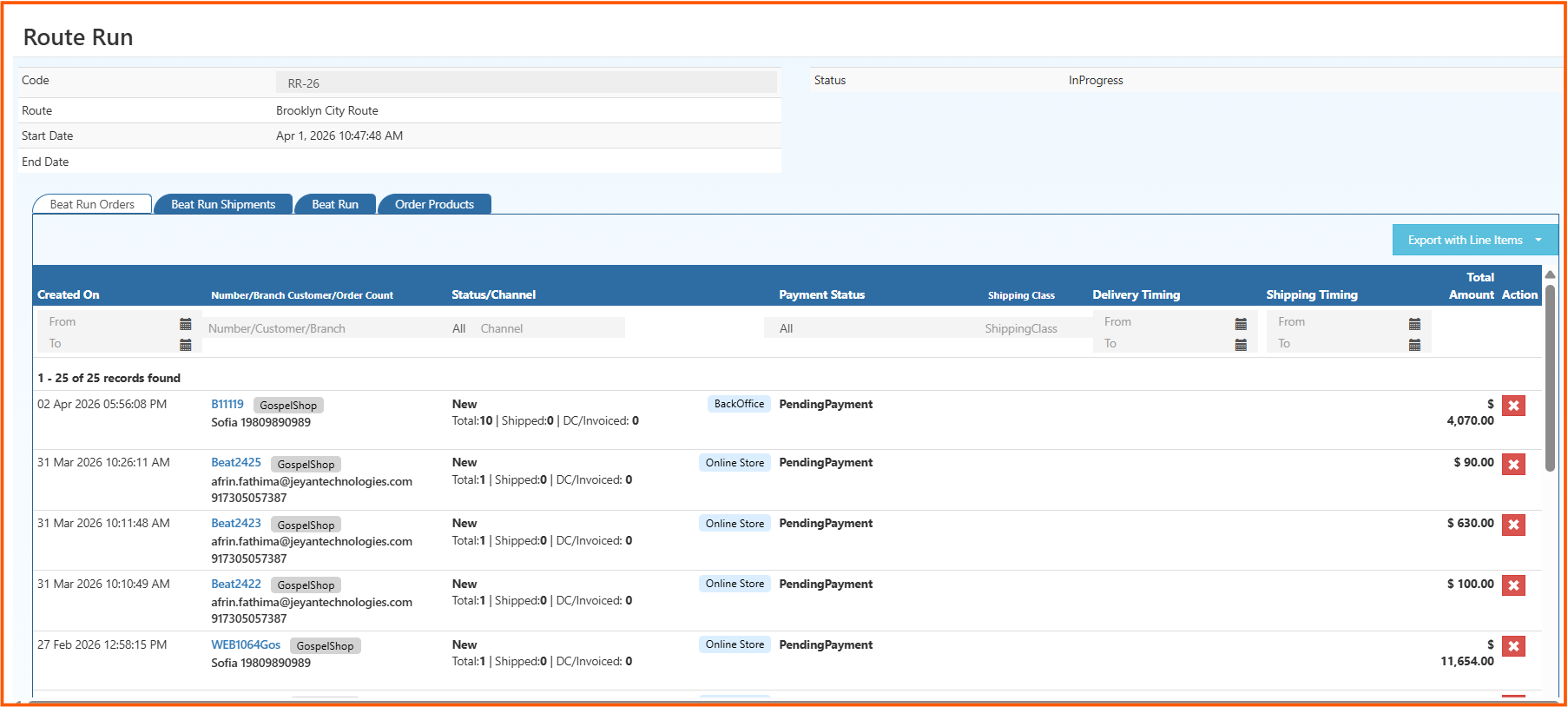
The summary section includes:
- Code
- Route
- Start Date
- End Date
- Status
This helps users quickly understand the current route run and its progress.
Tabs in Route Run Details
The Route Run details screen includes tabs that help manage delivery data under the selected route run.
Beat Run Orders
This tab helps users review the orders linked to the route run through the included beats.
Beat Run Shipments
This tab shows shipment records created under the route run.
It typically includes shipment-related details such as:
- created date
- customer or branch details
- order count
- status and channel
- payment status
- shipping class
- delivery timing
- shipping timing
- total amount
- row actions
This section is useful for tracking delivery progress at shipment level.
Beat Run
This tab helps users review the beat runs connected to the selected route run.
Order Products
This tab provides a product-level view of the items included in the route run.
Use it when you need to review the products linked to route shipments.
Search, Filter, and Export Options
From the shipment section of the route run screen, users can also:
- filter records by date and shipment details
- search by number, branch, or customer
- review payment and shipping-related statuses
- export records using Export with Line Items
These tools make route run tracking easier for both operations and reporting.
Why Route Run Tracking Matters
Using route runs in O2VEND helps with:
- route-wise delivery planning
- better control over multiple beats
- shipment-level tracking
- clear rider assignment
- improved delivery visibility
What Happens After Route Run Initiation?
After a route run is initiated, it can be used for:
- tracking active route deliveries
- reviewing shipment progress
- monitoring beat-wise execution
- checking product-level delivery details
- managing route delivery operations from one place