O2VEND Retail ERP
  • Getting Started
  • Ecommerce
  • Back Office
  • POS
  • Agent App
  • PIM
  • Communication
  • CMS
  • OMS
  • WMS
  • O2C
  • Accounting
  • Reports
  • Themes and Apps
Search Results for

    Show / Hide Table of Contents
    • Order Management System
    • Order Management Overview
    • Quotation Management
    • Request for Quotation
    • Work Order Management
    • Purchase Order Management
    • Subscription Orders
    • Active Carts Monitoring
    • Sales Beats Management
    • Sales Routes Management
    • Beat Runs Tracking
    • Route Run Tracking
    • Create Sales Order
    • Edit Sales Order
    • Goods Issue in Sales Order

    🗺️ Delivery Area Setup in O2VEND (Beat Creation Guide)

    Learn how delivery planning works in O2VEND using Beats, Routes, Beat Runs, and Route Runs.
    This guide explains the delivery structure and provides a step-by-step walkthrough to create a Beat (delivery area) in O2VEND Back Office.

    Beat Route Beat Run Route Run Overview

    This image shows how delivery areas, routes, and daily delivery runs are connected in O2VEND.


    🚚 Delivery Workflow Explained in 4 Steps

    • Beat → Delivery area (location-based grouping)
    • Route → Delivery path inside the beat
    • Beat Run → Planned delivery schedule
    • Route Run → Actual delivery execution

    This structured workflow improves delivery accuracy and planning.


    What This Guide Covers

    This page explains:

    • Meaning of a Beat (delivery area)
    • Location of Beat settings in O2VEND Back Office
    • Step-by-step process to create a Beat

    Related delivery guides:

    • 🔗 Route – Delivery Path Setup
    • 🔗 Beat Run – Daily Delivery Planning
    • 🔗 Route Run – Delivery Execution

    Create Beat in O2VEND Back Office – Delivery Area Setup Guide

    Learn what a Beat is and how to create a Beat in O2VEND Back Office. Step-by-step guide to assign delivery areas, customers, shipping classes, and riders.

    What is a Beat in O2VEND? Create & Manage Delivery Beats Easily

    Understand what a Beat means in O2VEND and how to create one in Back Office. Simple steps to assign customers, riders, and delivery areas.

    beat

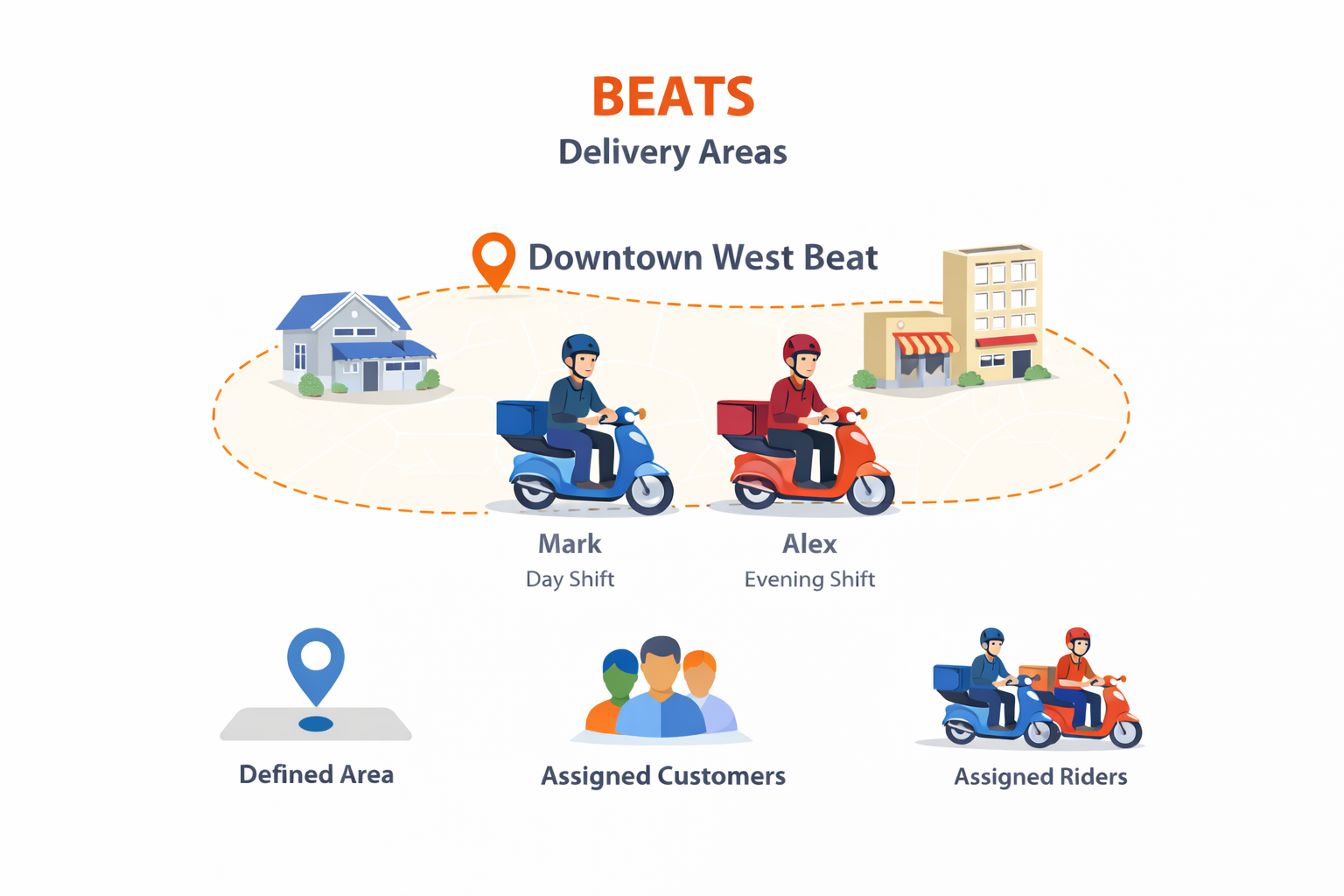
    A Beat is a defined delivery area used to organize customers and deliveries.

    In simple words:

    Beat = Area where deliveries happen

    Each beat contains:

    • A specific location / area
    • Assigned customer groups
    • Assigned delivery riders

    Using beats helps businesses deliver orders faster and more accurately.


    Why Beats Are Important

    • Organizes customers by location
    • Makes delivery planning easy
    • Avoids rider confusion
    • Improves on-time deliveries

    O2VEND Beat Setup – Back Office Navigation & Beat Creation

    Follow the O2VEND Back Office path to create a Beat. Learn beat navigation, field explanations, and delivery area setup in this easy guide.

    O2VEND Back Office → Beat & Route → Beat


    O2VEND Beat Management – Delivery Area, Riders & Customers

    ➕ Steps to Create a New Shipment Beat

    1. Open Beat & Route
    2. Select Beat
    3. Click Create Beat

    The Create Beat screen appears.

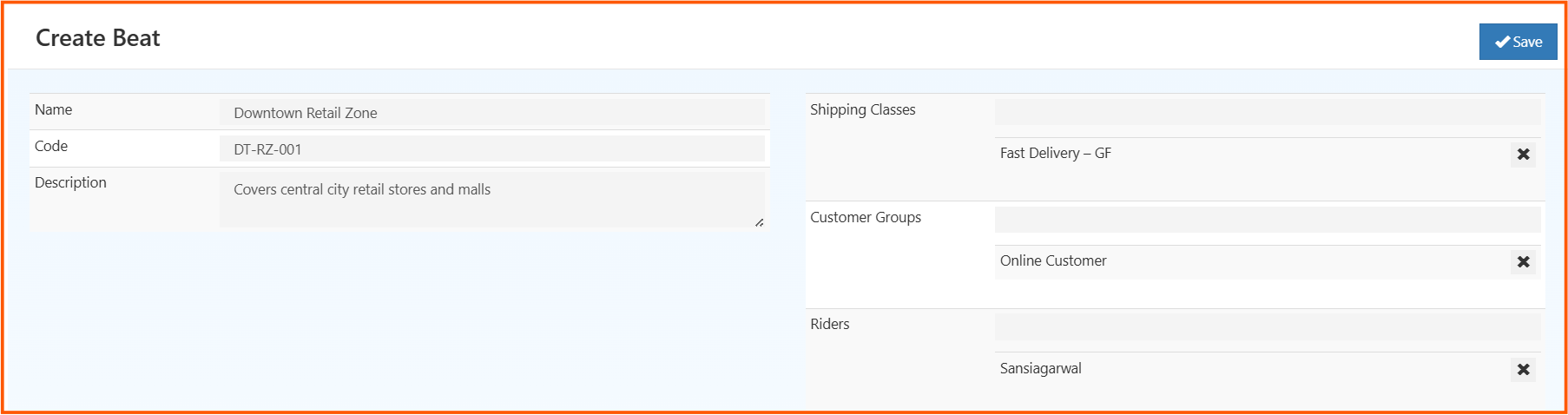
    Create Beat – Field-Level Explanation

    The Create Beat screen is used to define a delivery area and assign delivery rules, customers, and riders.
    Each field on this screen plays a role in accurate delivery planning and execution.


    🔹 Name

    Specifies the delivery area name.

    Example shown:
    Anna Nagar East

    🔹 Code

    A unique short code for identifying the beat internally.

    Example shown:
    ANE01 (Anna Nagar East)

    🔹 Description

    Provides additional details about the delivery area.

    Example shown:
    Covers Anna Nagar East residential area

    Helps teams clearly understand area coverage.


    Shipping Classes

    Defines the delivery type applicable to this beat.

    Example shown:
    Regular Delivery

    Ensures orders are routed correctly based on delivery rules.


    Customer Groups

    Assigns customers who belong to this delivery area.

    Example shown:
    Retail Customers – Anna Nagar

    Orders from these customers are automatically mapped to this beat.


    Riders

    Delivery personnel assigned to handle deliveries in this beat.

    Example shown:
    Ravi – Morning Shift

    Only assigned riders can deliver orders within this area.


    Save Action

    Click Save (top-right corner) to complete beat creation.

    Once saved, the beat becomes available for:

    • Route creation
    • Beat Run planning
    • Daily delivery assignment
    • Delivery tracking and reports

    What Happens After Beat Creation?

    Once a beat is created, it can be used to:

    • Create Routes
    • Plan Beat Runs
    • Assign daily deliveries
    • Track delivery execution
    In this article
    Back to top _includes/footer.html
    © 2019–2026 Jeyan Technologies Private Limited • www.o2vend.com • Create your own store