O2VEND Retail ERP
  • Getting Started
  • Ecommerce
  • Back Office
  • POS
  • Agent App
  • PIM
  • Communication
  • CMS
  • OMS
  • WMS
  • O2C
  • Accounting
  • Reports
  • Themes and Apps
Search Results for

    Show / Hide Table of Contents
    • Overview
    • Login
    • Sales Bill
      • Manage sales orders
      • How to add products to a customer's shopping cart
      • How to apply discounts/coupons
      • How to search products in Sales Screen
      • How to add products quickly to the Cart
      • How to add serial and lot number
      • How to Print sales bills in POS
    • Receive Payments (Receipts)
    • Delivery
    • Order Fulfillment List
    • Invoice Receipts
    • Manage Cash Register
    • Reprint
    • Dashboard
    • POS Offline
    • Stock Transfer

    Reprint

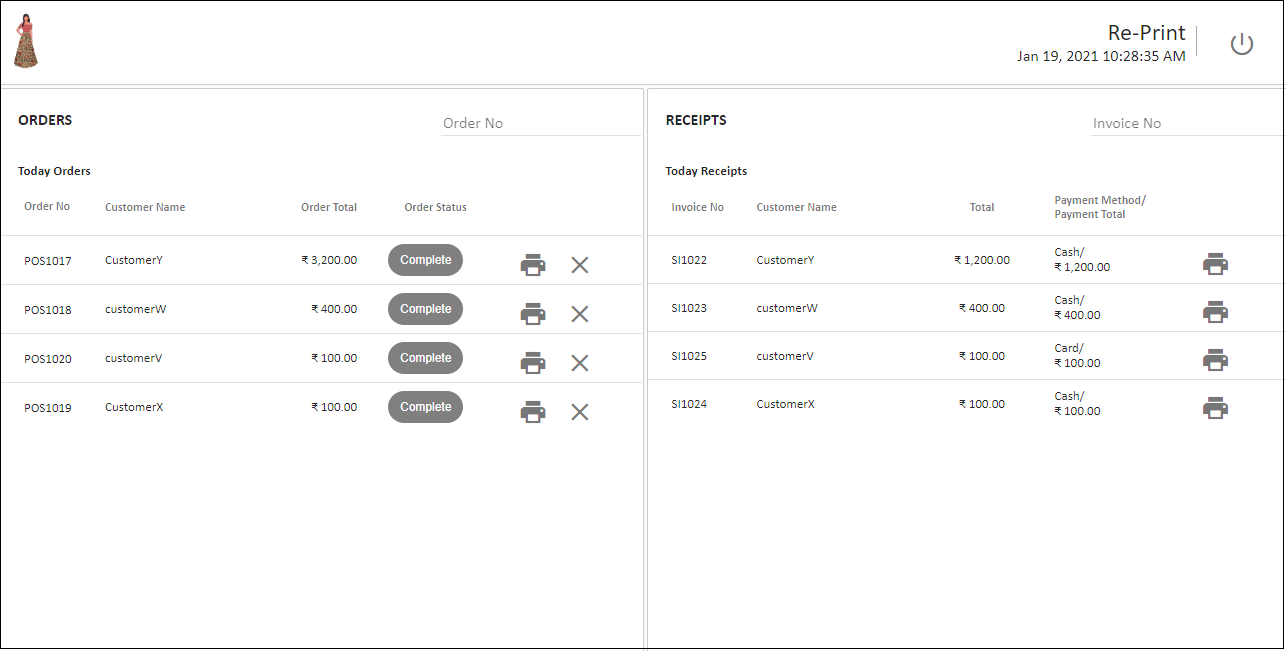
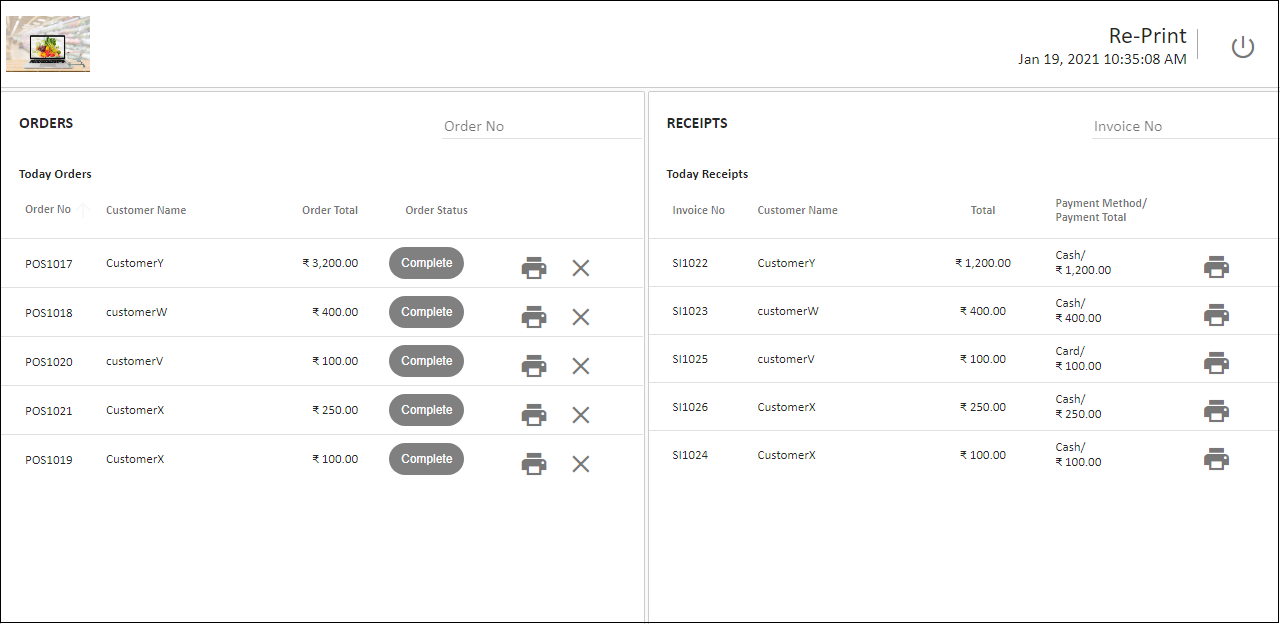
    Use the Reprint POS screen to reprint a copy of any previous Receipt. POS user can also able to see all orders on screen in POS and reprint pos receipt. This feature can be used to,

    1. Allow user to reprint sale order.
    2. Allow user to reprint pos receipts.
    3. Allow user to reprint a return orders.
    4. User can see print button with each pos order and print POS sales and receipt.
    5. User can also cancel the order by using the cancel symbol.
    6. After clicking on Orders will see below, in that can see print option for every orders, click on print to print a receipt.
    7. Below shows receipt of particular POS Order.
    Reprint
    Tip

    Create receipts from reprint screen only if the sales order status is New, click the arrow mark and follow below steps:

    How to reprint in pos

    1. Open Point of Sale
    2. After login, Click Reprint section.
    3. Search orders and invoices by their reference.
    4. For each order, we can see a button 'Print'. By clicking on this button, see the details of that particular order and invoice.
    5. The order and receipt is printed again.
    Tip

    Choose the Print Template Name - see Print Settings

    In this article
    Back to top _includes/footer.html
    © 2019–2026 Jeyan Technologies Private Limited • www.o2vend.com • Create your own store