Theme Configuration
Use Theme Configuration to control the visual style of your online store. This page helps you update colors, typography, layout settings, header and footer styles, product display options, buttons, animations, and other storefront design settings from one place.
Navigation Path
Back Office -> Online Store -> Open Editor -> Theme Configuration
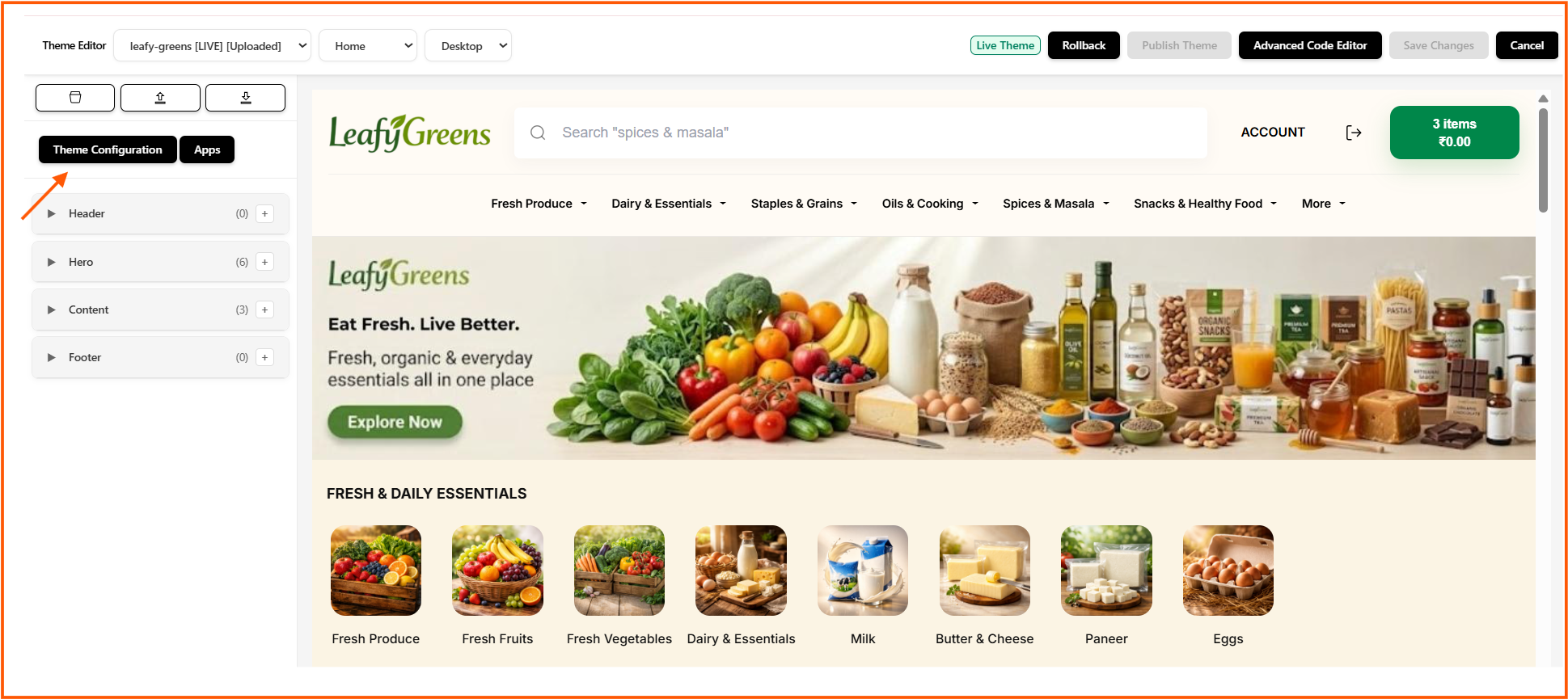
From the Theme Editor, click Theme Configuration to open the full theme settings panel.
What You Can Do in Theme Configuration
Theme Configuration helps you:
- manage the overall color scheme of the store
- update typography and spacing
- control header and footer appearance
- configure product display styles
- adjust cart, social media, and button settings
- save design changes without editing code
Theme Configuration Page Overview
The Theme Configuration page is used to manage theme settings in a structured way.
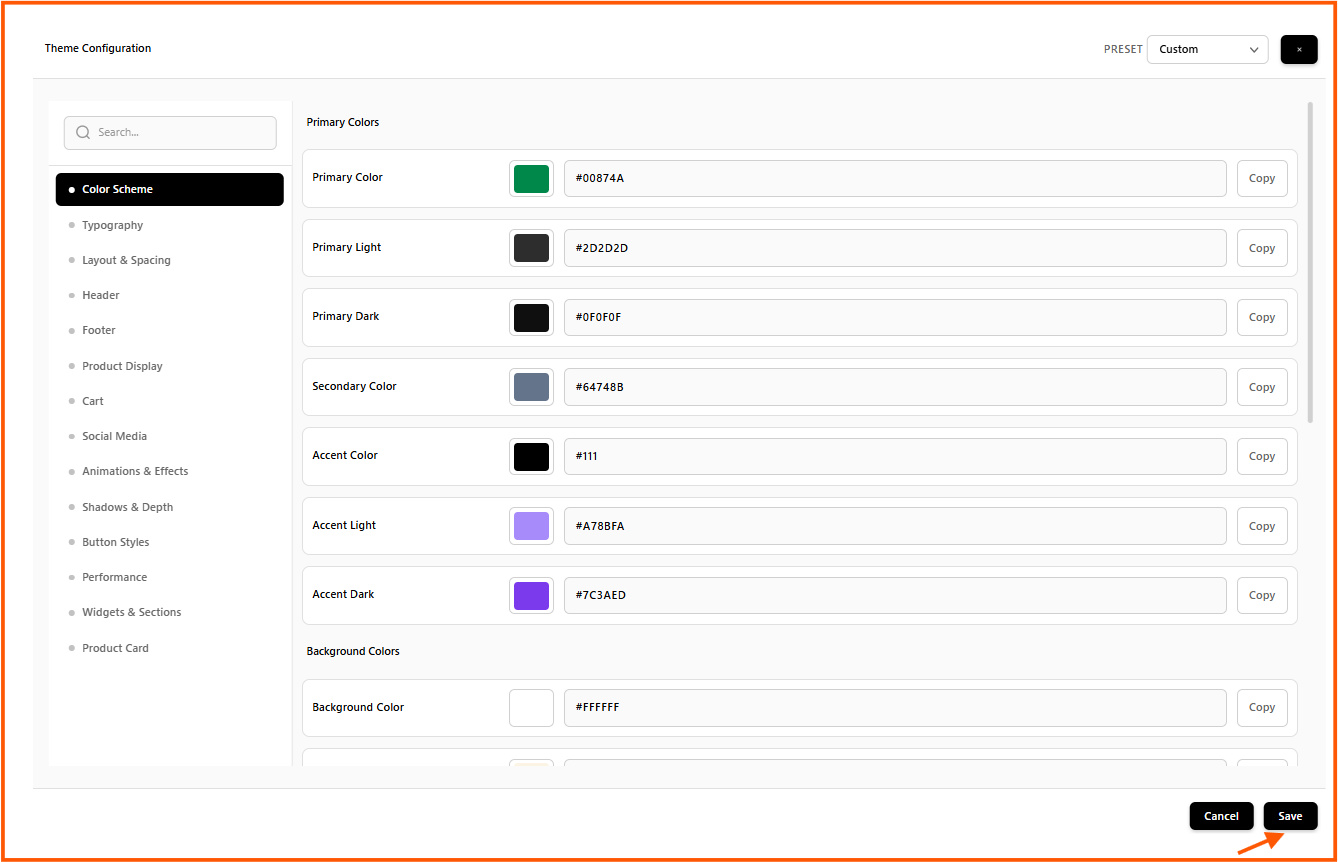
The page includes:
- a search box to quickly find settings
- a left-side menu with configuration sections
- a main settings area for the selected options
- a preset selector at the top
- Save and Cancel buttons at the bottom
Main Sections in Theme Configuration
The left panel shows multiple theme setting groups such as:
- Color Scheme
- Typography
- Layout & Spacing
- Header
- Footer
- Product Display
- Cart
- Social Media
- Animations & Effects
- Shadows & Depth
- Button Styles
- Performance
- Widgets & Sections
- Product Card
This layout makes it easy to update one part of the storefront without changing everything at once.
Color Scheme Settings
In the Color Scheme section, you can define the main colors used in your store design.
Common fields shown on the page include:
- Primary Color
- Primary Light
- Primary Dark
- Secondary Color
- Accent Color
- Accent Light
- Accent Dark
- Background Color
These settings help you maintain a consistent brand look across banners, buttons, text highlights, and page backgrounds.
Preset Option
The Preset dropdown lets you choose a theme preset such as Custom. This is useful when you want to apply an existing style setup or continue editing your own design settings.
How to Update Theme Configuration
- Open Back Office
- Go to Online Store
- Click Open Editor
- Select the required theme, page, and screen mode
- Click Theme Configuration
- Choose the section you want to edit
- Update the required settings
- Click Save to apply the changes
Save or Cancel Changes
After updating the settings:
- click Save to keep the new theme configuration
- click Cancel if you do not want to keep the current changes
This helps you review updates before making them final.
Benefits of Theme Configuration
Using Theme Configuration in O2VEND helps you:
- customize the store without coding
- keep the store design consistent
- update colors and layout from one place
- control important storefront sections easily
- improve the overall look and feel of the website